
1. Introduction
Thank you for choosing the Acer USB-C to HDMI Cable. This cable is designed to connect your USB-C enabled devices to HDMI displays, supporting high-resolution video and audio transmission. Please read this manual carefully to ensure proper setup and operation.
2. Safety Information
- Keep the cable away from water and moisture.
- Avoid exposing the cable to extreme temperatures.
- Do not attempt to disassemble or modify the cable.
- Ensure proper ventilation around connected devices.
- This cable is unidirectional; connect the USB-C end to the source device and the HDMI end to the display.
3. Package Contents
- 1 x Acer USB-C to HDMI Cable (6.6FT)
4. Product Overview
The Acer USB-C to HDMI Cable provides a direct connection from your USB-C device to an HDMI display. It supports resolutions up to 4K@60Hz, delivering clear images and smooth video. The cable features a braided cord, reinforced joints, and an aluminum case for enhanced durability and signal integrity.

Figure 1: Acer USB-C to HDMI Cable highlighting its durable design elements including the braided cord, reinforced joint, Velcro strap for organization, and aluminum casing for the connectors. The cable is unidirectional, connecting from USB-C to HDMI.

Figure 2: A visual comparison illustrating the robust build quality of the Acer cable, featuring over 49,999 bending tests and 48-braided cotton, contrasted with typical cables.
5. Setup
Before connecting, ensure your USB-C source device supports "DisplayPort Alternate Mode" (DP Alt Mode) for video output.
- Connect the USB-C end of the cable to the USB-C port on your laptop, tablet, or smartphone.
- Connect the HDMI end of the cable to the HDMI input port on your monitor, TV, or projector.
- Select the correct HDMI input source on your display device.
- Your device's display should automatically appear on the connected screen.
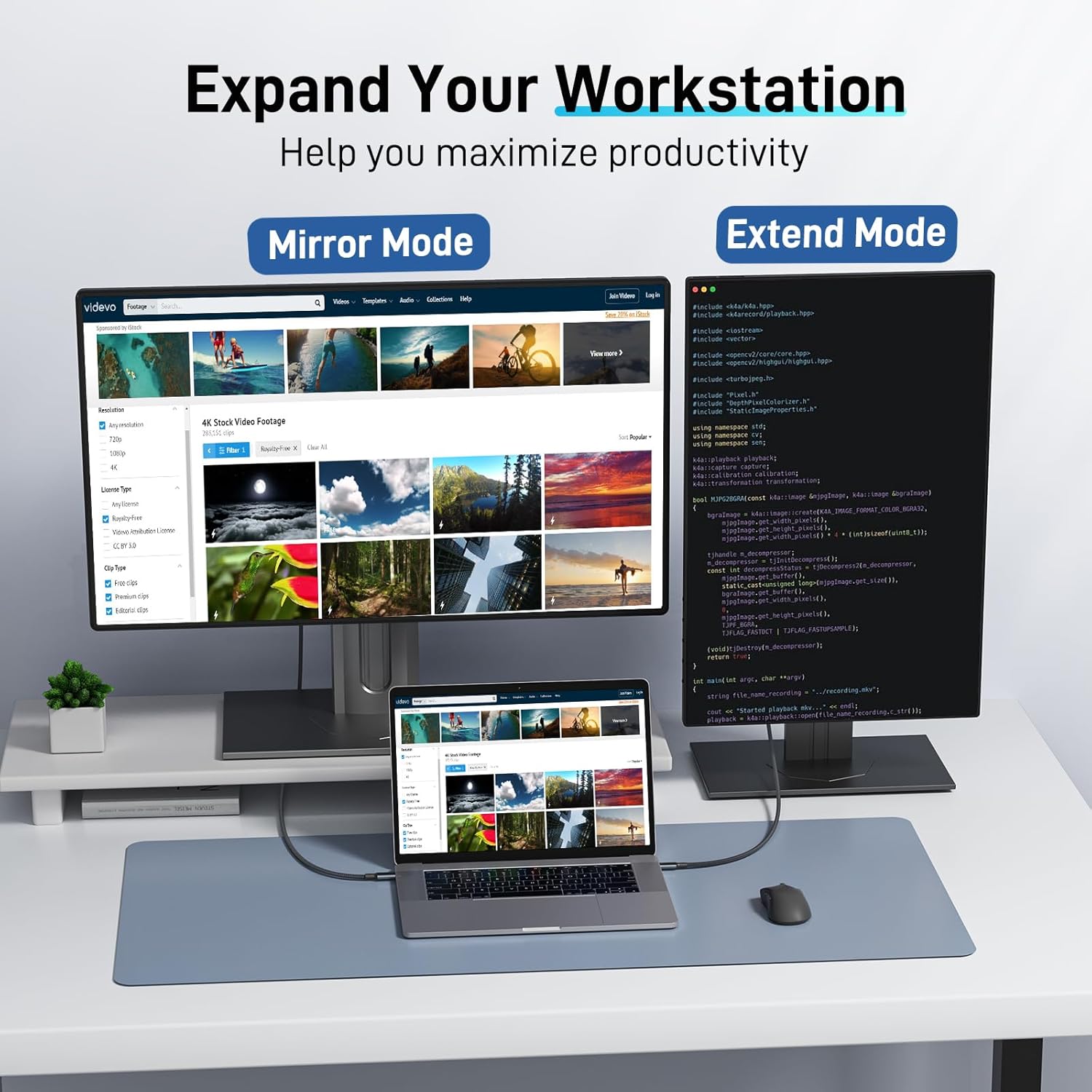
Figure 3: A laptop seamlessly streaming 4K@60Hz content to a television via the Acer USB-C to HDMI cable, demonstrating a direct connection from USB-C source to HDMI display.
6. Operating Instructions
Once connected, your operating system will typically detect the external display automatically. You can configure the display settings to suit your needs.
Display Modes:
- Mirror Mode: Duplicates your primary screen onto the external display. Ideal for presentations or sharing content.
- Extend Mode: Extends your desktop across both screens, allowing for increased workspace and multitasking.

Figure 4: A laptop connected to an external monitor, showcasing the ability to expand your workstation using either Mirror Mode (duplicating content) or Extend Mode (creating a larger desktop space).
Resolution and Audio:
- The cable supports up to 4K (3840x2160) resolution at 60Hz. It is backward compatible with 1440P@60Hz and 1080P@120Hz.
- Audio is transmitted synchronously with video. You may need to select the HDMI display as the audio output device in your operating system's sound settings.
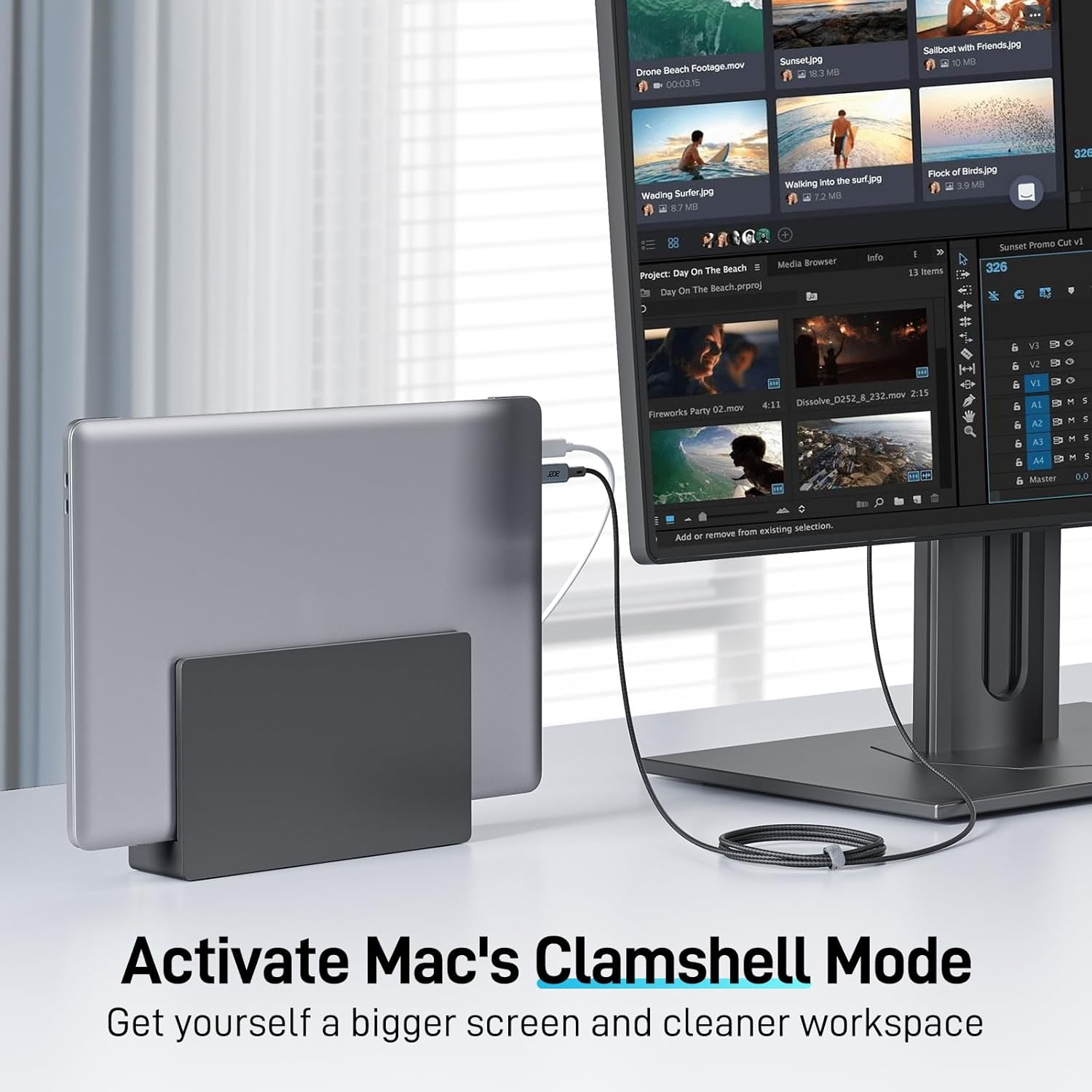
Figure 5: Demonstrating the cable's utility in a professional setting, a user presents content from a laptop to a large display, enhancing office efficiency for meetings and presentations.
7. Compatibility
This cable is designed for devices supporting DisplayPort Alternate Mode (DP Alt Mode) over USB-C.
Compatible Devices (Partial List):
- Laptops: MacBook Pro 2016-2024, MacBook Air 2018-2024, iMac (2017 and later), Surface Laptop 3 or later, Acer Laptop Series, Dell XPS 15/13, HP Chromebook x360.
- Phones: iPhone 16/15 Series, Samsung Galaxy S8 or later, Samsung Galaxy Note 8 or later.
- Tablets: All USB-C iPad models, Surface Pro 7 or later, Samsung Galaxy Tab S4 or later.
- Other: Mac Studio, Mac Pro, Monitors, TVs, Projectors.
Incompatible Devices (Partial List):
- Samsung A-Series, Galaxy Flip Series, Galaxy Tab A-Series.
- Nintendo Switch.
- Kindle, Fire Tablet, Go Pro, Fire TV.
- Xiaomi/Oneplus devices with USB-2.0 Port.
- iPhone/iPad with Lightning Port.
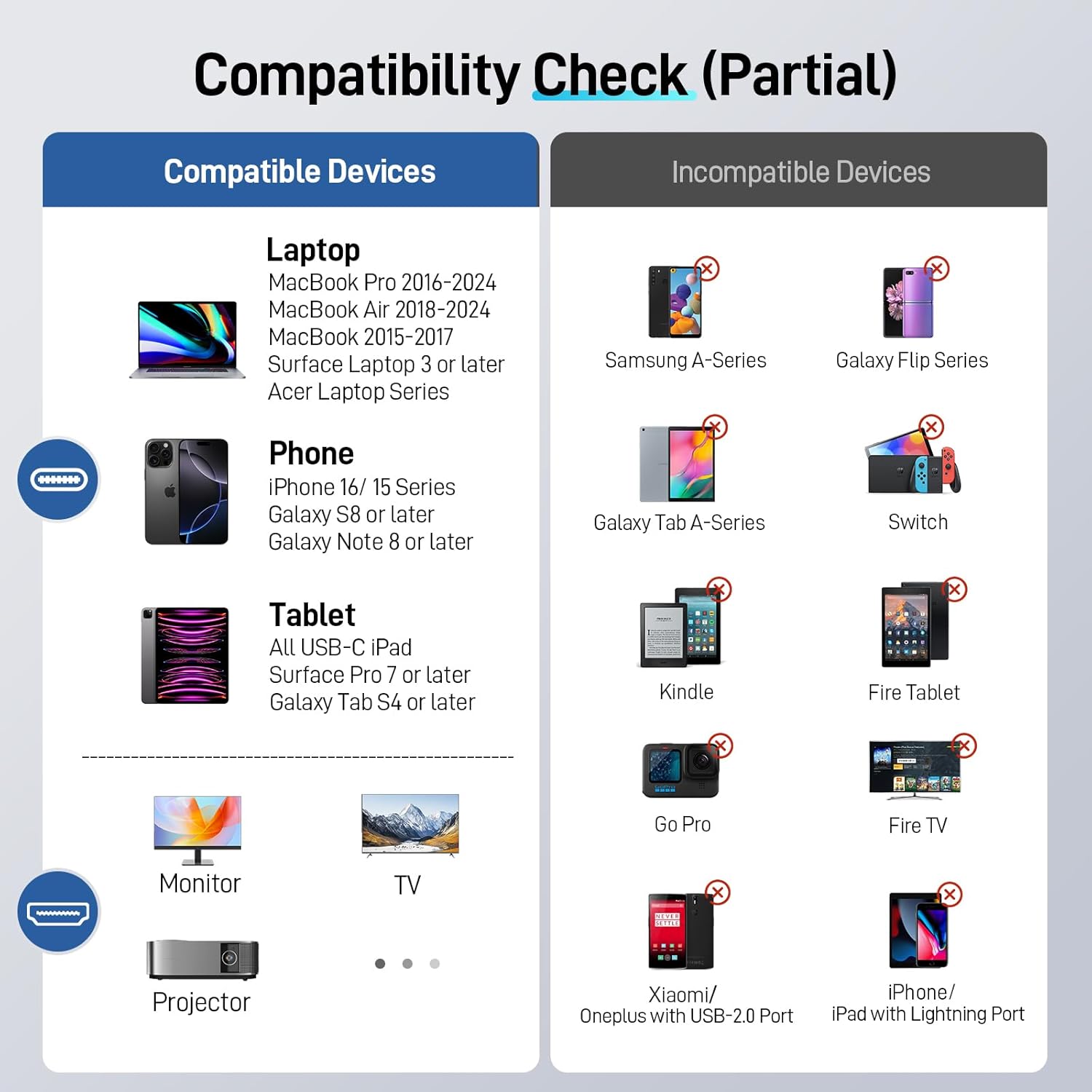
Figure 6: A detailed compatibility chart outlining various compatible devices such as laptops, phones, and tablets, alongside a list of incompatible devices, ensuring users can verify their hardware.
8. Maintenance
- Cleaning: Use a soft, dry cloth to clean the cable and connectors. Avoid liquid cleaners.
- Storage: Store the cable in a cool, dry place. Use the included Velcro strap to keep it neatly coiled and prevent tangling.
- Handling: Avoid sharp bends or excessive force when connecting or disconnecting the cable to prevent damage to the reinforced joints.
9. Troubleshooting
No Signal on Display:
- Ensure both ends of the cable are securely connected.
- Verify that your USB-C source device supports "DisplayPort Alternate Mode" (DP Alt Mode).
- Check if the display is set to the correct HDMI input source.
- Try connecting the cable to a different USB-C port on your device, if available.
- Test with another HDMI cable or display to rule out issues with those components.
Flickering or Unstable Display:
- Ensure the cable is not damaged.
- Reduce the display resolution or refresh rate in your device's display settings to see if the issue resolves.
- Update your device's graphics drivers.
No Audio:
- Check your device's sound settings and ensure the HDMI display is selected as the audio output.
- Verify the volume levels on both your source device and the display.
10. Specifications
| Feature | Description |
|---|---|
| Brand | Acer |
| Model | USB-C to HDMI Cable 6.6FT |
| Input | USB-C (Male) |
| Output | HDMI (Male) |
| Resolution Support | Up to 4K@60Hz (3840x2160), backward compatible with 1440P@60Hz, 1080P@120Hz |
| Cable Length | 6.6 Feet (2 meters) |
| Material | Aluminum (connector housing), Braided Cord |
| Special Features | Plug and Play, Unidirectional (USB-C to HDMI), HDCP Compliant |
| Compatible OS | Android, Windows, iOS, macOS |
11. Warranty and Support
This product comes with a standard manufacturer's warranty. For detailed warranty information or technical support, please refer to the official Acer website or contact Acer customer service. Please have your product model and ASIN (B0F26W1YRZ) available when seeking support.
