
SZBOX SZ-JP-N1 N150-02
SZBOX N1 N150 Mini PC User Manual
Model: SZ-JP-N1 N150-02
1. Introduction
Welcome to the user manual for your new SZBOX N1 N150 Mini PC. This guide provides essential information on setting up, operating, maintaining, and troubleshooting your device. Please read this manual thoroughly before using the product to ensure optimal performance and longevity.
Important Safety Information
- Do not expose the device to water, moisture, or extreme temperatures.
- Avoid placing the device near heat sources or in direct sunlight.
- Use only the provided power adapter to prevent damage.
- Do not attempt to disassemble or repair the device yourself. Contact support if issues arise.
- Ensure proper ventilation around the device during operation.
2. Product Overview
Key Features
- High Performance Processor: Equipped with an Intel Alder Lake N150 processor (up to 3.6GHz) for efficient multitasking and various applications.
- Stunning Visuals: Features Intel UHD Graphics (1GHz, 24EUs) with dual HDMI outputs supporting 4K@60Hz for a high-quality visual experience and dual-monitor setups.
- Expandable Storage: Comes with 8GB DDR4 RAM and 128GB M.2 NVMe SSD, with support for additional storage expansion.
- Compact Design: Ultra-mini size (115x113x40mm) makes it highly portable and space-saving.
- Efficient Cooling: Integrated smart silent fan ensures effective temperature control while minimizing noise.
- Connectivity: Includes 4x USB 3.2 ports, Gigabit LAN, WiFi, and Bluetooth for comprehensive connectivity.
Package Contents
Please check the package for the following items:
- 1 x SZBOX N1 N150 Mini PC
- 1 x Power Adapter (12V/3A)
- 1 x User Manual (this document)
Component Identification
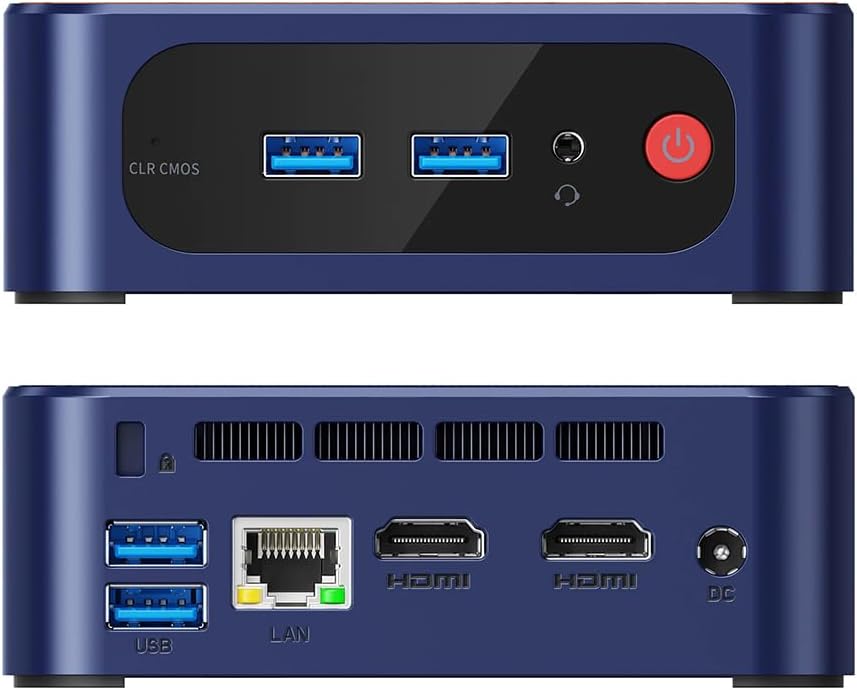
Figure 2.1: Front and Rear Ports Overview
This image displays the front and rear panels of the SZBOX N1 N150 Mini PC. The front features USB 3.2 ports, an audio jack, and the power button. The rear panel includes additional USB 3.2 ports, a LAN port, two HDMI ports, and the DC power input.
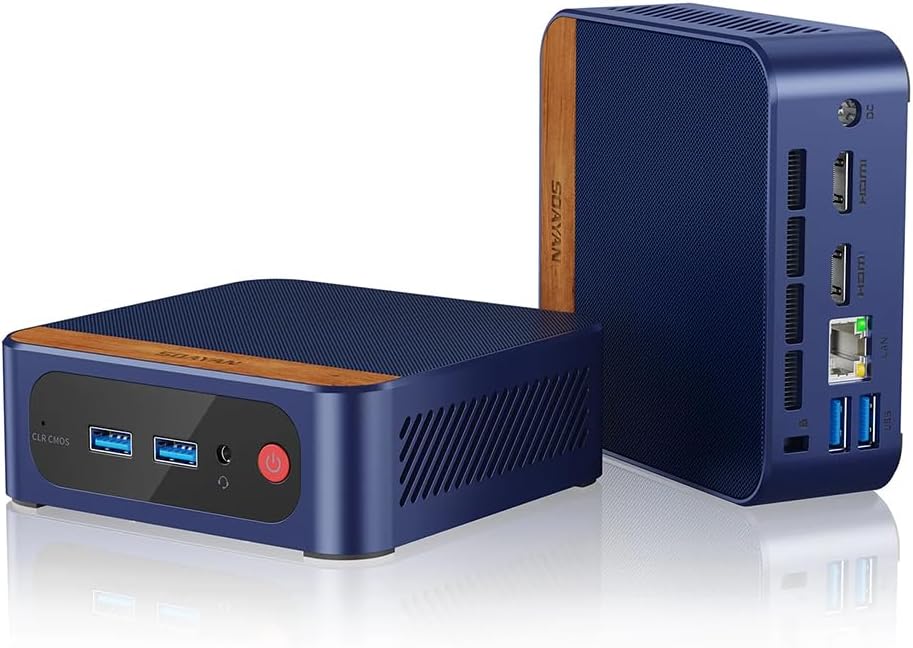
Figure 2.2: Angled Product View
This image provides an angled view of the SZBOX N1 N150 Mini PC, highlighting its compact size and the wooden accent on the top. It shows the front panel with USB ports and the power button, and a glimpse of the rear ports.
- Front Panel:
- CLR CMOS Button: Used to clear CMOS settings.
- USB 3.2 Ports (x2): For connecting peripherals like keyboards, mice, and USB drives.
- Audio Jack: For headphones or speakers.
- Power Button: To turn the PC on or off.
- Rear Panel:
- USB 3.2 Ports (x2): Additional ports for peripherals.
- LAN Port (RJ45): For wired network connection.
- HDMI Ports (x2): For connecting to displays.
- DC IN Port: For connecting the power adapter.
3. Setup
Follow these steps to set up your SZBOX N1 N150 Mini PC:
- Connect to a Display: Connect your monitor(s) to the HDMI ports on the rear panel of the Mini PC using HDMI cables. The device supports up to two displays simultaneously.
- Connect Peripherals: Plug your USB keyboard and mouse into any of the available USB 3.2 ports on the front or rear panel.
- Connect to Network (Optional):
- For wired connection: Connect an Ethernet cable from your router or modem to the LAN port on the rear panel.
- For wireless connection: The Mini PC has built-in WiFi. You can configure it after the initial boot.
- Connect Power: Connect the provided power adapter to the DC IN port on the rear panel, then plug the adapter into a power outlet.
- Power On: Press the power button on the front panel of the Mini PC. The device will boot up, and you should see the operating system loading on your display.
4. Operating Instructions
Turning On/Off
- To Turn On: Press the power button on the front panel.
- To Turn Off: Click the Start button in Windows, then select Power > Shut down. Alternatively, you can press and hold the power button for a few seconds to force a shutdown (not recommended for regular use).
Network Connection
- Wired LAN: If you connected an Ethernet cable during setup, your PC should automatically connect to the network.
- Wireless (Wi-Fi):
- In Windows, click the Wi-Fi icon in the taskbar.
- Select your desired Wi-Fi network from the list.
- Enter the network password if prompted and click Connect.
Using Multiple Displays
The SZBOX N1 N150 Mini PC supports connecting two monitors via its two HDMI ports. After connecting both monitors, Windows will automatically detect them. You can configure display settings (extend, duplicate, or show only on one) by right-clicking on the desktop and selecting "Display settings".
Storage Expansion
The Mini PC supports M.2 NVMe 2280 SSDs for storage expansion. If you wish to upgrade or add storage, please consult a qualified technician or refer to detailed upgrade guides available online for this model. Ensure the device is powered off and unplugged before attempting any internal modifications.
5. Maintenance
Cleaning
- Always power off and unplug the Mini PC before cleaning.
- Use a soft, dry, lint-free cloth to wipe the exterior surfaces.
- For stubborn marks, slightly dampen the cloth with water or a mild, non-abrasive cleaner.
- Use compressed air to gently clear dust from ventilation holes and ports. Do not insert objects into the vents.
Storage
- When not in use for extended periods, store the Mini PC in a cool, dry place away from direct sunlight and extreme temperatures.
- Keep the device in its original packaging or a protective case to prevent dust accumulation and physical damage.
Software Updates
Regularly update your Windows operating system and device drivers to ensure optimal performance, security, and compatibility. You can check for updates through Windows Update settings.
6. Troubleshooting
If you encounter issues with your Mini PC, refer to the following common problems and solutions:
| Problem | Possible Cause | Solution |
|---|---|---|
| No power / Device does not turn on. | Power adapter not connected properly; Power outlet issue; Faulty power adapter. | Ensure the power adapter is securely connected to both the PC and the power outlet. Try a different power outlet. Verify the power adapter is working. |
| No display on monitor. | HDMI cable loose or faulty; Incorrect input source on monitor; Monitor off or faulty. | Check HDMI cable connections. Ensure your monitor is set to the correct HDMI input. Test with a different monitor or HDMI cable if possible. |
| No network connection (wired/wireless). | Ethernet cable disconnected; Wi-Fi disabled; Router/modem issue; Driver issue. | For wired: Check Ethernet cable. For wireless: Ensure Wi-Fi is enabled in Windows settings. Restart your router/modem. Check device manager for network adapter drivers. |
| Slow performance. | Too many applications running; Low storage space; Outdated drivers; Overheating. | Close unnecessary applications. Free up disk space. Update Windows and drivers. Ensure proper ventilation and clean dust from vents. |
If the problem persists after trying these solutions, please contact SZBOX customer support for further assistance.
7. Specifications
| Component | Detail |
|---|---|
| Model | SZ-JP-N1 N150-02 |
| Processor | Intel Alder Lake N150 (4 Cores / 4 Threads, Max 3.6GHz) |
| Graphics | Intel UHD Graphics (1GHz, 24EUs) |
| RAM | 8GB DDR4 3200MHz |
| Storage | 128GB M.2 NVMe SSD (PCIe 3.0) |
| Operating System | Windows 11 Pro (Supports Windows 10) |
| Video Output | 2 x HDMI (4K @ 60Hz) |
| USB Ports | 4 x USB 3.2 |
| Network | 1 x RJ45 Gigabit LAN (1000M), Wi-Fi, Bluetooth |
| Dimensions (L x W x H) | 115 x 113 x 40 mm (4.53 x 4.45 x 1.57 inches) |
| Weight | 293 g (0.65 lbs) |
| Power Supply | 12V / 3A |
| Cooling | Smart Silent Fan |
8. Warranty and Support
SZBOX is committed to providing high-quality products and excellent customer service. Your purchase is just the beginning of our support. We offer technical guidance and assistance to help you resolve any usage issues you may encounter.
For technical support, warranty claims, or any other inquiries, please contact SZBOX customer service through the platform where you purchased the product or refer to the official SZBOX website for contact information.
Please retain your proof of purchase for warranty purposes.
Related documentsSZ-JP-N1 N150-02


Ask a question about this manual
Ask about setup, troubleshooting, compatibility, parts, safety, or missing instructions. Manuals+ will review the question and use this page’s manual context to help answer it.