
Introduction
The EZClicker Plus Big Button Universal TV Remote is designed for ease of use, featuring large, tactile buttons and a simplified layout. It is universally compatible with most major TV brands, making it an ideal solution for seniors, individuals with limited dexterity, or anyone seeking a straightforward television control experience. This manual provides comprehensive instructions for setup, operation, and maintenance.
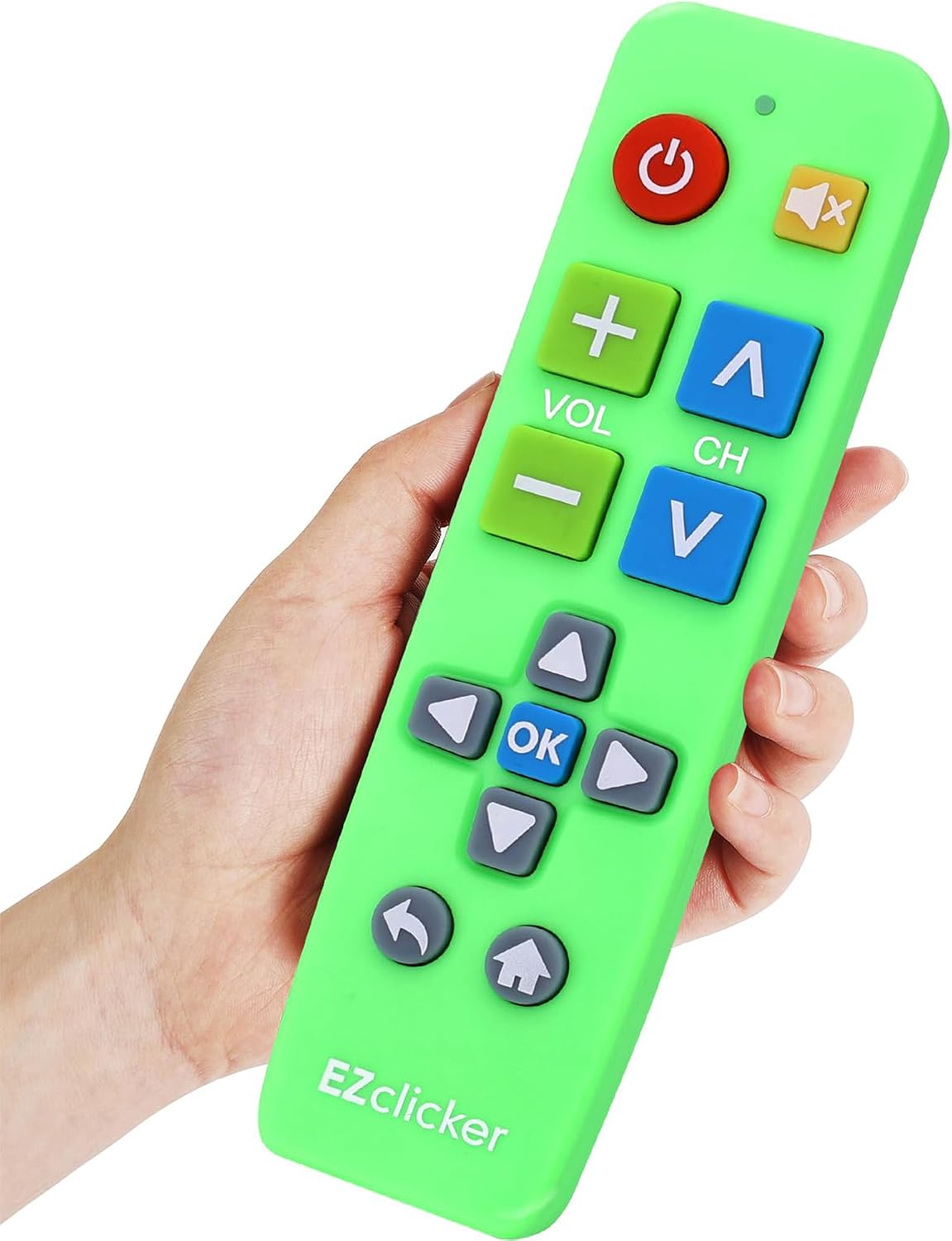
A close-up of the green EZClicker universal TV remote held in a hand, showcasing its large, clearly labeled buttons.
Product Features
- Easy Big Button Design: Includes specialized features like an extra-large enter button, big button universal controls, and tactile feedback, catering specifically to seniors and those with limited dexterity or vision.
- Universal TV Remote: Works with top TV brands. Note: Not for cable boxes, Fire Stick, Roku Stick, or DVD/Blu-ray players. Only for TVs.
- Easy to Program: Simple programming process by holding Mute & Volume+ buttons.
- Compact and Lightweight: Measures 7" x 2" x 1" (18.2cm x 4.9cm x 2.1cm), making it easy to handle and store.
- Battery Requirement: Requires 2x AAA Batteries (Not Included).
Product Overview: Button Layout
Familiarize yourself with the buttons on your EZClicker universal remote control.

A diagram of the EZClicker universal TV remote with labels pointing to each button and its function: Power, Mute, Volume +, -, Channel +, -, Up, Down, Left, Right, OK, Return, Menu.
- Power Button: Turns the TV on or off.
- Mute Button: Mutes or unmutes the TV sound.
- Volume + / - Buttons: Increases or decreases the TV volume.
- Channel + / - Buttons: Changes the TV channel up or down.
- Navigation (Up, Down, Left, Right) Buttons: Used to navigate menus and selections.
- OK Button: Confirms selections or enters menus.
- Return Button: Goes back to the previous screen or menu.
- Menu (Home) Button: Accesses the TV's main menu or smart TV home screen.
Compatibility
The EZClicker Universal TV Remote is designed to work with a wide range of major television brands. Please refer to the list below for compatible brands.

An image displaying a compatibility list for the EZClicker universal TV remote, showing various TV brands it works with, and explicitly stating it is not for cable boxes, Fire Stick, Roku Stick, or DVD/Blu-ray players.
Compatible TV Brands:
- Sharp
- Panasonic
- Element
- Sony
- Philips
- Insignia
- TCL
- RCA
- JVC
- Toshiba
- Samsung
- LG
- Westinghouse
- Sanyo
- Magnavox
IMPORTANT: This remote is NOT compatible with Cable Boxes, Fire Stick, Roku Stick, DVD/Blu-ray players, or TV Brands not listed above.
Setup and Programming
1. Battery Installation
- Locate the battery compartment on the back of the remote control.
- Slide open the battery cover.
- Insert two (2) AAA batteries (not included), ensuring the positive (+) and negative (-) terminals align correctly with the markings inside the compartment.
- Close the battery cover securely.

A four-panel image illustrating the programming steps for the EZClicker universal TV remote, including battery insertion, turning on the TV, and the button combination for programming.
2. Programming Your Remote
Follow these steps to program your EZClicker remote to your television:
- Ensure your TV is turned ON manually.
- Point the EZClicker remote control directly at your TV.
- Press and hold both the Mute button and the Volume+ button simultaneously.
- Continue holding these two buttons for up to 60 seconds. The red light on the remote will blink to indicate it is searching for the correct code.
- As soon as you see the volume level change on your TV screen, immediately release both the Mute and Volume+ buttons.
- To save the programming, press the Mute button one more time.
- Test the remote's functions (Power, Volume, Channel) to ensure it is correctly programmed.
If the remote does not work after the first attempt, repeat the programming steps. It may take a few tries to find the correct code for your TV.
Maintenance
- Cleaning: Use a soft, dry cloth to clean the remote. Do not use liquid cleaners or aerosols.
- Battery Replacement: Replace batteries when the remote's response becomes sluggish or stops working. Always replace both batteries at the same time with new AAA batteries.
- Storage: Store the remote in a cool, dry place away from direct sunlight and extreme temperatures.
- Avoid Drops: While durable, avoid dropping the remote to prevent internal damage.
Troubleshooting
| Problem | Possible Cause | Solution |
|---|---|---|
| Remote not working at all. | Dead or incorrectly inserted batteries. | Check battery polarity. Replace with fresh AAA batteries. |
| Remote not controlling the TV. | Remote not programmed correctly or TV is not compatible. | Repeat the programming steps carefully. Ensure your TV brand is on the compatibility list. |
| Only some buttons work. | Incomplete programming or specific TV model limitations. | Re-attempt programming. Some advanced functions may not be supported by all universal remotes or TV models. |
| Red light on remote doesn't blink during programming. | Batteries are low or remote is faulty. | Replace batteries. If issue persists, contact customer support. |
| Volume changes but other functions don't work after programming. | Programming not saved correctly. | Ensure you press the Mute button one last time to save the programming after the volume changes. |
Product Specifications
| Product Dimensions | 1.97 x 0.98 x 7.09 inches (4.9 cm x 2.1 cm x 18.2 cm) |
| Item Weight | 3.17 ounces (90 grams) |
| Model Number | 9431abd8-5298-402a-88fb-1bdf6e59f31c |
| Brand | EZClicker |
| Color | Green |
| Power Source | 2 x AAA Batteries (Not Included) |
| Compatible Devices | Television |
| Max Number of Supported Devices | 1 |

An image showing the dimensions of the EZClicker universal TV remote in both centimeters and inches, providing front, side, and back views.
Warranty Information
This product comes with a standard manufacturer's warranty. For specific details regarding warranty coverage, duration, and terms, please refer to the packaging or contact EZClicker customer support directly. Keep your proof of purchase for warranty claims.
Customer Support
If you encounter any issues or have questions not covered in this manual, please contact EZClicker customer support for assistance. For the most up-to-date contact information, please visit the official EZClicker website or refer to the product packaging.
We are committed to providing you with the best possible experience with your EZClicker Universal TV Remote.