
Introduction
This manual provides essential information for setting up, operating, maintaining, and troubleshooting your acer Aspire Lite Laptop. Please read this manual thoroughly before using your device to ensure optimal performance and longevity.

Image: The acer Aspire Lite Laptop, highlighting its powerful AMD Ryzen 7 5700U processor for efficient multitasking.
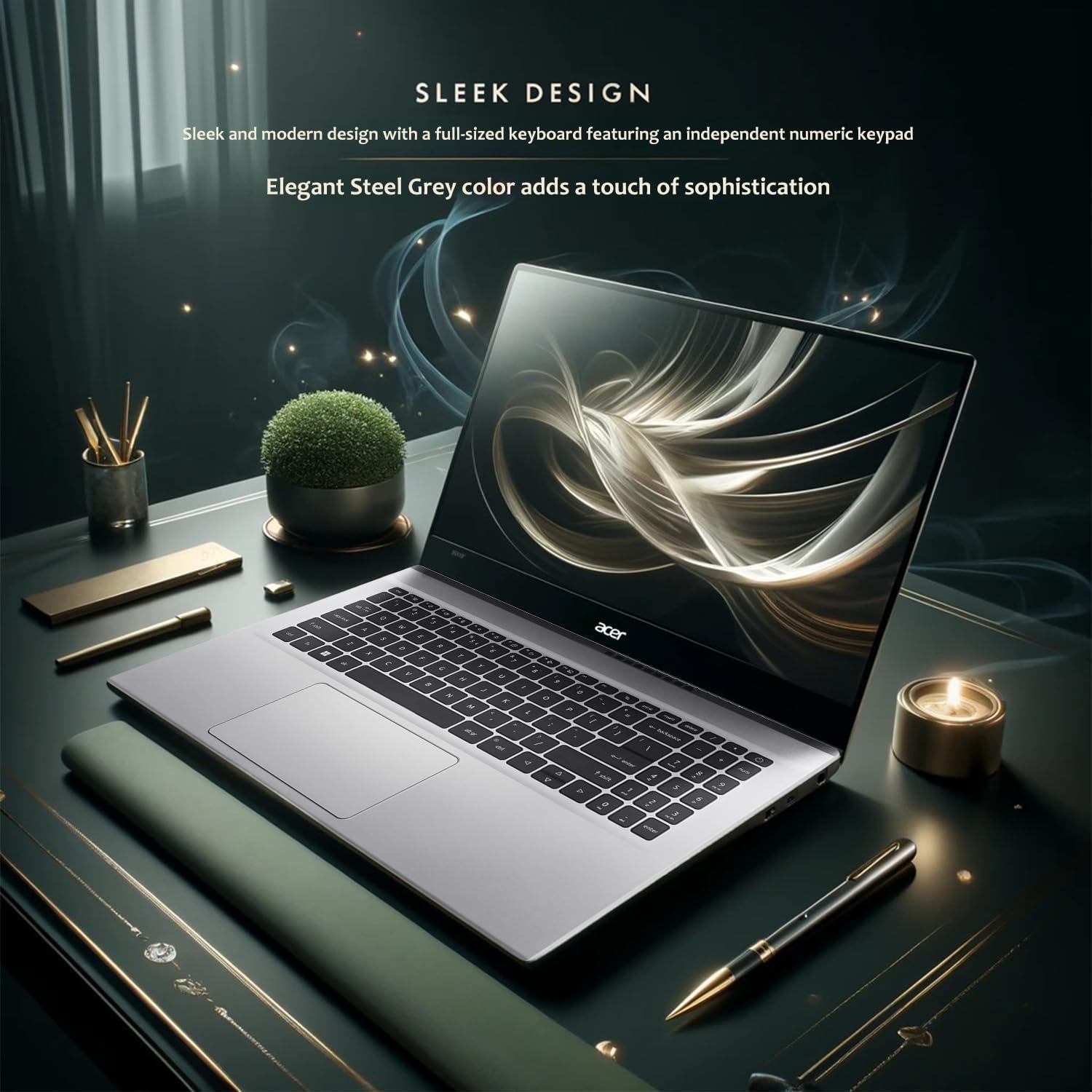
Image: The acer Aspire Lite Laptop showcasing its sleek design and elegant Steel Grey color, featuring a full-size keyboard with a numeric keypad.
Setup
1. Unpacking
Carefully remove the laptop and all accessories from the packaging. Ensure the following items are present:
- acer Aspire Lite Laptop
- AC Power Adapter
- Power Cord
- WOWPC Recovery USB
- Quick Start Guide (if included)
2. Initial Power On
- Connect the AC power adapter to the laptop's power port and then to a power outlet.
- Open the laptop lid.
- Press the power button, typically located on the keyboard deck, to turn on the laptop.
- Follow the on-screen instructions to complete the Windows 11 Pro setup process. This includes selecting your region, language, and setting up your user account.
3. Connecting Peripherals
Your laptop features various ports for connecting external devices:
- USB Ports: Connect USB devices such as mice, keyboards, external hard drives, or printers. The laptop includes 1x USB 3.2 Gen1 (Type A), 2x USB 2.0 (Type A), and 1x USB 3.2 Gen2 (Type C) ports.
- HDMI Port: Connect an external monitor or projector using an HDMI cable for extended display options.
- Headphone/Mic Combo Jack: Connect headphones, earbuds, or a headset with a 3.5mm audio jack.
- MicroSD Card Reader: Insert a MicroSD card to access stored data.

Image: Side view of the acer Aspire Lite Laptop, illustrating the placement of USB ports, HDMI port, and the power input for connecting external devices and charging.
Operating Instructions
1. Power Management
- Turning On: Press the power button.
- Shutting Down: Click the Start button, then Power, then Shut down.
- Restarting: Click the Start button, then Power, then Restart.
- Sleep Mode: Close the lid or click the Start button, then Power, then Sleep.
- Battery Life: The laptop offers up to 11 hours of battery life under optimal conditions. To maximize battery life, adjust screen brightness, close unused applications, and enable power-saving modes in Windows settings.

Image: The acer Aspire Lite Laptop in use, with a graphic indicating extended battery life, highlighting its capability for prolonged use on a single charge.
2. Display and Graphics
Your laptop features a 15.6" Full HD (1920 x 1080) Acer ComfyView LED-backlit display with AMD Radeon Graphics for clear visuals. Adjust display settings via Windows Display Settings (Right-click on desktop > Display settings).

Image: The acer Aspire Lite Laptop showcasing its 15.6" Full HD display with vibrant graphics, emphasizing the visual clarity provided by AMD Radeon Graphics.
3. Audio
The laptop is equipped with dual stereo speakers for high-fidelity audio. Adjust volume using the function keys (Fn + F8/F9/F10) or through the Windows sound settings.

Image: The acer Aspire Lite Laptop with a visual representation of sound waves emanating from the screen, illustrating its high-fidelity audio experience through dual stereo speakers.
4. Connectivity
- Wi-Fi: Connect to wireless networks using Wi-Fi 6. Access Wi-Fi settings via the taskbar network icon.
- Bluetooth: Pair Bluetooth devices such as headphones, speakers, or mice using Bluetooth 5.2. Manage Bluetooth devices in Windows Settings > Bluetooth & devices.
5. Using the WOWPC Recovery USB
The included WOWPC Recovery USB is designed to assist with system recovery and troubleshooting. Insert the USB into an available port and follow the on-screen prompts or refer to the recovery tool's specific instructions for use.
Maintenance
1. Cleaning
- Screen: Use a soft, lint-free cloth lightly dampened with water or a screen cleaner. Do not spray cleaner directly onto the screen.
- Keyboard and Chassis: Use a soft, dry cloth. For stubborn dirt, a slightly damp cloth can be used. Avoid harsh chemicals.
- Ports: Use compressed air to gently clear dust from ports.
2. Software Updates
Regularly update your Windows operating system and drivers to ensure optimal performance and security. Access Windows updates via Settings > Windows Update.
3. Storage Management
Periodically review and manage your 2TB PCIe NVMe M.2 Solid State Drive storage. Delete unnecessary files, uninstall unused applications, and consider cloud storage for large files to maintain system speed.
Troubleshooting
| Problem | Possible Cause | Solution |
|---|---|---|
| Laptop does not power on. | No power, discharged battery, faulty power adapter. | Ensure power adapter is securely connected and outlet is functional. Charge the battery for at least 30 minutes before attempting to power on. |
| Screen is blank or black. | Sleep mode, display settings, hardware issue. | Press any key or move the mouse to wake from sleep. Check if an external monitor is connected and set as primary display. Restart the laptop. |
| Wi-Fi connection issues. | Wi-Fi disabled, router issue, driver issue. | Ensure Wi-Fi is enabled in Windows settings. Restart your router. Update Wi-Fi drivers. |
| Slow performance. | Too many applications running, low storage, outdated drivers. | Close unnecessary applications. Free up disk space. Update Windows and drivers. |
| Audio not working. | Muted volume, incorrect audio output device, driver issue. | Check volume levels and ensure it's not muted. Select the correct audio output device in Windows sound settings. Update audio drivers. |
For further assistance, refer to the acer support website or contact customer service.
Specifications
| Feature | Detail |
|---|---|
| Model Name | Aspire |
| Processor | AMD Ryzen 7 5700U (up to 4.3 GHz, 8 Cores, 16 Threads) |
| Graphics | AMD Radeon Graphics (Integrated) |
| Operating System | Windows 11 Pro |
| Memory (RAM) | 64GB DDR4 SDRAM |
| Storage | 2TB PCIe NVMe M.2 Solid State Drive |
| Display | 15.6" FHD (1920 x 1080), high-brightness Acer ComfyView LED-backlit |
| Connectivity | WIFI 6, Bluetooth 5.2 |
| Ports | 1x USB 3.2 Gen1 (Type A), 2x USB 2.0 (Type A), 1x HDMI, 1x USB 3.2 Gen2 (Type C), 1x Headphone / Mic Combo Jack |
| Keyboard | US English, Non-Backlit Full Size Keyboard with Numeric Keypad |
| Webcam | HD Webcam (1280 x 720 resolution, 720p HD audio/video recording) |
| Audio | 2 x 1.5W Stereo Speakers |
| Battery Life | Up to 11 Hours (estimated) |
| Color | Steel Gray |
| Dimensions (L x W x H) | 14.19 x 9.42 x 0.78 inches |
| Weight | 3.92 lbs |
| Special Features | Anti Glare Coating, HD Audio, Memory Card Slot, Numeric Keypad, WOWPC Recovery USB |
Warranty & Support
Warranty Information
For detailed warranty information, please refer to the warranty card included with your product or visit the official acer support website. Warranty terms and conditions may vary by region.
Customer Support
If you encounter issues not covered in this manual or require further assistance, please contact acer customer support. You can find contact information and additional resources on the official acer website:


