
HP 9T5B1AA#ABE
HP 720 Multi-Device Rechargeable Wireless Keyboard User Manual
Model: 9T5B1AA#ABE
Introduction
Thank you for choosing the HP 720 Multi-Device Rechargeable Wireless Keyboard. This ultra-thin keyboard offers full functionality, including a numeric keypad, in a compact design. It features dual-mode connectivity (USB-A and Bluetooth), multi-device pairing, and 22 programmable buttons for enhanced productivity. This manual provides essential information for setting up, operating, maintaining, and troubleshooting your keyboard.
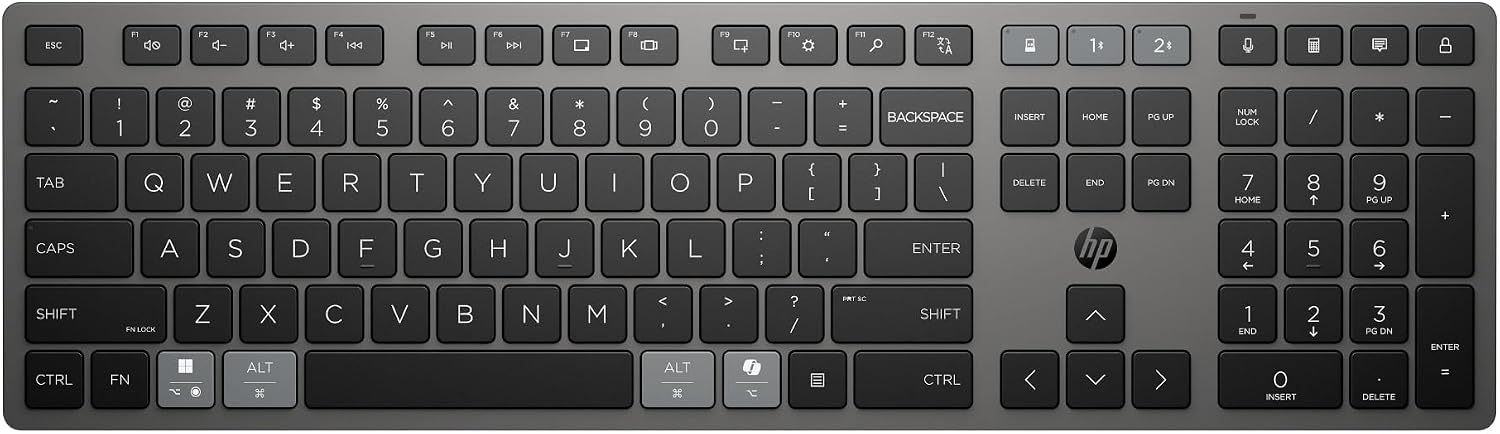
Image: Top-down view of the HP 720 Multi-Device Rechargeable Wireless Keyboard, showcasing its full layout including the numeric keypad.
Setup
1. Charging the Keyboard
Before first use, fully charge your keyboard. The HP 720 keyboard features a supercapacitor for ultra-fast charging.
- Connect the included USB-C cable to the USB-C charging port on the keyboard.
- Connect the other end of the USB-C cable to a powered USB-A port on your computer or a USB wall adapter.
- A 3-minute charge can provide up to 2 months of use. You can continue working while the keyboard charges.

Image: Close-up view of the keyboard's side, highlighting the USB-C charging port and the power on/off switch.
2. Powering On/Off
Locate the power switch on the side of the keyboard, near the USB-C port. Slide the switch to the 'On' position to power on the keyboard. Slide it to the 'Off' position when not in use to conserve battery.
3. Connecting to Devices (Dual Mode)
The HP 720 keyboard supports connection to up to three devices simultaneously via Bluetooth and one device via the HP Unifying Dongle (2.4 GHz, if included).
Bluetooth Connection (Up to 3 Devices)
- Ensure the keyboard is powered on.
- Press and hold one of the Bluetooth pairing keys (usually labeled '1', '2', or '3' with a Bluetooth icon) until the indicator light above the key starts blinking rapidly. This indicates pairing mode.
- On your device (computer, laptop, tablet), go to Bluetooth settings and search for new devices.
- Select "HP 720 Keyboard" from the list of available devices.
- Follow any on-screen prompts to complete the pairing process. The indicator light will turn solid when connected.
- Repeat for up to two more Bluetooth devices using the other Bluetooth pairing keys.
USB-A Dongle Connection (1 Device)
- Locate the HP Unifying Dongle (if included with your model).
- Insert the USB-A dongle into an available USB-A port on your computer.
- The keyboard should automatically connect to the dongle. No additional pairing is typically required.
Operating Instructions
1. Basic Keyboard Functions
The HP 720 keyboard functions like a standard full-size keyboard, providing all alphanumeric keys, function keys (F1-F12), a numeric keypad, and navigation keys.
2. Multi-Device Switching
To switch between connected devices:
- Press the corresponding Bluetooth pairing key (1, 2, or 3) for the device you wish to use.
- The keyboard will quickly switch its connection to the selected device.

Image: A user working with the HP 720 keyboard, illustrating the ease of switching between multiple connected devices.
3. Programmable Buttons
The keyboard features 22 programmable buttons, allowing you to customize functions to suit your specific needs and increase productivity. Refer to your operating system's settings or HP's official software (if available) for detailed instructions on programming these keys.

Image: A detailed view of the keyboard's layout, emphasizing the programmable keys and the dedicated Microsoft Copilot key.
4. Compatibility
The HP 720 keyboard is compatible with a wide range of operating systems:
- Windows 10
- Windows 11
- macOS
- ChromeOS
Maintenance
1. Cleaning
To clean your keyboard, use a soft, lint-free cloth slightly dampened with water or a mild cleaning solution. Avoid using harsh chemicals or abrasive materials. The keyboard is spill-resistant, but it is recommended to clean up any spills immediately.
2. Battery Care
To maximize the lifespan of your keyboard's supercapacitor, avoid prolonged exposure to extreme temperatures. Recharge the keyboard regularly, especially if it will be stored for an extended period.
Troubleshooting
Keyboard Not Connecting
- Check Power: Ensure the keyboard is powered on and has sufficient charge.
- Re-pair Bluetooth: If using Bluetooth, try unpairing the keyboard from your device's Bluetooth settings and then re-pairing it.
- Dongle Connection: If using the USB-A dongle, try plugging it into a different USB port on your computer.
- Device Compatibility: Verify that your device's operating system is compatible with the keyboard.
Keys Not Responding
- Recharge: The keyboard might have a low battery. Connect it to a power source.
- Clean: Check for any debris under the keys and clean as per the maintenance section.
- Restart: Try restarting your computer or device.
Lag or Disconnections
- Interference: Move the keyboard closer to your device and away from other wireless devices that might cause interference (e.g., Wi-Fi routers, cordless phones).
- Battery Level: Ensure the keyboard is adequately charged.
Specifications
| Feature | Specification |
|---|---|
| Model Number | 9T5B1AA#ABE |
| Dimensions (L x W x H) | 42 x 12 x 1.7 cm (16.5 x 4.7 x 0.67 inches) |
| Weight | 700 g (1.54 lbs) |
| Connectivity Technology | Bluetooth, USB-A (via dongle) |
| Power Source | Rechargeable Supercapacitor |
| Number of Programmable Buttons | 22 |
| Compatibility | Windows 10, Windows 11, macOS, ChromeOS |
| Special Features | Spill-resistant, Rechargeable, Multi-device support |
| Material | Plastic (contains at least 60% post-consumer recycled materials) |

Image: Technical diagram illustrating the precise dimensions of the HP 720 Multi-Device Rechargeable Wireless Keyboard.
Warranty and Support
For warranty information and technical support, please refer to the documentation included with your product or visit the official HP support website. Keep your purchase receipt for warranty claims.
What's in the Box:
- HP 720 Multi-Device Rechargeable Wireless Keyboard
- USB-C Charging Cable
Related documents9T5B1AA#ABE


Ask a question about this manual
Ask about setup, troubleshooting, compatibility, parts, safety, or missing instructions. Manuals+ will review the question and use this page’s manual context to help answer it.