
Product Overview
The TiMOVO Wallet Tracker Card is a compact, rechargeable item locator designed to help you find your personal belongings using the Apple Find My network. Its ultra-slim design allows it to fit easily into wallets, purses, luggage, and passport holders. This device is IP68 waterproof and features wireless charging for convenience.
Note: This device is compatible with iOS devices only. Android devices are not supported.
Key Features
- Apple Find My Integration: Seamlessly track and locate your card using the Apple Find My app on your iOS device.
- Ultra-Slim Design: Approximately 3mm thick, similar to two credit cards, ensuring it fits discreetly in your wallet or other items.
- Audible Alert: Use the "Play Sound" feature in the Find My app to trigger a 60-80dB ring, helping you locate nearby items.
- Lost Mode & Far Away Location: If out of Bluetooth range, the vast Apple Find My network assists in locating your item. You will receive notifications when any Apple device detects your tracker.
- Left-Behind Reminder: Get instant notifications on your iOS device if you leave your item behind and it disconnects from Bluetooth.
- Wireless Charging: Recharge the tracker wirelessly. A full charge can last up to 6 months.
- IP68 Waterproof: Designed to withstand water immersion, offering durability and peace of mind.
- Location Sharing: Share the location of your tracker with up to 5 family members or friends (requires iOS 17).
Setup and Pairing
- Power On: Press and hold the power button on the tracker for 3-5 seconds until you hear a beep, indicating it is powered on and ready for pairing.
- Enable Bluetooth & Network: Ensure Bluetooth is enabled on your iOS device. Also, ensure your cellular network or Wi-Fi (WLAN) is active.
- Open Find My App: On your iPhone or iPad, open the Apple Find My app.
- Add Item: Navigate to the "Items" tab and tap the "Add Item" button.
- Select Other Supported Item: Choose "Other Supported Item" from the options. The app will begin searching for nearby compatible devices.
- Connect: Once "Loshall Card" (or similar name) appears, tap "Connect."
- Name Your Item: Enter a name for your tracker (e.g., "Wallet," "Keys," "Purse") and choose an emoji to represent it.
- Finish Setup: Follow any remaining on-screen prompts to complete the pairing process.
Important: To connect the tracker to a new device, first remove it from the previously paired device within the Find My app.

Image: Step-by-step visual guide for pairing the TiMOVO Wallet Tracker Card with the Apple Find My app.
Operating Instructions
Locating Nearby Items (Play Sound)
When your tracker is within Bluetooth range of your iOS device, you can use the "Play Sound" feature in the Find My app to emit an audible alert from the tracker. This helps you quickly find items like your wallet if it's misplaced nearby.
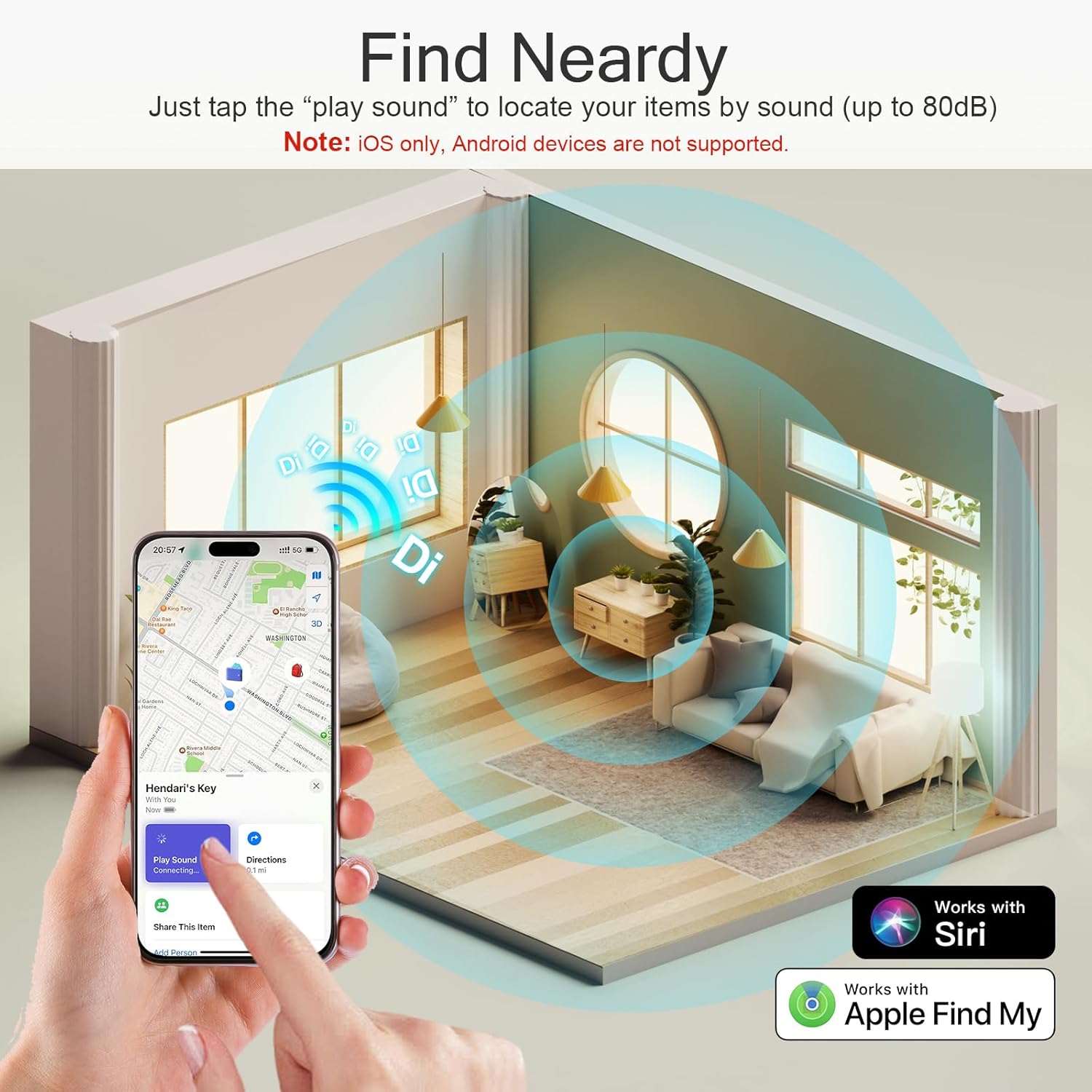
Image: An iPhone screen showing the "Play Sound" feature in the Find My app, with sound waves emanating from a wallet tracker in a room.
Locating Far Away Items (Lost Mode)
If your item is lost and out of Bluetooth range, activate "Lost Mode" in the Find My app. The Apple Find My network, composed of millions of Apple devices, will anonymously help locate your item. You will receive a notification when your tracker is detected, and its location will appear on the map.
You can also add contact information in Lost Mode, allowing anyone who finds your item to contact you directly.

Image: An iPhone displaying a map with directions to a lost wallet, indicating the tracker's location.
Left-Behind Reminders
The Find My app can send you an immediate notification if your tracker is separated from your iOS device and left behind. This notification will include the last known location of your item.
For privacy, location data and history are encrypted and anonymous within the Find My network and are not stored on the tracker itself.

Image: An iPhone showing a "Wallet left behind" notification, with a wallet and tracker on the ground in the background.
Location Sharing
With iOS 17 or later, you can share the location of your TiMOVO Wallet Tracker Card with up to 5 family members or friends. This allows multiple individuals to track the item's location, which can be useful for shared items or family coordination.

Image: An iPhone screen showing the "Share This Item" feature in the Find My app, with a child and adult in the background, implying shared tracking.
Charging Instructions
The TiMOVO Wallet Tracker Card supports wireless charging. A full charge can provide power for up to 6 months of use.
- Place the tracker card onto a compatible wireless charger.
- Ensure the side of the tracker with the lightning bolt icon is facing downward onto the charging pad.
- The wireless charger is not included with the product.

Image: The TiMOVO Wallet Tracker Card being wirelessly charged on a charging pad, with an inset showing the correct orientation.
Product Specifications
| Product Dimensions | 3.35 x 2.13 x 1.3 inches |
| Item Weight | 0.56 ounces |
| OS Compatibility | iOS (iPhone, iPad) - Android not supported |
| Connectivity | Bluetooth |
| Special Features | Bluetooth, Waterproof (IP68) |
| Battery | 1 Nonstandard Battery (rechargeable via wireless charging) |
| Manufacturer | TiMOVO |
Troubleshooting
- Tracker not pairing: Ensure the tracker is powered on (press and hold the power button until it beeps). Verify Bluetooth is enabled on your iOS device and that you are selecting "Other Supported Item" in the Find My app. If previously paired, ensure it's removed from the old device.
- Cannot hear the sound: The tracker's speaker volume is rated at 60-80dB. In noisy environments or if the tracker is deeply embedded in an item, the sound may be difficult to hear. Try moving to a quieter area or using the map feature for closer proximity.
- Wireless charging not working: Ensure the tracker is placed correctly on the wireless charging pad with the lightning bolt icon facing down. Confirm your wireless charger is functional and properly connected to power.
- Location not updating: Ensure your iOS device has a stable internet connection (cellular or Wi-Fi) and that Location Services are enabled for the Find My app. The Find My network relies on other Apple devices to update location when your tracker is out of your device's Bluetooth range.
- Left-behind reminders not working: Check that notifications are enabled for the Find My app in your iOS device settings. Ensure the tracker is properly paired and within Bluetooth range initially.
Warranty and Support
For warranty information, product support, or to contact customer service, please refer to the documentation included in your product packaging or visit the official TiMOVO website. Keep your proof of purchase for warranty claims.
You can also visit the TiMOVO Store on Amazon for additional product information and support resources.