
CHONCHOW US221
CHONCHOW Wireless Gaming Keyboard US221 Instruction Manual
Model: US221
Introduction
This manual provides detailed instructions for the setup, operation, maintenance, and troubleshooting of your CHONCHOW Wireless Gaming Keyboard, Model US221. Please read this manual thoroughly before using the product to ensure optimal performance and longevity.
Package Contents
- CHONCHOW Wireless Gaming Keyboard (Model US221)
- USB Receiver
- USB Charging Cable
- User Manual (this document)
Setup Instructions
1. Charging the Keyboard
The keyboard is equipped with a 2500mAh built-in rechargeable battery. Before initial use, or if the battery is low, connect the provided USB charging cable to the keyboard's charging port and to a 5V2A charging block (not included) or a computer's USB port. A full charge ensures extended usage.
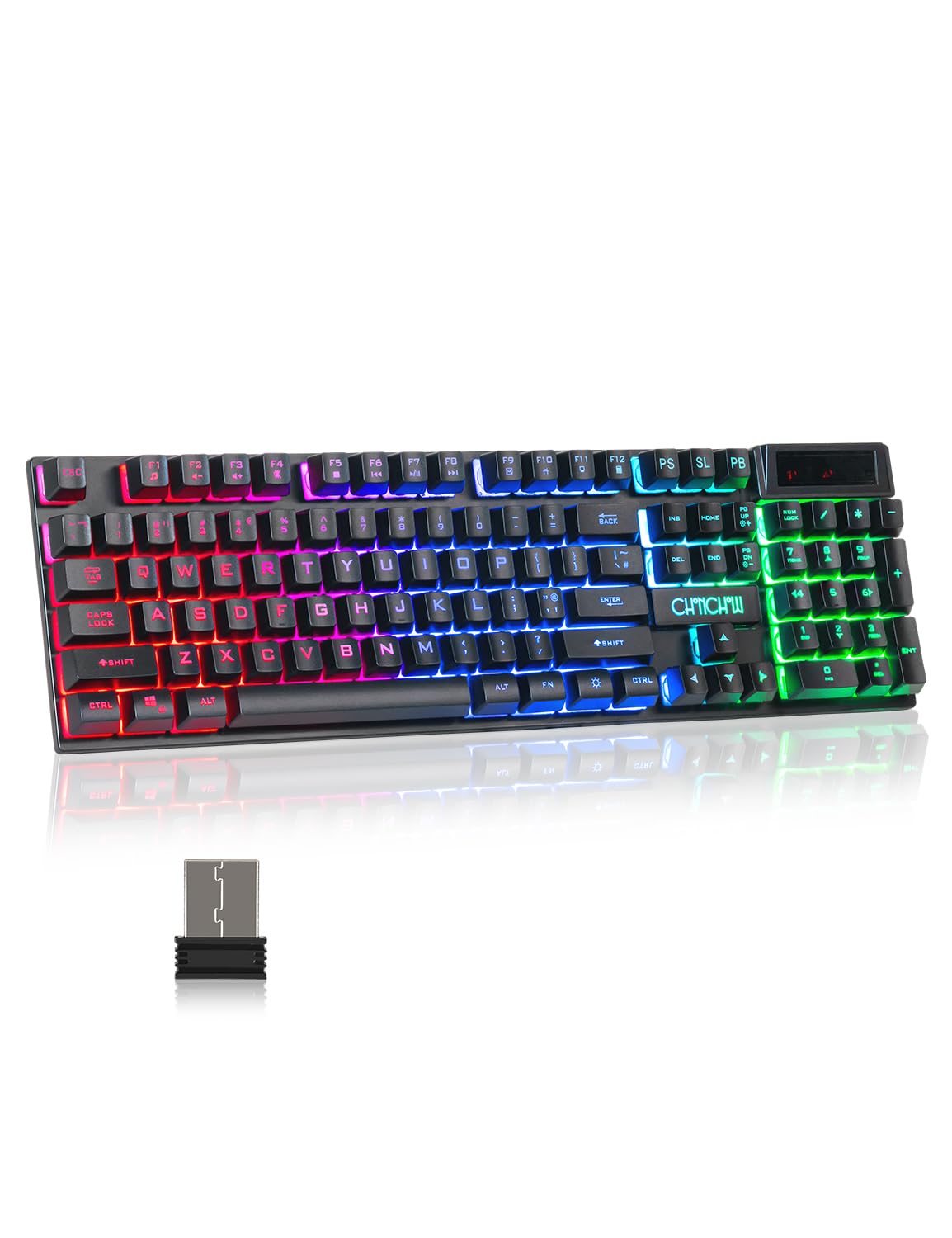 Image: The keyboard features a 2500mAh built-in battery for long-lasting wireless operation and supports a wireless range of up to 10 meters.
2. Connecting the USB Receiver
The CHONCHOW US221 keyboard uses a 2.4GHz wireless connection. To establish a connection:
- Locate the USB receiver, typically stored in a compartment on the keyboard or included separately in the package.
- Plug the USB receiver into an available USB port on your computer, PC, PS4, PS5, Xbox One, or laptop.
- The keyboard should connect automatically. No additional drivers are required for installation.
The wireless connection provides an effective distance of 10 meters (approximately 33 feet) with no noticeable delay, offering a response speed comparable to a wired keyboard.
 Image: This illustration highlights the keyboard's 2.4GHz wireless technology, providing a stable connection up to 10 meters (33 feet) via a USB receiver.
Operating Instructions
1. Backlight Control
The keyboard features rainbow LED backlighting with adjustable brightness and breathing speed. All keys are backlit, allowing for accurate key identification in low-light conditions. The keycap characters are designed for clear and uniform light transmission and will not fade.
- Adjusting Brightness: Press Fn + Page Up to increase brightness and Fn + Page Down to decrease brightness. There are 5 levels of adjustable brightness.
- Changing Lighting Modes: The keyboard offers various lighting modes. Refer to the keyboard's function keys for specific mode toggles (e.g., Fn + Scroll Lock, Fn + Home, etc., depending on the specific model's layout).
 Image: This visual demonstrates the five adjustable brightness levels of the keyboard's LED backlighting, controlled using the Fn + Page Up and Fn + Page Down key combinations.
2. Ergonomic Design
The keyboard is designed for comfort during extended use. It features arc keycaps, a stepped layout, foldable feet, and crater-switch keys. This wireless membrane keyboard provides a comfortable typing experience and improves keystroke accuracy.
 Image: A detailed view of the keyboard's keycaps, emphasizing their precision engineering, clear and uniform backlighting, and ergonomic curvature for comfortable typing.
3. Automatic Sleep Function
To conserve battery life, the keyboard will automatically enter sleep mode after 5 minutes of no operation. To wake the keyboard, press any key.
Maintenance
Regular maintenance helps ensure the longevity and performance of your keyboard.
- Cleaning: Use a soft, dry cloth to wipe the surface of the keyboard. For deeper cleaning, use a can of compressed air to remove dust and debris from between the keys. Avoid using harsh chemicals or abrasive materials.
- Storage: When not in use for extended periods, store the keyboard in a cool, dry place away from direct sunlight and extreme temperatures.
- Battery Care: Avoid fully discharging the battery frequently. Charge the keyboard when the battery indicator shows low power.
Troubleshooting
Keyboard Not Responding
- Check Battery: Ensure the keyboard is sufficiently charged. Connect the charging cable and allow it to charge for a period.
- Check USB Receiver: Verify that the USB receiver is securely plugged into a functional USB port on your device. Try a different USB port if necessary.
- Re-establish Connection: Unplug the USB receiver, wait a few seconds, and then plug it back in.
- Distance: Ensure the keyboard is within the 10-meter effective range of the USB receiver and there are no significant obstructions.
- Interference: Move the keyboard away from other wireless devices that might cause interference.
Backlight Not Working or Dim
- Adjust Brightness: Use Fn + Page Up to increase brightness.
- Check Battery: Low battery can affect backlight performance. Charge the keyboard.
- Change Mode: Cycle through lighting modes to ensure it's not in an 'off' or 'dim' mode.
Keys Not Registering or Double Typing
- Clean Keys: Dust or debris under the keycaps can cause issues. Use compressed air to clean around the affected keys.
- Battery Level: Ensure the keyboard has adequate charge.
- Connection Stability: Follow steps for "Keyboard Not Responding" to ensure a stable wireless connection.
Specifications
| Model Number | US221 |
| Brand | CHONCHOW |
| Connectivity Technology | 2.4Ghz Wireless (USB Receiver) |
| Wireless Range | Up to 10 meters (33 feet) |
| Battery Capacity | 2500mAh (Rechargeable) |
| Charging Input | 5V2A (recommended) |
| Automatic Sleep | After 5 minutes of inactivity |
| Key Type | Crater-switch (membrane) |
| Backlight | Rainbow LED, 5 adjustable brightness levels |
| Compatible Devices | Windows, Mac, PC, PS4, PS5, Xbox One, Laptop |
| Item Weight | 1.61 pounds |
| Package Dimensions | 17.56 x 5.43 x 1.65 inches |
Warranty and Support
CHONCHOW offers a 30-day refund or replacement for quality issues and a 12-month warranty for the US221 Wireless Gaming Keyboard.
For any quality issues or support inquiries, please contact CHONCHOW customer service. Provide your product model (US221) and details of the issue for prompt assistance.
Ask a question about this manual
Ask about setup, troubleshooting, compatibility, parts, safety, or missing instructions. Manuals+ will review the question and use this page’s manual context to help answer it.