
1. Introduction
This manual provides detailed instructions for the installation, operation, and maintenance of your SIXWIN Android 13 Car Stereo. This unit is specifically designed for Volvo XC60 models manufactured between 2008 and 2013. Please read this manual thoroughly before installation and use to ensure proper function and safety.

Image 1.1: SIXWIN Android 13 Car Stereo unit and included components.
2. Package Contents
Verify that all items listed below are present in your package. If any items are missing or damaged, please contact customer support.
- SIXWIN Android 13 Car Stereo Unit
- Power Cable
- USB Cable
- GPS Antenna
- Rear Camera Input Cable
- Audio Cable
- RCA Cable
- Microphone
- Rear Camera
- Installation Tool
- Canbus Decoder
- User Manual (this document)

Image 2.1: Visual representation of the package contents and unit dimensions.
3. Product Overview & Dimensions
The SIXWIN Android 13 Car Stereo features a 9-inch touch screen display and integrates various functionalities for an enhanced in-car experience. Key features include Android 13 operating system, 4GB RAM, 64GB ROM, Wireless CarPlay, Android Auto, GPS Navigation, Bluetooth 5.0, FM/RDS Radio, Steering Wheel Control (SWC) support, and backup camera input.
The unit's dimensions are approximately 267mm (10.5 inches) in width at the top, 257mm (10.1 inches) in width at the bottom, and 204mm (8 inches) in height.

Image 3.1: Overview of the car stereo's multiple functions.
4. Installation
Installation involves connecting the car stereo to your vehicle's existing wiring harness. The provided plug-and-play cable simplifies this process. Ensure the vehicle's power is disconnected before beginning installation.
4.1 Wiring Diagram
Refer to the following diagrams for proper connection of the power, audio, video, and accessory cables.

Image 4.1: Connection diagram for the rear of the unit and general wiring diagram.
4.2 CANBUS Settings
For vehicles with a navigation system, it is crucial to correctly configure the CANBUS settings. Set the CANBUS to: 8317-Oudi. Incorrect CANBUS settings may affect vehicle integration features.
5. Operating Instructions
5.1 Basic Operation and UI
The unit features an intuitive Android 13 interface. You can customize the desktop with various themes and arrange application shortcuts for quick access. The split-screen function allows two applications to run simultaneously.

Image 5.1: Customizing the homepage with shortcuts and using the three-panel display.
5.2 Wireless CarPlay & Android Auto
The car stereo supports both wireless and wired CarPlay and Android Auto. This allows integration of your smartphone's features, such as navigation, music, and communication, directly onto the car stereo display.
- Wireless CarPlay Connection:
- Establish a Bluetooth connection between your phone and the car stereo.
- Turn on the 'Zlink' application on the car stereo.
- Enjoy wireless Apple CarPlay.
- Wireless Android Auto Connection:
- Download the Android Auto app on your phone.
- Establish a Bluetooth connection between your phone and the car stereo.
- Turn on the 'Zlink' application on the car stereo.
- Enjoy wireless Android Auto. (Note: Samsung phones may not be supported for wireless Android Auto.)

Image 5.2: CarPlay, Android Auto, and Mirror Link functionality with voice control examples.
5.3 Mirror Link
Mirror Link functionality allows you to display your smartphone's screen directly on the car stereo. This can be connected via USB cable, Bluetooth, or WiFi, depending on your phone's operating system (iOS/Android).
5.4 GPS Navigation
The unit includes built-in GPS navigation and supports both online and offline maps. The 'Here We Go' app is pre-installed, allowing you to download offline map data for navigation without an internet connection.

Image 5.3: GPS Navigation interface.
5.5 Bluetooth 5.0
Connect your smartphone via Bluetooth 5.0 for hands-free calling, music streaming, and phonebook synchronization. An external microphone is included for clear voice communication.

Image 5.4: Bluetooth 5.0 interface for calls and music.
5.6 FM/RDS Radio
Access FM radio stations with 18 preset channels. The RDS (Radio Data System) feature provides additional information such as station name and song title where available.

Image 5.5: FM/RDS Radio interface.
5.7 WiFi Connection
Connect the car stereo to a WiFi network to access online services, download applications, and use online navigation. This provides a similar experience to using a mobile phone.

Image 5.6: WiFi connectivity for online features.
6. Vehicle Integration
6.1 Steering Wheel Control (SWC)
The unit supports your vehicle's existing steering wheel controls. After connecting the SWC cable during installation, you can configure the buttons to control functions such as volume adjustment, track skipping, and answering calls, enhancing driving safety.
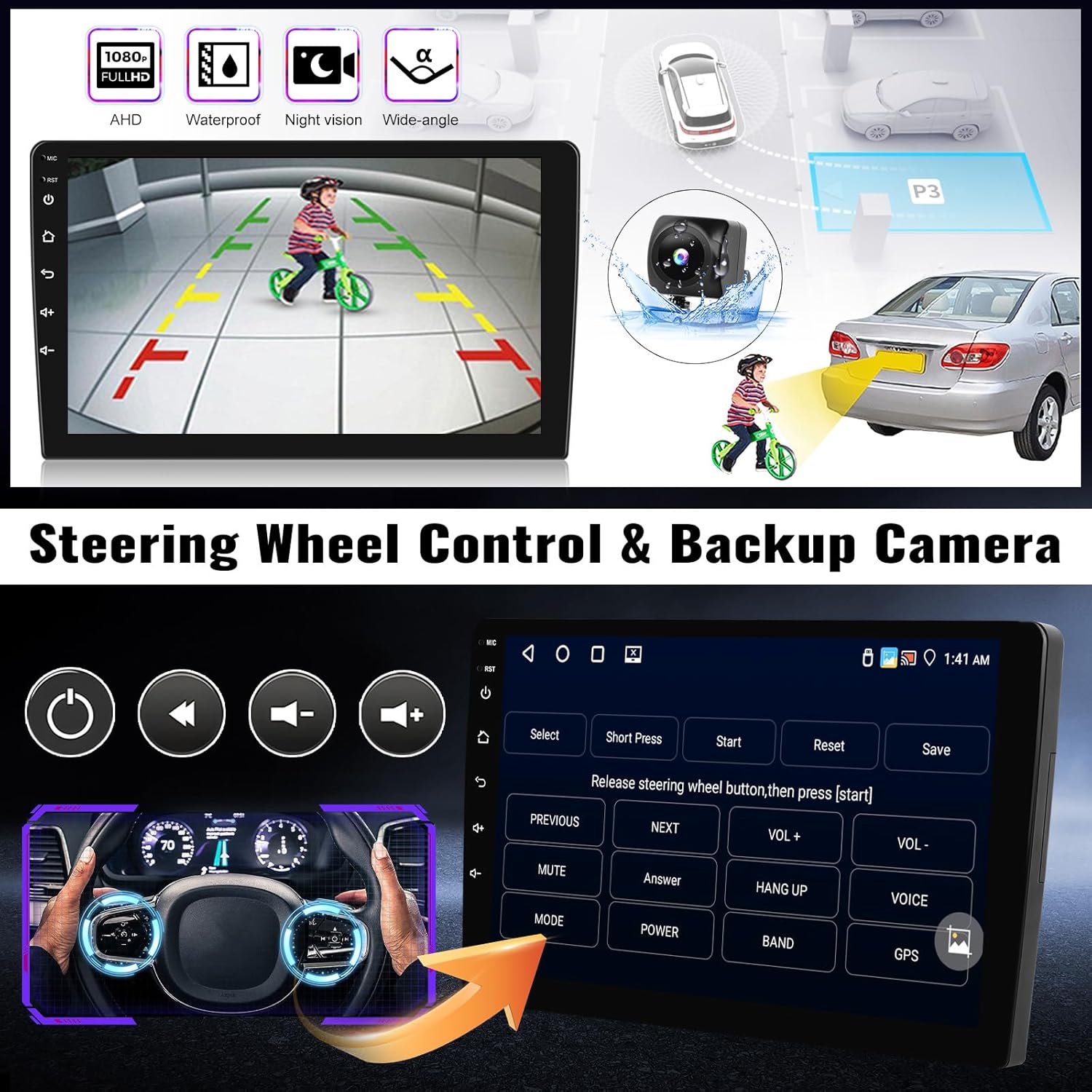
Image 6.1: Steering Wheel Control functionality and setup.
6.2 Backup Camera
The car stereo is equipped with an AHD backup camera input. When the vehicle is shifted into reverse, the unit automatically displays the camera feed on the screen, providing a clear view of the area behind your car for safer parking and maneuvering.

Image 6.2: Backup Camera display.
7. Specifications
| Feature | Specification |
|---|---|
| Operating System | Android 13 |
| RAM | 4GB |
| ROM | 64GB |
| Display Size | 9 Inches |
| Connectivity | Wireless CarPlay, Android Auto, Mirror Link, Bluetooth 5.0, WiFi |
| Navigation | Built-in GPS, supports online/offline maps (Here We Go app) |
| Radio | FM/RDS with 18 preset stations |
| Audio Output Mode | Stereo |
| Equalizer | 32-band EQ |
| Backup Camera Input | AHD compatible |
| Steering Wheel Control | Supported |
| Item Weight | 3.47 pounds |
| Product Dimensions | 1 x 1 x 1 inches (unit only, without mounting frame) |
| Model Number | A7907A3018A4MI2 |
8. Troubleshooting
This section addresses common issues you might encounter with your SIXWIN car stereo. For problems not listed here, please contact customer support.
8.1 No Power / Unit Does Not Turn On
- Check all power connections to ensure they are securely plugged in.
- Verify the vehicle's fuse for the stereo is intact.
- Ensure the ignition is on or the vehicle is running.
8.2 No Sound
- Check speaker wire connections.
- Ensure the volume is not muted or set to minimum.
- Verify audio output settings in the system menu.
8.3 CarPlay/Android Auto Not Connecting
- Ensure Bluetooth is enabled and paired correctly on both the phone and the stereo.
- Confirm the 'Zlink' app is running on the stereo.
- For wired connections, try a different USB cable.
- Update your phone's operating system and the CarPlay/Android Auto app.
- Note that some Samsung phones may not support wireless Android Auto.
8.4 Steering Wheel Controls Not Working
- Verify the SWC cable is correctly connected to the stereo.
- Check the CANBUS settings (refer to Section 4.2).
- Access the SWC learning function in the stereo's settings to program the buttons.
9. Warranty & Support
The SIXWIN Android 13 Car Stereo comes with a 1-year warranty. For any technical assistance, troubleshooting, or warranty claims, please contact SIXWIN customer support.
Online help and user manual assistance are available. Please refer to the contact information provided with your purchase or visit the official SIXWIN support channels.
