
1. Introduction
Thank you for choosing the Thlevel Smart Key Lock Box G22. This electronic Bluetooth lock box provides secure storage for keys and access cards, offering convenient management through a mobile application and PIN codes. Designed for durability and ease of use, it is suitable for various applications including home security, property management, and office use.
2. Important Safety Information
Please read and understand all safety instructions before installing and operating this product. Failure to follow these instructions may result in product malfunction or damage.
- Do not expose the lock box to extreme force or impact.
- Ensure proper battery installation to prevent damage.
- Keep the USB-C port dry and clean.
- Do not attempt to disassemble or repair the unit yourself. Contact customer support for assistance.
- Keep PIN codes confidential and change them regularly.
3. Package Contents
Verify that all components are present in the package:
- Thlevel Smart Key Lock Box G22
- Mounting Screws and Anchors
- User Manual (this document)
- Note: 3 AAA batteries are required and not included.
4. Product Overview
The Thlevel Smart Key Lock Box G22 is constructed from durable zinc alloy and ABS plastic, designed for both indoor and outdoor use. It features a keypad for PIN code entry and Bluetooth connectivity for app control.

Image 4.1: Thlevel Smart Key Lock Box G22 with its keypad and open storage compartment, shown next to a smartphone displaying the TTLock application. This illustrates the product's design and its digital interface.

Image 4.2: An interior view of the lock box, highlighting its spacious design capable of holding multiple house keys, car keys, and access cards. Dimensions are provided to illustrate the storage capacity.
Key Features:
- App Control: Manage access via the TTLock App (Bluetooth connectivity).
- PIN Code Access: Create and share anti-peep virtual passwords (6-9 digits).
- Durable Construction: Zinc alloy body with IP65 certification for water and dust resistance.
- Emergency Power: USB-C port for temporary power if batteries deplete.
- Spacious Interior: Accommodates multiple keys, access cards, and car key fobs.
5. Setup Guide
5.1 Battery Installation
- Open the lock box compartment.
- Locate the battery compartment.
- Insert 3 AAA batteries (not included), ensuring correct polarity.
- Close the battery compartment securely.
The lock box will send low-battery alerts via the app when power is low.
5.2 App Installation and Connection
The Thlevel Smart Key Lock Box uses the TTLock App for smart control. Ensure your mobile device has Bluetooth enabled.
- Download the TTLock App from your device's app store.
- Register and log in to your account.
- Turn on Bluetooth on your mobile device.
- Lightly press any button on the lock box keypad to wake up the device.
- In the TTLock App, tap the "+" icon or "Add Lock" to search for nearby devices.
- Select your lock box from the list to bind it to your account.
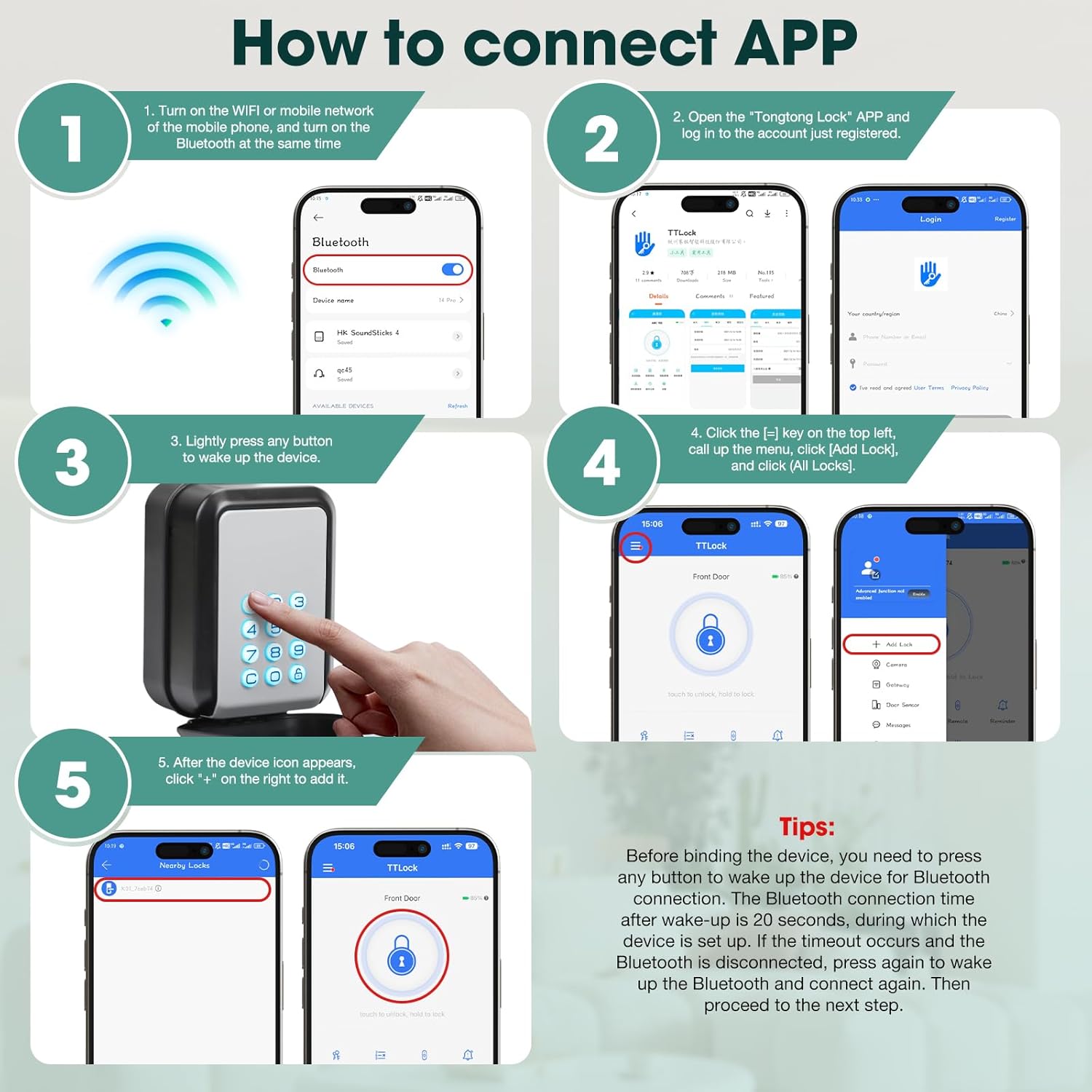
Image 5.1: Visual instructions detailing the process of connecting the lock box to the TTLock application, including enabling Bluetooth, waking the device, and adding it within the app.
Important Tip: Before binding, press any button to wake the device for Bluetooth connection. The connection window is 20 seconds. If it times out, press a button again to wake up and reconnect.
5.3 Wall Mounting
The lock box is designed for secure wall mounting. Choose a suitable location that is easily accessible but discreet.
- Open the lock box and hold it against the desired mounting surface.
- Mark the screw location holes using a pencil or marker.
- Drill pilot holes at the marked locations.
- Insert the expanded colloi (wall anchors) into the drilled holes, tapping gently with a hammer if necessary.
- Align the lock box with the holes and secure it with the provided screws.

Image 5.2: A visual guide illustrating the four steps for wall-mounting the lock box: marking screw locations, drilling holes, inserting anchors, and securing the box.
6. Operating Instructions
6.1 Unlocking with PIN Code
- Press any button on the keypad to activate it.
- Enter your 6-9 digit PIN code.
- The lock box will unlock, and the keypad lights will change color (e.g., green for success).
- Open the compartment to access the contents.
- Close the compartment and press any button to re-lock.
6.2 Unlocking with the TTLock App (Bluetooth)
Ensure your mobile device is within Bluetooth range of the lock box.
- Open the TTLock App on your smartphone.
- Select the lock box from your list of devices.
- Tap the unlock icon within the app. The lock box will unlock.
- Close the compartment to re-lock.

Image 6.1: Illustration of the Bluetooth unlocking feature, showing a user interacting with the TTLock app on their smartphone to unlock the wall-mounted key box.
6.3 Sharing Access (eKeys and Passcodes)
The TTLock App allows you to generate and share various types of access permissions:
- eKeys: Grant temporary or permanent access to other TTLock app users.
- Passcodes: Generate timed, one-time, permanent, or custom recurring PIN codes for guests, tenants, or service providers.
To share access:
- In the TTLock App, select your lock box.
- Navigate to the "eKeys" or "Passcodes" section.
- Follow the on-screen prompts to generate and share the desired access type.

Image 6.2: This image demonstrates the versatility of sharing access, showing how the lock box can be used by various individuals such as repairmen, friends, family, and pet sitters, with the app's passcode generation feature visible.
6.4 Emergency Power
If the batteries are completely depleted, you can provide temporary power using a USB-C power bank.
- Locate the USB-C emergency power port on the lock box.
- Connect a USB-C power bank to the port.
- Once powered, you can use the keypad or app to unlock the box.
- Replace the AAA batteries as soon as possible.

Image 6.3: The lock box connected to a USB-C power bank, illustrating the emergency power feature for access when internal batteries are depleted.
7. Maintenance
7.1 Battery Replacement
When the app indicates low battery, replace the 3 AAA batteries promptly to ensure continuous operation. Follow the battery installation steps in Section 5.1.
7.2 Cleaning
Wipe the exterior of the lock box with a soft, damp cloth. Avoid using abrasive cleaners or solvents that could damage the finish or electronic components.
7.3 Environmental Considerations
The lock box is IP65 rated, providing resistance to water and dust. It is designed to operate in temperatures ranging from -20°C to 55°C. While durable, prolonged exposure to extreme conditions may affect battery life or performance.
8. Troubleshooting
| Problem | Possible Cause | Solution |
|---|---|---|
| Lock box does not respond to keypad or app. | Dead batteries; device not awake; Bluetooth off. | Replace batteries. Press any button to wake the device. Ensure Bluetooth is enabled on your phone. Use emergency USB-C power. |
| Cannot connect to the app. | Bluetooth not enabled; device out of range; device not awake; app issue. | Ensure Bluetooth is on. Move closer to the lock box. Press a button to wake the device. Restart the app or your phone. |
| PIN code not working. | Incorrect code; code expired; device not awake. | Verify the PIN code. Check the code's validity period in the app. Press a button to wake the device. |
| Lock box opens but does not re-lock. | Mechanism obstruction; internal error. | Ensure no debris is obstructing the closing mechanism. Try pressing a button on the keypad to manually re-lock. If the issue persists, contact support. |
9. Specifications
| Brand | Thlevel |
| Model Name | G22 |
| Material | Zinc Alloy + ABS Plastic |
| Color | Gray |
| Lock Type | Pin Tumbler |
| Special Feature | Combination Lock |
| Control Method | App |
| Connectivity Protocol | Bluetooth |
| Power Source | 3 AAA Batteries (not included) |
| Emergency Power | USB-C Port |
| Item Weight | 1.19 pounds |
| Package Dimensions | 5.35 x 3.98 x 3.03 inches |
| Operating Temperature | -20°C to 55°C |
| Water/Dust Resistance | IP65 Certified |
10. Warranty and Support
Thlevel products are designed for reliability and performance. For warranty information or technical support, please refer to the contact details provided with your purchase or visit the official Thlevel website.
If you encounter any issues not covered in this manual, please contact customer service for assistance. Please have your product model (G22) and purchase information ready.