
1. Introduction
This manual provides detailed instructions for the installation, operation, and maintenance of your SIXWIN P2 Android Car Stereo. Please read this manual thoroughly before installation and use to ensure proper function and safety. This unit is designed specifically for Honda Civic models from 2016 to 2020.

Image 1.1: SIXWIN P2 Android Car Stereo main unit displaying its interface with various applications.
2. Product Overview
2.1 Key Features
- Android 13 Operating System
- 2GB RAM + 64GB ROM Memory
- 9-Inch High-Definition Touchscreen
- Wireless and Wired Apple CarPlay Support
- Wireless and Wired Android Auto Support
- Mirror Link Functionality (for Android and iOS)
- Built-in GPS Navigation (online and offline maps)
- WiFi Connectivity
- Bluetooth for Hands-Free Calling and Audio Streaming
- FM/RDS Radio Tuner
- Steering Wheel Control Compatibility
- Support for Factory Backup Camera
- Split Screen Functionality
2.2 Packing List
Verify that all components are present in the package:
- SIXWIN P2 Car Stereo Unit
- AHD Rear Camera
- Installation Tool
- Microphone & Canbus Box
- RCA Cable Set
- Power Cable
- Radio Antenna Switching Cable
- 6PIN USB Cable
- 4PIN USB Cable
- Camera Input / Original USB Cable
- User Manual (this document)
- GPS Antenna
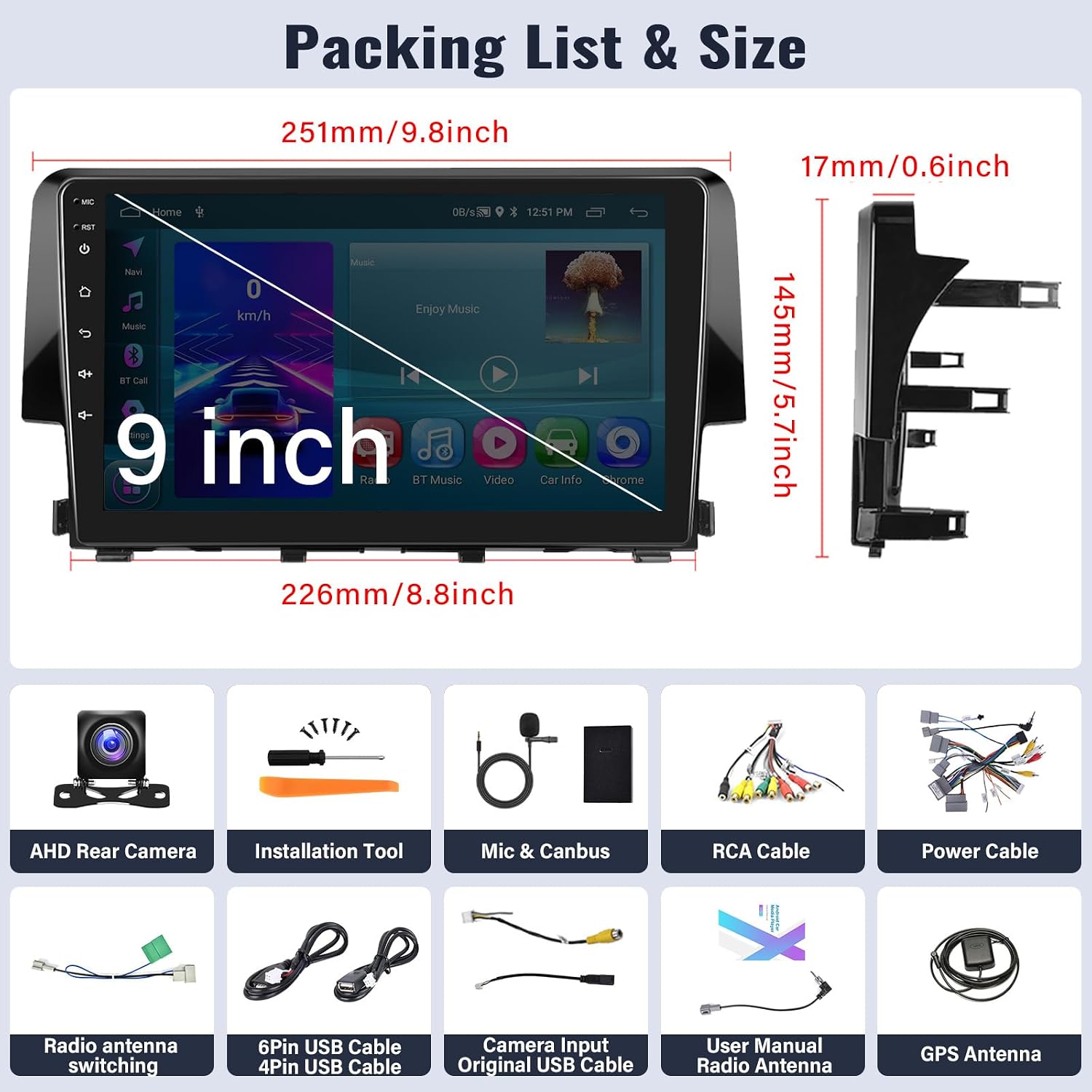
Image 2.1: Dimensions of the SIXWIN P2 unit and a visual representation of all included accessories.
3. Setup & Installation
Professional installation is recommended. Ensure the vehicle's battery is disconnected before beginning installation.
3.1 Wiring Diagram and Connections
Refer to the following diagram for proper connection of the Canbus, harness, and other peripherals. The Canbus is essential for retaining factory car functions.

Image 3.1: Wiring diagram illustrating connections for the Canbus box, USB cables, GPS antenna, and audio/video interfaces.
- Canbus Connection: Connect the 20-pin Canbus interface. Ensure the 8-pin cable from the Canbus is connected to the car radio.
- Important: Do not connect the Canbus interface to an RCA interface to prevent short circuits.
- GPS Antenna: Connect the GPS antenna and place it in a location with a clear view of the sky for optimal signal reception.
- USB Cables: Connect the 4-pin and 6-pin USB cables for external device connectivity.
- RCA Cables: Connect RCA cables for video and audio input/output as needed.
3.2 Canbus Settings
After physical installation, configure the Canbus settings on the stereo:
- Go to Car settings.
- Select Factory settings (password: 1234).
- Choose Protocol settings.
- Select Raise and then your specific car model (Honda Civic 2016-2020).
If "Canbus disconnected" is displayed, an update to the Canbus firmware may be required. Contact support if this issue persists.
3.3 Backup Camera Settings
To ensure your backup camera functions correctly:
- Go to Settings (password: 1234).
- Select Factory settings.
- Navigate to Backcar source setting.
- Try all available options until the camera displays correctly.

Image 3.2: Example of the SIXWIN P2 car stereo installed in a Honda Civic dashboard.
4. Operating Instructions
4.1 Wireless CarPlay & Android Auto
The unit supports both wireless and wired CarPlay and Android Auto for seamless smartphone integration.

Image 4.1: Steps for connecting Apple CarPlay wirelessly or via cable.
For Apple CarPlay (Wireless & Wired):
- Establish a Bluetooth connection between the car stereo and your iPhone.
- Open the "Zlink" application on the car stereo.
- Enjoy wireless Apple CarPlay functionality.

Image 4.2: Steps for connecting Android Auto wirelessly or via cable.
For Android Auto (Wireless & Wired):
- Download the Android Auto application on your Android phone.
- Establish a Bluetooth connection between the car stereo and your Android phone.
- Open the "Zlink" application on the car stereo.
- Enjoy wireless Android Auto functionality.
Note: Some Samsung phones may not be fully supported for Mirror Link or Android Auto functionality.
4.2 Mirror Link
Mirror Link allows you to display your smartphone screen directly on the car stereo.

Image 4.3: Mirror Link connection options for iOS (via WiFi) and Android (via USB/WiFi).
- For iOS: Connect via WiFi.
- For Android: Connect via USB or WiFi.
4.3 GPS Navigation & WiFi
The unit features built-in GPS navigation and WiFi connectivity.

Image 4.4: GPS navigation interface and icons representing various applications accessible via WiFi.
- GPS Navigation: Supports both online and offline navigation. The "Here We Go" app is pre-installed. Download offline maps for navigation without an internet connection.
- WiFi: Connect to a WiFi hotspot to access online features, download apps from the Play Store (e.g., YouTube, Spotify), and browse the internet.
4.4 Bluetooth Hands-Free & Music
Connect your phone via Bluetooth for hands-free calls and audio streaming.

Image 4.5: Bluetooth interface for making calls and streaming music.
- Bluetooth Calls: Dial numbers, answer, or end calls directly from the stereo screen.
- Bluetooth Music: Stream audio from your connected device to the car stereo.
4.5 FM/RDS Radio
Access local radio stations with the built-in FM/RDS tuner.

Image 4.6: FM/RDS radio interface displaying frequency and preset options.
- Frequency Range: 87.5 - 108 MHz.
- Presets: Save up to 18 fixed stations for quick access.
- RDS: Receive additional information like station name and song title where available.
4.6 Steering Wheel Control
Integrate your vehicle's steering wheel controls for convenient operation.

Image 4.7: Interface for programming steering wheel controls.
- Access Steering Wheel Control settings to map functions like volume adjustment, track skipping, and call answering to your vehicle's steering wheel buttons.
4.7 Backup Camera Display
The unit supports an AHD backup camera for enhanced safety during reversing.

Image 4.8: Examples of daytime and clear night vision from the AHD backup camera.
- The backup camera automatically activates when the vehicle is put into reverse.
- Features include 170° wide angle, waterproof design, and high-definition display with clear night vision.
4.8 Other Features
- 1080P Touchscreen: The 9-inch display offers a responsive and clear touch experience.
- Split Screen: Run two applications simultaneously on the screen, such as navigation and music playback.
- EQ Sound: Adjust audio equalization settings to customize your listening experience.

Image 4.9: Visual representation of Steering Wheel Control, Mirror Link, 1080P Touchscreen, and Split Screen functionalities.
5. Maintenance
- Cleaning: Use a soft, dry cloth to clean the screen and unit. Avoid abrasive cleaners or solvents.
- Software Updates: Periodically check for software updates to ensure optimal performance and access to new features. Updates can typically be found via the system settings or the manufacturer's website.
- Temperature: Avoid exposing the unit to extreme temperatures, which can affect its lifespan and performance.
6. Troubleshooting
This section addresses common issues you might encounter.
6.1 Common Issues and Solutions
| Problem | Possible Cause | Solution |
|---|---|---|
| Unit does not power on. | Incorrect wiring, blown fuse, power supply issue. | Check power cable connections, inspect vehicle fuses, ensure proper grounding. |
| Backup camera not working. | Incorrect camera settings, faulty wiring, incompatible camera. | Verify camera wiring. Go to Settings (1234) > Factory settings > Backcar source setting and try all options. Ensure camera is compatible. |
| Canbus disconnected message. | Canbus not properly connected or outdated firmware. | Ensure the 20-pin Canbus and 8-pin cable are correctly connected. Update Canbus firmware if necessary (contact support for guidance). |
| Screen is unresponsive or slow. | System overload, temporary software glitch. | Restart the unit. Close unnecessary background applications. Perform a factory reset if the issue persists (note: this will erase data). |
| Wireless CarPlay/Android Auto not connecting. | Bluetooth pairing issue, incorrect app settings, phone incompatibility. | Ensure Bluetooth is paired. Open "Zlink" app. Check phone compatibility (e.g., some Samsung phones may not be supported). |
| No GPS signal. | GPS antenna improperly placed or disconnected. | Ensure GPS antenna is securely connected and placed in a location with a clear view of the sky. |
7. Specifications
| Feature | Detail |
|---|---|
| Operating System | Android 13 |
| RAM | 2GB |
| ROM | 64GB |
| Display Size | 9 Inches |
| Connectivity | Bluetooth, WiFi |
| Special Features | Touchscreen, GPS Navigation, CarPlay, Android Auto, Mirror Link, FM/RDS Radio, Steering Wheel Control |
| Audio Output Mode | Stereo |
| Product Dimensions | 1 x 1 x 1 inches (approximate) |
| Item Weight | 3.14 pounds |
| Vehicle Service Type | Car (Honda Civic 2016-2020) |
8. Warranty & Support
8.1 Warranty Information
The SIXWIN P2 Android Car Stereo comes with a 1-year warranty from the date of purchase. This warranty covers manufacturing defects and malfunctions under normal use. It does not cover damage caused by improper installation, misuse, accidents, or unauthorized modifications.
8.2 Customer Support
For technical assistance, installation videos, wiring diagrams, or any other inquiries, please contact SIXWIN customer support.
- Email: sixwin_vip@163.com
- Online help is available.

Image 8.1: SIXWIN customer support is available to assist with inquiries.
