
1. Introduction and Overview
The TMEZON Y10 Video Intercom System is a comprehensive security solution designed for villas, homes, offices, and apartments. This wired system features a 7-inch WiFi-enabled monitor and an HD 1080P doorbell camera, providing secure communication and monitoring capabilities. It allows you to see, hear, and speak to visitors, and remotely unlock your door for convenience and enhanced security.
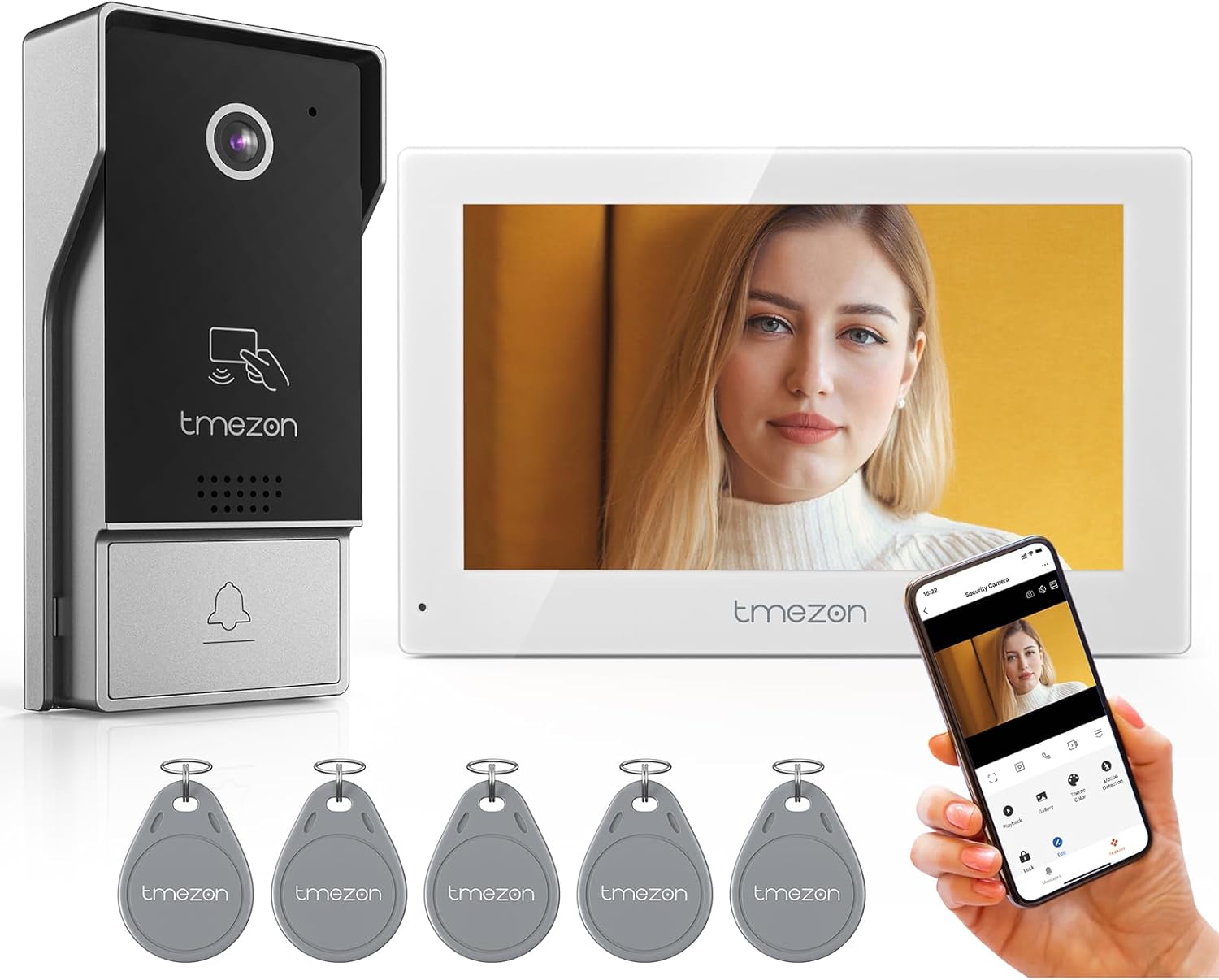
Image: The TMEZON Y10 Video Intercom System components, including the outdoor doorbell, indoor monitor, RFID key tags, and a smartphone displaying the app interface.
2. Package Contents
Please verify that all items are included in your package:
- 1 x 7-inch Monitor
- 1 x Video Doorbell Camera
- 5 x RFID Tags
- Installation Accessories (screws, cables, etc.)
- User Manual
3. Key Features
- HD 1080P Doorbell Camera: Equipped with a 125° wide-angle lens and built-in infrared sensor for clear night vision.
- 7-inch IP Touchscreen Monitor: For easy operation and clear viewing.
- Two-Way Communication: Allows for real-time audio interaction with visitors.
- Automatic Snapshot and Video Recording: Captures images or video when the doorbell is pressed, saving to a Micro SD card (up to 128GB, not included) or cloud storage.
- Multi-device Interconnection: Supports connection of up to 2 outdoor cameras and 4 indoor monitors.
- Multiple Unlock Methods: Unlock the door via the indoor monitor, RFID card, or the mobile application.
- Smart Motion Detection: Triggers recording and sends push notifications to your smartphone upon detecting movement.
- Voice Message Function: Allows visitors to leave a message if no one answers after 60 seconds.
- IP65 Weatherproof Outdoor Unit: Designed to withstand various weather conditions for outdoor installation.
- Remote Live View and Unlock: Access live camera feed and unlock the door from anywhere using the Tuya Smart app on your smartphone.
- No Subscription Required: Basic functionality is available without monthly fees.
4. Setup and Installation
The TMEZON Y10 system requires wired installation. It is recommended to consult a professional for electrical wiring if you are not familiar with the process. Ensure all power is disconnected before beginning installation.
4.1. Outdoor Doorbell Camera Installation
- Choose a suitable location near your entrance, ensuring clear line of sight and within reach of necessary wiring.
- Mount the doorbell camera securely to a wall using the provided screws and mounting bracket.
- Connect the 4-wire cable from the doorbell to the indoor monitor.
- Ensure the unit is protected from direct heavy rainfall, although it is IP65 weatherproof.
4.2. Indoor Monitor Installation
- Select a central location inside your home for the monitor, such as a hallway or living room.
- Mount the monitor to the wall using its bracket.
- Connect the 4-wire cable from the outdoor unit to the monitor.
- Connect the monitor to a power source (12V).
4.3. Electronic Lock Connection (Optional)
If you wish to use the unlock feature, connect your electronic lock to the doorbell unit according to the lock's instructions and the system's wiring diagram.
4.4. Wi-Fi and App Setup
- Once powered on, follow the on-screen prompts on the 7-inch monitor to connect to your home Wi-Fi network.
- Download the 'Tuya Smart' app from your smartphone's app store (available on Android and iOS).
- Register an account and follow the in-app instructions to add your TMEZON Y10 system.
Video: An official product video demonstrating the 4-wire video doorphone intercom system, including installation and key features.
5. Operating Instructions
5.1. Basic Operation
- Answering a Call: When a visitor presses the doorbell, the indoor monitor will ring. Touch the screen to answer and initiate two-way communication.
- Unlocking the Door: During a call or live view, press the 'UNLOCK' button on the indoor monitor to grant access.
5.2. Advanced Features
Two-Way Audio
Engage in real-time conversations with visitors at your door using the indoor monitor or the mobile app. This allows for clear communication before deciding to grant access.

Image: A woman interacting with the indoor monitor, demonstrating the two-way audio feature with speech bubbles indicating a conversation.
Automatic Snapshot and Recording
The system automatically captures snapshots or records video when the doorbell is pressed or motion is detected. These files are saved to a Micro SD card (not included) or can be uploaded to cloud storage for later review.

Image: The indoor monitor displaying its interface, with a Micro SD card inserted, illustrating local and cloud storage capabilities.
Smart Motion Detection
The doorbell camera features smart motion detection. When motion is detected within the configured zone, the system can record the event and send instant push notifications to your phone via the Tuya Smart app, alerting you to activity at your door.

Image: A visual representation of the doorbell's 125-degree motion detection zone, showing a person walking into the detection area and triggering a notification.
Voice Message
If you are not available to answer the doorbell, the system can automatically enter a voice message mode after 60 seconds, allowing visitors to leave a recorded message for you.

Image: A hand pressing the doorbell, with a message bubble indicating the system's ability to prompt visitors to leave a voice message if unanswered.
Multiple Unlocking Methods
The system offers flexible ways to unlock your door:
- RFID Card: Use the provided RFID tags to quickly unlock the door by tapping them on the doorbell unit.
- Indoor Monitor: Unlock the door directly from the 7-inch indoor monitor's touchscreen.
- Mobile App: Remotely view live footage and unlock the door from anywhere using the Tuya Smart app on your smartphone.

Image: A hand holding an RFID tag near the doorbell unit, demonstrating the RFID card unlocking feature.

Image: A smartphone displaying the Tuya Smart app interface, showing a live camera feed and options for remote unlocking and other controls.
Night Vision
The outdoor doorbell camera includes a built-in infrared sensor that automatically activates in low-light conditions, providing clear black-and-white video footage even at night.

Image: The indoor monitor displaying a split view of the doorbell camera's feed, showing both clear daytime and infrared night vision.
Video Record and Playback
Review recorded video and snapshots from the Micro SD card or cloud storage via the mobile app to monitor your home's activity and identify visitors. The app provides a timeline view for easy navigation of recorded events.
Easy Sharing
Share access and monitoring capabilities with family members through the mobile application, allowing multiple users to receive alerts and interact with the system.
6. Maintenance
- Cleaning: Regularly clean the camera lens and monitor screen with a soft, dry, lint-free cloth. Avoid abrasive cleaners or solvents.
- Connections: Periodically check all wired connections to ensure they are secure and free from corrosion.
- Outdoor Unit Care: While the outdoor unit is IP65 weatherproof, avoid directing high-pressure water jets directly at it. Clear any debris or spiderwebs from the camera area.
- Software Updates: Check the Tuya Smart app periodically for any available firmware or software updates for your system to ensure optimal performance and security.

Image: The outdoor doorbell unit being exposed to water, illustrating its IP65 waterproof rating.
7. Troubleshooting
If you encounter issues with your TMEZON Y10 Video Intercom System, please refer to the following common problems and solutions:
- No Video/Audio on Monitor:
- Ensure the monitor is powered on and connected to a stable power source.
- Check all wired connections between the doorbell and the monitor for looseness or damage.
- Verify that the camera lens is clean and unobstructed.
- Cannot Unlock Door:
- Confirm that the electronic lock is correctly wired to the doorbell unit and is receiving power.
- If using RFID cards, ensure they are properly registered with the system.
- If using the app, check your smartphone's internet connection and app settings.
- No Motion Detection Notifications:
- Verify that the system is connected to Wi-Fi and has a stable internet connection.
- Check the Tuya Smart app's notification settings on your smartphone to ensure push notifications are enabled.
- Ensure motion detection is activated in the system settings on the monitor or app.
- Adjust the motion detection sensitivity if necessary.
- Poor Night Vision:
- Ensure the area around the doorbell camera is clear of obstructions that might reflect infrared light, causing glare.
- Clean the camera lens.
- System Unresponsive:
- Try restarting the system by disconnecting and reconnecting the power.
- If the issue persists, consider performing a factory reset (refer to the monitor's settings for this option, noting it will erase all custom settings).
8. Specifications
| Feature | Specification |
|---|---|
| Brand | TMEZON |
| Model Number | Y10 |
| Power Source | Wired (12 Volts) |
| Video Capture Resolution | 1080p |
| Monitor Size | 7 Inches |
| Connectivity Technology | RFID, WiFi (Wireless) |
| Compatible Devices | Android, iOS, Smartphone, Tuya App |
| Installation Type | Wall Mount |
| Alert Type | Video and Audio |
| Control Method | App, Remote, Touch |
| Sensor Technology | CMOS, Night Vision, RFID |
| Item Dimensions (L x W x H) | 3 x 4 x 2 inches |
| Item Weight | 2.46 pounds |
9. Warranty and Support
For detailed warranty information, product registration, and technical support, please visit the official TMEZON website or contact their customer service directly. It is recommended to keep your purchase receipt as proof of purchase for any warranty claims.
You can often find additional support resources, FAQs, and updated manuals on the manufacturer's support pages.