1. Introduction
This manual provides comprehensive instructions for the setup, operation, maintenance, and troubleshooting of your ASUS TUF Gaming VG27AQ5A 27-inch 1440P Gaming Monitor. Please read this manual thoroughly before using the product to ensure proper functionality and to prevent damage.
2. Safety Information
Observe the following safety guidelines to ensure safe operation and to extend the lifespan of your monitor:
- Place the monitor on a stable, flat surface to prevent accidental falls.
- Do not block ventilation openings. Ensure adequate space around the monitor for heat dissipation.
- Use only the power adapter and cables provided by ASUS.
- Avoid exposing the monitor to moisture, rain, or extreme temperatures.
- Disconnect the power cable from the wall outlet before cleaning or if the monitor will not be used for an extended period.
- Do not attempt to service the monitor yourself. Refer all servicing to qualified service personnel.
3. What's in the Box
Verify that all items listed below are present in your package:
- VG27AQ5A Gaming monitor
- DisplayPort Cable
- HDMI cable
- L-shaped Screwdriver
- Power cord (region-dependent)
- Quick start guide
- Warranty Card
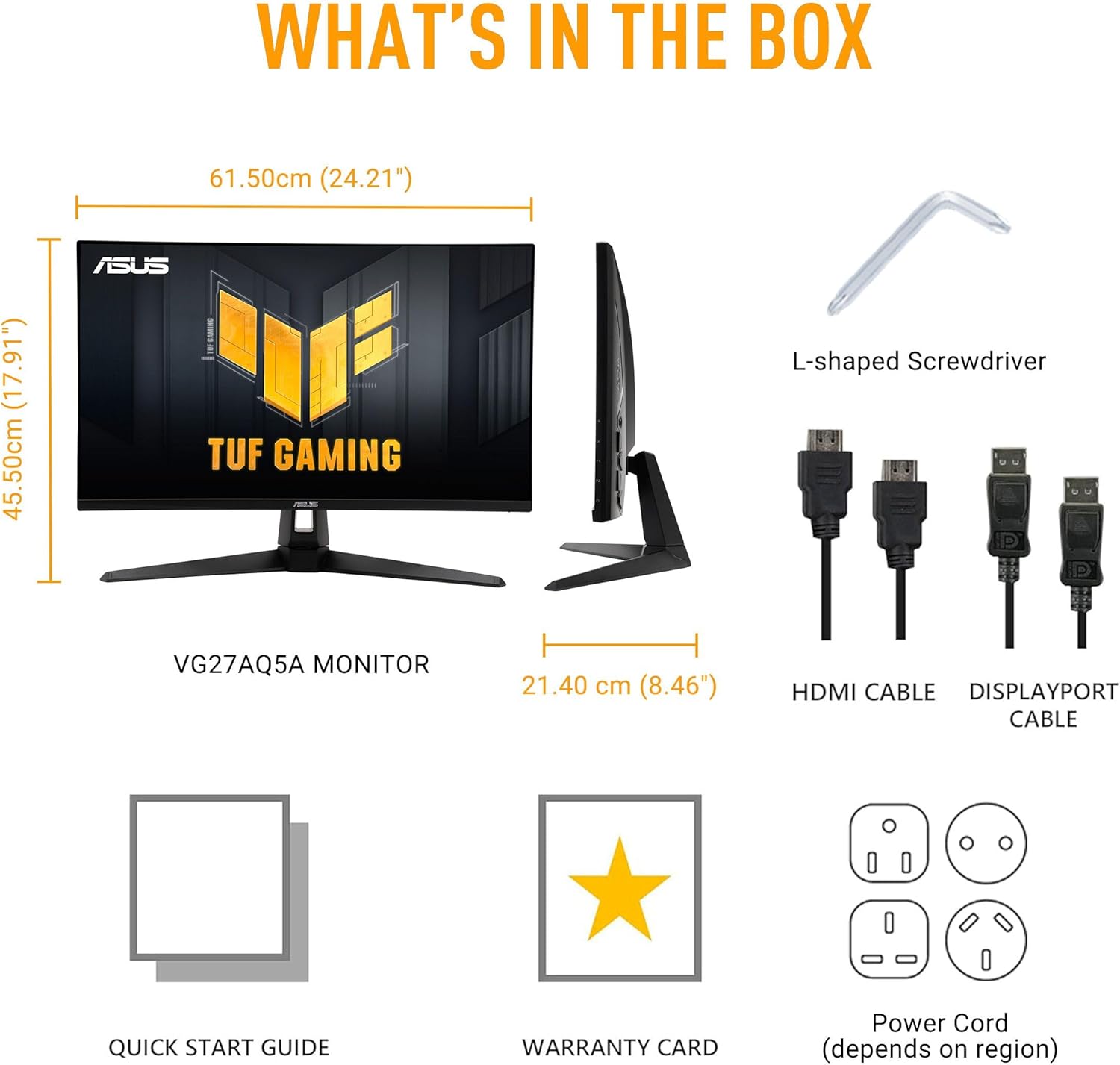
Figure 3.1: Package Contents. This image illustrates the monitor, DisplayPort cable, HDMI cable, L-shaped screwdriver, power cord, quick start guide, and warranty card.
4. Setup
4.1 Assembling the Monitor Stand
- Carefully place the monitor face down on a soft, clean surface to prevent scratches.
- Attach the stand base to the stand neck, securing it with the provided screw using the L-shaped screwdriver.
- Align the assembled stand with the mounting holes on the back of the monitor and secure it firmly.
4.2 Connecting the Monitor
Connect the monitor to your computer and power source using the following steps:
- Power Connection: Connect the power cord to the monitor's power input, then plug the other end into a power outlet.
- Video Connection: Choose one of the following options:
- DisplayPort: Connect one end of the DisplayPort cable to the monitor's DisplayPort input and the other end to your computer's DisplayPort output.
- HDMI: Connect one end of an HDMI cable to one of the monitor's HDMI inputs and the other end to your computer's HDMI output.
- Audio Connection (Optional): If using external speakers or headphones, connect them to the monitor's earphone jack.

Figure 4.1: Monitor Connectivity Ports. This image displays the rear of the monitor with labels for HDMI 2.0 (x2), DisplayPort, Earphone Jack, and Type-C (service port).
4.3 Adjusting the Monitor
The monitor offers tilt adjustment for optimal viewing comfort:
- Tilt: Gently hold both sides of the monitor and tilt it to your desired angle (from +20° to -5°).

Figure 4.2: Tilt Adjustment. This image demonstrates the monitor's ability to tilt upwards by 20 degrees and downwards by 5 degrees.
5. Operating the Monitor
5.1 Power On/Off
Press the power button located on the monitor to turn it on or off. The power indicator light will illuminate when the monitor is on.
5.2 On-Screen Display (OSD) Menu Navigation
The monitor features an intuitive OSD menu for adjusting various settings. Use the joystick and buttons on the back or bottom of the monitor to navigate:
- Press the joystick to open the OSD menu.
- Move the joystick up/down to navigate through menu options.
- Move the joystick left/right to adjust values or enter sub-menus.
- Press the joystick again to confirm a selection.
5.3 Key Features and Settings
The VG27AQ5A monitor is equipped with several features to enhance your viewing and gaming experience:
5.3.1 DisplayWidget Center
The DisplayWidget Center software allows for easy adjustment of monitor settings directly from your computer using a mouse. Key functionalities include:
- Customizable Settings: Adjust image, color, and gaming settings with a graphical interface.
- Firmware Update Notification: Receive alerts for available firmware updates.
- Multiscreen Control: Manage settings for multiple ASUS monitors.

Figure 5.1: DisplayWidget Center Interface. This image shows the software's menu for adjusting display modes, image parameters like brightness and contrast, and color settings.
5.3.2 Gaming Features
Designed for professional gamers, the VG27AQ5A offers advanced gaming technologies:
- Fast IPS Panel: Provides a 0.3ms (GTG) response time for sharp visuals and minimal ghosting.
- High Refresh Rate: Supports up to 210Hz (Overclocked) refresh rate for fluid motion.
- Extreme Low Motion Blur Sync (ELMB Sync): Enables ELMB and variable refresh rate (VRR) technologies to work simultaneously, reducing motion blur and tearing.
- AMD FreeSync™ Premium: Delivers a tear-free gaming experience by synchronizing the monitor's refresh rate with the GPU's frame rate.
- Gaming AI: Enhances gameplay with features such as:
- Dynamic Crosshair: Provides an on-screen crosshair for improved aiming.
- Dynamic Shadow Boost: Automatically brightens dark areas of the game without overexposing bright areas.
- AI Visual: Optimizes visual settings based on game content.
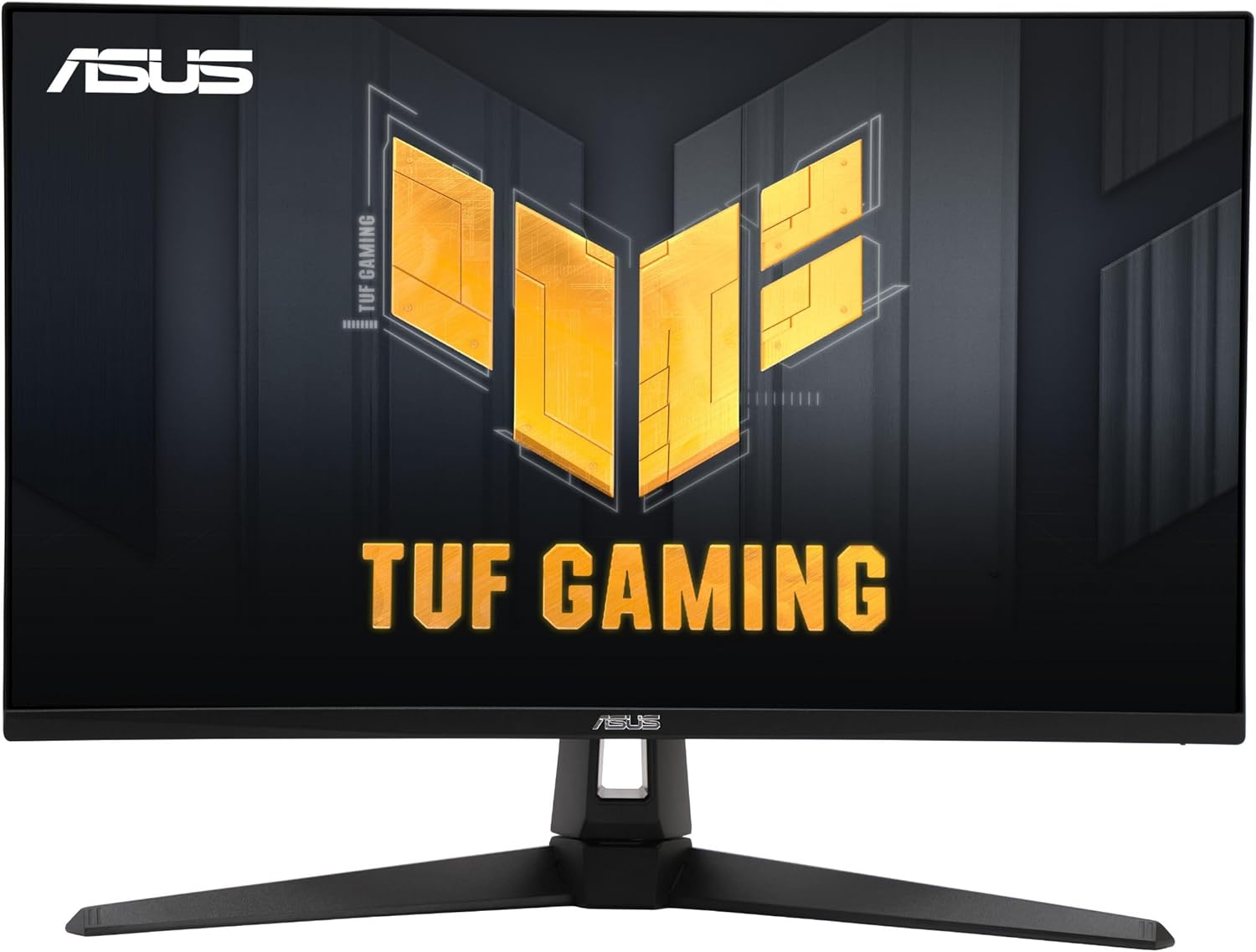
Figure 5.2: Series 5 Upgrades Overview. This image summarizes the monitor's enhanced speed, fluidity, gaming AI, colors, and user-friendly features.

Figure 5.3: Unstoppable Gaming Performance. This image highlights the monitor's high resolution, fast response time, and high refresh rate for an enhanced gaming experience.

Figure 5.4: Game Without Limits with VRR. This image illustrates the visual improvement when Variable Refresh Rate is enabled, eliminating screen tearing and improving fluidity.
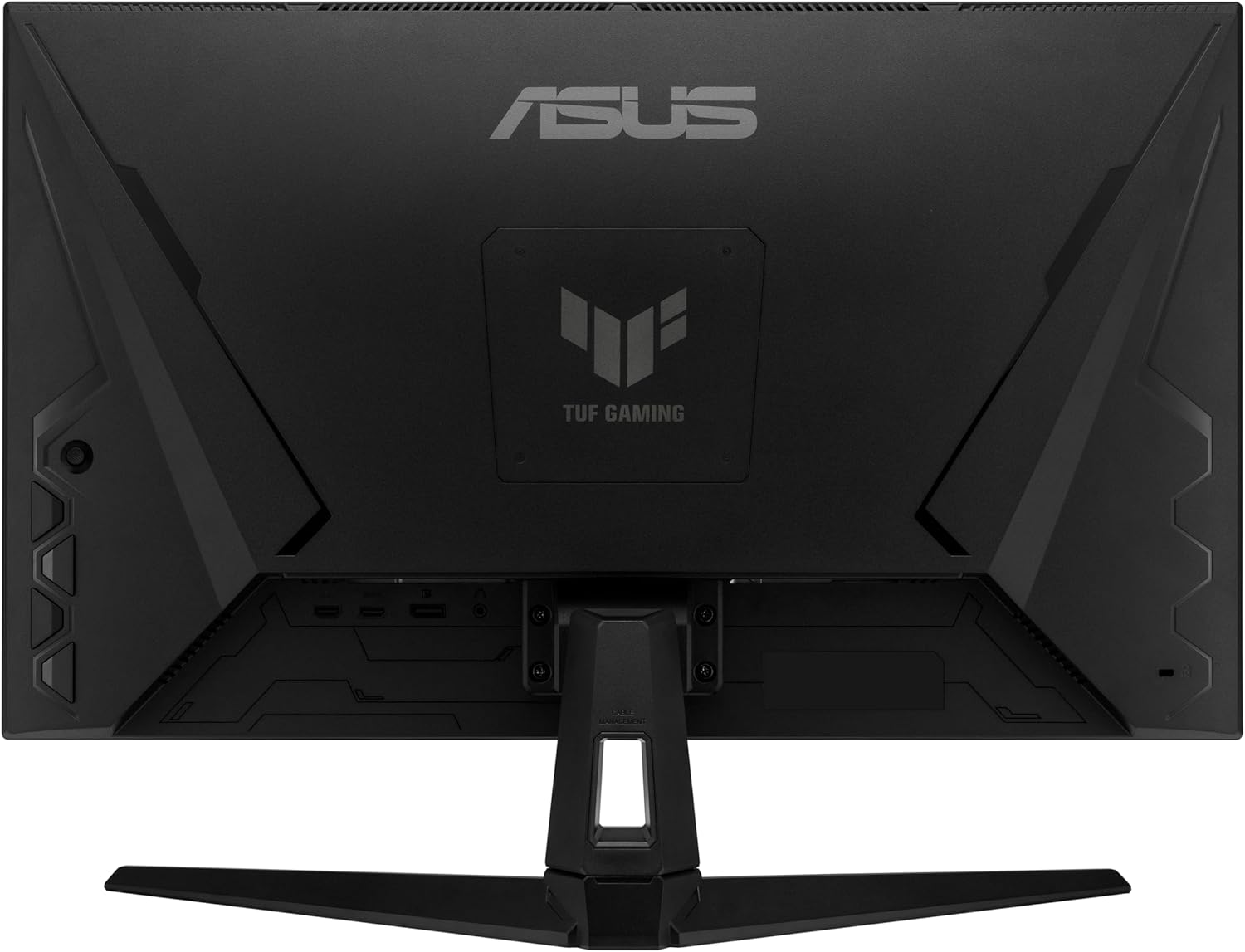
Figure 5.5: Smarter Play, Greater Wins with Gaming AI. This image shows how Dynamic Crosshair and Dynamic Shadow Boost features enhance gameplay visibility and aiming.
5.3.3 Color and Visuals
The monitor provides accurate and vibrant colors, along with eye-care technologies:
- 95% DCI-P3 Gamut: Offers a wide color spectrum for rich and accurate color reproduction.
- Low Blue Light Technology: Reduces harmful blue light emissions to minimize eye strain during prolonged use. Certified by TÜV Rheinland.
- Flicker-Free Technology: Eliminates screen flickering, further reducing eye fatigue. Certified by TÜV Rheinland.

Figure 5.6: Low Blue Light Feature. This image demonstrates the effect of the monitor's Low Blue Light technology, which helps reduce eye strain. For more information, visit TÜV Rheinland Certification.

Figure 5.7: Flicker-Free Technology. This image illustrates the benefit of Flicker-Free technology in reducing screen flickering for improved visual comfort. For more information, visit TÜV Rheinland Certification.
6. Maintenance
6.1 Cleaning the Monitor
- Always unplug the monitor from the power outlet before cleaning.
- Use a soft, lint-free cloth slightly dampened with water or a mild, non-abrasive screen cleaner.
- Do not spray cleaner directly onto the screen.
- Avoid using harsh chemicals, solvents, or abrasive materials, as these can damage the screen or casing.
6.2 Storage
If storing the monitor for an extended period, ensure it is clean, dry, and stored in its original packaging or a protective cover in a cool, dry place.
7. Troubleshooting
Refer to the table below for common issues and their solutions:
| Problem | Possible Cause | Solution |
|---|---|---|
| No power | Power cable not connected; Power outlet faulty; Monitor power button off. | Ensure power cable is securely connected. Test power outlet with another device. Press the monitor's power button. |
| No signal | Video cable not connected; Incorrect input source selected; Computer not powered on. | Check video cable connections (DisplayPort/HDMI). Select correct input source via OSD menu. Ensure computer is on and outputting video. |
| Image is blurry or distorted | Incorrect resolution; Video cable issue; Graphics driver outdated. | Set display resolution to 2560x1440. Try a different video cable. Update graphics drivers on your computer. |
| Screen flickering | Refresh rate mismatch; Cable issue; External interference. | Ensure refresh rate is set correctly in OS display settings. Check video cable. Minimize nearby electronic devices. |
| Colors are incorrect | Color settings incorrect; Monitor profile issue. | Adjust color settings via OSD or DisplayWidget Center. Calibrate monitor colors if necessary. |
8. Specifications
Key technical specifications for the ASUS TUF Gaming VG27AQ5A monitor:
| Feature | Specification |
|---|---|
| Screen Size | 27 Inches |
| Panel Type | Fast IPS |
| Resolution | QHD (2560 x 1440) |
| Refresh Rate | 210Hz (Overclocked) |
| Response Time | 0.3ms (GTG) |
| Aspect Ratio | 16:9 |
| Color Gamut | 95% DCI-P3 |
| HDR Support | Yes |
| Adaptive Sync Technology | AMD FreeSync™ Premium, VESA AdaptiveSync |
| Connectivity | 2x HDMI 2.0, 1x DisplayPort, Earphone Jack, 1x Type-C (service port) |
| Built-in Speakers | Yes |
| Dimensions (LxWxH) | 8.4 x 24.2 x 17.9 inches |
| Weight | 11.02 pounds |
9. Warranty and Support
9.1 Warranty Information
This ASUS TUF Gaming VG27AQ5A monitor typically comes with a 3-year limited warranty. Please refer to the included Warranty Card in your product package for detailed terms, conditions, and regional specifics. Retain your proof of purchase for warranty claims.
9.2 Customer Support
For technical assistance, product inquiries, or warranty service, please visit the official ASUS support website or contact your local ASUS customer service center. You can find contact information and support resources at www.asus.com/support/.


