
Introduction
This manual provides essential information for setting up, operating, and maintaining your ASUS TUF Gaming VG27AQM5A monitor. The VG27AQM5A is a 27-inch QHD (2560x1440) gaming monitor featuring a Fast IPS panel, 300Hz refresh rate, and 0.3ms GTG response time. It incorporates ASUS Extreme Low Motion Blur Sync and Adaptive Sync technology for smooth gaming, HDR support, and a 95% DCI-P3 color gamut for exceptional visual performance. Please read this manual thoroughly before using the product.
What's in the Box
Carefully unpack the box and ensure all items are present and in good condition. If any items are missing or damaged, contact your retailer.
- ASUS TUF Gaming VG27AQM5A Monitor
- DisplayPort cable
- Power cord & adapter
- Quick start guide
- Warranty Card

Setup
Monitor Assembly
Attach the stand base to the stand neck, then secure the assembled stand to the back of the monitor. Ensure all screws are tightened appropriately. The monitor supports VESA wall mounting (100 x 100mm) for alternative installation.

Connecting to a Device
Connect your computer or other video source to the monitor using the appropriate cables. The monitor supports DisplayPort, HDMI, and USB Type-C connections. Ensure the power adapter is connected to the monitor and a power outlet.


Operating Instructions
Power On/Off
Press the power button located on the monitor to turn it on or off. The power indicator light will illuminate when the monitor is active.
On-Screen Display (OSD) Menu
Use the joystick and buttons on the back or bottom of the monitor to navigate the OSD menu. This menu allows you to adjust various settings such as brightness, contrast, color modes, and input selection.
GamePlus Features
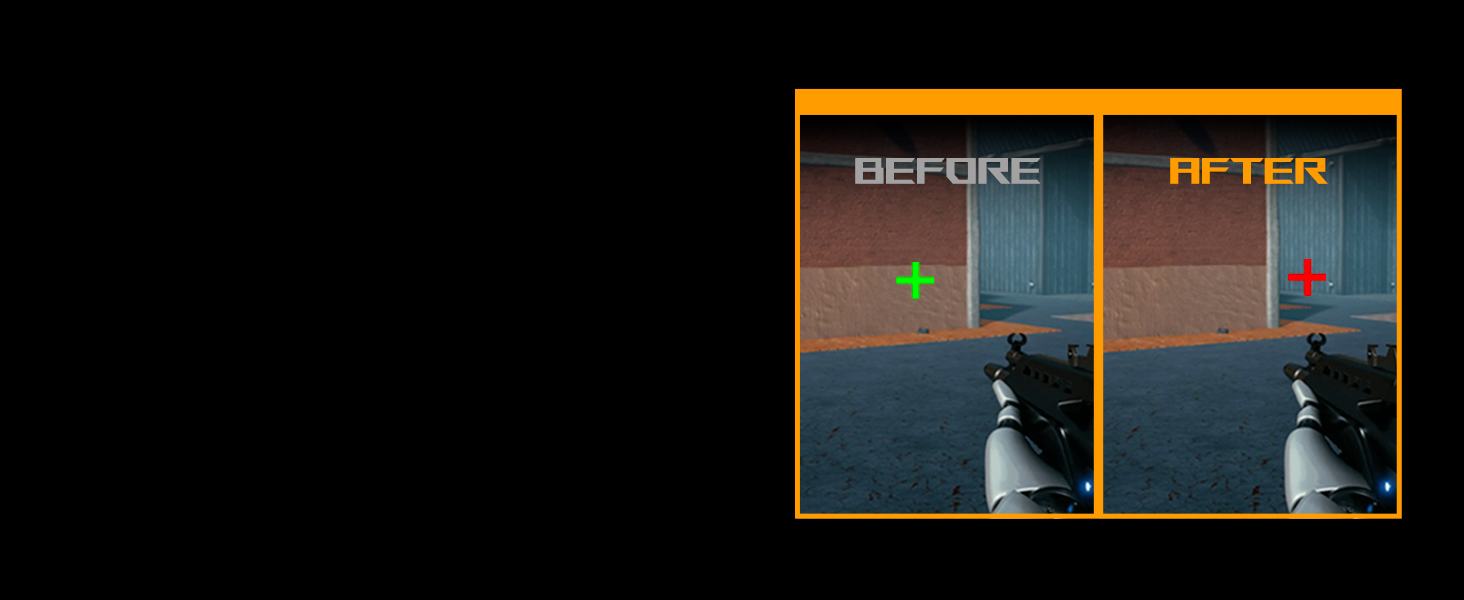
The monitor includes GamePlus features designed to enhance your gaming experience. These include a crosshair overlay, timer, FPS counter, and display alignment tools. Access these through the OSD menu.

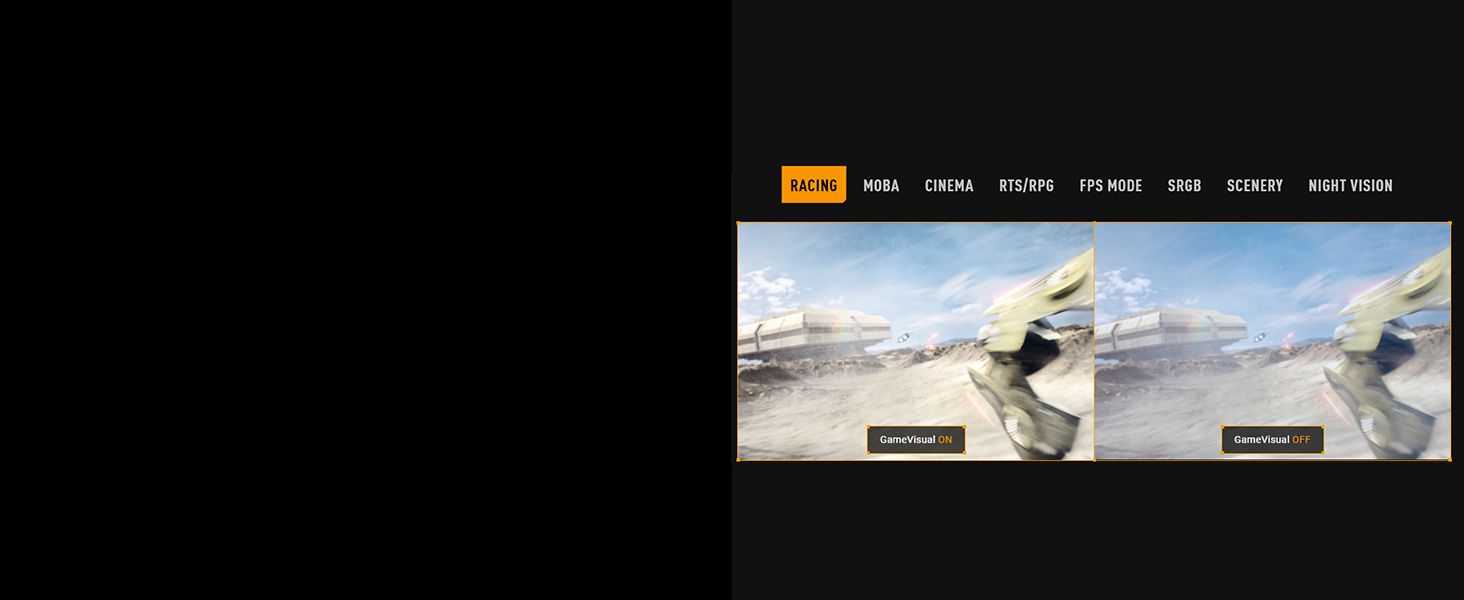
GameVisual Modes
Select from various GameVisual preset modes optimized for different content types, such as Racing, MOBA, Cinema, RTS/RPG, FPS, sRGB, Scenery, and Night Vision. These modes adjust display settings for optimal viewing.
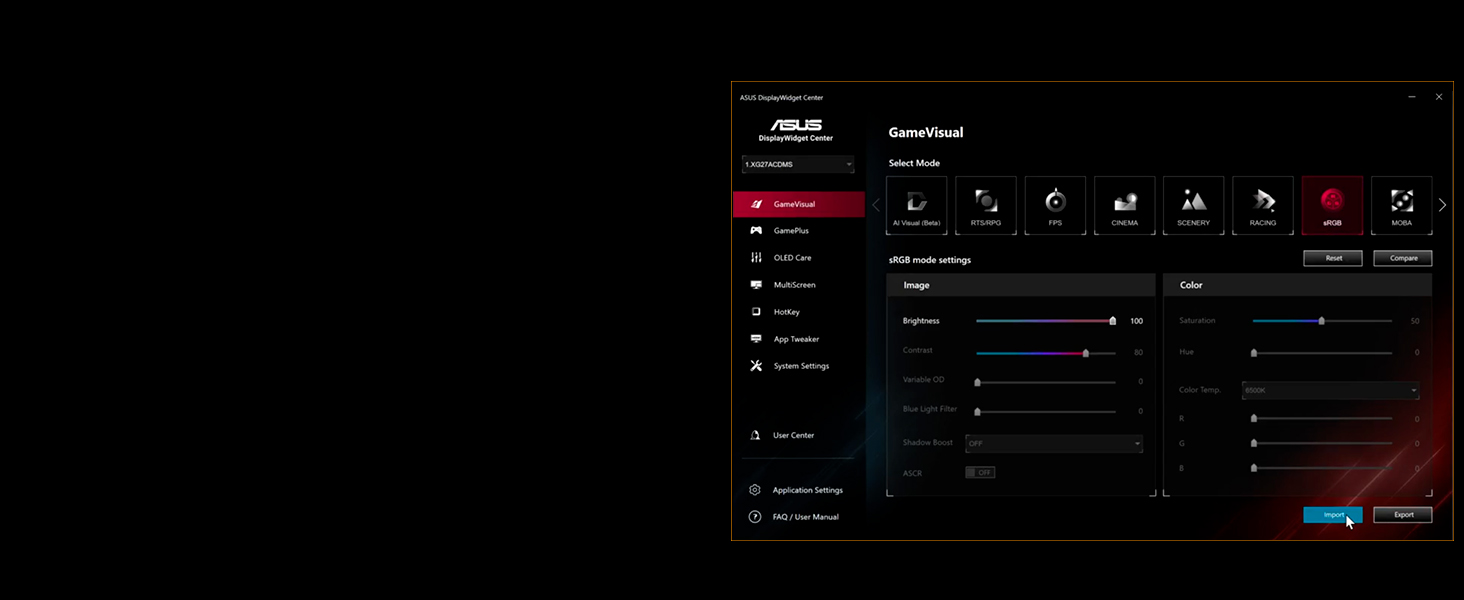
DisplayWidget Center Software
The DisplayWidget Center software allows you to adjust monitor settings directly from your Windows operating system using a mouse, providing a convenient alternative to the OSD menu.
Features
High Refresh Rate and Fast Response Time
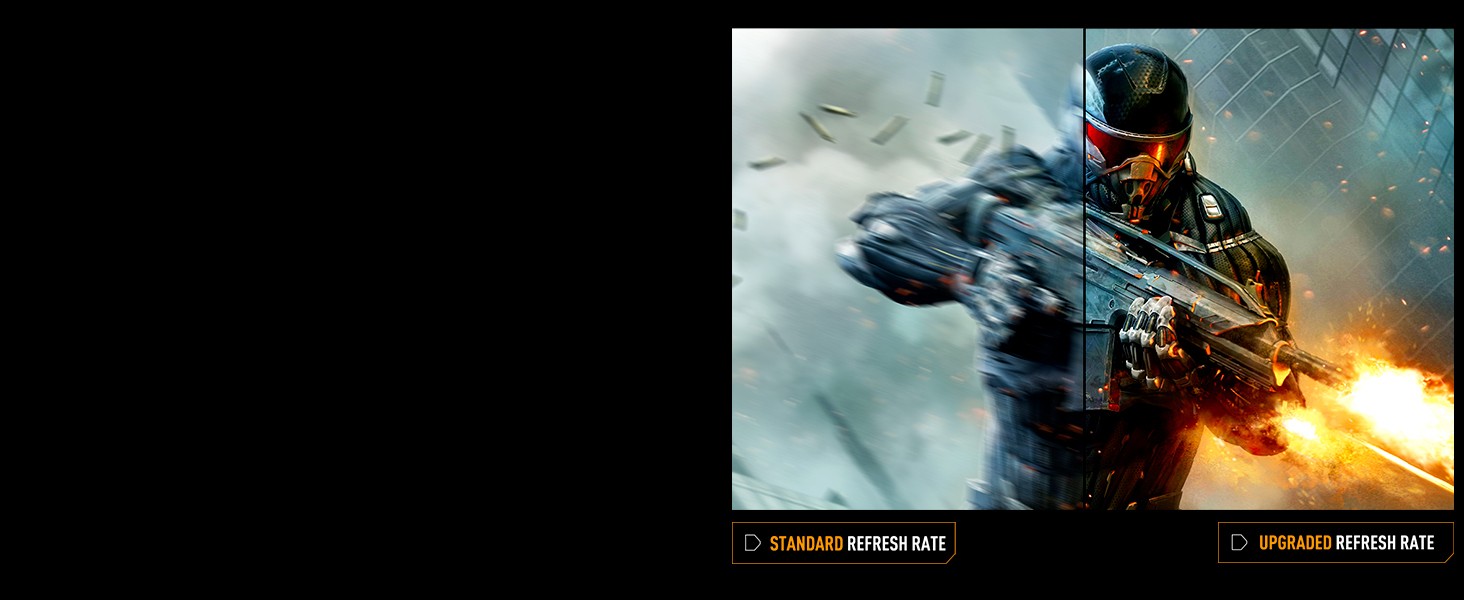
Experience fluid visuals with a 300Hz refresh rate and a rapid 0.3ms (GTG) response time, ideal for fast-paced gaming.

Adaptive Sync Technology
The monitor supports AMD FreeSync Premium and is G-SYNC compatible, ensuring tear-free and stutter-free gaming by synchronizing the monitor's refresh rate with your GPU's frame rate.

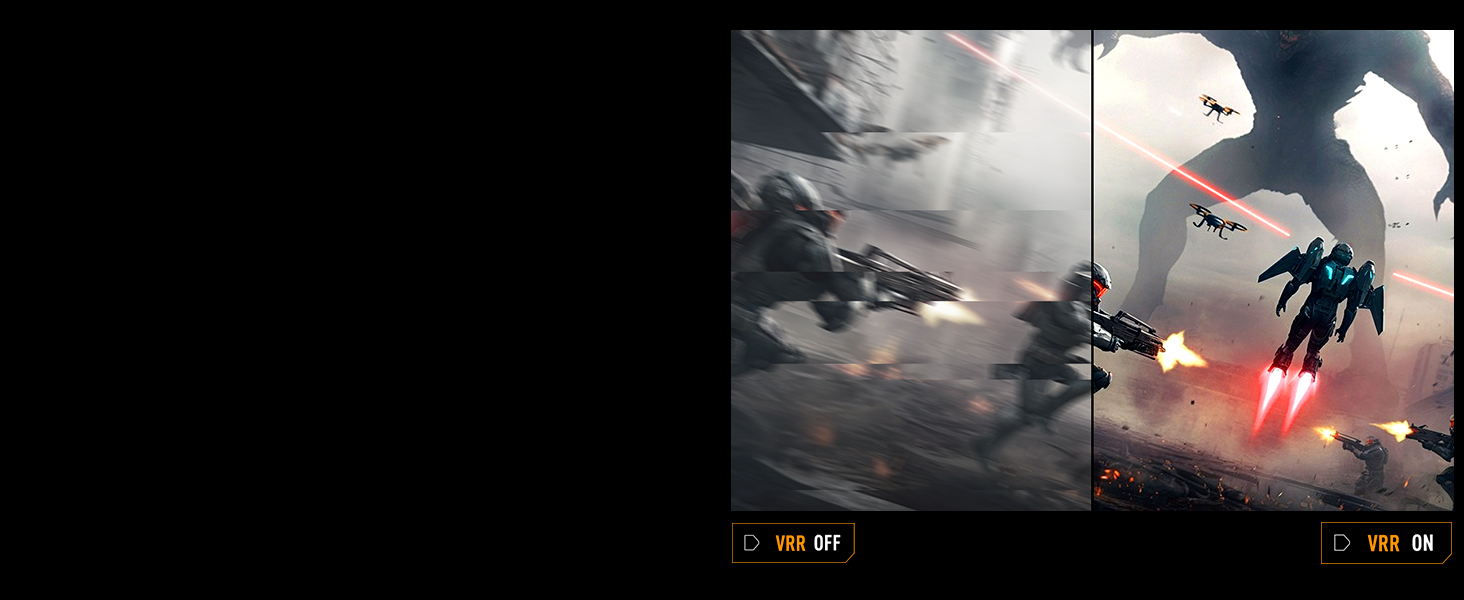
Extreme Low Motion Blur Sync (ELMB Sync)
ELMB Sync allows Extreme Low Motion Blur and Adaptive Sync technologies to operate simultaneously, further reducing ghosting and tearing for exceptionally sharp gaming visuals.
Shadow Boost
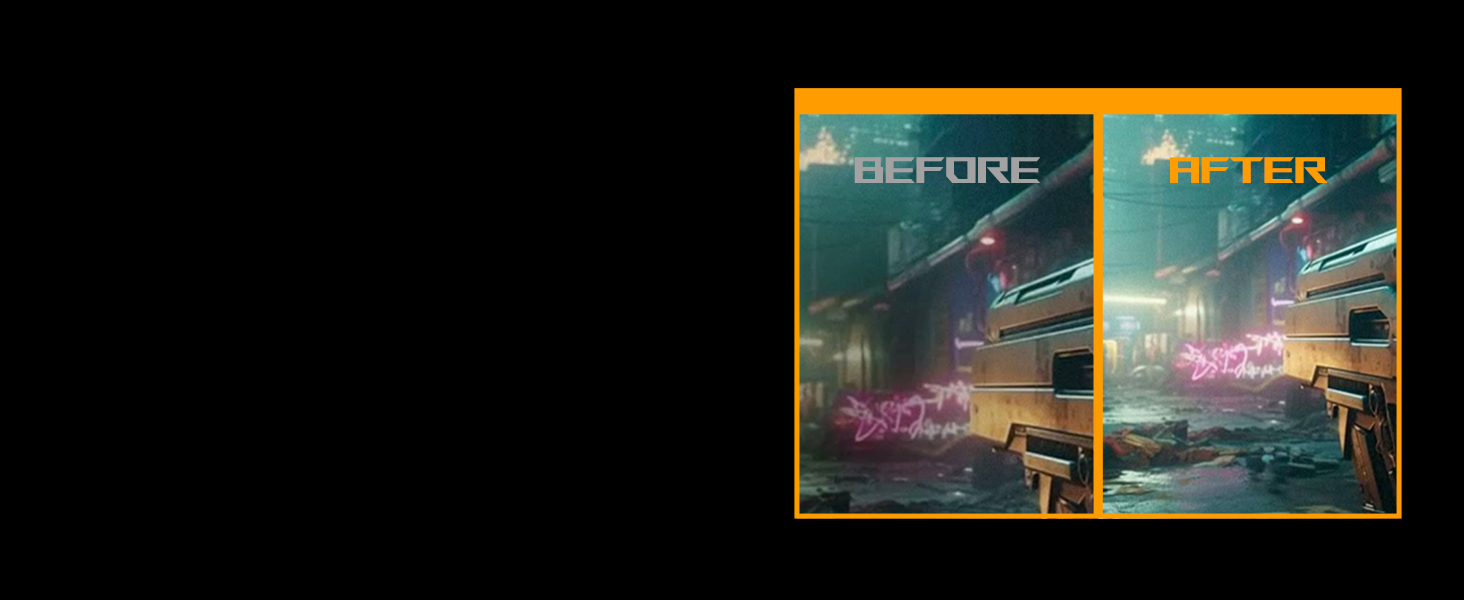
Shadow Boost technology enhances image details in dark areas without over-exposing bright regions, providing a clearer view in dimly lit game environments.
Eye Care Features
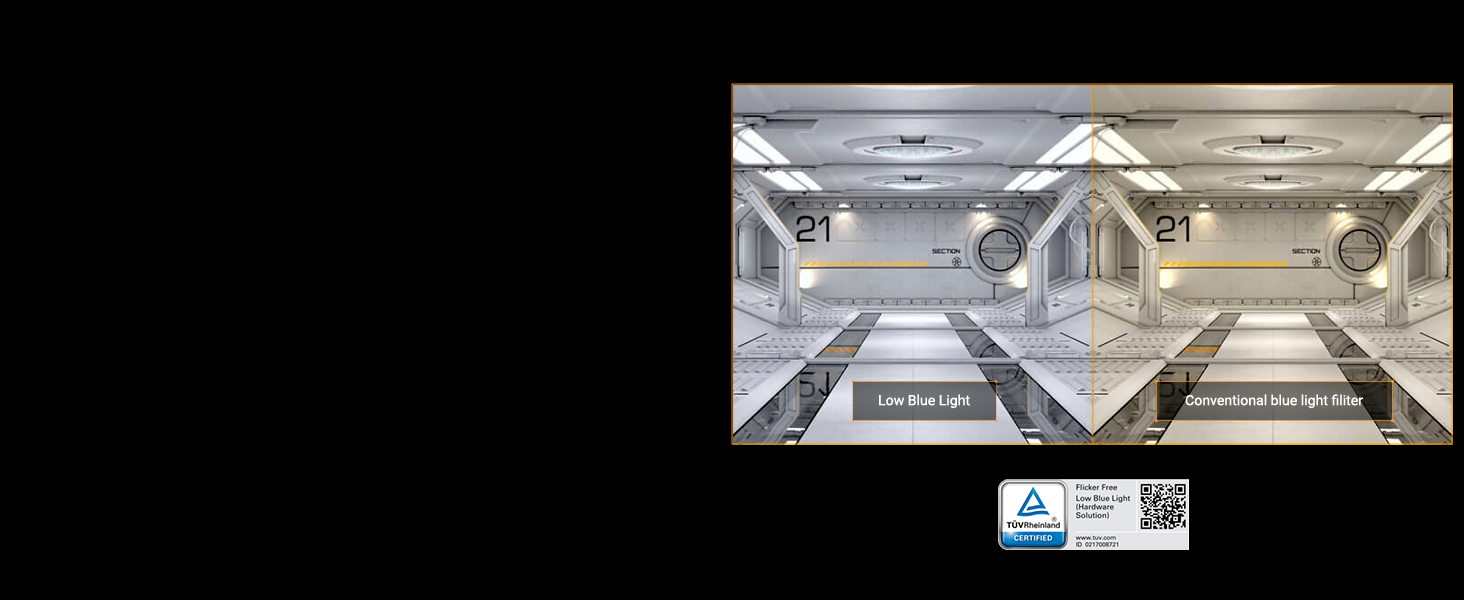
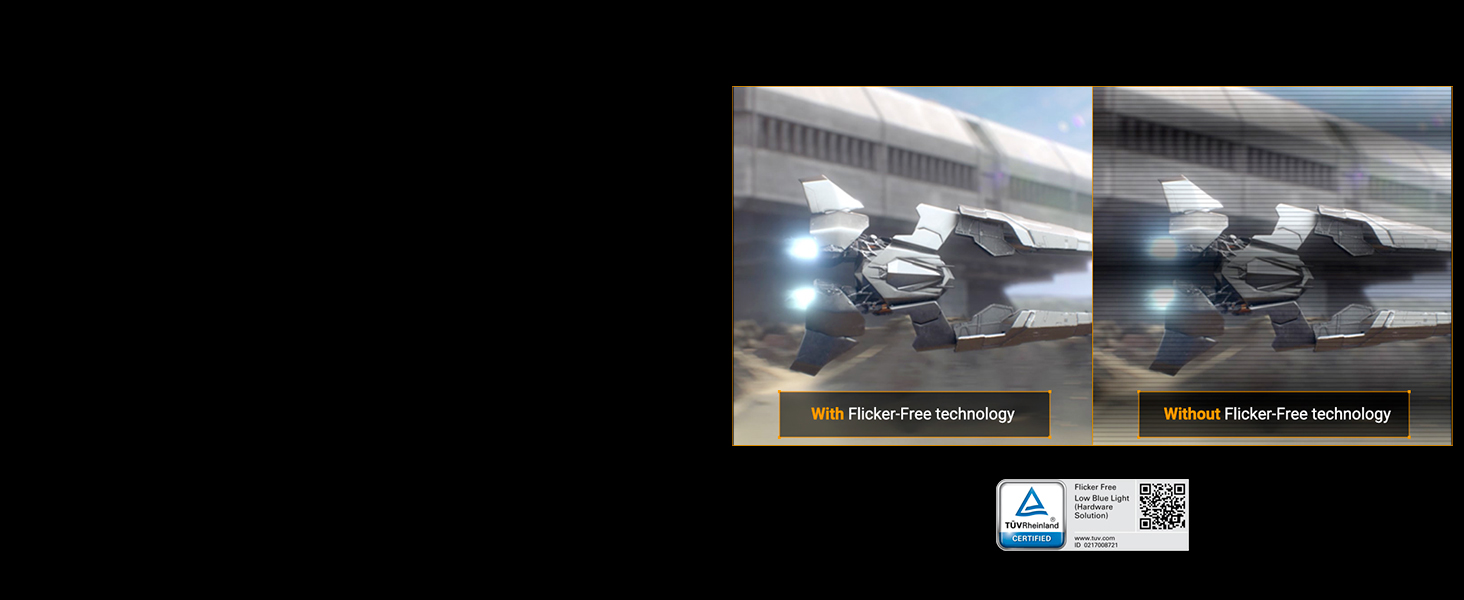
The monitor incorporates Flicker-Free technology and Low Blue Light filters to minimize eye strain during extended use. These features are TÜV Rheinland certified.
Built-in Speakers
The monitor includes built-in speakers for audio output. An earphone jack is also available for private listening.
Maintenance
Cleaning the Monitor
To clean the monitor screen, gently wipe it with a soft, lint-free cloth. For stubborn marks, dampen the cloth with a small amount of water or a mild, non-abrasive screen cleaner. Avoid using harsh chemicals or abrasive materials, as these can damage the screen surface. For the monitor casing, use a soft, dry cloth.
Storage
When storing the monitor for an extended period, ensure it is powered off and disconnected from all cables. Store it in a cool, dry place, preferably in its original packaging to protect it from dust and physical damage.
Troubleshooting
If you encounter issues with your monitor, refer to the following common troubleshooting steps:
- No Power: Ensure the power cord is securely connected to both the monitor and a working power outlet. Check if the power adapter's indicator light is on.
- No Signal: Verify that the video cable (DisplayPort, HDMI, or USB-C) is correctly connected to both the monitor and your computer. Ensure the correct input source is selected in the monitor's OSD menu.
- Flickering or Distorted Image: Check the video cable for damage. Try a different cable or port. Ensure your graphics card drivers are up to date. Adjust refresh rate settings in your operating system.
- Dead Pixels: While rare, a small number of non-performing pixels is inherent in LCD technology. If you observe a significant number of dead pixels, refer to the warranty policy for potential service options.
- Sound Issues: Ensure the audio cable (if using a separate one) is connected, or that audio is being transmitted via HDMI/DisplayPort. Check monitor volume settings and your computer's audio output settings.
For more detailed troubleshooting or persistent issues, consult the full user manual available on the ASUS support website or contact ASUS customer support.
Specifications
| Brand | ASUS |
| Model Number | VG27AQM5A |
| Screen Size | 27 inches |
| Resolution | QHD (2560x1440) |
| Panel Type | Fast IPS |
| Refresh Rate | 300 Hz |
| Response Time | 0.3 ms (GTG min.) |
| Aspect Ratio | 16:9 |
| Contrast Ratio | 1300:1 |
| Brightness | 1027.8 lm |
| Color Gamut | 95% DCI-P3 |
| Viewing Angle | 178 degrees |
| Connectivity | 2x HDMI 2.1, 1x DisplayPort, 1x USB, 1x USB Type-C, Earphone Jack |
| Adaptive Sync Technology | FreeSync Premium (G-SYNC Compatible) |
| Special Features | ELMB Sync, Shadow Boost, DisplayWidget Center, Blue Light Filter, Built-In Speakers, Eye Care, Flicker-Free |
| Mounting Type | 100 x 100 VESA |
| Item Dimensions (D x W x H) | 8.4"D x 24.2"W x 17.9"H |
| Item Weight | 10.1 pounds |
Warranty and Support
The ASUS TUF Gaming VG27AQM5A monitor comes with a 3-year manufacturer warranty. This warranty covers defects in materials and workmanship under normal use. For warranty claims or technical support, please contact ASUS customer service or visit the official ASUS support website. Keep your proof of purchase for warranty validation.
Additional protection plans may be available for purchase from your retailer.
Product Videos
ASUS Monitor for Gaming TUF Series Overview
Video: An official overview of the ASUS TUF series monitors, highlighting features relevant to gaming. This video is provided by ASUS Computer International Direct.


