
1. Introduction
This manual provides detailed instructions for the Ejoyous Mini Thermal Receipt Printer, Model PT-210. This compact and portable thermal printer is designed for various business environments, offering wireless Bluetooth and wired USB connectivity. It is compatible with Android, iOS, and PC systems, making it suitable for printing receipts, tickets, and other transactional documents.
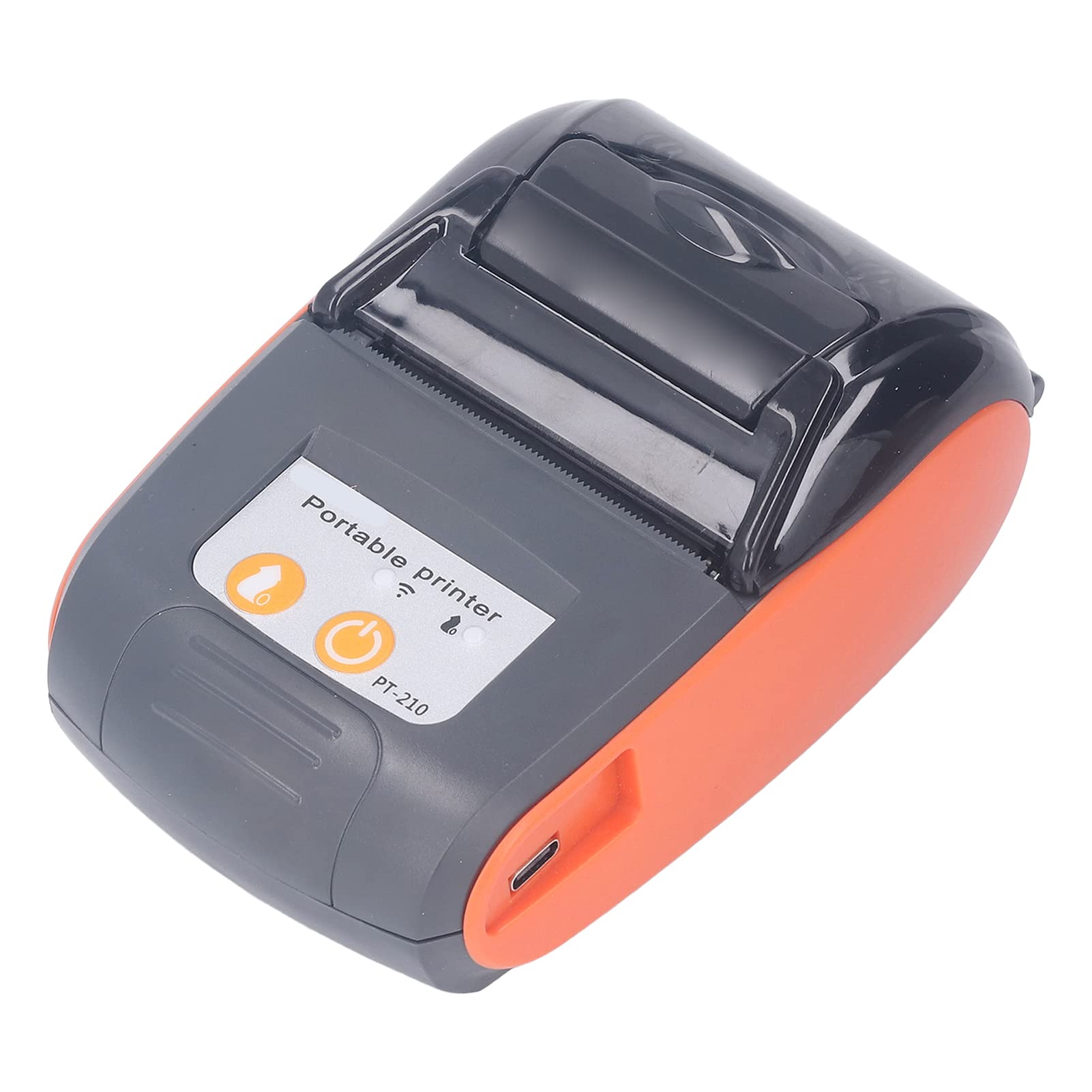
Image 1.1: The Ejoyous Mini Thermal Receipt Printer, Model PT-210.
2. Safety Information
- Do not expose the printer to water or moisture.
- Avoid operating the printer in extremely hot or cold environments (Operating Temperature: -10 °C to 50 °C).
- Use only the provided power adapter and USB cable for charging.
- Keep the printer away from direct sunlight and heat sources.
- Do not attempt to disassemble or repair the printer yourself. Contact qualified service personnel.
- Handle thermal paper carefully; avoid touching the print head immediately after printing as it may be hot.
3. Package Contents
Please check the package contents upon unboxing to ensure all items are present:
- 1 x Ejoyous Mini Thermal Receipt Printer (Model PT-210)
- 1 x User Manual
- 1 x USB Data Cable
- 1 x Thermal Receipt Paper Roll
- 1 x Storage Bag

Image 3.1: Included items: printer, storage bag, USB cable, and thermal paper roll.
4. Product Overview
The Ejoyous PT-210 printer features a compact design with essential controls and indicators for easy operation.
4.1. Control Panel

Image 4.1: Control panel with power button and status indicators.
- Power Button: Used to turn the printer on or off.
- Feed Button: Used to advance paper manually.
- Status Indicators: Lights indicating power, Bluetooth connection, and paper status.
4.2. Paper Compartment
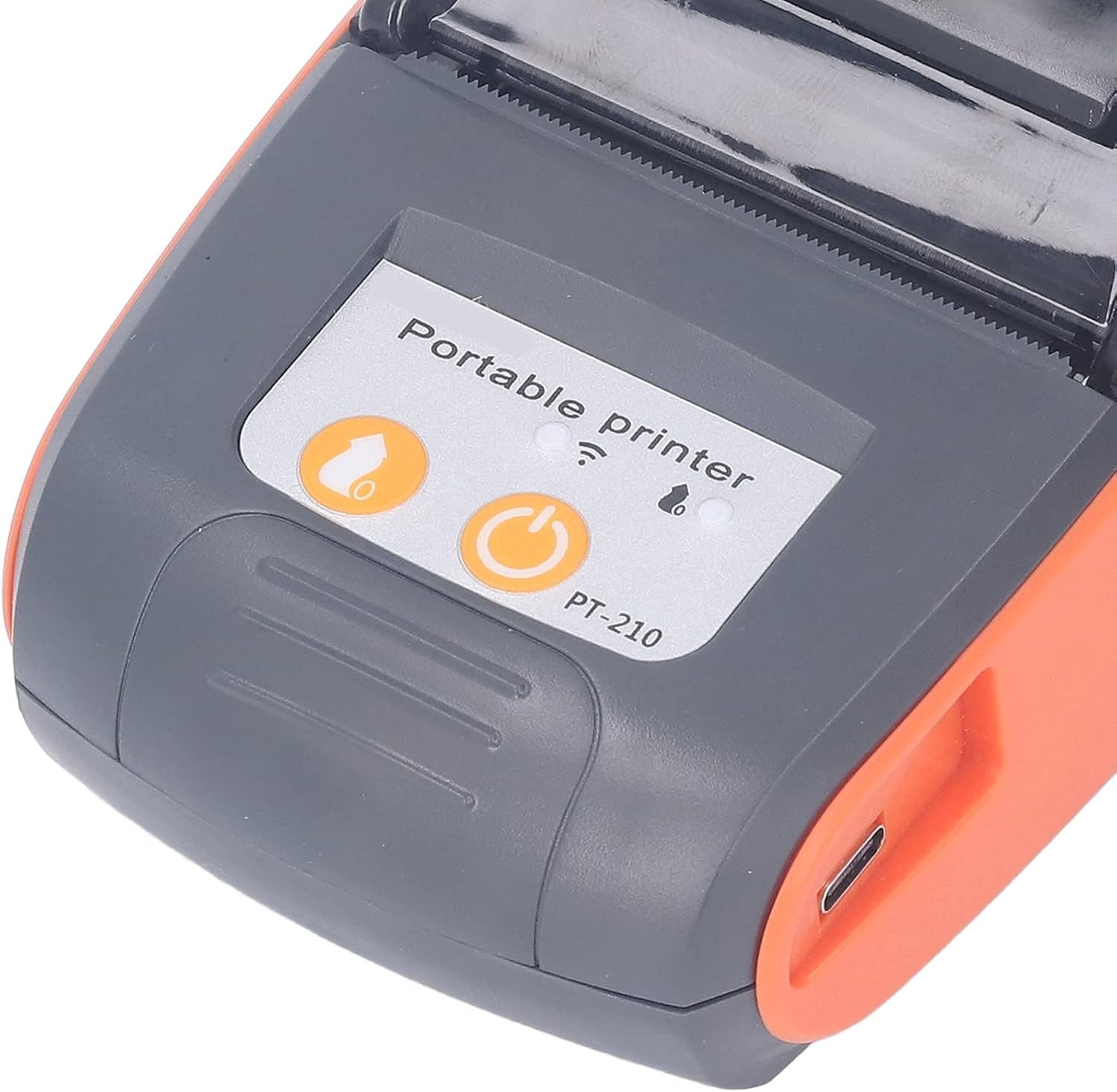
Image 4.2: Printer with the paper compartment lid open.
The top lid opens to reveal the compartment for loading the 58mm thermal paper roll.
5. Setup
5.1. Charging the Battery
The printer is equipped with a 1500 mAh lithium-ion battery. Before first use, fully charge the printer.
- Connect the provided USB data cable to the printer's Type-C port.
- Connect the other end of the USB cable to a compatible USB power adapter (not included) or a computer's USB port.
- The charging indicator light will illuminate. A full charge typically takes 2-4 hours.
- Once fully charged, the printer offers approximately 100 hours of standby time.

Image 5.1: Battery specifications and charging information.
5.2. Loading Thermal Paper
The printer uses 58mm wide thermal paper rolls.
- Gently press the lid release button or lift the lid to open the paper compartment.
- Insert the thermal paper roll into the compartment, ensuring the printing side of the paper faces the print head.
- Pull a small amount of paper out past the print head.
- Close the lid firmly until it clicks into place. Ensure there are no gaps.

Image 5.2: Top view of the printer with the paper compartment open.
5.3. Powering On/Off
- To Power On: Press and hold the Power button until the power indicator light illuminates.
- To Power Off: Press and hold the Power button until the power indicator light turns off.
6. Operating Instructions
The Ejoyous PT-210 offers flexible connectivity options for various devices.

Image 6.1: Printer demonstrating compatibility with mobile devices and computers.
6.1. Bluetooth Connection (Android/iOS)
The printer supports Bluetooth 4.0 for wireless printing from smartphones and tablets.
- Ensure the printer is powered on and within range of your mobile device.
- On your mobile device, go to Settings > Bluetooth and turn Bluetooth on.
- Search for available devices. The printer should appear as "PT-210" or a similar name.
- Select the printer to pair. If prompted for a PIN, enter "0000" or "1234".
- Once paired, the Bluetooth indicator on the printer will typically become solid.
- Open your printing application (e.g., a POS app, a dedicated printer app, or an app supporting direct printing) and select the PT-210 as your printer.
6.2. USB Connection (PC/Linux)
For wired printing, connect the printer to your computer via the USB cable.
- Ensure the printer is powered on.
- Connect the printer to your computer using the provided USB data cable.
- Install the necessary printer drivers for your operating system (Windows 2000, XP, 2003, 10, or Linux). Drivers are typically available from the manufacturer's website or included on a CD (if provided).
- Once drivers are installed, the printer will appear as an available printing device in your system settings.
- You can now print from various applications, including Word, Excel, and TXT files, as well as compatible POS software.
6.3. Supported Barcode and 2D Code Formats
The printer supports a wide range of barcode and 2D code formats:
- Barcode Types: UPC A, UPC E, EAN 13, EAN 8, CODE39, Code128, TIF, CODABAR, CODE93.
- 2D Codes: QR Code, PDF417.
7. Maintenance
7.1. Replacing Thermal Paper
Follow the steps outlined in Section 5.2 "Loading Thermal Paper" when the current paper roll runs out.
7.2. Cleaning the Printer
- Ensure the printer is powered off and disconnected from any power source before cleaning.
- Use a soft, dry, lint-free cloth to wipe the exterior of the printer.
- For the print head, use a cotton swab lightly dampened with isopropyl alcohol. Gently wipe the print head surface. Allow it to dry completely before use.
- Do not use abrasive cleaners or solvents.
8. Troubleshooting
If you encounter issues with your Ejoyous PT-210 printer, refer to the following common problems and solutions:
| Problem | Possible Cause | Solution |
|---|---|---|
| Printer does not power on. | Low battery or no power. | Charge the printer fully. Ensure the USB cable is securely connected. |
| Cannot connect via Bluetooth. | Bluetooth is off on device, printer not in pairing mode, or interference. | Ensure Bluetooth is enabled on your device. Restart both printer and device. Try pairing again. Move closer to the printer. |
| Poor print quality or blank prints. | Incorrect paper loading, low battery, or dirty print head. | Ensure thermal paper is loaded correctly with the print side facing up. Charge the battery. Clean the print head as described in Section 7.2. |
| Paper jam. | Improper paper loading or foreign object. | Power off the printer. Open the paper compartment and carefully remove any jammed paper. Ensure paper is loaded correctly. |
| Printer not recognized by PC via USB. | Missing or incorrect drivers. | Install the correct drivers for your operating system. Try a different USB port or cable. |
| Incompatible with certain apps/POS systems. | App/system does not support this printer model or ESC/POS commands. | Verify app/system compatibility with the printer's specifications. Some apps may require specific printer models or drivers. |
9. Specifications
| Feature | Specification |
|---|---|
| Model | PT-210 |
| Print Method | Thermal Printing |
| Resolution | 203 dpi (8 dots/mm) |
| Print Speed | Up to 90 mm/s |
| Paper Width | 58 mm |
| Dots per Line | 384 dots per line |
| Communication | USB, Bluetooth |
| Bluetooth Version | 4.0 |
| Interface | Type-C |
| Battery | 1 x DC 7.4V PL 484954 2s Lithium Battery 1500 mAh |
| Charging Time | 2-4 hours |
| Print Head Lifespan | 50 km (under specific conditions), 10 billion pulses |
| Print Command Set | ESC POS compatible |
| Platform Support | Android, iOS, Windows (2000, XP, 2003, 10), Linux |
| Operating Temperature | -10 °C to 50 °C |
| Storage Temperature | -20 °C to 70 °C |
| Storage Humidity | 5% to 95% |
| Dimensions (L x W x H) | 14 x 13 x 6 cm |
| Material | Plastic |
10. Warranty and Support
Specific warranty information for the Ejoyous Mini Thermal Receipt Printer (Model PT-210) is not provided in this document. For warranty details, technical support, or service inquiries, please contact the retailer or manufacturer directly. Keep your purchase receipt as proof of purchase.