
1. Introduction
Thank you for choosing the Pelsee P12 Pro Max Mirror Dash Cam. This advanced device is designed to enhance your driving safety and recording capabilities with its dual 4K+2.5K resolution, superior night vision, and intelligent driver assistance systems. This manual provides detailed instructions for installation, operation, and maintenance to ensure optimal performance and longevity of your dash cam.
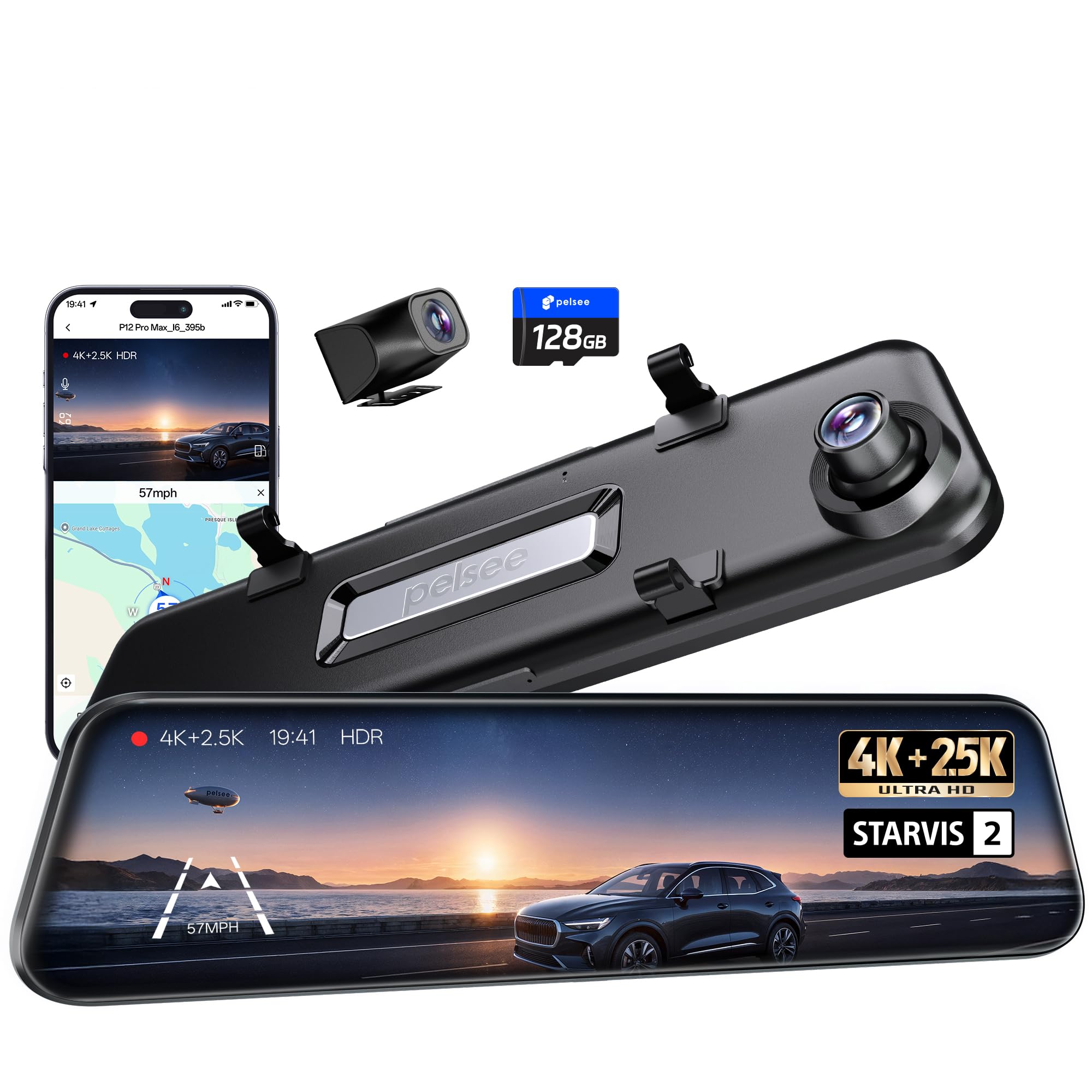
Image: The Pelsee P12 Pro Max Mirror Dash Cam, showcasing its sleek design and integrated front camera.
2. What's in the Box
Please check the package contents to ensure all items are present:
- 1 x 4K Mirror Dash Camera (P12 Pro Max)
- 1 x 2.5K Rear Camera Kit (with 33ft rear camera cable)
- 1 x OBD Hardwire Kit
- 1 x GPS Module
- 1 x 128GB Memory Card
- 1 x 11.5ft Type-C Car Charger
- 4 x Rubber Straps
- 2 x 3M Adhesive Pads
- 1 x Easy Pry Tool
- 1 x User Manual

Image: All components included in the Pelsee P12 Pro Max package, laid out for inspection.
3. Setup and Installation
Follow these steps to properly install your Pelsee P12 Pro Max Mirror Dash Cam:
- Mounting the Mirror Dash Cam: Use the provided rubber straps to securely attach the mirror dash cam over your existing rearview mirror. Ensure the front camera lens is positioned correctly for an unobstructed view of the road.
- Installing the Rear Camera: Mount the 2.5K rear camera at the back of your vehicle, typically above the license plate or on the rear window. The 33ft cable is designed for compatibility with larger vehicles. Route the cable neatly to the front of the vehicle, tucking it under trim panels for a clean installation.
- Connecting the GPS Module: Plug the GPS module into the designated port on the dash cam. Position the module on your dashboard or windshield where it has a clear view of the sky for accurate speed and location tracking.
- Powering the Device:
- Standard Power: Connect the 11.5ft Type-C car charger to your vehicle's cigarette lighter socket.
- 24/7 Parking Monitoring (Recommended): Use the included OBD Hardwire Kit. Plug it into your car's OBD-II port. This provides continuous power for parking surveillance without draining your car battery, thanks to its low voltage protection.
- Inserting the Memory Card: Insert the 128GB MicroSD card into the TF card slot on the dash cam. Ensure it is inserted correctly until it clicks into place.

Image: The Pelsee P12 Pro Max Mirror Dash Cam securely mounted over a vehicle's existing rearview mirror.

Image: Illustration showing the simplicity of OBD hardwire kit installation compared to traditional hardwiring methods.
4. Operating Instructions
4.1. Basic Operation
- Power On/Off: The device will automatically power on/off with your vehicle's ignition when connected to power.
- Touch Screen Control: The 12-inch touch screen allows intuitive navigation through menus and settings. Swipe left/right to switch between front, rear, and split-screen views. Tap to access menu options.
- Voice Control: Use simple voice commands for hands-free operation. Examples include: "Turn on screen," "Show rear camera," "Take picture," "Lock the video."
4.2. Driving Assistance Systems
The P12 Pro Max is equipped with advanced driving assistance features:
- ADAS (Advanced Driver Assistance System): Provides voice alerts for critical road scenarios such as front vehicle start, lane departure, forward collision, and pedestrian detection.
- BSD (Blind Spot Detection): Monitors areas your rearview mirror cannot see, detecting approaching vehicles and providing timely visual and audible alerts to reduce collision risks during lane changes.
- Reverse Assistance: When reversing, the screen automatically displays the rear camera view with clear grid lines for safer parking.

Image: Visual representation of ADAS features like Forward Collision Warning and Lane Departure Warning on the dash cam display.

Image: Visuals demonstrating Blind Spot Detection (BSD) and Lane Change Assist (LCA) functionality.

Image: The rearview mirror display showing parking guidelines for reverse assistance.
4.3. Connectivity and App Control
- Dual-Band Wi-Fi (2.4GHz & 5.8GHz): Connect your smartphone to the dash cam via the "Pelsee Cam" app. The 5.8GHz frequency ensures faster video previews and downloads (up to 20MB/s).
- Pelsee Cam App: Use the dedicated app to configure settings, preview live footage, playback recorded videos, download, edit, and share your videos effortlessly.
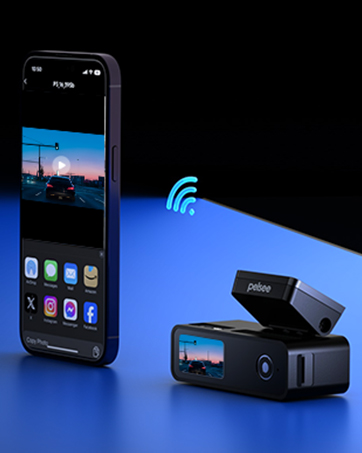
Image: A smartphone displaying the Pelsee Cam app interface, showing live footage and control options.
4.4. Parking Mode
With the OBD Hardwire Kit, the dash cam offers 24/7 parking monitoring:
- Full-Color Night Vision: Records clear, colorful footage during time-lapse parking surveillance, even in low-light conditions.
- Low Voltage Protection: Prevents your car battery from draining during extended parking monitoring.

Image: A side-by-side comparison illustrating the superior clarity and color of Pelsee's low-light color night vision compared to standard night vision.
5. Maintenance
- SD Card Management: Regularly format the 128GB memory card (at least once a month) to ensure optimal recording performance and prevent data corruption.
- Cleaning: Use a soft, dry cloth to clean the camera lenses and the mirror screen. Avoid abrasive materials or harsh chemicals.
- Firmware Updates: Check the Pelsee website or app periodically for firmware updates to ensure your device has the latest features and bug fixes.
6. Troubleshooting
- Screen Freezing/Rebooting: If the screen freezes or the device reboots unexpectedly, try updating the firmware. Ensure the SD card is properly formatted and not corrupted.
- Poor Night Vision: Ensure the camera lenses are clean. Verify that HDR/WDR settings are enabled for optimal low-light performance.
- Wi-Fi Connectivity Issues: Ensure you are within range of the dash cam's Wi-Fi signal. Try restarting both the dash cam and your smartphone's Wi-Fi.
- OBD Hardwire Kit Compatibility: The included OBD hardwire kit is not suitable for hybrid vehicles. For hybrid vehicles, an ACC Hardwire Kit (sold separately, ASIN: B0C7QY4K89) may be required.
- Rear Camera Cable Length: The upgraded 33ft rear camera cable offers improved compatibility with larger vehicles. The P12 Pro Max is not compatible with the 4-pin rear extension cable (ASIN: B0BKQ6MPWS).
7. Specifications
| Feature | Detail |
|---|---|
| Model Name | P12 Pro Max |
| Front Camera Sensor | STARVIS 2 IMX678 |
| Rear Camera Sensor | STARVIS IMX335 |
| Video Capture Resolution | Front 4K (2160p), Rear 2.5K (1440p) |
| Display | 12-inch Touch Screen |
| Connectivity Technology | Dual-Band Wi-Fi (2.4GHz & 5.8GHz) |
| Special Features | Color Night Vision, ADAS, BSD, Voice Control, GPS Module, OBD Hardwire Kit |
| Included Memory Card | 128GB |
| Rear Camera Cable Length | 33 ft |
| Product Dimensions | 1.8 x 12 x 3.3 inches |
8. Warranty and Support
The Pelsee P12 Pro Max Mirror Dash Cam comes with an 18-month warranty. For any technical assistance, troubleshooting, or warranty claims, please contact Pelsee customer support:
- Email: support@pelsee.com

Image: Details on Pelsee's 30-day free return, 30-day money-back guarantee, and 18-month warranty, along with customer support email.
9. Official Product Video
Video: An official product video from Pelsee US demonstrating the Smart Driving System features of the dash cam, including ADAS and BSD functionalities.

