
1. Introduction
This manual provides detailed instructions for the installation, operation, and maintenance of your Loddery 7-inch Android 13.0 Car Stereo. This unit is designed for specific vehicle models, ensuring a seamless integration and enhanced in-car entertainment experience.
Applicable Vehicle Models:
- Chevrolet Silverado SSR Tahoe: 2003-2006
- GMC Sierra Yukon: 2003-2006
- Hummer H2: 2003-2007

Image 1.1: Applicable Car Models and Dashboard Compatibility

Image 1.2: Dashboard Fitment Guide (Before/Fit/Not Fit)
2. Safety Information
Please read all safety instructions carefully before installation and operation. Failure to follow these guidelines may result in injury or damage to the unit or vehicle.
- Professional Installation Recommended: Due to the complexity of car electrical systems, professional installation is highly recommended.
- Power Source: Connect the unit only to a 12V DC power supply with a negative ground.
- Wiring: Ensure all wiring is correctly connected according to the wiring diagram. Incorrect wiring can cause damage or fire.
- Driving Safety: Do not operate the unit in a way that distracts you from driving. Always prioritize road safety.
- Temperature: Avoid exposing the unit to extreme temperatures or direct sunlight for prolonged periods.
3. Package Contents
Verify that all items are present in the package:
- Loddery 7-inch Android 13.0 Car Stereo Unit
- Power Harness
- GPS Antenna
- USB Cables (x2)
- RCA Cables (Audio/Video Output)
- Rear View Camera Input Cable
- External Microphone
- Mounting Brackets and Screws
- User Manual (this document)
- Car Compass (as listed in product details)
4. Product Overview
The Loddery 7-inch Android 13.0 Car Stereo features a capacitive touchscreen display and various connectivity options. Familiarize yourself with the unit's components before installation.
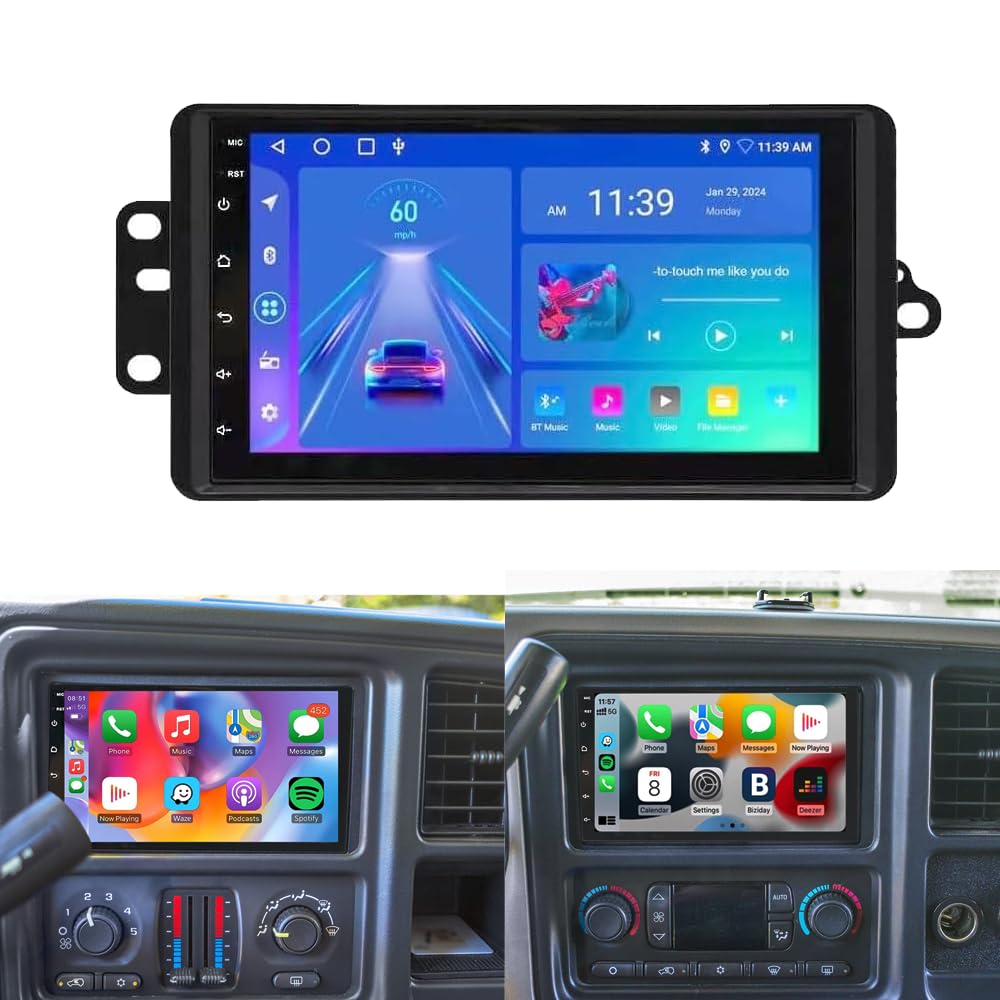
Image 4.1: Front View of the Car Stereo Unit
The unit typically includes:
- 7-inch Capacitive Touchscreen: For interactive control and display.
- Physical Buttons/Knobs: (If present, usually for volume, home, back, etc. - refer to specific unit design).
- USB Ports: For media playback, wired CarPlay/Android Auto, and charging.
- Microphone Input: For hands-free calling.
- GPS Antenna Port: For navigation functionality.
- Radio Antenna Port: For FM/AM reception.
- Rear Camera Input: For connecting a backup camera.
- RCA Outputs: For external amplifiers or monitors.
5. Setup & Installation
Follow these general steps for installing your car stereo. Specific vehicle requirements may vary.
5.1 Pre-Installation Checklist
- Ensure the vehicle's ignition is off and the negative terminal of the car battery is disconnected.
- Gather necessary tools (screwdrivers, wire strippers, electrical tape, etc.).
- Confirm compatibility with your vehicle's dashboard and wiring harness.
5.2 Wiring Connections
Connect the included wiring harness to the stereo unit and then to your vehicle's wiring. Refer to the wiring diagram provided with your specific harness. Common connections include:
- Yellow (B+ / Constant Power): Connect to a constant 12V power source.
- Red (ACC / Switched Power): Connect to a 12V accessory power source that turns on/off with the ignition.
- Black (Ground): Connect to a metal part of the car chassis or the vehicle's ground wire.
- Orange (Illumination / Dimmer): Connect to the vehicle's illumination wire (optional).
- Blue (Antenna / Amp Remote): Connect to power antenna or amplifier remote turn-on wire.
- Speaker Wires: Connect to corresponding vehicle speaker wires (e.g., White/White-Black for Front Left, Gray/Gray-Black for Front Right, Green/Green-Black for Rear Left, Purple/Purple-Black for Rear Right).
- Reverse (Backup Camera Trigger): Connect to the vehicle's reverse light wire to automatically display the rear camera feed.
- Steering Wheel Control (SWC) Wires: Connect to the vehicle's SWC wires (Key1, Key2, Ground).
5.3 Component Installation
- GPS Antenna: Mount the GPS antenna on the dashboard or another location with a clear view of the sky.
- External Microphone: Position the microphone in a suitable location for clear voice pickup (e.g., near the rearview mirror or on the A-pillar).
- USB Cables: Route USB cables to an accessible location, such as the glove compartment or center console.
- Rear View Camera (Optional): Install the rear view camera according to its separate instructions and connect its video output to the stereo's 'CAM IN' port.
5.4 Mounting the Unit
Secure the stereo unit into the dashboard opening using the provided mounting brackets and screws. Ensure it is firmly in place and does not obstruct any vehicle controls.

Image 5.1: Stereo Unit Installed in Dashboard
5.5 Post-Installation
Reconnect the negative terminal of the car battery. Turn on the ignition and test all functions of the stereo unit.
6. Operating Instructions
This section details the primary functions and features of your Loddery car stereo.
6.1 Wireless & Wired CarPlay / Android Auto
Connect your smartphone for seamless integration of navigation, music, calls, and messages.
- Wireless Connection: Enable Bluetooth and Wi-Fi on your iPhone (for CarPlay) or Android phone (for Android Auto). Pair your phone with the stereo via Bluetooth. Follow on-screen prompts to activate wireless CarPlay/Android Auto.
- Wired Connection: Connect your smartphone to the stereo's USB port using a high-quality USB cable. The system will automatically launch CarPlay or Android Auto.

Image 6.1: CarPlay & Android Auto Interface

Image 6.2: Wireless Apple CarPlay

Image 6.3: Wireless Android Auto
6.2 GPS Navigation
The unit features built-in GPS for navigation. Connect to Wi-Fi to download and update maps or use online navigation services.
- Online Maps: Use pre-installed navigation apps or download your preferred apps from the Google Play Store (requires Wi-Fi connection).
- Offline Maps: Download map data for offline use in areas without network coverage.

Image 6.4: GPS Navigation Icon
6.3 Bluetooth Functionality
Connect your phone via Bluetooth 5.0 for hands-free calling and audio streaming.
- Pairing: Go to the Bluetooth settings on the stereo and your phone. Search for available devices and select the stereo's name to pair.
- Hands-Free Calling: Make and receive calls directly from the stereo screen. Access your phonebook and call history.
- Audio Streaming: Play music from your phone through the car speakers.

Image 6.5: Bluetooth Functionality

Image 6.6: Built-in Bluetooth Interface
6.4 FM/RDS Radio
Access local radio stations with clear reception and RDS (Radio Data System) features.
- Tuning: Use the touchscreen to scan for stations or manually tune to a specific frequency.
- RDS: Displays station information, song titles, and traffic updates where available.

Image 6.7: FM/RDS Radio Interface
6.5 DSP (Digital Sound Processor) & HIFI Audio
Customize your audio experience with the built-in DSP and HIFI audio features.
- Equalizer (EQ): Adjust frequency bands to fine-tune the sound output to your preference.
- Sound Presets: Select from various pre-defined sound modes (e.g., Pop, Rock, Jazz).

Image 6.8: HIFI Audio & EQ Settings
6.6 Rear View Camera
When a compatible rear view camera is connected, the display automatically switches to the camera feed when the vehicle is put into reverse.
- Parking Guidelines: Dynamic or static guidelines assist with parking maneuvers.
- HD Image: Provides a clear view of the area behind your vehicle.

Image 6.9: Rear View Camera Display

Image 6.10: Rear View Camera Features
6.7 Steering Wheel Control (SWC)
Configure the stereo to work with your vehicle's existing steering wheel controls for convenient operation.
- Learning Function: Access the 'Steering Learn' menu in the stereo settings. Follow the on-screen instructions to assign functions to your steering wheel buttons.

Image 6.11: Steering Wheel Control Setup
6.8 Split Screen Function
The Android 13.0 system supports split-screen mode, allowing you to run two applications simultaneously (e.g., navigation and music player).
- Activation: Typically, long-press the recent apps button or drag an app to one side of the screen to activate split-screen.
7. Maintenance
Proper maintenance ensures the longevity and optimal performance of your car stereo.
- Cleaning the Screen: Use a soft, lint-free cloth to gently wipe the touchscreen. Avoid abrasive cleaners or harsh chemicals.
- Software Updates: Periodically check for system updates via the 'Settings' menu. Connect to Wi-Fi to download and install updates to ensure the latest features and security patches.
- Avoid Liquids: Keep liquids away from the unit to prevent damage.
- Temperature Control: Do not leave the unit in extreme hot or cold conditions for extended periods.
8. Troubleshooting
Refer to this section for common issues and their solutions.
| Problem | Possible Cause | Solution |
|---|---|---|
| No Power | Incorrect wiring (B+, ACC, Ground), blown fuse. | Check power and ground connections. Verify vehicle fuses and stereo fuse. |
| No Sound | Speaker wires disconnected, volume too low, mute activated, incorrect audio source. | Check speaker connections. Increase volume. Deactivate mute. Select correct audio source. |
| GPS Not Working | GPS antenna not connected or poorly positioned, no map data. | Ensure GPS antenna is securely connected and has a clear view of the sky. Download or update map data. |
| Bluetooth Connection Issues | Phone not in pairing mode, incorrect pairing process, interference. | Ensure Bluetooth is enabled on both devices. Re-attempt pairing. Clear previous pairings. |
| Steering Wheel Controls Not Responding | SWC wires incorrectly connected, learning process not completed. | Verify SWC wiring. Perform the 'Steering Learn' function in settings. |
| Touchscreen Unresponsive | System freeze, temporary software glitch. | Restart the unit (if possible, by holding the power button) or perform a soft reset (refer to specific unit instructions). |
9. Specifications
Key technical specifications of the Loddery 7-inch Android 13.0 Car Stereo:
- Brand: Loddery
- Model Name: For Chevy Chevrolet Silverado SSR Tahoe 2003-2006
- Operating System: Android 13.0
- Screen Size: 7 Inches
- Display Type: LCD, Capacitive Touchscreen
- Memory Storage Capacity: 32 GB
- Connectivity Technology: Wi-Fi, Bluetooth 5.0
- Supported Satellite Navigation System: GPS
- Control Method: Touch, Voice
- Vehicle Service Type: Car, SUV, Truck
- Mounting Type: Dashboard Mount, Panel Mount
- Included Components: Car compass (as per product details)
10. Warranty & Support
For any questions or concerns regarding your Loddery car stereo, please contact customer support.
- Warranty: Please contact the seller directly for warranty information and claims.
- Customer Support: Refer to your purchase documentation or the seller's contact information for support.