
1. Introduction
Thank you for choosing the vibeadio Sound Bar with Subwoofer. This manual provides essential information for setting up, operating, and maintaining your new audio system. Please read it thoroughly before use to ensure optimal performance and safety.

Figure 1.1: vibeadio Sound Bar and Subwoofer System
2. Safety Information
To reduce the risk of electric shock, fire, or damage to the unit, please observe the following precautions:
- Do not expose this appliance to rain or moisture.
- Do not place objects filled with liquids, such as vases, on the appliance.
- Ensure proper ventilation; do not block any ventilation openings.
- Do not install near any heat sources such as radiators, heat registers, stoves, or other apparatus (including amplifiers) that produce heat.
- Protect the power cord from being walked on or pinched.
- Only use attachments/accessories specified by the manufacturer.
- Unplug this appliance during lightning storms or when unused for long periods.
3. Package Contents
Verify that all items are present in the package:

Figure 3.1: Included Components
- 1 x vibeadio Sound Bar
- 1 x Wired Subwoofer
- 1 x Remote Control
- 1 x Power Supply
- 1 x ARC Cable
- 1 x Optical Cable
- 1 x 3.5mm AUX Cable
- 1 x User Manual (this document)
4. Product Overview
The vibeadio Sound Bar system is designed to enhance your audio experience with powerful sound and versatile connectivity. It features a main sound bar unit and an independent wired subwoofer for deep bass.
4.1 Key Features
- Excellent Sound Quality: Delivers crystal-clear vocals, rich bass, and immersive surround sound with advanced DSP technology.
- Independent Subwoofer: Provides powerful, distortion-free bass for a cinematic audio experience.
- Three Dynamic Equalizer Modes: Easily switch between Movie, Music, and News modes for optimized audio.
- Multiple Connectivity Options: Supports eARC/ARC, Optical, 3.5mm AUX, and Bluetooth 5.3 for broad compatibility.
- User-Friendly Design: Intuitive controls via remote or top-mounted buttons, with flexible placement options (desktop or wall-mounted).
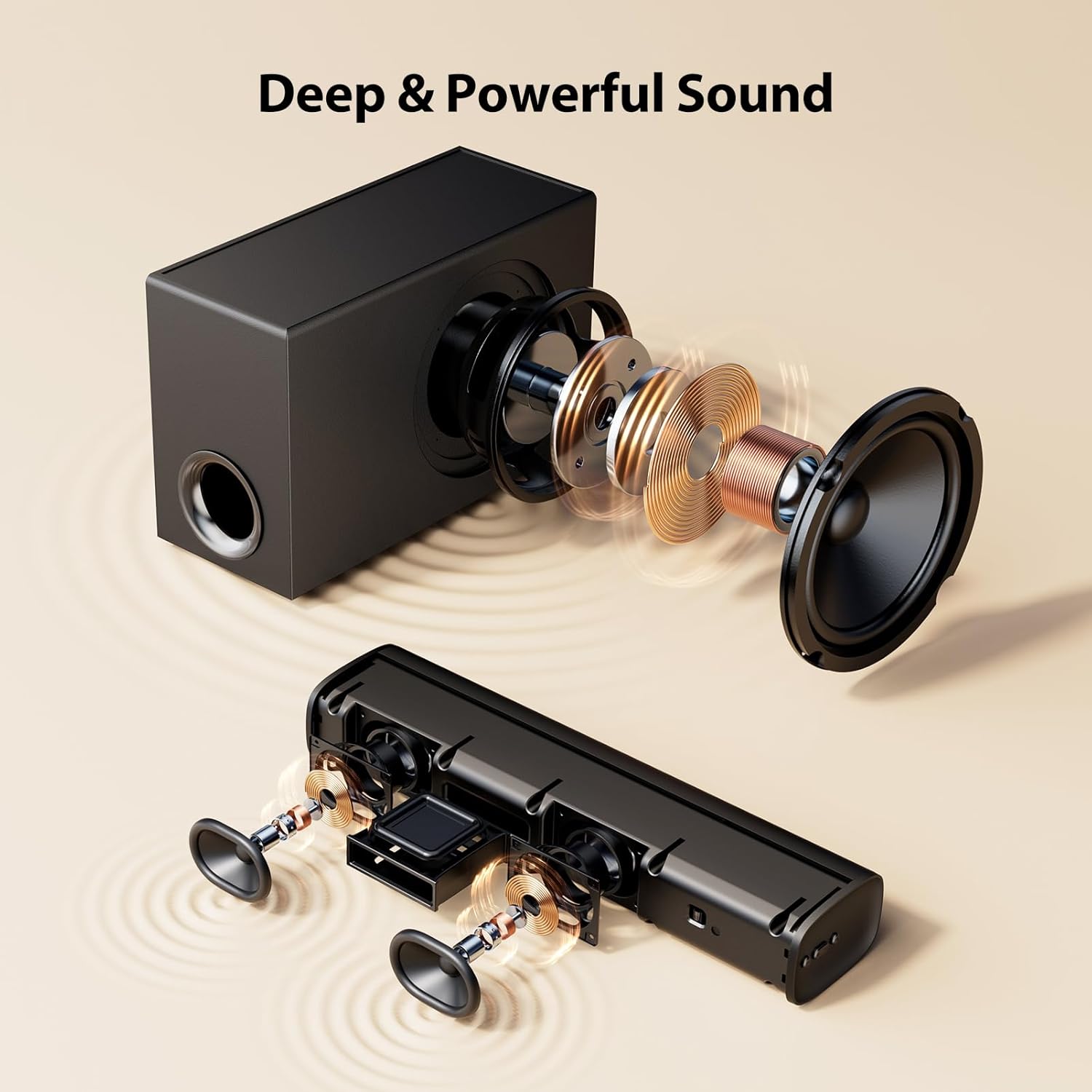
Figure 4.1: Internal Components for Deep & Powerful Sound

Figure 4.2: Advanced DSP Technology

Figure 4.3: 110W High-Quality Stereo with Dual Full-Range Drivers
5. Setup
5.1 Placement
The sound bar and subwoofer can be placed on a desktop or wall-mounted.
- Desktop Placement: Place the sound bar directly in front of your TV or monitor. Position the subwoofer on the floor near the sound bar for optimal bass response.
- Wall Mount: The sound bar can be mounted on a wall below your TV. Ensure the wall can support the weight of the sound bar and use appropriate mounting hardware (not included unless specified in package contents).

Figure 5.1: Desktop Placement

Figure 5.2: Wall Mount Placement
5.2 Connecting to Audio Sources
The sound bar offers multiple connection options:

Figure 5.3: Rear Panel Connectivity Ports
- ARC/eARC Connection (HDMI):
Connect an HDMI cable (included) from the ARC/eARC port on the sound bar to the ARC/eARC HDMI port on your TV. This allows audio to be sent from the TV to the sound bar and enables TV remote control of the sound bar volume. - Optical Connection:
Connect an Optical cable (included) from the OPTICAL port on the sound bar to the Optical Digital Audio Out port on your TV or other device. - AUX Connection (3.5mm):
Connect a 3.5mm AUX cable (included) from the AUX port on the sound bar to the headphone jack or audio out port on your device. - Bluetooth 5.3 Connection:
Power on the sound bar. Select Bluetooth input mode. On your device (smartphone, tablet, PC), enable Bluetooth and search for "vibeadio Sound Bar" (or similar). Select it to pair.

Figure 5.4: Multiple Input and Bluetooth 5.3 Connectivity
5.3 Power Connection
Connect the power adapter to the DC IN port on the sound bar, then plug the adapter into a wall outlet.
6. Operating Instructions
Control your vibeadio Sound Bar using the included remote control or the buttons on the top of the sound bar.

Figure 6.1: Remote Control
6.1 Power On/Off
- Press the Power button on the remote or the sound bar to turn the unit on or off.
6.2 Input Selection
- Press the INPUT button on the remote or the sound bar to cycle through available input sources (ARC, Optical, AUX, Bluetooth).
6.3 Volume Control
- Use the Volume + and Volume - buttons on the remote or sound bar to adjust the master volume.
6.4 Sound Modes (Equalizer)
The sound bar features three preset equalizer modes:

Figure 6.2: Three Equalizer Modes
- Press the SOUND FIELD button on the remote to switch between:
- Movie Mode: Optimized for cinematic sound with enhanced bass and surround effects.
- Music Mode: Balanced audio for music playback.
- News Mode: Clearer vocals for dialogue-heavy content.
6.5 Bass and Voice Adjustment
- Use the BASS+ and BASS- buttons on the remote to adjust the subwoofer's bass level.
- Press the VOICE button to enhance dialogue clarity.
7. Maintenance
Proper maintenance ensures the longevity and performance of your sound bar system.
- Cleaning: Use a soft, dry cloth to clean the surfaces of the sound bar and subwoofer. Do not use liquid cleaners or abrasive materials.
- Ventilation: Ensure that the ventilation openings are not blocked to prevent overheating.
- Storage: If storing the unit for an extended period, unplug it from the power outlet and store it in a cool, dry place.
8. Troubleshooting
If you encounter issues, refer to the following common problems and solutions:
| Problem | Possible Cause | Solution |
|---|---|---|
| No power | Power cord not connected; power outlet not active. | Ensure power cord is securely connected. Test the outlet with another device. |
| No sound | Incorrect input selected; volume too low; cables not connected properly. | Select the correct input source. Increase volume. Check all audio cables for secure connection. |
| Bluetooth pairing failure | Sound bar not in pairing mode; device too far; interference. | Ensure sound bar is in Bluetooth mode. Move device closer. Restart both devices. |
| Remote control not working | Batteries depleted; obstruction between remote and sound bar. | Replace remote batteries. Remove any obstructions. Ensure remote is pointed at the sound bar's sensor. |
| Subwoofer not producing bass | Subwoofer cable loose; bass level set too low. | Check the subwoofer connection cable. Increase the bass level using the remote. |
9. Specifications
Detailed technical specifications for the vibeadio Sound Bar with Subwoofer:
| Feature | Specification |
|---|---|
| Model Name | tv soundbar |
| Speaker Type | Soundbar |
| Recommended Uses | For Televisions, For Gaming Consoles, For Computers, For Surround Sound Systems, For Projectors |
| Compatible Devices | Gaming Console, Laptop, Smartphone, Tablet, Television |
| Surround Sound Channel Configuration | 5.1 |
| Color | Black |
| Product Dimensions | 17"D x 2.7"W x 3.9"H (Soundbar) |
| Item Weight | 11.25 pounds (Total) |
| Is Waterproof | False |
| Number of Items | 1 |
| Control Method | Remote |
| Wireless Communication Technology | Bluetooth |
| Speaker Size | 17 Inches (Soundbar length) |
| Power Source | Corded Electric |
| Audio Driver Type | Dynamic Driver |
| Manufacturer | vibeadio |
| Speaker Maximum Output Power | 110 Watts |
| Connectivity Technology | ARC, Auxiliary, Bluetooth, Optical |
| Audio Output Mode | Surround |
| Mounting Type | Tabletop Mount |
10. Warranty & Support
The vibeadio Sound Bar with Subwoofer comes with a Limited Warranty. Please refer to the warranty card included in your package for specific terms and conditions.
For technical support or warranty claims, please contact vibeadio customer service through the retailer where the product was purchased or visit the official vibeadio website for contact information.