
1. Introduction
This manual provides comprehensive instructions for the MechLands M75 Wired Hall Effect Gaming Keyboard. Designed for competitive gaming, the M75 features advanced Hall Effect magnetic switches, ultra-low latency, and extensive customization options. Please read this manual thoroughly to ensure proper setup and optimal performance of your keyboard.
2. What's in the Box
Upon unboxing your MechLands M75 keyboard, please verify that all the following items are included:
- MechLands M75 Wired Hall Effect Gaming Keyboard
- USB Cable
- Keycap Puller
- Extra Keycap and Switch (for knob replacement)
- Quick Start Guide / User Manual

Image: The MechLands M75 keyboard and its accessories laid out, showing the keyboard, USB cable, keycap puller, and additional keycap and switch.
3. Key Features
3.1 Hall Effect Magnetic Switches
The MechLands M75 utilizes advanced Hall Effect magnetic switches. These switches operate without physical contact, ensuring a smooth, noiseless typing experience and significantly reducing latency to just 0.128ms. They are hot-swappable, allowing for easy customization of the keyboard's feedback without soldering.

Image: A keycap is being removed from the keyboard, revealing the hot-swappable magnetic switch and south-facing LEDs underneath. Plate-mounted stabilizers are also visible.

Image: Detailed specifications for the Outemu Magnetic Switch, highlighting its 3.5±0.1mm total travel, 30gf minimum operating force, 55gf maximum termination force, and a lifespan of 100 million+ presses.
3.2 Ultra-Low Latency & High Polling Rate
The M75 boasts an ultra-low latency of 0.128ms and an 8K polling rate, ensuring commands are executed without delay. A 32K scan rate and 0.01mm accuracy provide exceptional responsiveness crucial for competitive gaming.

Image: A visual representation of the keyboard's precision features, emphasizing its low latency, high polling rate, and adjustable actuation for esports.
3.3 Customizable Functions for E-sports (DKS, MT, TGL, SOCD)
Through the MechLands driver software, users can configure advanced settings such as Dynamic Key Stroke (DKS), Mod Tap (MT), Toggle (TGL), and Simultaneous Opposite Cardinal Directions (SOCD). These functions allow for precise control over key behavior, enhancing gaming performance. Adjustable dead zones further refine response times and minimize accidental keystrokes.

Image: A visual explanation of the rapid trigger feature, demonstrating how the magnetic switch registers input with minimal travel, enabling faster responses.

Image: An illustration of the Dynamic Key Stroke (DKS) functionality, where pressing a key to different depths can activate distinct commands, such as walking or running in a game.
3.4 75% Compact Layout with Swappable Knob
The 75% layout optimizes desk space while retaining essential keys. The keyboard features a durable plastic shell with aluminum side plates. A customizable knob can be exchanged for a standard key, with an extra keycap and switch included for this purpose.

Image: The 75% compact layout of the keyboard is displayed, along with its width, depth, height, and weight, emphasizing its space-saving design.

Image: A close-up view of the keyboard's internal structure, showing the aluminum plate that contributes to its durability and premium feel.
3.5 Customizable RGB Backlights
The M75 features customizable RGB backlighting with 16 million color options and individual key lighting. South-facing LEDs ensure optimal visibility and a vibrant aesthetic.
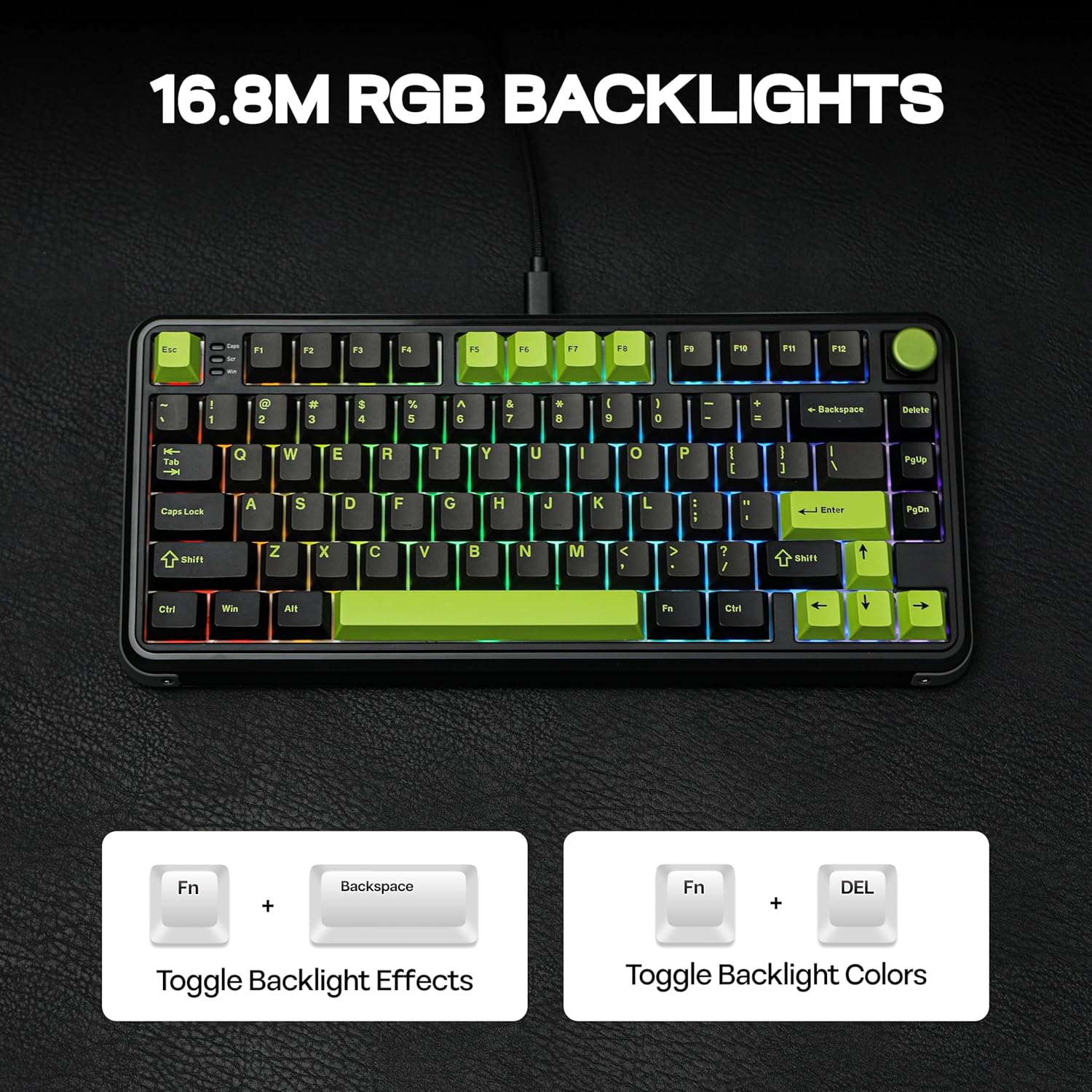
Image: The keyboard illuminated with colorful RGB backlighting, demonstrating the visual appeal and the key combinations (Fn + Backspace, Fn + DEL) for adjusting lighting effects and colors.
3.6 NKRO (N-Key Rollover)
N-Key Rollover (NKRO) ensures that every key press is registered, even when multiple keys are pressed simultaneously. This feature, combined with anti-ghosting, prevents missed inputs during intense gaming sessions.

Image: A visual representation of NKRO, with several keys highlighted to indicate simultaneous input registration, ensuring no commands are missed.
3.7 Multi-Platform Compatibility
The MechLands M75 is compatible with a wide range of operating systems and devices, including Windows, Mac OS, Android, and iOS. It connects via USB-C.

Image: The keyboard is shown alongside a laptop, tablet, and smartphone, illustrating its compatibility with Windows, Mac OS, Android, and iOS devices.
4. Setup
4.1 Connecting the Keyboard
- Locate the USB-C port on the back of the keyboard.
- Connect the provided USB-C cable to the keyboard.
- Connect the other end of the USB cable to an available USB port on your computer or compatible device.
- Ensure the Mac/Win switch on the back of the keyboard is set to the correct operating system (Mac or Win).
- The keyboard should be automatically recognized by your system.

Image: The rear panel of the keyboard, featuring the USB-C port for connection, and switches to select between Mac and Windows operating modes, as well as an On/Off switch.
4.2 Adjusting Kickstands
The keyboard features adjustable kickstands on the underside, allowing you to set your preferred typing angle for ergonomic comfort.

Image: A view of the keyboard's underside, highlighting the adjustable kickstands that can be extended to change the typing angle.
5. Operating Instructions
5.1 Basic Key Functions
The MechLands M75 operates as a standard 75% layout keyboard. All keys perform their labeled functions by default.
5.2 RGB Backlight Control
The keyboard features customizable RGB backlighting. Use the following key combinations to adjust lighting:
- Fn + Backspace: Toggle between different backlight effects.
- Fn + DEL: Toggle between different backlight colors.
Image: The keyboard illuminated with colorful RGB backlighting, demonstrating the visual appeal and the key combinations (Fn + Backspace, Fn + DEL) for adjusting lighting effects and colors.
5.3 Swapping the Knob for a Key
The M75 includes a swappable knob. To replace the knob with a key:
- Gently pull the knob upwards to remove it from its socket.
- Insert the provided extra switch into the empty socket.
- Place the extra keycap onto the newly installed switch.
Video: This video demonstrates how to remove the rotary knob and replace it with a standard key and keycap on the MechLands M75 keyboard.
Video: This video provides a brief overview of the MechLands M75 USB-C Wired Magnetic Gaming Keyboard, showcasing its design and key features.
6. Software Customization
The MechLands M75 keyboard is fully programmable via its dedicated driver software. This software allows for advanced customization of key functions, RGB lighting, and specialized gaming features.
6.1 Installing the Software
The software can typically be downloaded from the official MechLands website. Follow the on-screen instructions for installation.
6.2 Key Remapping and Macro Editing
Within the software, you can remap individual keys to perform different actions or create complex macros for a series of commands. This is particularly useful for optimizing gameplay or productivity workflows.
6.3 Advanced Gaming Settings (DKS, MT, TGL, SOCD)
The software provides access to advanced settings for competitive gaming:
- DKS (Dynamic Key Stroke): Assign multiple actions to a single key based on actuation depth.
- MT (Mod Tap): A key performs one action when tapped and another when held.
- TGL (Toggle): A key toggles a function on/off with each press.
- SOCD (Simultaneous Opposite Cardinal Directions): Resolves conflicting directional inputs (e.g., pressing left and right simultaneously).

Image: The software interface for the MechLands M75, displaying various customization options including key settings, stroke settings, advanced settings for DKS/MT/TGL/SOCD, macro creation, and RGB backlight adjustments.
7. Maintenance
7.1 Cleaning the Keyboard
- Disconnect the keyboard from your computer before cleaning.
- Use a soft, lint-free cloth dampened with a small amount of water or a mild cleaning solution to wipe down the keycaps and chassis.
- For dust and debris between keys, use compressed air or the provided keycap puller to remove keycaps and clean thoroughly.
- Ensure the keyboard is completely dry before reconnecting it.
7.2 Magnetic Switch Care
While magnetic switches are durable, avoid exposing them to strong magnetic fields or excessive force during removal/installation to prevent damage.
8. Troubleshooting
- Keyboard not responding:
- Ensure the USB-C cable is securely connected to both the keyboard and the computer.
- Check if the Mac/Win switch is set correctly for your operating system.
- Try connecting the keyboard to a different USB port or another computer to rule out port issues.
- Restart your computer.
- RGB lighting not working or incorrect:
- Verify that the keyboard is powered on and connected.
- Use the Fn + Backspace and Fn + DEL combinations to cycle through effects and colors.
- Check the lighting settings within the MechLands software.
- Keys double-typing or not registering consistently:
- This can sometimes be resolved by recalibrating the switches using the MechLands software.
- Ensure no debris is lodged under the keycap or switch.
- If a specific switch is faulty, it can be hot-swapped with a new one.
- Software not detecting the keyboard:
- Ensure the keyboard is connected and powered on.
- Close and reopen the software.
- Reinstall the MechLands driver software.
- Temporarily disable any antivirus or firewall software that might be interfering.
9. Specifications
| Brand | MechLands |
| Model | M75 |
| Connectivity Technology | USB-C (Wired) |
| Keyboard Description | Gaming |
| Special Features | Backlit, Hall Effect Switch, Magnetic Gaming Keyboard, Swappable Control Knob, USB-C Wired Keyboard |
| Keyboard Backlighting Color Support | RGB (16 Million Colors) |
| Compatible Devices | Gaming Console, Laptop, PC, Smartphone, Tablet |
| Material | Aluminum, Plastic |
| Product Dimensions | 13.15"L x 5.89"W x 1.65"H (33.4 cm x 14.96 cm x 4.19 cm) |
| Item Weight | 2.7 pounds (1.22 kg) |
| Polling Rate | 8KHz |
| Latency | 0.128ms |
| Scan Rate | 32K |
| Actuation Accuracy | 0.01mm |
10. Warranty and Support
MechLands products are designed for quality and durability. For specific warranty information, please refer to the warranty card included with your product or visit the official MechLands website. If you encounter any issues or require technical assistance, please contact MechLands customer support through their official channels.
For further assistance, please visit the MechLands Store on Amazon.


