
1. Introduction
This manual provides detailed instructions for the SEUNKWANG EWEADN G5 Wired Gaming Mouse. Designed for optimal performance and comfort, this mouse features adjustable DPI, programmable buttons, and customizable RGB lighting to enhance your gaming and computing experience.

Image 1.1: The EWEADN G5 Wired Gaming Mouse in black and gold, showcasing its intricate design and illuminated elements.
2. Setup
2.1. Connecting the Mouse
The EWEADN G5 gaming mouse is a plug-and-play device. Simply connect the USB-A cable to an available USB port on your PC, laptop, or compatible gaming console. No additional drivers are typically required for basic functionality.
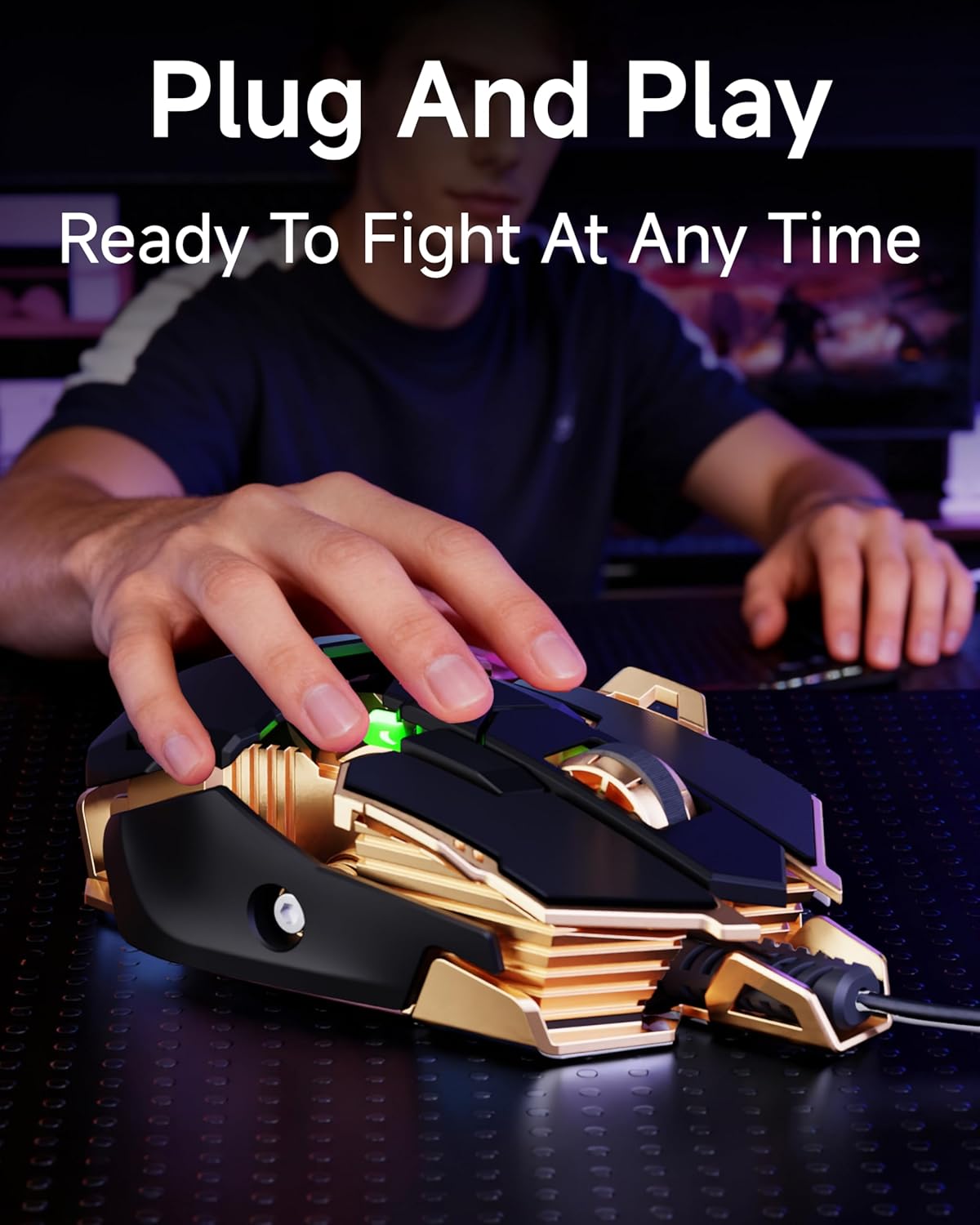
Image 2.1: Connecting the EWEADN G5 mouse via its USB-A cable for immediate use.
2.2. Software Installation (Optional)
For advanced customization of DPI settings, RGB lighting, and macro programming, it is recommended to install the dedicated software. Please refer to the manufacturer's website for the latest software download and installation instructions.
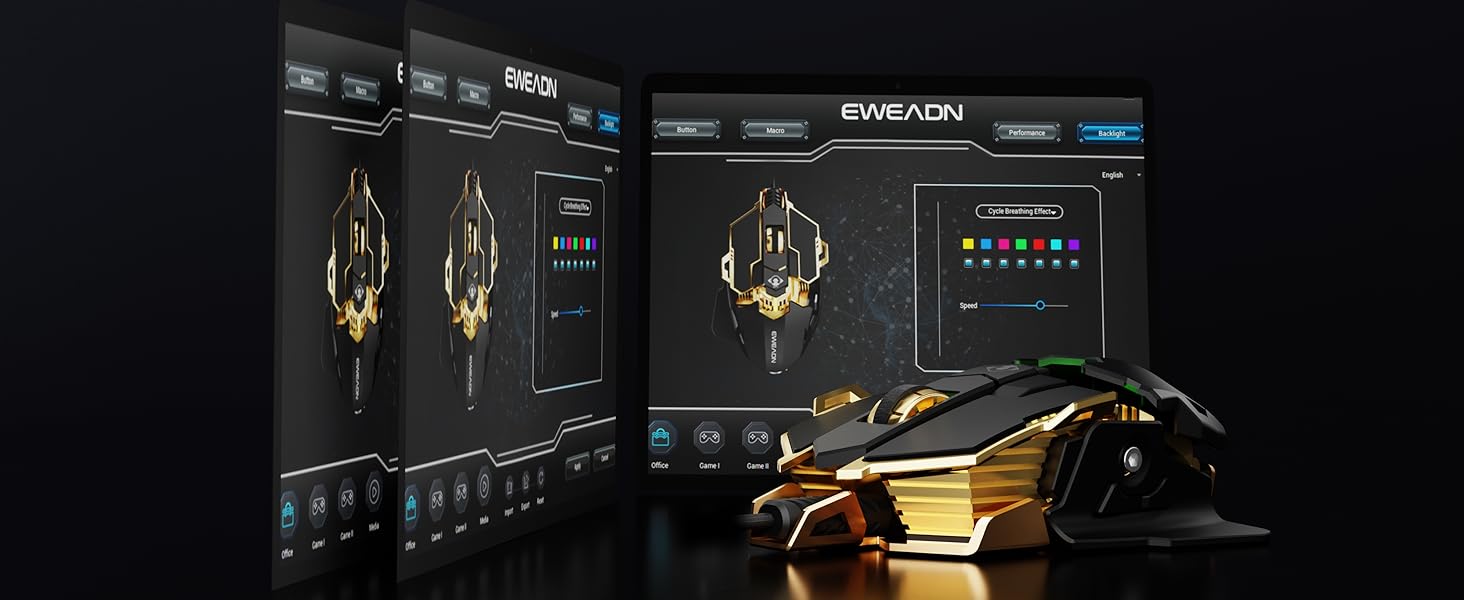
Image 2.2: The G5 Macro Drivers software interface for advanced mouse customization.
3. Operating Instructions
3.1. Button Functions
The EWEADN G5 mouse features 9 programmable buttons for versatile control:
- Left Button: Standard left-click function.
- Right Button: Standard right-click function.
- Scroll Wheel: Scroll up/down, and clickable for middle-click.
- DPI Button: Adjusts DPI sensitivity (6 levels).
- Boss Button: Programmable macro button.
- Double Click Button: Programmable macro button.
- Firepower Button: Triggers 3 left-clicks with a single press (default).
- Forward Button: Navigates forward in web browsers or applications.
- Backward Button: Navigates backward in web browsers or applications.
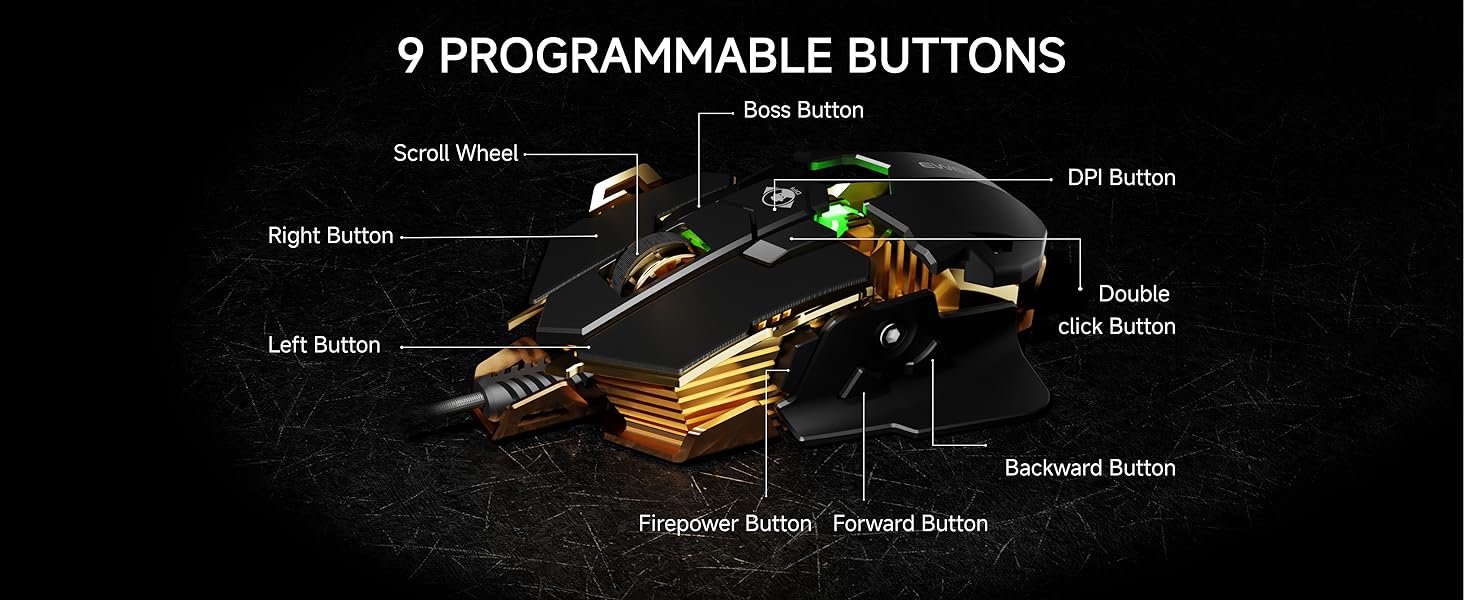
Image 3.1: Labeled diagram of the EWEADN G5's programmable buttons.
3.2. DPI Adjustment
The mouse offers 6 adjustable DPI levels, ranging from 1200 to 12800 DPI. Press the DPI button to cycle through the preset levels. For custom DPI settings between 2000-12800, use the included software.

Image 3.2: Visual representation of the 6 adjustable DPI levels.
3.3. Rapid Fire Key
The dedicated Rapid Fire button (default function) allows for three left-clicks with a single press, ideal for fast-paced gaming scenarios. This button can also be customized via software.
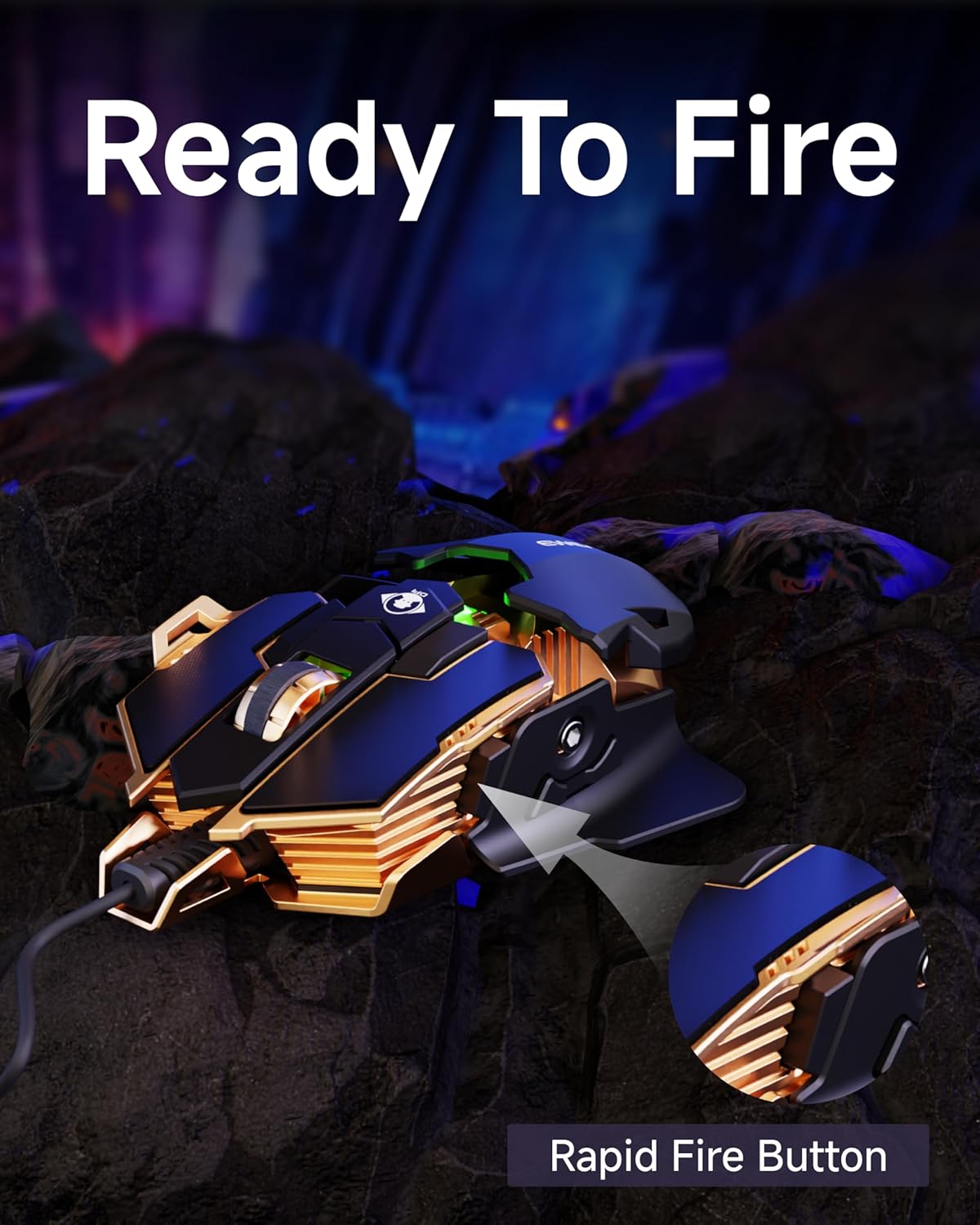
Image 3.3: The Rapid Fire Button for quick multiple clicks.
3.4. RGB Lighting
The mouse features 7 RGB lighting modes and supports full customization with nearly 16.8 million colors through the software. The lighting can be adjusted to match your setup or preference.

Image 3.4: Custom RGB lighting effects on the EWEADN G5 mouse.
3.5. Ergonomic Design and Adjustable Tail Wing
The mouse is designed with an ergonomic shape to fit various hand sizes, reducing fatigue during extended use. It features a metallic-textured surface and non-slip grips for improved control. An innovative adjustable tail wing allows for 5mm hand size adjustment, shortening to the left or lengthening to the right for a perfect fit.
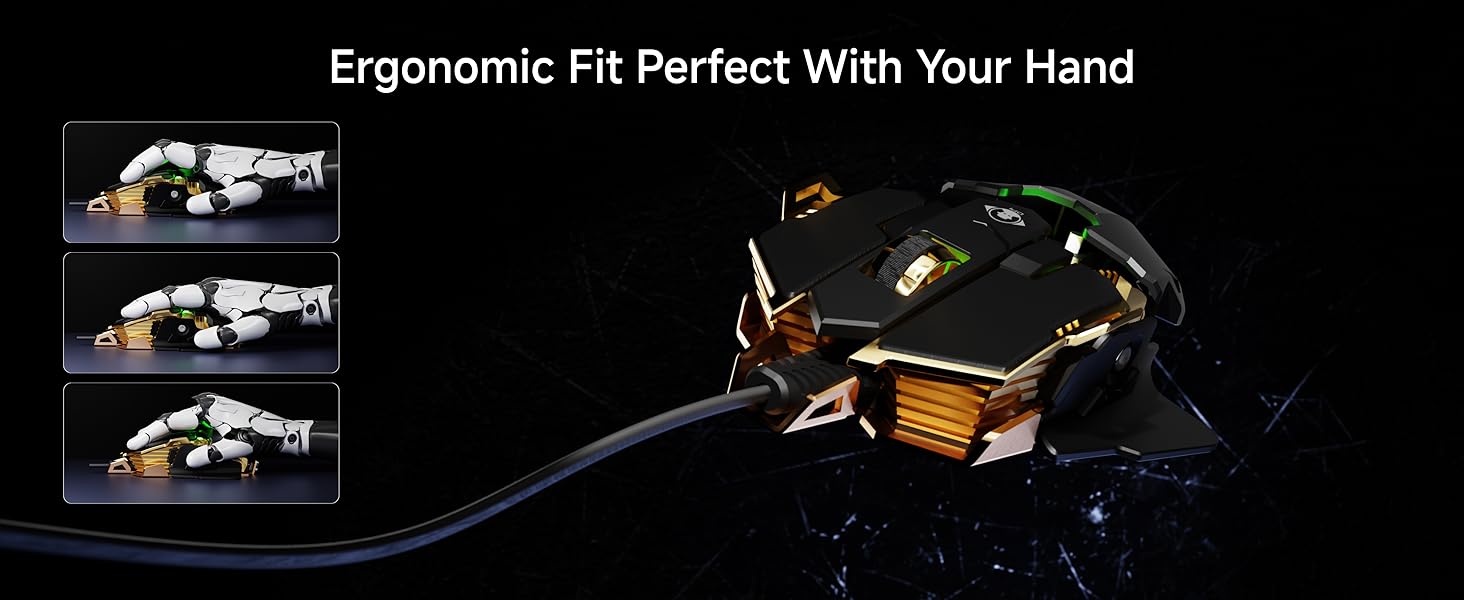
Image 3.5: Ergonomic design for comfortable use.
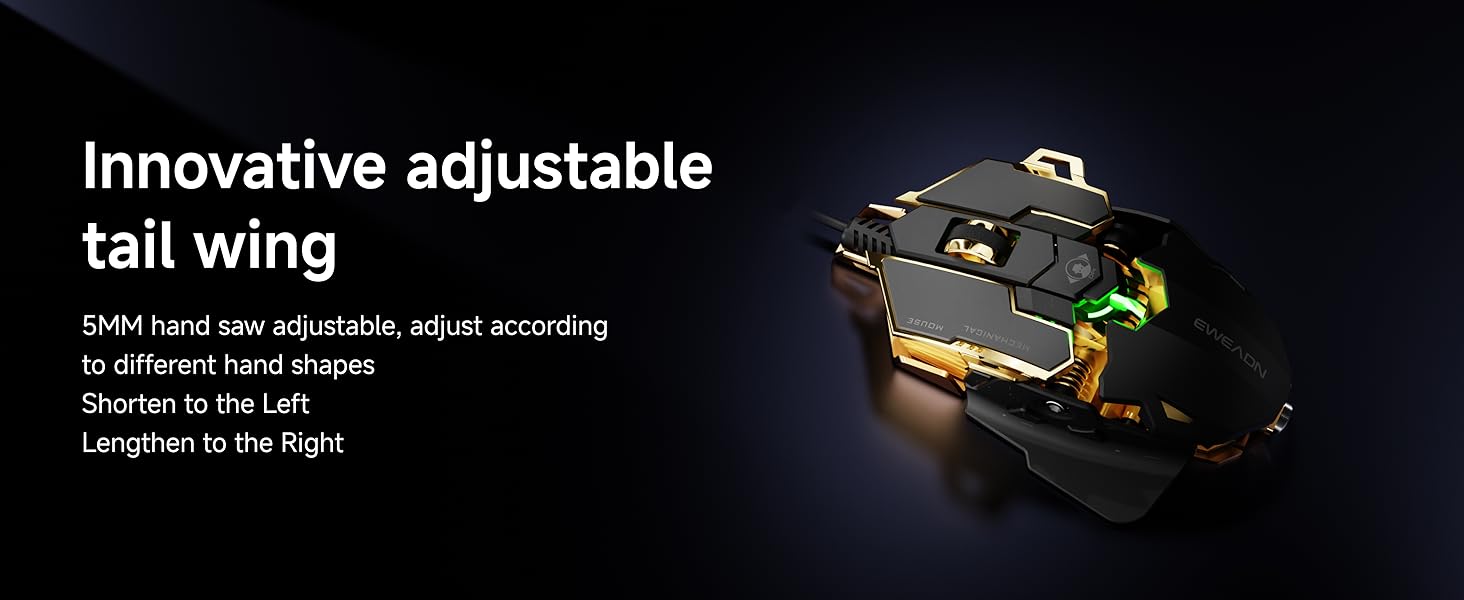
Image 3.6: Adjustable tail wing for personalized comfort.
3.6. Product Videos
Gaming Mouse from the Future
Video 3.6.1: A short video showcasing the EWEADN G5 gaming mouse, highlighting its design and features from the seller.
EWEADN G5: Cute & Gaming
Video 3.6.2: A brief video demonstrating the EWEADN G5 mouse in a pink variant, emphasizing its aesthetic appeal and gaming functionality from the seller.
4. Maintenance
To ensure the longevity and optimal performance of your EWEADN G5 gaming mouse, follow these maintenance guidelines:
- Cleaning: Use a soft, dry cloth to wipe the mouse surface. For hard-to-reach areas, a cotton swab lightly dampened with isopropyl alcohol can be used. Avoid excessive moisture.
- Cable Care: Avoid sharp bends or kinks in the USB cable to prevent internal damage. Store the cable neatly when not in use.
- Sensor Maintenance: Keep the optical sensor on the underside of the mouse clean and free from dust or debris for accurate tracking.
5. Troubleshooting
If you encounter issues with your EWEADN G5 gaming mouse, refer to the following common troubleshooting steps:
- Mouse Not Responding:
- Ensure the USB cable is securely connected to your computer.
- Try connecting the mouse to a different USB port.
- Test the mouse on another computer to determine if the issue is with the mouse or the computer.
- DPI/Sensitivity Issues:
- Press the DPI button to cycle through different sensitivity levels.
- If using custom settings, ensure the software is installed and configured correctly.
- RGB Lighting Not Working/Incorrect:
- Check the software settings for RGB customization.
- Ensure the mouse is properly connected and receiving power.
- Programmable Buttons Not Functioning:
- Verify that the customization software is correctly installed and the buttons are mapped as desired.
- Some users have reported issues with the macro software; ensure you have the latest version and try reconfiguring.
6. Specifications
| Feature | Detail |
|---|---|
| Model Name | G5 |
| Product Dimensions | 3.66 x 2.52 x 0.04 inches |
| Item Weight | 8.8 ounces |
| Brand | SEUNKWANG |
| Manufacturer | EWEADN |
| Connectivity Technology | USB, Wired |
| DPI Levels | Up to 12,800 (6 adjustable levels) |
| Programmable Buttons | 9 |
| RGB Lighting | 7 modes, 16.8 million colors (software customizable) |
| Polling Rate | 125–1000Hz |
| Material | Metal, Rubber |
| Keystroke Lifespan | 30 million |
| Compatible Devices | Gaming Console, Personal Computer, Smartphone, Tablet |
| Operating Systems | Windows XP/7/8/10/11 |
7. Warranty and Support
For warranty information, technical support, or any inquiries regarding your SEUNKWANG EWEADN G5 Wired Gaming Mouse, please contact the Yiershi Store directly through Amazon or via email.
- Amazon Store: Visit the SEUNKWANG Store on Amazon and click 'Ask a question'.
- Email Support: eweadnkeyboard@outlook.com

Image 7.1: Overview of available after-sales support services.