
1. Product Overview
The WeurGhy Smart Watch Y6 is a versatile wearable device designed to enhance your daily life through smart notifications, health monitoring, and fitness tracking. It features a 1.85-inch HD touch screen, Bluetooth calling capabilities, and compatibility with both Android and iOS devices.
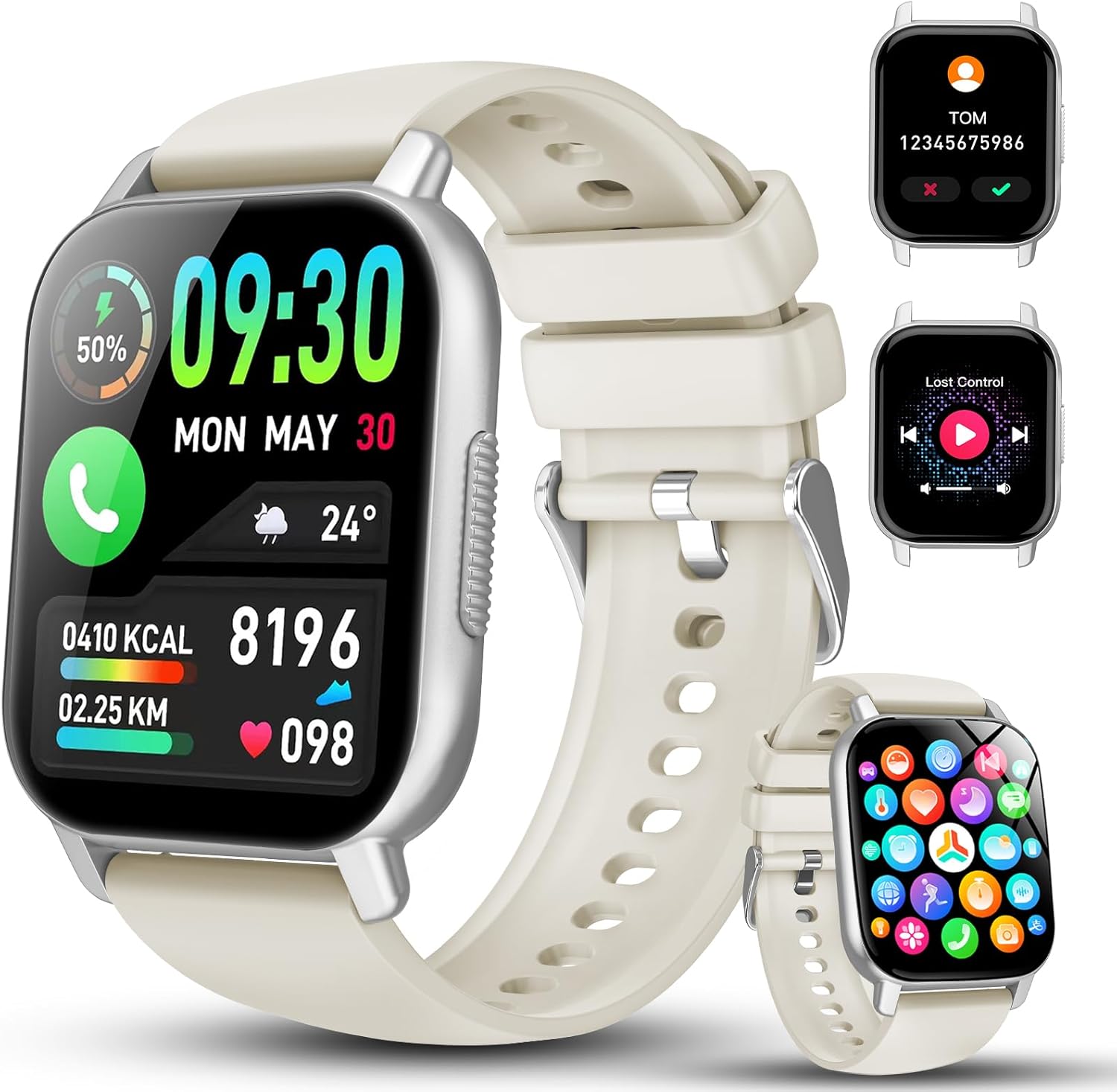
Image 1.1: Main view of the WeurGhy Smart Watch Y6, showcasing its display and strap.
2. Setup and Initial Use
2.1 Package Contents
Ensure all items are present in the package:
- WeurGhy Smart Watch Y6
- Watch Band (pre-attached or separate)
- Charging Cable
- User Manual (this document)
2.2 Charging the Device
Before first use, fully charge the smartwatch. Connect the magnetic charging cable to the charging points on the back of the watch and plug the USB end into a standard USB power adapter (not included).
- Charging Time: Approximately 2 hours for a full charge.
- Battery Life: Up to 7 days of typical use, 30 days standby.

Image 2.1: Illustration of the magnetic fast charging process for the smartwatch.
2.3 App Installation and Pairing
To unlock the full functionality of your smartwatch, download and install the GloryFit app on your smartphone.
- Download the App: Search for "GloryFit" in your smartphone's app store (Google Play Store for Android or Apple App Store for iOS) and install it.
- Create Account: Open the GloryFit app and follow the on-screen instructions to create an account or log in.
- Enable Bluetooth: Ensure Bluetooth is enabled on your smartphone.
- Pair Device: In the GloryFit app, navigate to the device section and select "Add Device" or similar. The app will search for available devices. Select "WeurGhy Y6" or the corresponding device ID to pair.
- Confirm Pairing: A pairing request may appear on your watch screen. Confirm the pairing on both your watch and smartphone.
Once paired, the watch will synchronize data with the app, and you can customize settings and view detailed health and activity reports.
3. Operating Instructions
3.1 Basic Navigation
The WeurGhy Smart Watch Y6 features a 1.85-inch HD touch screen for intuitive operation.
- Swipe Up/Down: Scroll through menus and notifications.
- Swipe Left/Right: Access quick functions or different data screens.
- Tap: Select an item or confirm an action.
- Press Side Button: Return to the home screen or power on/off (long press).
3.2 Bluetooth Call and Message Reminders
After successful Bluetooth connection, your watch can handle calls and display message notifications.
- Making/Answering Calls: Use the watch's dial pad or contact list to make calls. Incoming calls can be answered or rejected directly from the watch.
- Message Notifications: Receive vibrating alerts for messages from apps like Facebook, WhatsApp, Instagram, and Twitter. View message content directly on the watch screen.

Image 3.1: Demonstrates the Bluetooth call functionality, including microphone, speaker, dial pad, and contacts.
3.3 Health Monitoring
The watch continuously monitors various health metrics.
- Heart Rate Monitoring: Tracks your heart rate throughout the day.
- Sleep Tracking: Monitors sleep patterns, including deep, light, and awake times.
- Steps and Calories: Counts daily steps and estimates calories burned.
Detailed data and historical trends are available in the GloryFit app.

Image 3.2: Visual representation of 24-hour activity tracking and sleep monitoring features.
3.4 Sports Modes
The watch supports over 112 sports modes to track your workouts.
- Available Modes: Includes running, cycling, skipping, walking, mountain climbing, basketball, football, badminton, yoga, dance, and many more.
- Tracking: During a workout, the watch records duration, distance, calories burned, and heart rate.

Image 3.3: Examples of various sports modes available on the smartwatch, including outdoor running, cycling, and skipping.
3.5 Other Functions
The WeurGhy Smart Watch Y6 offers several additional practical features:
- Stopwatch & Timer: For precise timing.
- Phone Search: Helps locate your paired smartphone.
- Camera Control: Remotely trigger your phone's camera.
- Weather Forecast: Provides current weather information.
- Music Control: Manage music playback on your smartphone.
- Breathing Exercise: Guided breathing sessions for relaxation.
- Sedentary Reminder: Alerts you to move after periods of inactivity.
3.6 Watch Face Customization
Personalize your watch's appearance:
- Pre-installed Faces: Choose from a variety of watch faces directly on the device.
- GloryFit App: Access over 200 additional watch face styles through the app.
- Custom Wallpapers: Upload your favorite photos to use as personalized watch faces via the app.

Image 3.4: Displaying various watch face options and the ability to customize with personal photos.
4. Maintenance and Care
4.1 Waterproof Rating
The WeurGhy Smart Watch Y6 has an IP68 waterproof rating.
- This means it is resistant to sweat, rain, and splashes, and can withstand immersion in water up to 1.5 meters for 30 minutes.
- It is suitable for daily use, hand washing, and light swimming.
- Avoid: Hot water, saunas, diving, or high-pressure water activities, as these can compromise the waterproof seals.
4.2 Cleaning
To maintain the watch's appearance and functionality:
- Wipe the screen and strap regularly with a soft, damp cloth.
- Ensure the charging contacts are clean and dry before charging.
- Avoid using harsh chemicals or abrasive materials.
4.3 Battery Care
To prolong battery life:
- Avoid extreme temperatures.
- Do not leave the watch fully discharged for extended periods.
- Use the provided charging cable.
5. Troubleshooting
If you encounter issues with your WeurGhy Smart Watch Y6, refer to the following common solutions:
| Problem | Solution |
|---|---|
| Watch does not power on | Ensure the watch is fully charged. Connect to the charger for at least 10 minutes. |
| Unable to pair with smartphone | Ensure Bluetooth is enabled on your phone. Restart both the watch and phone. Make sure the GloryFit app is open and searching for devices. Check if the watch is already paired with another device. |
| Notifications not received | Verify Bluetooth connection. Check notification permissions for the GloryFit app in your phone's settings. Ensure app notifications are enabled within the GloryFit app. |
| Inaccurate health data | Ensure the watch is worn snugly on your wrist, not too tight or too loose. Clean the sensor on the back of the watch. For step tracking, ensure natural arm movement. |
| Charging issues | Ensure the magnetic charging cable is correctly aligned with the watch's charging points. Check if the USB adapter is working. Clean the charging contacts on both the cable and watch. |
If the problem persists, please refer to the Warranty and Support section for further assistance.
6. Specifications
| Feature | Detail |
|---|---|
| Model Number | Y6 |
| Display Size | 1.85 Inches |
| Battery Capacity | 280 mAh |
| Connectivity | Bluetooth |
| Waterproof Rating | IP68 |
| Compatible Devices | Android, iOS Smartphones |
| Item Weight | 3.2 ounces |
| Package Dimensions | 6.06 x 3.39 x 0.75 inches |
7. Warranty and Support
7.1 Warranty Information
WeurGhy products are manufactured with quality in mind. For specific warranty terms and conditions, please refer to the warranty card included with your product or contact WeurGhy customer support.
7.2 Customer Support
If you have any questions, require technical assistance, or experience issues not covered in this manual, please contact WeurGhy customer service. Our team is available to provide support and resolve any problems you may encounter.
For assistance, please contact us through the platform where you purchased the product. We are committed to providing excellent after-sales service.