
ATTACK SHARK L80PRO
ATTACK SHARK L80PRO Wireless Gaming Headset User Manual
Model: L80PRO | Brand: ATTACK SHARK
1. Introduction
The ATTACK SHARK L80PRO is a versatile wireless gaming headset designed for an immersive audio experience across multiple platforms. It features Tri-Mode connectivity (2.4GHz, Bluetooth, and wired), a unique built-in and detachable dual microphone system, and an ergonomic, lightweight design for extended comfort. This manual provides detailed instructions for setting up, operating, maintaining, and troubleshooting your L80PRO headset.

Image: The ATTACK SHARK L80PRO headset, highlighting its sleek white design, detachable microphone, and the included USB-A/Type-C dongle.
2. Setup
2.1. Charging the Headset
Before first use, fully charge the headset. Connect the included USB-C charging cable to the headset's charging port and a USB power source. The indicator light will show charging status.
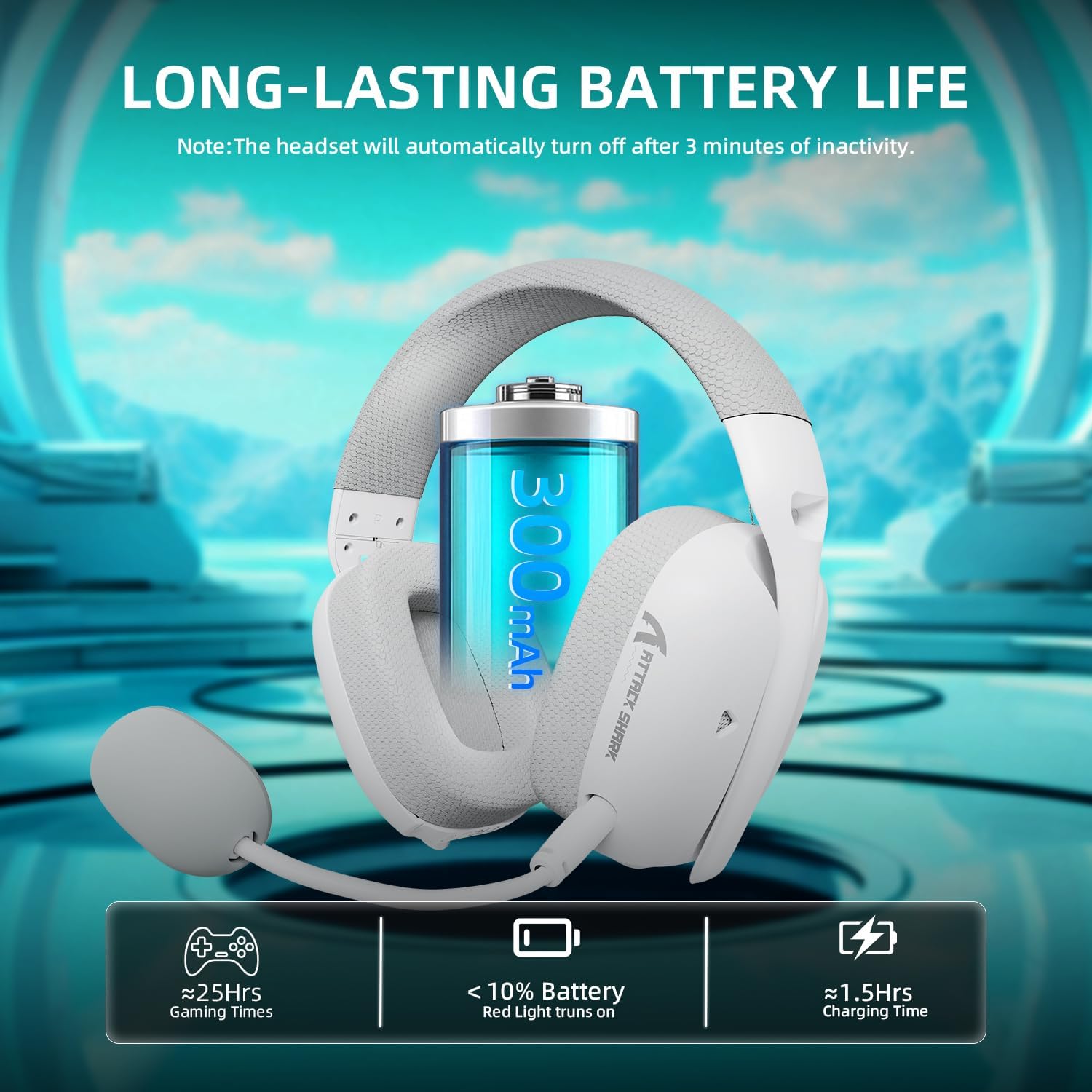
Image: Visual representation of the headset's long battery life (approximately 25 hours of gaming) and quick charging time (approximately 1.5 hours). A red light indicates battery below 10%.
2.2. Connecting the Headset
The L80PRO supports three connection modes: 2.4GHz wireless, Bluetooth, and wired 3.5mm.
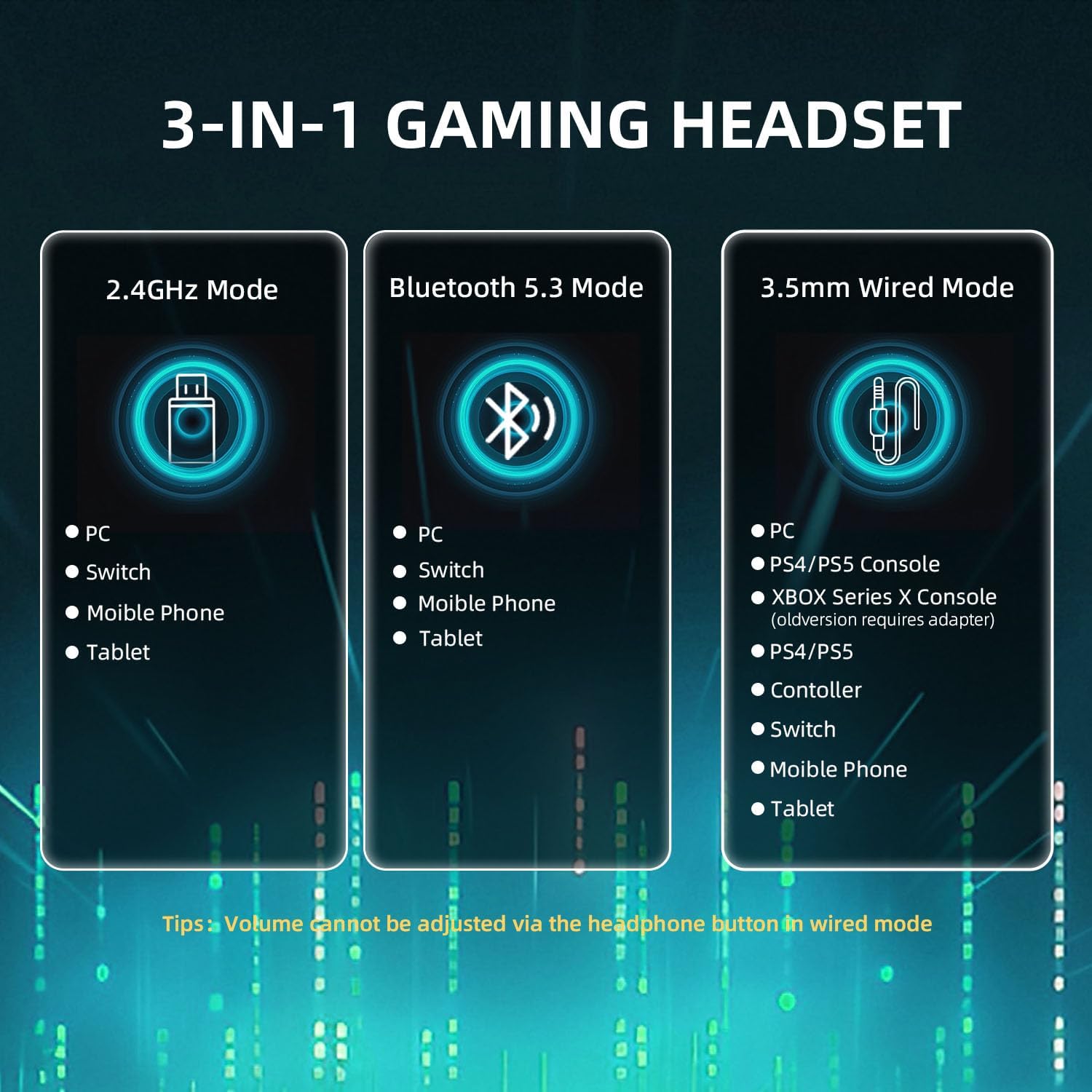
Image: A visual guide to the headset's tri-mode connectivity, showing compatibility with PC, Switch, mobile phones, tablets via 2.4GHz and Bluetooth, and PC, PS4/PS5, Xbox Series X, controllers, Switch, mobile phones, and tablets via 3.5mm wired connection.
2.2.1. 2.4GHz Wireless Mode
This mode offers ultra-low latency for gaming. The 2.4GHz receiver features both USB-A and Type-C connectors for broad compatibility.
- Plug the 2.4GHz USB dongle into an available USB-A or USB-C port on your PC, Mac, Switch, or compatible gaming console.
- Power on the headset by long-pressing the power button for 3 seconds.
- The headset will automatically connect to the dongle. The indicator light will confirm connection.
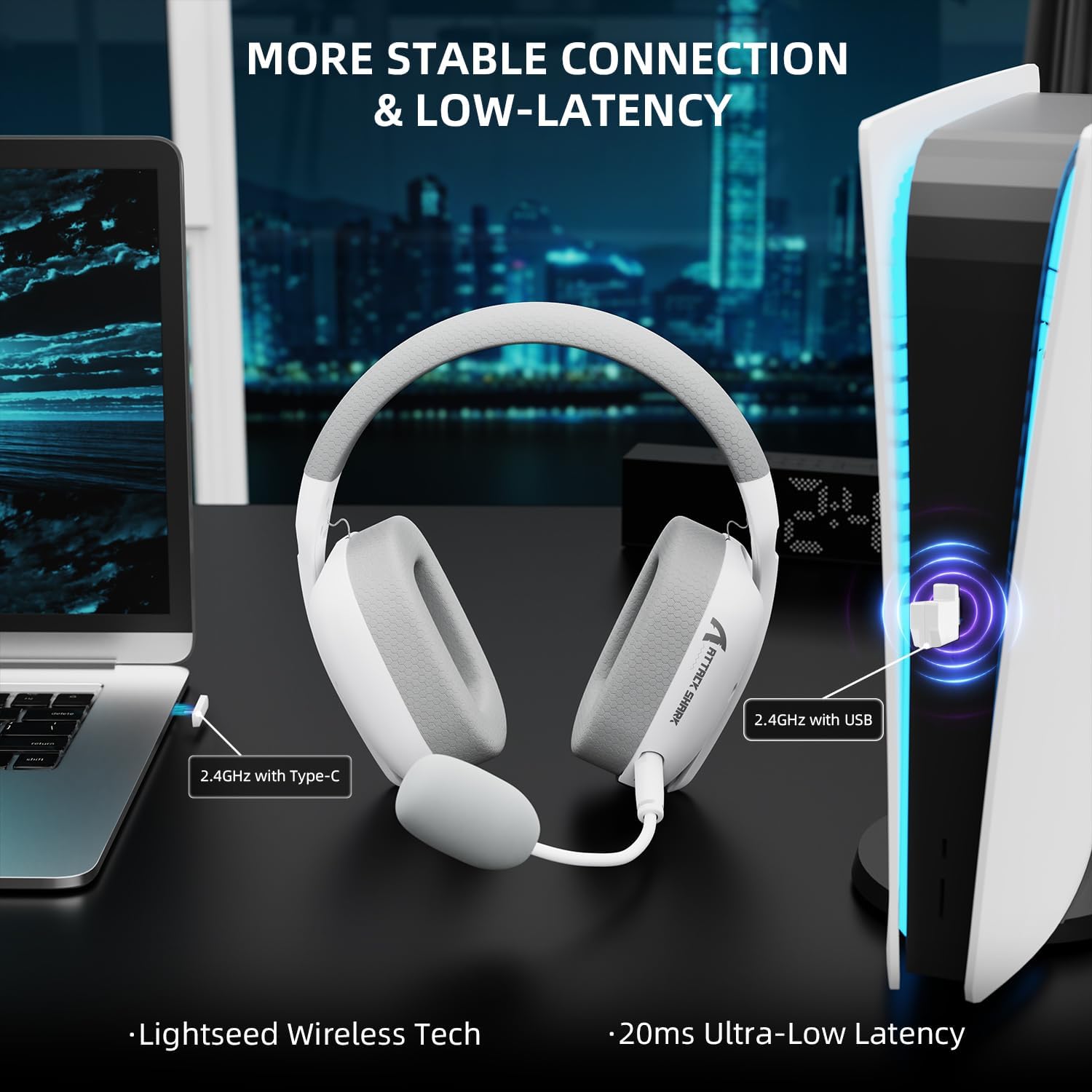
Image: The headset demonstrating its 2.4GHz wireless connection to a laptop via USB-C and a PlayStation 5 console via USB-A, emphasizing stable and low-latency performance.
2.2.2. Bluetooth Mode
Ideal for mobile devices and general use.
- Power on the headset.
- Double-click the mode switching button (usually the power button or a dedicated button) to switch to Bluetooth mode. The indicator light will flash, indicating pairing mode.
- On your device (smartphone, tablet, PC), go to Bluetooth settings and select "ATTACK SHARK L80PRO" from the list of available devices.
- Once paired, the indicator light will become solid.
2.2.3. Wired Mode (3.5mm)
For universal compatibility and when battery power is low. Note: In wired mode, the headset's volume button is disabled. Adjust volume directly on your connected device. Xbox compatibility is only available through a wired connection.
- Connect the 3.5mm audio cable to the headset's 3.5mm port.
- Connect the other end of the 3.5mm audio cable to your device's 3.5mm audio jack.
- The headset will automatically switch to wired mode.
3. Operating the Headset
3.1. On-Ear Controls
The L80PRO headset features intuitive controls located on the earcups for easy access.
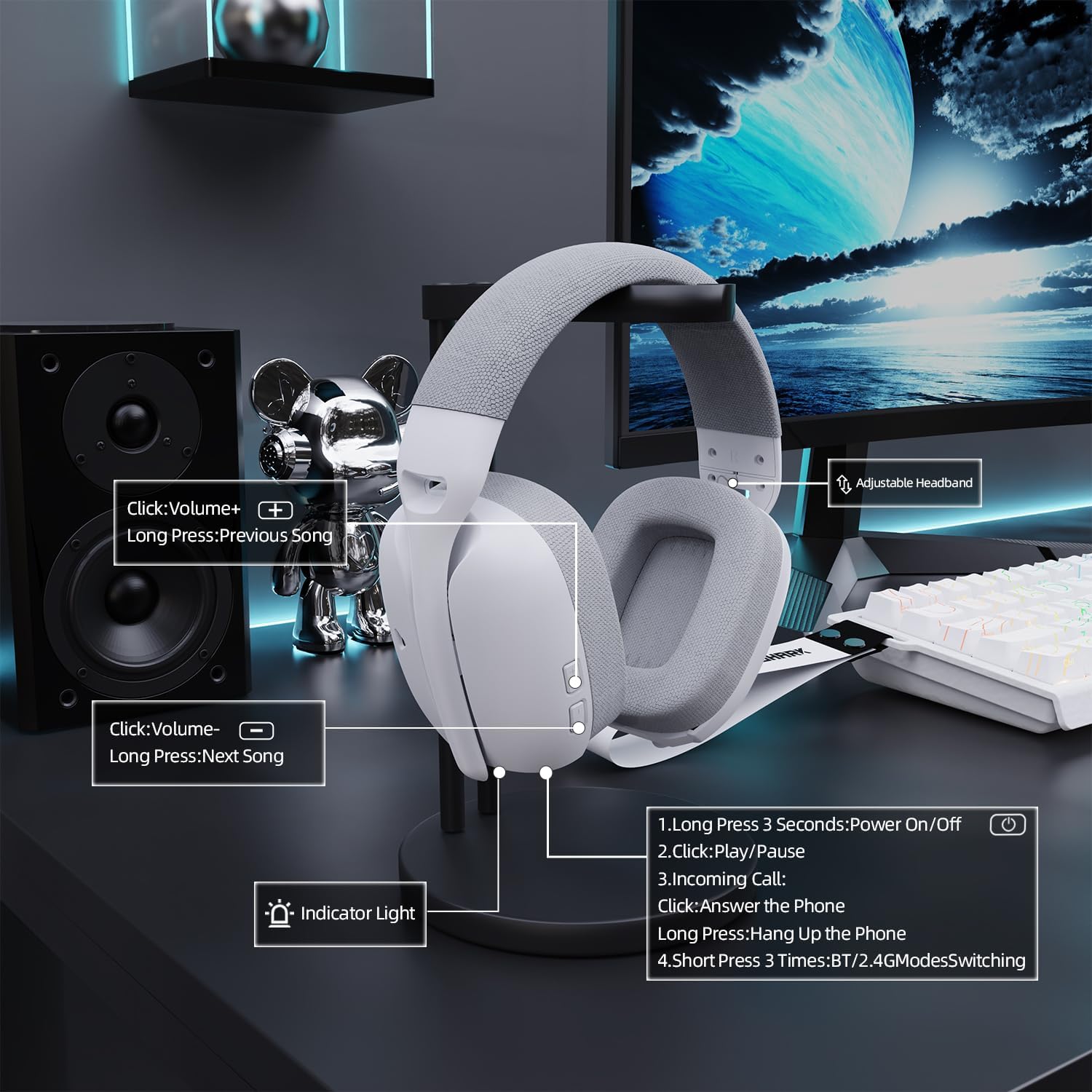
Image: A detailed view of the headset's on-ear controls, illustrating functions such as volume adjustment, track skipping, power on/off, play/pause, call answering/hanging up, and Bluetooth/2.4G mode switching.
- Power On/Off: Long press the power button for 3 seconds.
- Play/Pause: Click the power button once.
- Incoming Call: Click the power button to answer, long press to hang up.
- BT/2.4G Mode Switching: Short press the mode switching button (often the power button) 3 times.
- Volume Up: Click the Volume+ button.
- Previous Song: Long press the Volume+ button.
- Volume Down: Click the Volume- button.
- Next Song: Long press the Volume- button.
- Microphone On/Off: Use the dedicated microphone mute button (if present) or the on-ear control as indicated.
3.2. Microphone Usage
The L80PRO features both a built-in microphone and a detachable boom microphone for versatile communication.

Image: The headset illustrating its dual microphone design, featuring a built-in microphone for casual use and a 360-degree adjustable, detachable microphone for high-definition recording and clear communication during gaming.
- Built-in Microphone: Suitable for casual calls and general use. It is always active when the detachable microphone is not connected.
- Detachable Microphone: For crystal-clear communication during intense gaming sessions or high-definition recording. Simply plug it into the designated port on the headset. Ensure it is securely connected. The detachable microphone is 360-degree adjustable for optimal positioning.
4. Maintenance
Proper maintenance ensures the longevity and optimal performance of your ATTACK SHARK L80PRO headset.
4.1. Cleaning
- Gently wipe the earcups and headband with a soft, dry, lint-free cloth.
- For stubborn dirt, slightly dampen the cloth with water or a mild, non-abrasive cleaner. Avoid excessive moisture.
- Do not use harsh chemicals, solvents, or abrasive materials, as these can damage the headset's finish.
- Keep the charging port and 3.5mm jack free of dust and debris.
4.2. Storage
- Store the headset in a cool, dry place away from direct sunlight and extreme temperatures.
- When not in use, it is recommended to store the headset in a protective case or on a headset stand to prevent damage.
4.3. Battery Care
- To maximize battery life, avoid fully discharging the headset frequently.
- If the headset will not be used for an extended period, charge it to about 50% before storing.
- The smart power-saving mode automatically shuts down the headset after 3 minutes of inactivity in wireless mode to conserve battery.
5. Troubleshooting
If you encounter issues with your ATTACK SHARK L80PRO headset, refer to the following common problems and solutions.
| Problem | Possible Cause | Solution |
|---|---|---|
| No sound from headset | Headset not powered on; Incorrect connection mode; Device volume too low; Headset not selected as audio output. | Ensure headset is powered on. Verify correct connection mode (2.4GHz, BT, Wired). Increase device volume. Select L80PRO as default audio output in device settings. |
| Microphone not working | Microphone muted; Detachable mic not fully inserted; Incorrect mic selected in device settings. | Ensure microphone is not muted via headset control or software. Re-insert detachable microphone firmly. Select L80PRO microphone as default input device in your system's sound settings. |
| 2.4GHz connection unstable/laggy | Interference from other wireless devices; Dongle too far from headset; Low headset battery. | Move closer to the dongle. Ensure no major obstructions. Try a different USB port. Charge the headset. |
| Bluetooth pairing issues | Headset not in pairing mode; Device Bluetooth off; Previously paired device interfering. | Ensure headset is in Bluetooth pairing mode (flashing indicator). Turn device Bluetooth off and on again. Forget previous pairings on your device and try again. |
| Headset volume control not working in wired mode | This is normal behavior for wired mode. | Adjust volume directly on the connected device (PC, console, phone). |
6. Specifications
| Feature | Detail |
|---|---|
| Model Name | L80PRO |
| Connectivity Technology | Wireless (2.4GHz RF, Bluetooth), Wired (3.5mm) |
| Compatible Devices | Desktops, Laptops, Gaming Consoles (PC, Mac, PS4, PS5, Switch, Xbox via wired), Tablets, Telephones |
| Audio Driver Type | Dynamic Driver (40mm) |
| Earpiece Shape | Over-ear |
| Item Weight | 13.7 ounces (approx. 388g) |
| Battery Capacity | 300mAh |
| Charging Time | Approx. 1.5 hours |
| Gaming Time | Approx. 25 hours |
| Microphone | Built-in & Detachable Boom Mic |
| Color | White |
7. Warranty and Support
ATTACK SHARK products are designed and manufactured to the highest quality standards. For information regarding warranty coverage and support, please refer to the warranty card included with your product or visit the official ATTACK SHARK website.
If you experience any issues that cannot be resolved using the troubleshooting guide, please contact ATTACK SHARK customer support for assistance. Have your product model (L80PRO) and purchase details ready when contacting support.
Related documentsL80PRO


Ask a question about this manual
Ask about setup, troubleshooting, compatibility, parts, safety, or missing instructions. Manuals+ will review the question and use this page’s manual context to help answer it.