
Emdoro LYAI10
Emdoro Smart WiFi Water Timer 2 Zone
Model: LYAI10
Instruction Manual
Introduction
This manual provides detailed instructions for the setup, operation, and maintenance of your Emdoro Smart WiFi Water Timer 2 Zone. Designed for efficient garden watering, this device offers smart control via an application, voice commands, and features solar charging for extended battery life. Please read this manual thoroughly before use to ensure optimal performance and longevity of your device.
Key Features
- APP & Voice Control: Manage watering schedules from anywhere using the Smart Life App (iOS/Android) or voice commands via Alexa and Google Assistant.
- Zero Hub Requirement: Connects directly to your 2.4GHz WiFi network without the need for an additional gateway.
- 2 Independent Watering Zones: Control two separate watering areas with individual schedules, durations, and start times.
- Solar & USB-C Power: Equipped with a 2800mAh rechargeable battery and a tilt-adjustable solar panel for continuous charging. Includes a USB-C port for initial or supplemental charging.
- Smart Watering Modes: Features automatic scheduling, a Rain Skip function to pause watering during rain, and a Manual Override for immediate watering needs.
- Durable Construction: Built with a solid brass inlet, waterproof casing (IPX4), and a metal filter for enhanced durability and longevity.

Image: Overview of the Emdoro Smart WiFi Water Timer's key features, including solar charging, app control, and dual-zone functionality.
1. Setup Guide
1.1 Initial Charging
Before installing the device outdoors, it is critical to fully charge the internal 2800mAh battery via the USB-C port. Connect a USB-C cable to a power source and charge for 4-5 hours. The unit ships partially charged for safety, but a full charge is required for optimal outdoor performance, especially before the solar panel can effectively maintain the charge.

Image: The water timer installed on a faucet, highlighting its solar charging capability compared to battery-operated alternatives.
1.2 Physical Installation
- Ensure the faucet is turned off before installation.
- Attach the Emdoro Smart WiFi Water Timer to your outdoor faucet. The device features a heavy-duty brass swivel inlet for secure connection. Hand-tighten the connection.
- Connect your garden hoses to the two independent outlets (Zone A and Zone B) at the bottom of the timer. The timer includes complimentary quick connectors and Teflon tape for a leak-proof seal.
- Position the solar panel to receive maximum direct sunlight for efficient charging. The panel is tilt-adjustable.
- Turn on the faucet.

Image: Detailed view of the timer's components, including the brass inlet and metal filter, crucial for installation.
1.3 App Download and Connection
- Download the Smart Life App from the App Store (iOS) or Google Play Store (Android).
- Register or log in to your Smart Life account.
- Ensure your smartphone is connected to a 2.4GHz WiFi network. The device is incompatible with 5GHz networks.
- In the app, tap '+' to add a new device. Follow the on-screen instructions to connect your Smart WiFi Water Timer. This typically involves putting the device into pairing mode (refer to troubleshooting for network reset if needed).
- Once connected, you can control the timer from anywhere with an internet connection.

Image: Demonstrates app control and the direct 2.4GHz WiFi connection without a gateway.
2. Operating Instructions
2.1 App Control and Scheduling
The Smart Life App allows you to create customized watering schedules for each zone. You can set daily or weekly schedules with durations ranging from 1 to 120 minutes. The app provides full flexibility to stagger or run both zones simultaneously.
- Open the Smart Life App and select your Emdoro Water Timer.
- Navigate to the 'Watering Plan' section.
- Add new schedules, specifying start times, watering duration for Zone A and/or Zone B, and the days of the week for repetition.
- Save your schedules. The app will display a history of watering events.
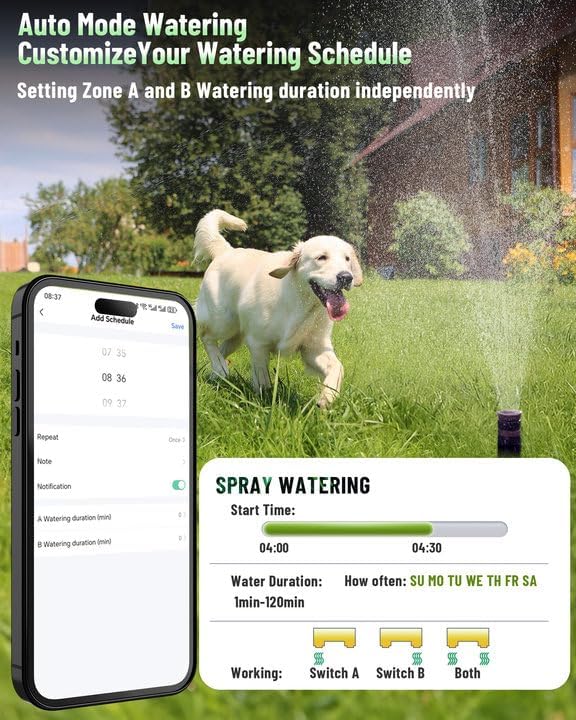
Image: The app interface for customizing watering schedules, showing options for start time, duration, and frequency.
2.2 Manual Mode Watering
For immediate watering needs, you can activate manual mode directly from the device or through the app.
- On Device: Press the 'A' or 'B' button on the timer to manually start or stop watering for the respective zone.
- Via App: In the Smart Life App, you can manually toggle the switches for Zone A and Zone B.

Image: Illustrates the manual control buttons on the device for immediate watering of Zone A or Zone B.
2.3 Voice Control
Integrate your Emdoro Smart WiFi Water Timer with Amazon Alexa or Google Assistant for convenient voice control.
- Enable the Smart Life skill/action in your Alexa or Google Home app.
- Link your Smart Life account.
- Use commands such as "Alexa, open the Smart Watering Timer" or "Hey Google, turn on Zone A."
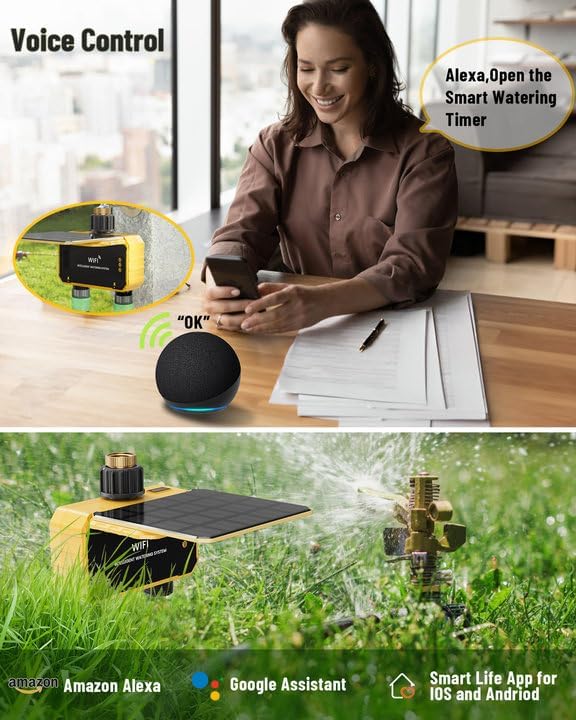
Image: Demonstrates the voice control feature with Amazon Alexa, showing the timer responding to commands.
2.4 Rain Delay Function
The Rain Skip feature automatically pauses scheduled watering cycles during rainfall, preventing overwatering and conserving water.
- Activate the 'Rain sensing function' within the Smart Life App.
- The timer will detect rain and automatically suspend watering plans.
- Watering will resume according to the schedule once the rain has passed.

Image: Illustrates the rain sensing function in the app, showing how it delays watering during rainy conditions and resumes on sunny days.
2.5 Independent Zone Control
The Emdoro Smart WiFi Water Timer features two independent outlets, allowing you to manage watering for two distinct areas (Zone A and Zone B) with separate settings.
- Each zone can have its own start time, duration, and frequency.
- You can run both zones simultaneously or stagger their watering cycles to suit different plant needs.

Image: Shows the two independent watering zones and how they can be scheduled separately or concurrently.
3. Maintenance
3.1 Battery Management
The 2800mAh rechargeable battery is primarily charged by the integrated solar panel. For optimal performance, ensure the solar panel is positioned to receive ample sunlight. The USB-C port can be used for charging during prolonged cloudy periods or if the battery level drops significantly. The Smart Life App provides low-power alerts to notify you when charging is needed.
3.2 Cleaning and Filter
The timer includes a built-in metal filter to prevent debris like mud and leaves from entering the system. Regularly inspect and clean this filter to maintain proper water flow and prevent blockages. To clean, unscrew the inlet connection, remove the filter, rinse it under running water, and reinsert.
3.3 Environmental Considerations
The Emdoro Smart WiFi Water Timer is designed to be weatherproof and UV-resistant, suitable for outdoor installation in various conditions. However, it is not designed for freezing temperatures. To ensure optimal performance and prevent damage, avoid exposing the device to temperatures below 0°C (32°F). Disconnect and store indoors during winter months in cold climates.
4. Troubleshooting (FQA)
- Q: Can this product be installed outdoors in direct sunlight and rain?
- A: Yes, this product is weatherproof and UV-resistant, making it ideal for outdoor installation in sunny or rainy conditions. However, it is not designed for freezing temperatures. To ensure optimal performance, avoid exposing the device to temperatures below 0°C/32°F.
- Q: How long can the battery last if I don't install it in a sunny area for solar charging?
- A: Watering operations use virtually no battery power thanks to our energy-efficient pulse solenoid valve system, which only requires minimal power during valve activation (opening/closing). The primary energy consumption comes from maintaining network connectivity for real-time updates. While solar charging is beneficial, the battery can sustain operation for an extended period even without direct sun, though regular USB-C charging may be needed.
- Q: Why does the device fail to connect to Wi-Fi, and then reconnect cannot search for the device?
- A: 1. Check Wi-Fi Frequency: The device requires a 2.4GHz network and is incompatible with 5GHz. Ensure your router is broadcasting a 2.4GHz signal and your phone is connected to it during setup. 2. Reset Network Setup: Press and hold the Network Setup Button on the device for 5 seconds until the LED flashes red. This will put the device back into pairing mode, allowing you to attempt reconnection via the Smart Life App.
5. Specifications
| Feature | Detail |
|---|---|
| Brand | Emdoro |
| Model Number | LYAI10 |
| Color | Yellow |
| Material | Plastic (with Brass Inlet) |
| Product Dimensions | 5.51"D x 2.36"W x 5.51"H |
| Item Weight | 0.68 Kilograms (1.5 pounds) |
| Number of Settings | 5 |
| Battery | 1 x 2800mAh 12V rechargeable battery (included) |
| Connectivity | 2.4GHz WiFi (IEEE 802.11 b/g/n) |
| Water Pressure Range | 0.03-0.9 Mpa (0.67-17.78 lbs) |
| Flow Rate | 2.1-8.2 gal/min (5-35 L/min) |
| Water Temperature Range | 33-140°F (0.5-60°C) |
| Waterproof Rating | IPX4 |
6. Warranty and Support
For any product inquiries, technical assistance, or warranty claims, please contact Emdoro customer support. The Smart Life app does not require a subscription fee for standard in-app message notifications and alerts. Additional SMS text or phone call notifications may incur charges if you choose to subscribe to them.
How to Contact Support:
- Login to your purchase platform account (e.g., Amazon).
- Navigate to 'Your Orders'.
- Find the order ID for your Emdoro Smart WiFi Water Timer.
- Click on 'Contact Seller' to reach our customer service team.

Image: Instructions on how to contact customer support through your order history.
Ask a question about this manual
Ask about setup, troubleshooting, compatibility, parts, safety, or missing instructions. Manuals+ will review the question and use this page’s manual context to help answer it.