
Introduction
This manual provides detailed instructions for the installation, operation, and maintenance of your Imou Cruiser SC 4G 5MP Outdoor IP Camera. This camera features UHD 3K resolution for detailed images, 4G LTE connectivity for independent operation without Wi-Fi, four spotlights that emit white or infrared light, and two red and blue indicator lights to enhance alarm visibility. Please read this manual thoroughly before use and retain it for future reference.
Safety Information
- Ensure the power supply voltage matches the camera's requirements to prevent damage.
- Install the camera in a location where it is protected from extreme weather conditions, unless specifically designed for such environments.
- Avoid placing the camera near heat sources or in direct sunlight for prolonged periods.
- Do not attempt to disassemble or modify the camera. Refer all servicing to qualified personnel.
- Keep the camera and its accessories out of reach of children.
Package Contents
Please check the package contents upon opening. If any items are missing or damaged, contact your retailer.
- Imou Cruiser SC 4G 5MP Camera
- Power Adapter
- Mounting Template
- Screw Package
- Waterproof Connector
- Quick Start Guide
Product Overview
Familiarize yourself with the main components of your Imou Cruiser SC 4G 5MP camera.
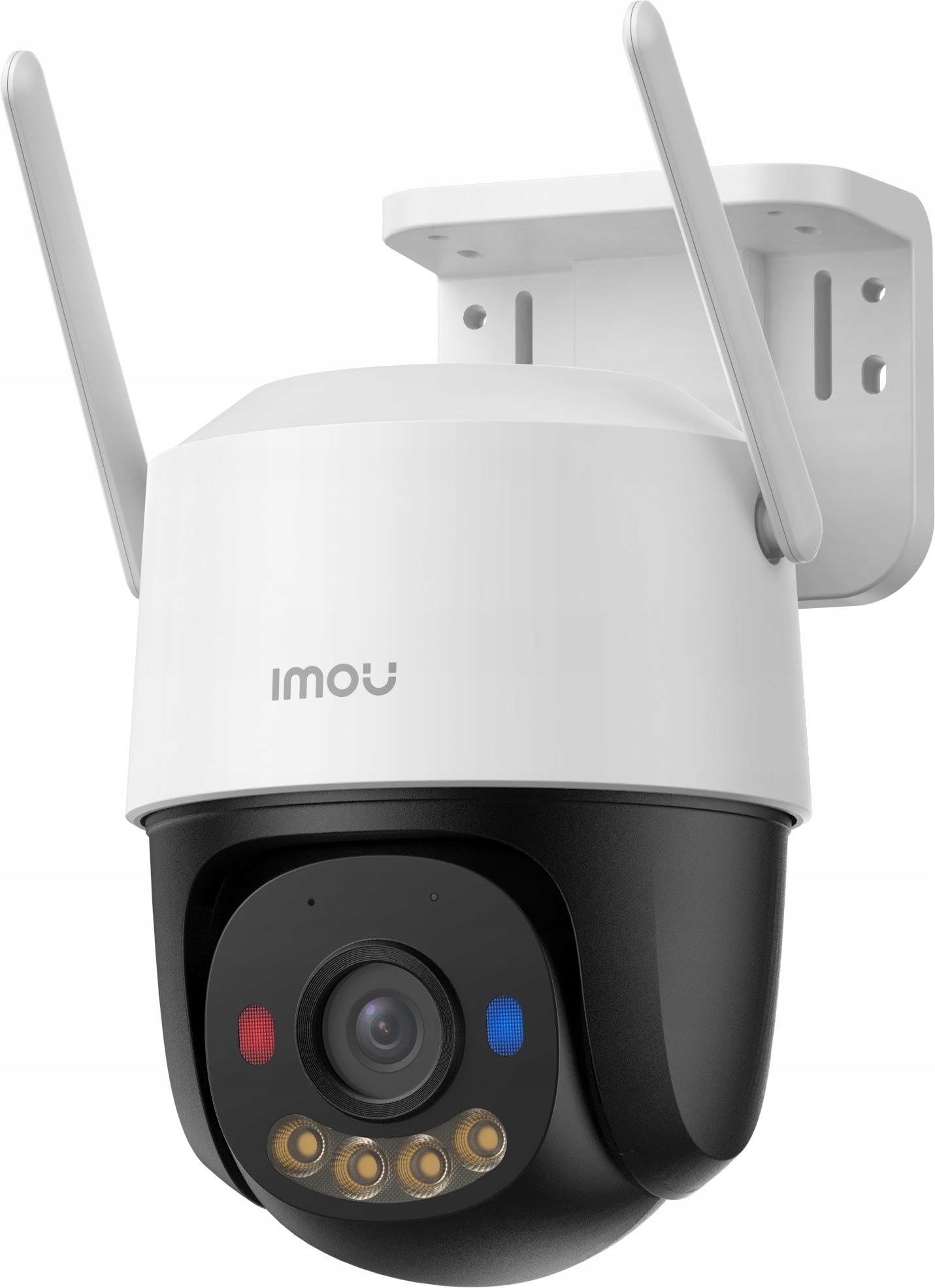
Figure 1: Imou Cruiser SC 4G 5MP Outdoor IP Camera. This image shows the front view of the camera, highlighting its lens, spotlights, and overall design.
The camera features a high-resolution lens, four integrated spotlights (for both white light and infrared illumination), two prominent red and blue alarm indicator lights, a built-in microphone, a speaker for two-way audio, a SIM card slot for 4G connectivity, a reset button, and a power input port.
Setup
1. Prepare for Installation
- Choose a suitable outdoor location with good 4G signal reception.
- Ensure the mounting surface is strong enough to support the camera's weight.
2. SIM Card Installation
- Locate the SIM card slot on the camera (refer to the Quick Start Guide for exact location).
- Insert a standard 4G LTE SIM card into the slot, ensuring correct orientation.
- Secure the waterproof connector cover if applicable.
3. Power On
- Connect the power adapter to the camera's power input port.
- Plug the power adapter into a power outlet. The camera will begin to power on and initialize.
4. App Setup (Imou Life App)
- Download the 'Imou Life' app from your smartphone's app store (iOS or Android).
- Register for an Imou account or log in if you already have one.
- Tap the '+' icon in the top right corner of the app to add a new device.
- Scan the QR code located on the camera or its packaging.
- Follow the on-screen prompts to complete the device setup.
5. Physical Installation
- Use the provided mounting template to mark screw positions on the wall or ceiling.
- Drill pilot holes and insert wall anchors if necessary.
- Secure the camera mounting base with the provided screws.
- Adjust the camera angle as needed for optimal coverage.
Operating
1. Live View
- Open the Imou Life app and select your camera from the device list.
- The live video feed will appear, allowing you to monitor your property in real-time.
2. Recording & Playback
- The camera supports continuous recording or event-triggered recording (e.g., motion detection).
- To view recorded footage, access the playback feature within the Imou Life app. You can browse by date and time.
3. Motion Detection & Alarm
- Configure motion detection sensitivity and detection zones in the app settings.
- When motion is detected, the camera can trigger an alarm, activate the spotlights, and flash the red and blue indicator lights to deter intruders.
- You will receive notifications on your smartphone when an alarm is triggered.
4. Two-Way Talk
- While in live view, tap the microphone icon in the Imou Life app to speak through the camera's speaker.
- The camera's built-in microphone allows you to hear audio from the camera's location.
5. Night Vision Modes
- The camera automatically switches to infrared (IR) night vision in low light conditions, providing clear black and white images.
- You can also configure the camera to use its white light spotlights for full-color night vision when motion is detected or on a schedule.
Maintenance
1. Cleaning
- Regularly clean the camera lens with a soft, dry cloth to ensure clear image quality.
- Wipe the camera casing with a damp cloth as needed. Do not use harsh chemicals or abrasive cleaners.
2. Firmware Updates
- Periodically check for firmware updates via the Imou Life app.
- Keeping your camera's firmware updated ensures optimal performance, security, and access to new features.
3. Storage Management
- If using a local storage card (e.g., microSD), ensure it is functioning correctly and has sufficient space.
- Manage cloud storage subscriptions and settings through the Imou Life app.
Troubleshooting
- Q: Camera is not powering on.
- A: Check if the power adapter is securely connected to both the camera and the power outlet. Ensure the outlet is functional.
- Q: No 4G connection.
- A: Verify that the SIM card is correctly inserted and activated. Check 4G signal strength in the camera's location. Contact your mobile carrier if necessary.
- Q: Cannot add device to the Imou Life app.
- A: Ensure your smartphone has a stable internet connection. Reset the camera by pressing the reset button for 10 seconds and try adding it again. Make sure you are scanning the correct QR code.
- Q: Poor image quality.
- A: Clean the camera lens. Ensure there are no obstructions in front of the lens. Check network conditions; a weak 4G signal can affect streaming quality.
- Q: Motion detection is not working or is too sensitive.
- A: Adjust the motion detection sensitivity and detection zones in the Imou Life app settings. Ensure the camera's firmware is up to date.
Specifications
| Brand | Imou |
| Model Number | model134 |
| Resolution | UHD 3K (5MP) |
| Connectivity | 4G LTE (independent of Wi-Fi) |
| Spotlights | 4 (emit white or infrared light) |
| Alarm Lights | 2 (red and blue indicator lights) |
| Components Included | Delivered as a kit |
| Number of Items | 1 |
Warranty and Support
For warranty information and technical support, please refer to the warranty card included with your product or visit the official Imou website. You can also contact Imou customer service through the Imou Life app for assistance.


