
Zomolither Android 13 Car Radio for Renault Dacia Sandero 2014-2017 (2G+64G)
Zomolither Android 13 Car Radio User Manual
Model: Android 13 Car Radio for Renault Dacia Sandero 2014-2017 (2G+64G)
Introduction
Thank you for choosing the Zomolither Android 13 Car Radio. This manual provides detailed instructions for installation, operation, and maintenance of your new car multimedia system. Designed specifically for Renault Dacia Sandero models from 2014 to 2017, this unit features a 9-inch high-definition touchscreen, Android 13 operating system, 2GB RAM, 64GB ROM, wireless Apple CarPlay, Android Auto, GPS navigation, Bluetooth, FM/RDS radio, steering wheel control support, and rear view camera compatibility.
Safety Information
Please read all safety warnings and instructions carefully before installing and operating this device. Failure to follow these instructions may result in injury or damage to the device or vehicle.
- Always consult a professional for installation if you are unsure about any steps.
- Do not operate the device in a way that distracts you from driving.
- Ensure all wiring is correctly connected to prevent short circuits or electrical hazards.
- Keep the device away from water and excessive heat.
- Only use accessories specified by the manufacturer.
Package Contents
Verify that all items listed below are included in your package:

Image: All components included in the Zomolither Car Radio package.
- Zomolither Android 13 Car Radio Unit (9-inch screen)
- AHD Rear Camera
- Power Cable Harness
- Radio Antenna
- GPS Antenna
- CANBUS Decoder (if applicable for vehicle model)
- RCA Cables
- USB Cables (6-pin and 4-pin)
- Product Manual
- Rear Camera & Microphone Input Cable
- Installation Tool
Installation Guide
This section provides a general guide for installing the Zomolither car radio. Due to variations in vehicle models and trim levels, professional installation is highly recommended. Always disconnect the vehicle's battery before beginning any electrical work.

Image: Comparison of the car dashboard before and after installing the Zomolither car radio.
General Installation Steps:
- Preparation: Disconnect the negative terminal of your car battery. Remove the original car radio unit and trim panels carefully using the provided installation tool.
- Wiring Connections:
- Connect the main power harness to the vehicle's wiring. Ensure all wires (power, ground, ACC, speaker wires) are correctly matched.
- Connect the GPS antenna and position it in a location with a clear view of the sky (e.g., dashboard corner).
- Connect the radio antenna.
- If using the rear view camera, route the camera cable from the rear of the vehicle to the head unit and connect it to the dedicated input. Connect the camera's power to the reverse light circuit.
- Connect the external microphone (if included) for improved call quality.
- Connect USB cables and route them to a convenient location (e.g., glove box or center console).
- Connect the CANBUS decoder if your vehicle requires it for steering wheel controls or other vehicle data integration.
- Mounting the Unit: Secure the new Zomolither car radio into the dashboard opening. Ensure it fits snugly and is properly aligned.
- Testing: Reconnect the car battery. Turn on the ignition and test the basic functions of the radio: power on/off, audio, touchscreen response, radio reception, and steering wheel controls. Test the rear view camera by engaging reverse gear.
- Final Assembly: Once all functions are verified, reassemble any removed trim panels.
For specific wiring diagrams and vehicle-specific instructions, please refer to the detailed product manual included in your package or consult a qualified car audio technician.
Operating Instructions
This section details the various functions and features of your Zomolither Android 13 Car Radio.
1. Android 13 System Overview

Image: Zomolither Android 13 Car Radio main interface.
Your car radio runs on the Android 13 operating system, providing a familiar and intuitive user experience. The 9-inch 2.5D tempered glass touchscreen allows for smooth navigation through menus and applications. The system features 2GB RAM and 64GB ROM for efficient performance and ample storage.
- Home Screen: Access frequently used apps and widgets. Swipe left/right to navigate between screens.
- App Drawer: Tap the app icon to view all installed applications.
- Settings: Access system settings for Wi-Fi, Bluetooth, display, sound, navigation, and more.
2. Wireless CarPlay, Android Auto & Mirror Link

Image: Wireless CarPlay, Android Auto, and Mirror Link interfaces.
Connect your smartphone for seamless integration and access to your favorite apps safely while driving.
- Apple CarPlay (Wireless): For iPhone users. Connect via Bluetooth and then Wi-Fi. Allows access to Maps, Music, Messages, Calls, and Siri voice control.
- Android Auto (Wireless): For Android users. Connect via Bluetooth and then Wi-Fi. Provides access to Google Maps, Spotify, WhatsApp, and Google Assistant voice commands.
- Mirror Link: Sync your smartphone screen to the car radio display.
- For iOS: Connect via Wi-Fi.
- For Android: Connect via USB or Wi-Fi.
3. GPS & WiFi Navigation

Image: GPS Navigation and Wi-Fi connectivity features.
The unit comes pre-installed with the 'Here We GO' offline mapping application. You can also use online navigation services.
- Offline Maps: Download maps for your region using a Wi-Fi connection.
- Online Navigation: Connect to Wi-Fi or a mobile hotspot to use real-time navigation apps like Google Maps, Waze, etc.
- Wi-Fi Connectivity: Go to Settings > Network & Internet > Wi-Fi to connect to available Wi-Fi networks or your phone's hotspot.
4. Bluetooth Functions (Hands-free & Music)
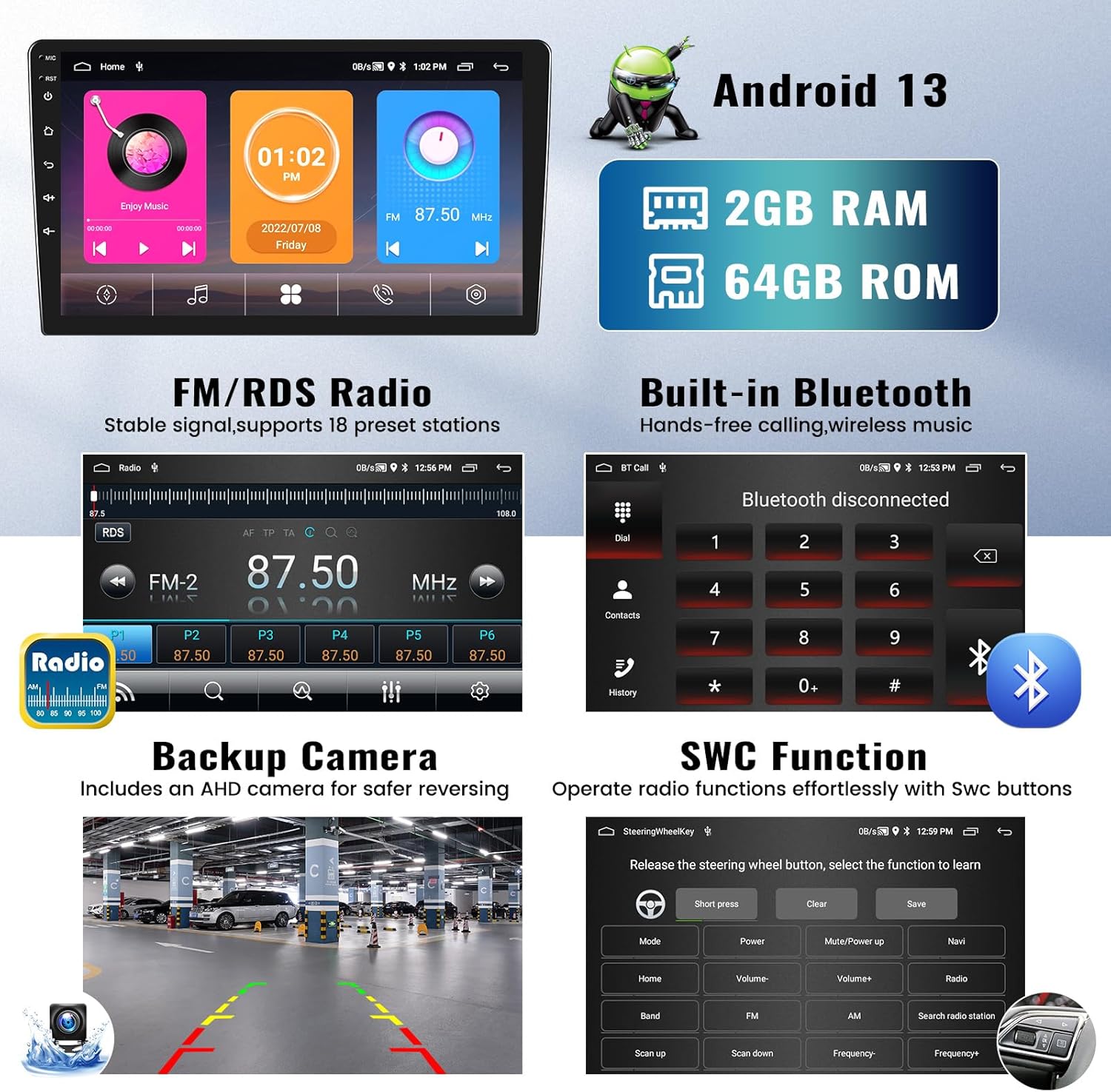
Image: Bluetooth calling interface.
Connect your smartphone via Bluetooth for hands-free calling and wireless audio streaming.
- Pairing: Go to Settings > Connected devices > Pair new device. Enable Bluetooth on your phone and select "Zomolither Car Radio" from the list.
- Hands-free Calling: Once paired, you can make, receive, and end calls directly from the car radio screen. Your phone's contact list can be synced.
- Bluetooth Music: Stream audio from your phone to the car speakers. Control playback (play/pause, skip) from the radio.
5. RDS/FM Radio
Image: FM/RDS Radio interface.
Enjoy your favorite radio stations with clear reception.
- Scanning: Use the auto-scan function to find and save available stations.
- Preset Stations: Save up to 18 of your favorite FM stations for quick access.
- RDS (Radio Data System): Displays station information such as song title, artist, or program type (if broadcasted by the station).
6. Rear View Camera
Image: Rear view camera display.
The included 1080P AHD rear view camera provides a clear view of the area behind your vehicle when reversing.
- Automatic Display: The car radio display automatically switches to the rear view camera feed when the vehicle is put into reverse gear.
- Parking Guidelines: Dynamic parking guidelines may be displayed on the screen to assist with parking maneuvers.
7. Steering Wheel Controls (SWC)
Image: Steering Wheel Control learning interface.
Integrate your vehicle's existing steering wheel controls for safe and convenient operation of the car radio.
- Setup: Go to Settings > Steering Wheel Control. Follow the on-screen instructions to program each button on your steering wheel to the corresponding function on the radio (e.g., volume up/down, track skip, mode, answer call).
- Functions: Control volume, change tracks, switch radio stations, answer/end calls, and more without taking your hands off the wheel.
8. Desktop Themes & Split Screen Function
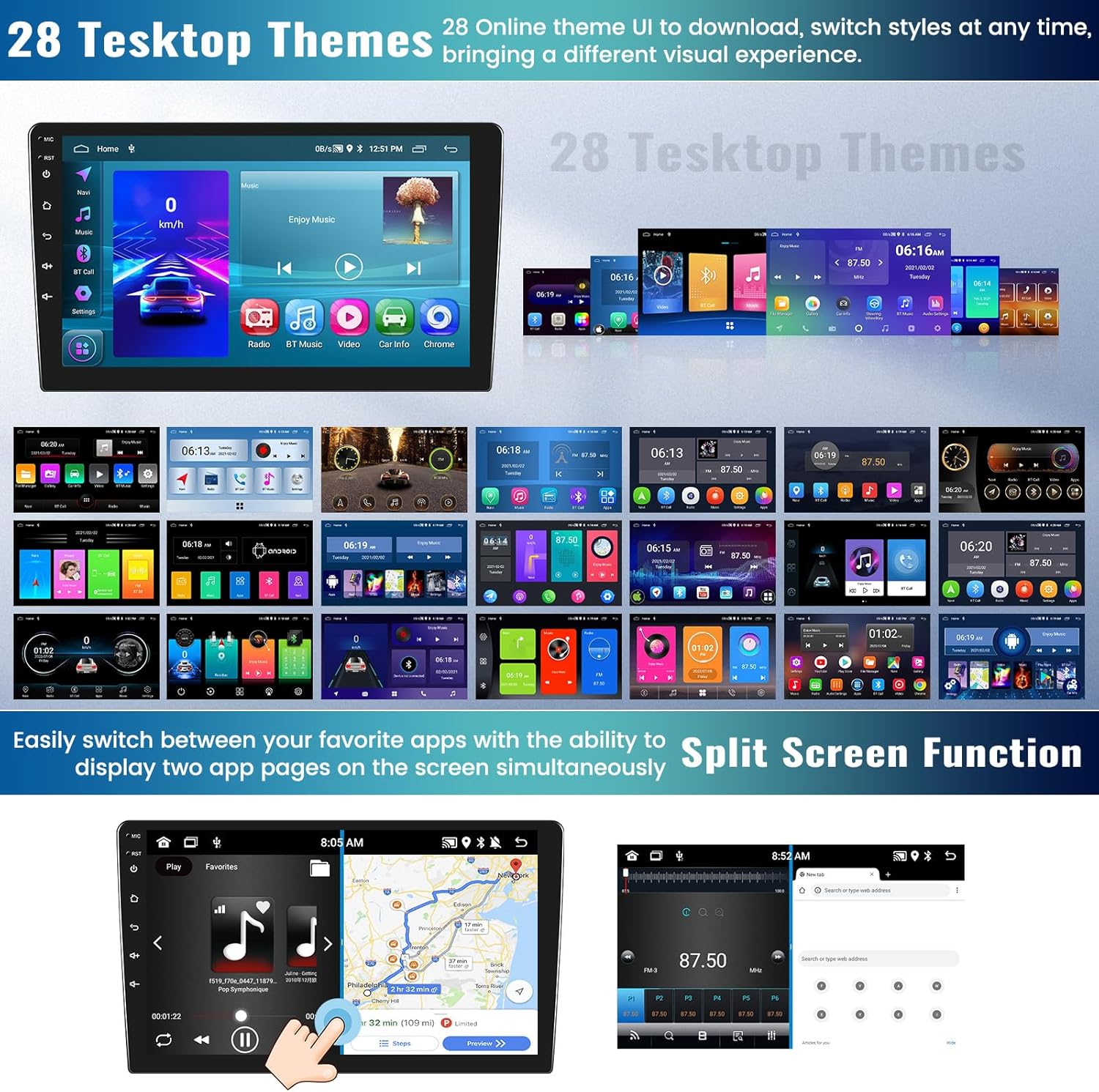
Image: Desktop Themes and Split Screen Functionality.
- Desktop Themes: Customize the look of your car radio interface with 28 different online themes. Access these through the system settings or a dedicated theme app.
- Split Screen Function: Run two applications simultaneously on the screen. For example, use navigation on one side and play music on the other. To activate, long-press the recent apps button or drag an app to one side of the screen.
Specifications
| Feature | Description |
|---|---|
| Operating System | Android 13 |
| RAM | 2GB |
| ROM | 64GB |
| Screen Size | 9 Inch |
| Display Type | 2.5D Tempered Glass Touch Screen, 1080P HD |
| Connectivity | Bluetooth, Wi-Fi |
| Special Features | Apple CarPlay (Wireless), Android Auto (Wireless), Mirror Link, GPS Navigation, RDS/FM Radio, Steering Wheel Control Support, AHD Reversing Camera Input, Built-In Bluetooth, Built-In Wi-Fi, Touchscreen |
| Compatible Devices | Smartphone |
| Audio Output Mode | Stereo |
| Product Dimensions | 10D x 10W x 10H millimeters (Unit only, excluding frame) |
| Weight | 1.71 kg |
| Supported Internet Services | YouTube, Spotify, etc. (via Wi-Fi) |
| Control Method | Touch, Hand Control (Steering Wheel Controls) |
Troubleshooting
If you encounter issues with your Zomolither car radio, please refer to the following common solutions before contacting support.
| Problem | Possible Solution |
|---|---|
| No Power | Check power cable connections (ACC, B+, GND). Verify vehicle's fuse box for blown fuses. Ensure battery is connected. |
| No Sound | Check speaker wire connections. Ensure volume is not muted or too low. Verify audio settings in the system. |
| Touchscreen Unresponsive | Restart the unit. Ensure the screen is clean and free of debris. If persistent, contact support. |
| GPS Signal Lost/Weak | Ensure GPS antenna is properly connected and placed in a location with a clear view of the sky (e.g., dashboard). |
| Bluetooth Connection Issues | Ensure Bluetooth is enabled on both the radio and your phone. Delete previous pairings and re-pair. Restart both devices. |
| Rear Camera Not Displaying | Check camera power and video signal connections. Ensure the reverse trigger wire is correctly connected to the vehicle's reverse light circuit. |
| Steering Wheel Controls Not Working | Ensure CANBUS decoder (if applicable) is correctly installed. Re-program the steering wheel buttons in the system settings. |
Maintenance
Proper care will extend the life of your car radio.
- Cleaning: Use a soft, dry cloth to clean the screen and unit. For stubborn smudges, slightly dampen the cloth with water or a screen cleaner. Avoid abrasive cleaners or solvents.
- Temperature: Avoid exposing the unit to extreme temperatures.
- Software Updates: Periodically check for software updates from the manufacturer (if available) to ensure optimal performance and access to new features.
Warranty and Support
Zomolither products are manufactured to high-quality standards. For warranty information, please refer to the warranty card included with your product or contact your point of purchase. For technical support or further assistance, please contact Zomolither customer service through the contact information provided on our official website or your purchase platform.
Please have your product model number and purchase date ready when contacting support.
Ask a question about this manual
Ask about setup, troubleshooting, compatibility, parts, safety, or missing instructions. Manuals+ will review the question and use this page’s manual context to help answer it.