
1. Introduction
Thank you for choosing the TECKNET Ergonomic Mouse. This vertical mouse is designed to provide a comfortable and natural 'handshake' grip, reducing wrist strain and fatigue during extended use. It offers versatile connectivity options, adjustable sensitivity, and a long-lasting rechargeable battery, making it ideal for various computing environments.

Figure 1: TECKNET Ergonomic Mouse with USB receiver and Type-C charging cable.
2. Package Contents
- TECKNET Ergonomic Mouse (Model: TK-MS017)
- USB-A Receiver
- Type-C Charging Cable
- User Manual
3. Product Overview
Familiarize yourself with the mouse's components and controls:
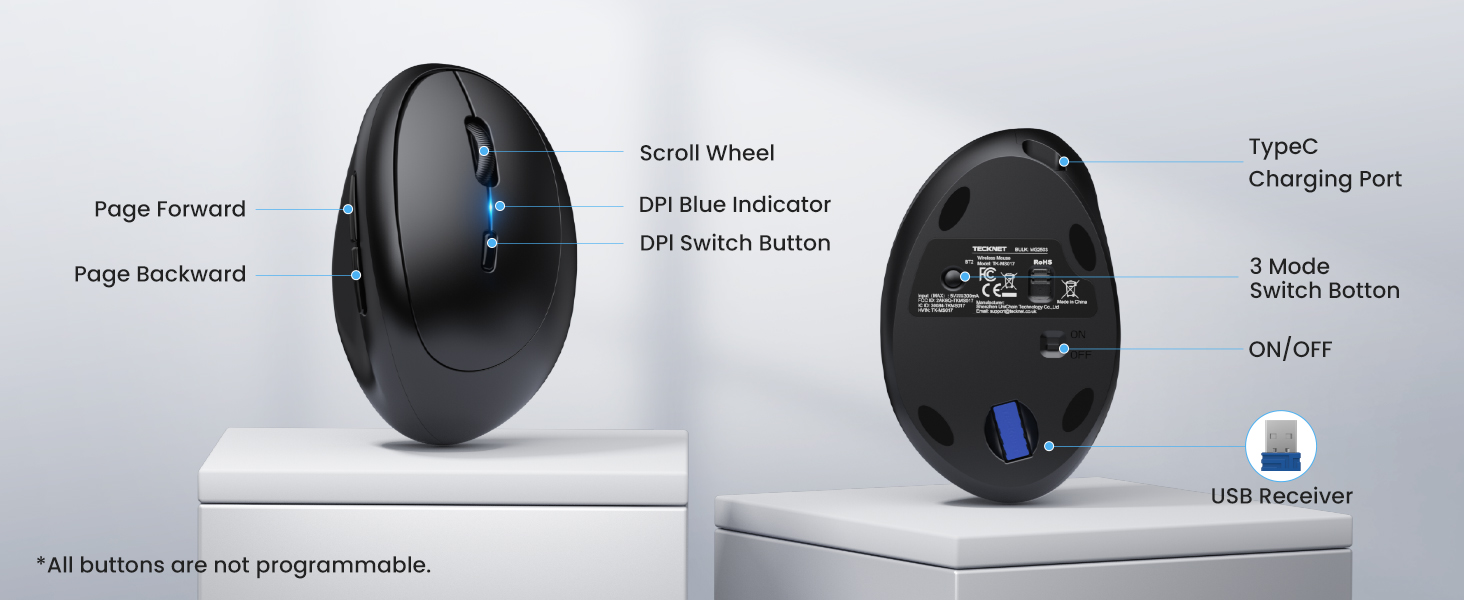
Figure 2: Product Components and Controls.
- Scroll Wheel: For vertical scrolling.
- DPI Switch Button: Adjusts mouse sensitivity (DPI).
- Page Forward/Backward Buttons: Located on the side for quick navigation (Note: Side buttons may not be functional in Mac OS).
- Type-C Charging Port: For recharging the internal battery.
- 3 Mode Switch Button: Located on the bottom, allows switching between 2.4G, Bluetooth 1 (BT1), and Bluetooth 2 (BT2) modes.
- ON/OFF Switch: Powers the mouse on or off.
- USB Receiver Compartment: Stores the 2.4G USB receiver.
4. Setup
4.1. 2.4G Wireless Connection
- Locate the USB receiver stored in the compartment on the bottom of the mouse.
- Insert the USB receiver into an available USB-A port on your computer.
- Flip the ON/OFF switch on the bottom of the mouse to the 'ON' position.
- Briefly press the 3 Mode Switch Button on the bottom of the mouse until the white indicator light flashes rapidly, indicating 2.4G mode.
- Once the connection is successfully established, the indicator light will turn off, and your mouse cursor will move normally.
4.2. Bluetooth Connection (BT1/BT2)
The mouse supports connecting to two Bluetooth devices (BT1 and BT2).
- Flip the ON/OFF switch on the bottom of the mouse to the 'ON' position.
- Briefly press the 3 Mode Switch Button to switch to either BT1 or BT2 mode. The white indicator light will flash rapidly.
- On your computer or device, open Bluetooth settings and search for new devices.
- Select either "TK-MS017-3.0" (for Bluetooth 3.0) or "TK-MS017-5.0" (for Bluetooth 5.0) from the list of available devices.
- Once paired, the indicator light will turn off, and the mouse will be ready for use.

Figure 3: Multiple device connectivity.
4.3. Setup and Connection Demonstration Video
Video 1: Official TECKNET guide on how to use the Bluetooth Ergonomic Mouse. This video demonstrates unboxing (0:00-0:12), 2.4G connection (0:20-0:38), Bluetooth connection (0:38-1:04), and DPI adjustment (1:04-1:21).
5. Operating Instructions
5.1. DPI Adjustment
The mouse features 6 adjustable DPI levels (800, 1200, 1600, 2400, 3200, 4800 DPI) to suit various tasks and preferences. Press the DPI Switch Button (located behind the scroll wheel) to cycle through the sensitivity levels. The blue indicator light will flash corresponding to the selected level (e.g., one flash for 800 DPI, two flashes for 1200 DPI, and so on).
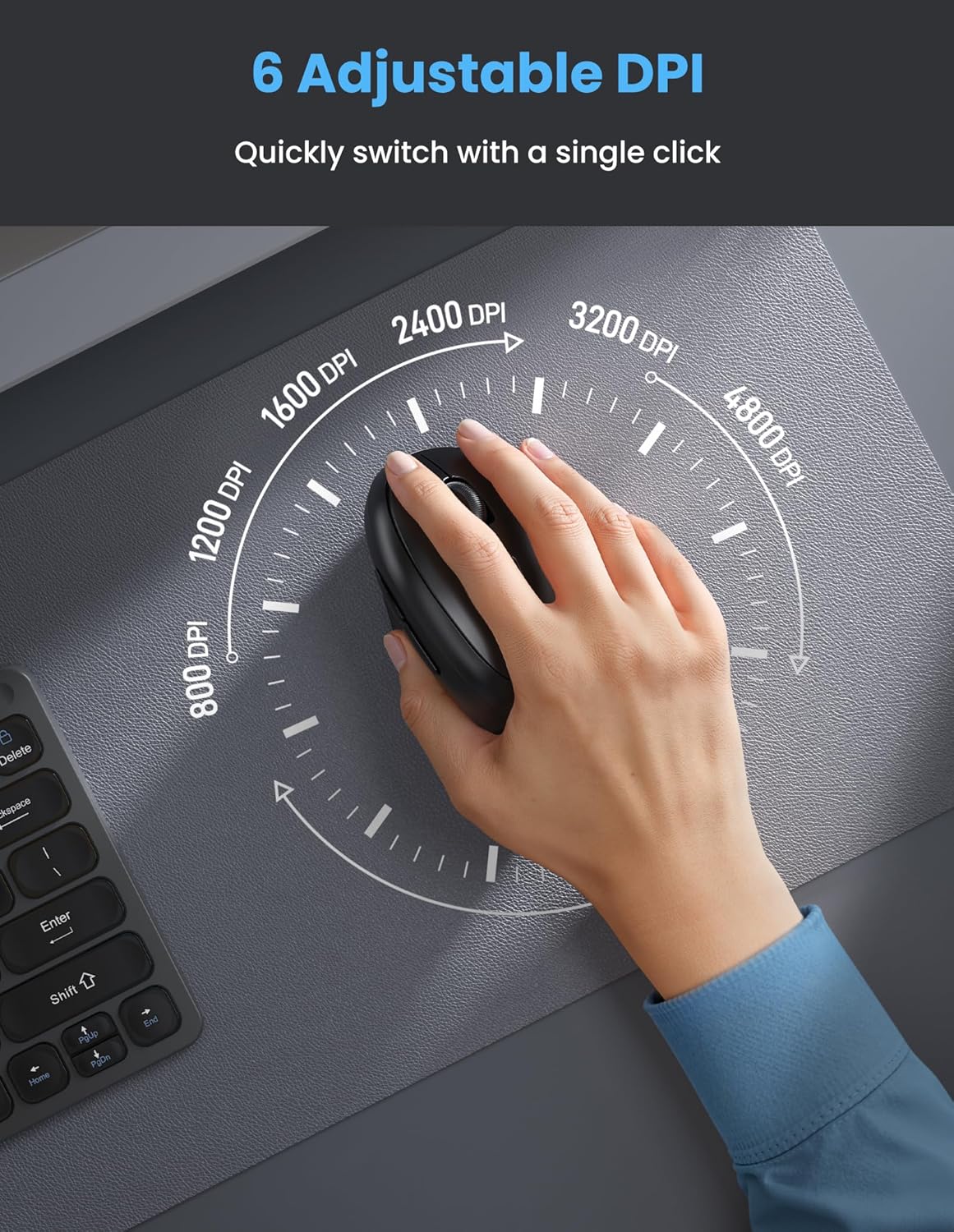
Figure 4: Adjusting DPI sensitivity.
5.2. Charging the Mouse
The mouse has a built-in 600mAh rechargeable battery. When the cursor becomes unresponsive or the mouse stops working, it may need charging. Connect the provided Type-C charging cable to the charging port on the front of the mouse and to a USB power source. The red indicator light will turn on during charging and turn off once charging is complete.
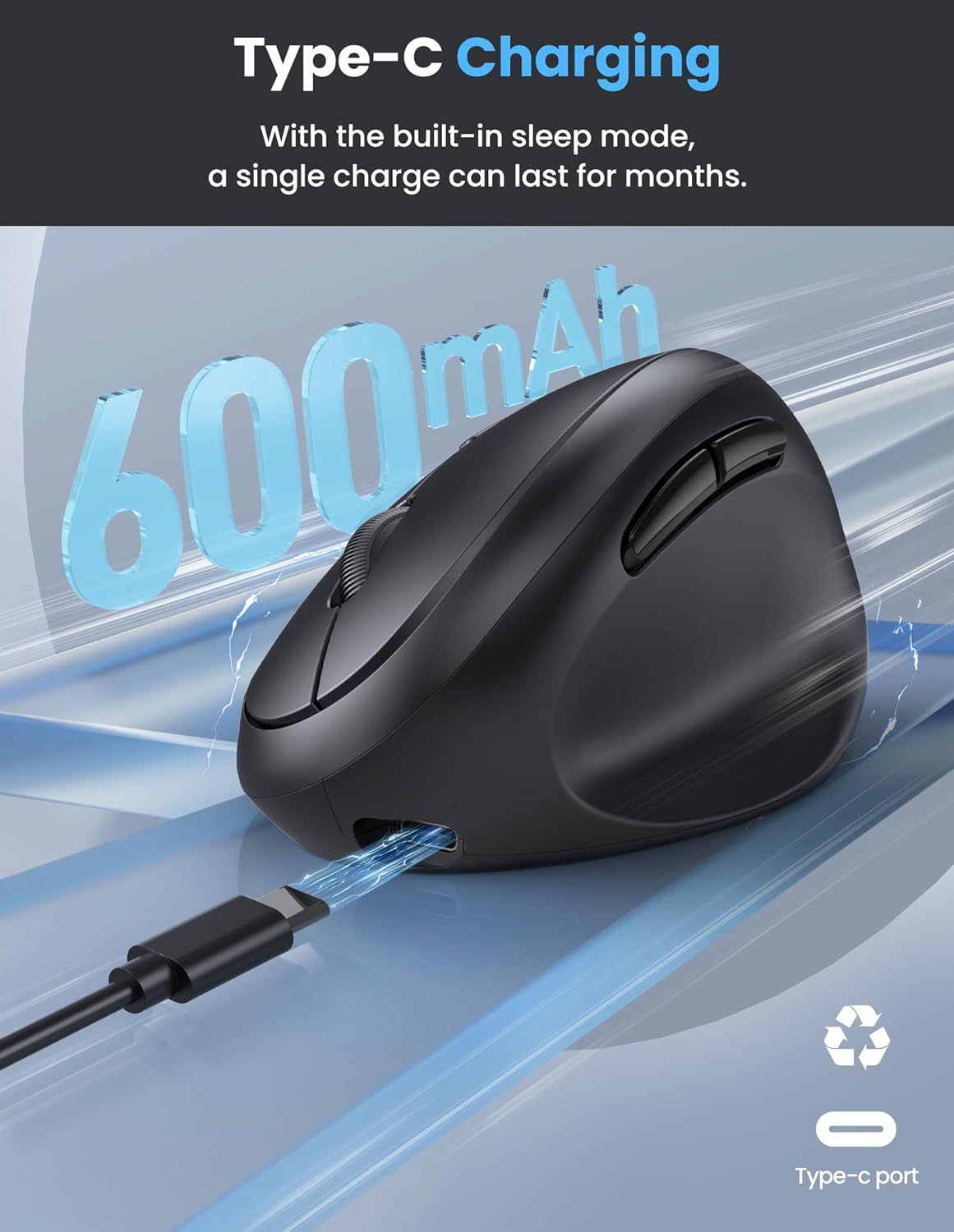
Figure 5: Mouse charging via Type-C port.
5.3. Ergonomic Design Benefits
The 52° vertical angle of the mouse promotes a natural 'handshake' grip, which helps reduce strain on your forearm and carpal tunnel, enhancing comfort during prolonged use.
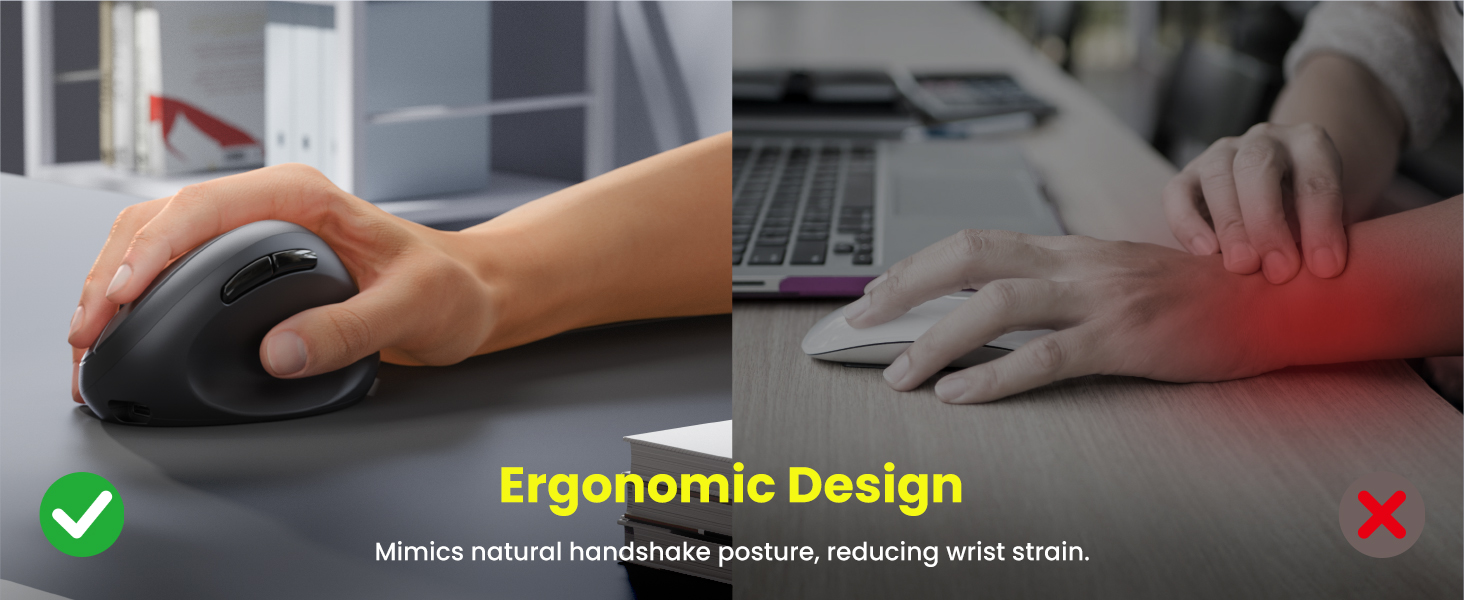
Figure 6: Ergonomic design for reduced wrist strain.
The mouse is designed to be comfortable for S/M hand sizes, with rounded contours for a secure and comfortable grip.
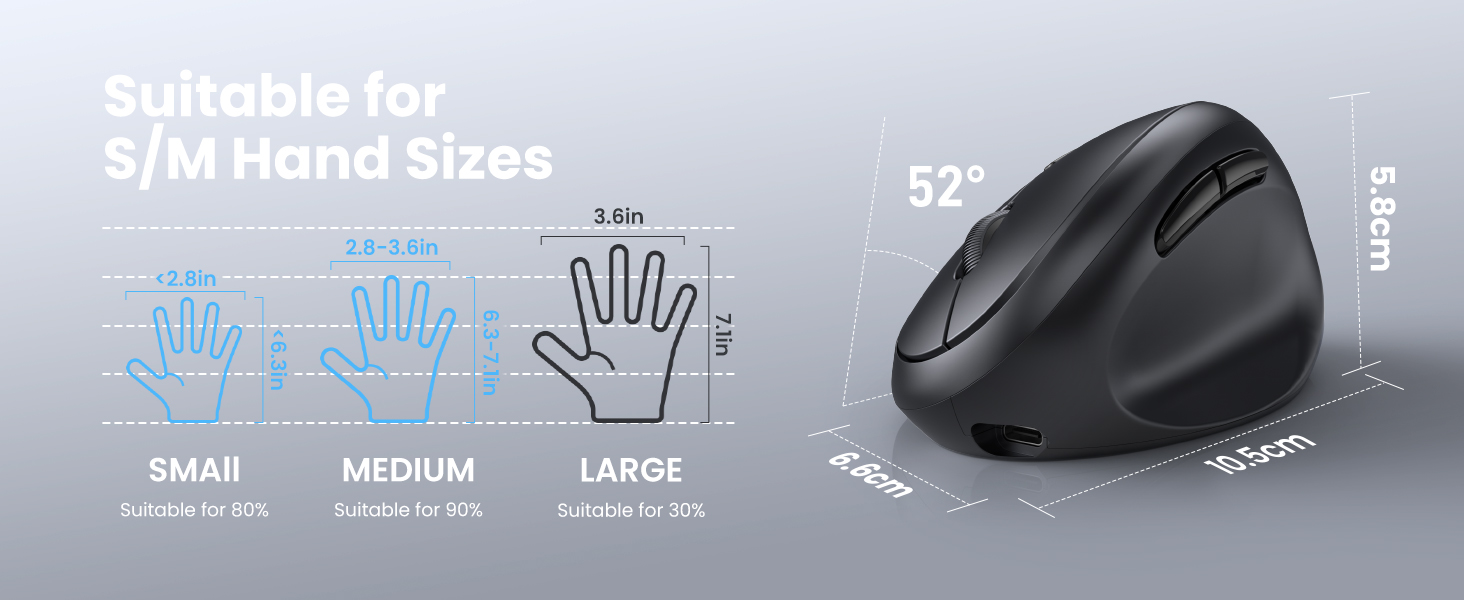
Figure 7: Hand size suitability and mouse dimensions.
5.4. Silent Clicks
The mouse features silent click technology, reducing noise by 99%. This makes it suitable for quiet environments like libraries or shared offices.

Figure 8: Silent click feature for distraction-free environments.
5.5. Multi-platform Compatibility
The mouse is widely compatible with various operating systems, including Windows (11/10/8/7/XP), Mac OS X10.4, Linux, Android, and Chrome OS. It can effortlessly pair with desktops, laptops, and tablets.

Figure 9: Wide compatibility with various operating systems.
6. Maintenance
To ensure the longevity and optimal performance of your TECKNET Ergonomic Mouse, follow these maintenance guidelines:
- Cleaning: Use a soft, dry cloth to wipe the surface of the mouse. For stubborn dirt, slightly dampen the cloth with water or a mild cleaning solution. Avoid harsh chemicals or abrasive materials.
- Storage: When not in use for extended periods, store the mouse in a cool, dry place away from direct sunlight and extreme temperatures.
- Battery Care: Avoid fully discharging the battery frequently. Charge the mouse when the indicator light suggests low battery to prolong battery life.
7. Troubleshooting
If you encounter issues with your TECKNET Ergonomic Mouse, refer to the following common solutions:
- Mouse not responding: Ensure the mouse is powered on and fully charged. Check the ON/OFF switch on the bottom.
- 2.4G Connection Issues:
- If the mouse misses the 20-second pairing window with the USB receiver, flip the 3 Mode Switch Button to 2.4G mode.
- Press and hold the left, middle, and right buttons simultaneously for 3 seconds until the indicator flashes rapidly.
- Insert the USB nano receiver into your computer within 20 seconds.
- Bluetooth Connection Issues:
- If the mouse is not connecting via Bluetooth, open your computer's Bluetooth settings.
- Remove/Uninstall the mouse from your device list.
- On the mouse, hold the 3 Mode Switch Button for 3-5 seconds to enter pairing mode (indicator flashes rapidly).
- Search for and reconnect to "TK-MS017-3.0" or "TK-MS017-5.0" in your device's Bluetooth settings.
- Cursor erratic or not moving smoothly: Adjust the DPI setting using the DPI Switch Button. Ensure the mouse is used on a clean, suitable surface. The mouse supports efficient tracking on various surfaces including resin, wood, fabric, and paper.
7.1. Troubleshooting Demonstration Video
Video 2: Official TECKNET guide demonstrating troubleshooting steps for 2.4G connection issues (1:35-1:59) and Bluetooth connection issues (2:00-2:25).
8. Specifications
| Feature | Description |
|---|---|
| Brand | TECKNET |
| Model | TK-MS017 |
| Connectivity Technology | Bluetooth (5.0/3.0), 2.4G USB |
| Movement Detection Technology | Optical |
| DPI Levels | 800, 1200, 1600, 2400, 3200, 4800 (Adjustable) |
| Battery | 600mAh Rechargeable (included) |
| Special Features | Wireless, Ergonomic Design, Rechargeable, Quiet Clicks |
| Color | Black |
| Item Weight | 5 ounces |
| Package Dimensions | 4.88 x 2.95 x 2.76 inches |
| Country of Origin | China |
9. Warranty and Support
TECKNET offers 36 months of support for registered users of this product. For any inquiries or support needs, please do not hesitate to contact our support team.
Email: support@tecknet.co.uk


