
BIGASUO 156C Digital Calendar
BIGASUO 15.6 Inch Digital Calendar User Manual
Model: 156C Digital Calendar
1. Introduction
The BIGASUO 15.6 Inch Digital Calendar is a Full HD touchscreen smart planner designed to streamline family schedules and household organization. This device allows multiple users to manage events, tasks, and lists, ensuring everyone stays informed and on track. It features a responsive touchscreen, LED reminder lights, and flexible mounting options for integration into any home environment.

Image 1.1: The BIGASUO 15.6 Inch Digital Calendar and its retail packaging.
2. What's Included
Verify that all components are present in the package:
- 15.6-inch Digital Calendar
- Desktop Stand
- Wall Bracket
- 12V/4A Power Adapter
- Installation Guide (this manual)

Image 2.1: Included accessories: digital calendar, wall mount, desktop stand, power adapter, and user manual.
3. Setup Instructions
Follow these steps to set up your BIGASUO Digital Calendar:
- Power On: Connect the 12V/4A power adapter to the calendar and plug it into a power outlet. The device will automatically power on.
- Initial Configuration: Follow the on-screen prompts to select your language, connect to your Wi-Fi network, and set the correct timezone.
- Download the App: Download the "Whale Framely" app from the App Store (for iOS) or Google Play Store (for Android) on your smartphone or tablet.
- Account Creation and Binding: Open the "Whale Framely" app, create an account, and follow the instructions to bind your digital calendar to the app. This typically involves scanning a QR code displayed on the calendar screen.
- Create Schedule: Begin adding events, tasks, and lists directly on the digital calendar's touchscreen or through the "Whale Framely" app. All changes will sync between the device and the app.

Image 3.1: Setup process showing app download, account binding, and schedule creation.
4. Operating Instructions
4.1. Navigation and Views
The digital calendar features a touchscreen interface for easy navigation. You can switch between Daily, Weekly, and Monthly views to see your schedule at different granularities. A hideable navigation bar provides quick access to various functions.

Image 4.1: Overview of the calendar interface, showing daily, weekly, and monthly views, date/time/weather display, and event creation button.
4.2. Adding Events and Lists
Events and lists can be added directly on the device or via the "Whale Framely" app. Tap the '+' icon on the screen to add a new event or list. You can assign a personal color to each family member for easy identification of their schedule.

Image 4.2: The process of creating and editing events and adding lists on the digital calendar.
4.3. Calendar Synchronization
The BIGASUO Digital Calendar supports synchronization with various external calendar services:
- Live 2-Way Sync: Google Calendar (changes update both ways).
- Read-Only Sync: iCloud, Outlook, Cozi, Yahoo, and SnapTeam.
To sync, navigate to the App -> User -> Sync this digital Calendar within the "Whale Framely" app and follow the prompts.
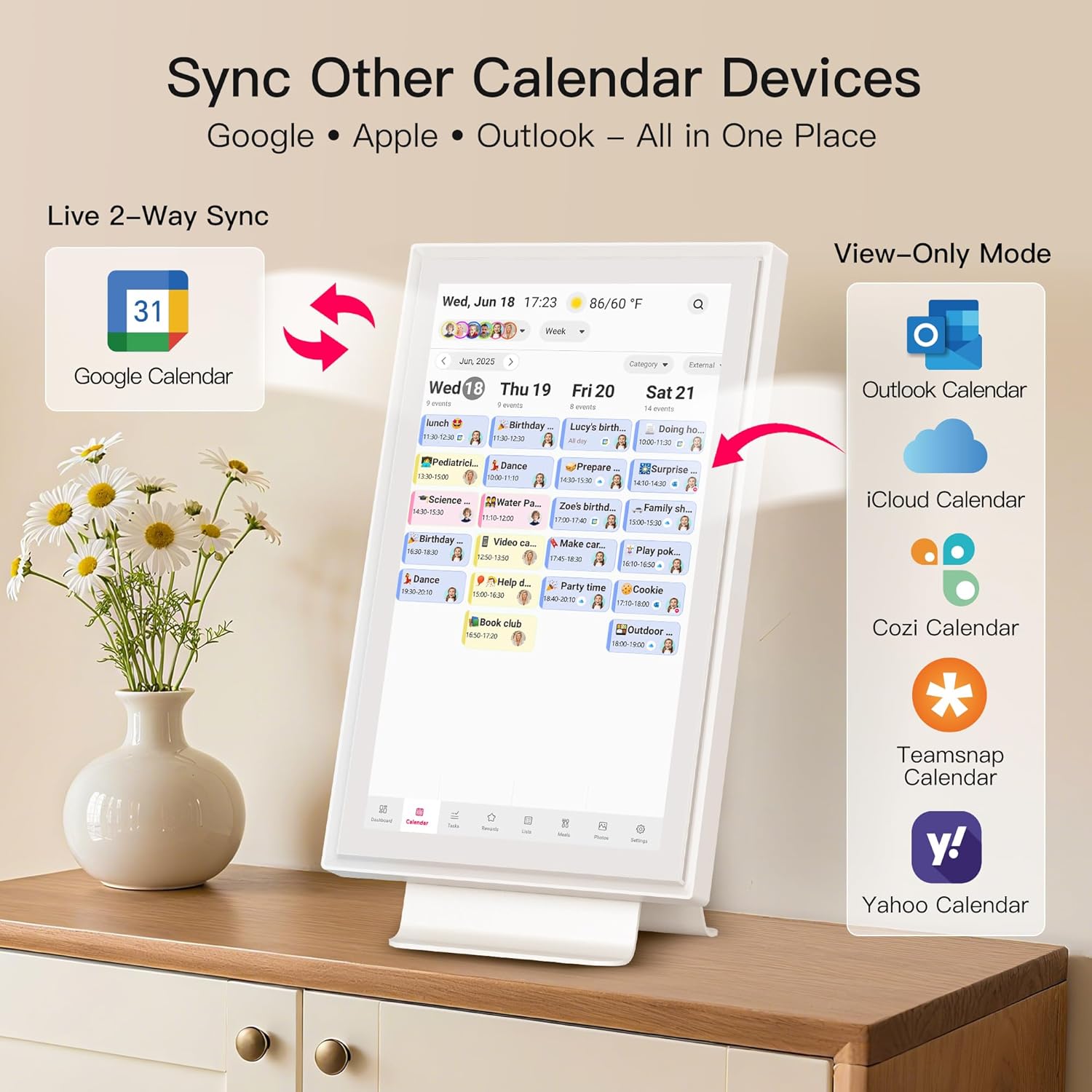
Image 4.3: The digital calendar displaying synchronized events from Google, Outlook, iCloud, Cozi, Teamsnap, and Yahoo calendars.
4.4. Task & Reward Manager
Utilize the built-in Task & Reward Manager to assign household chores, track progress, and motivate family members. You can set up recurring tasks and assign rewards for completion.
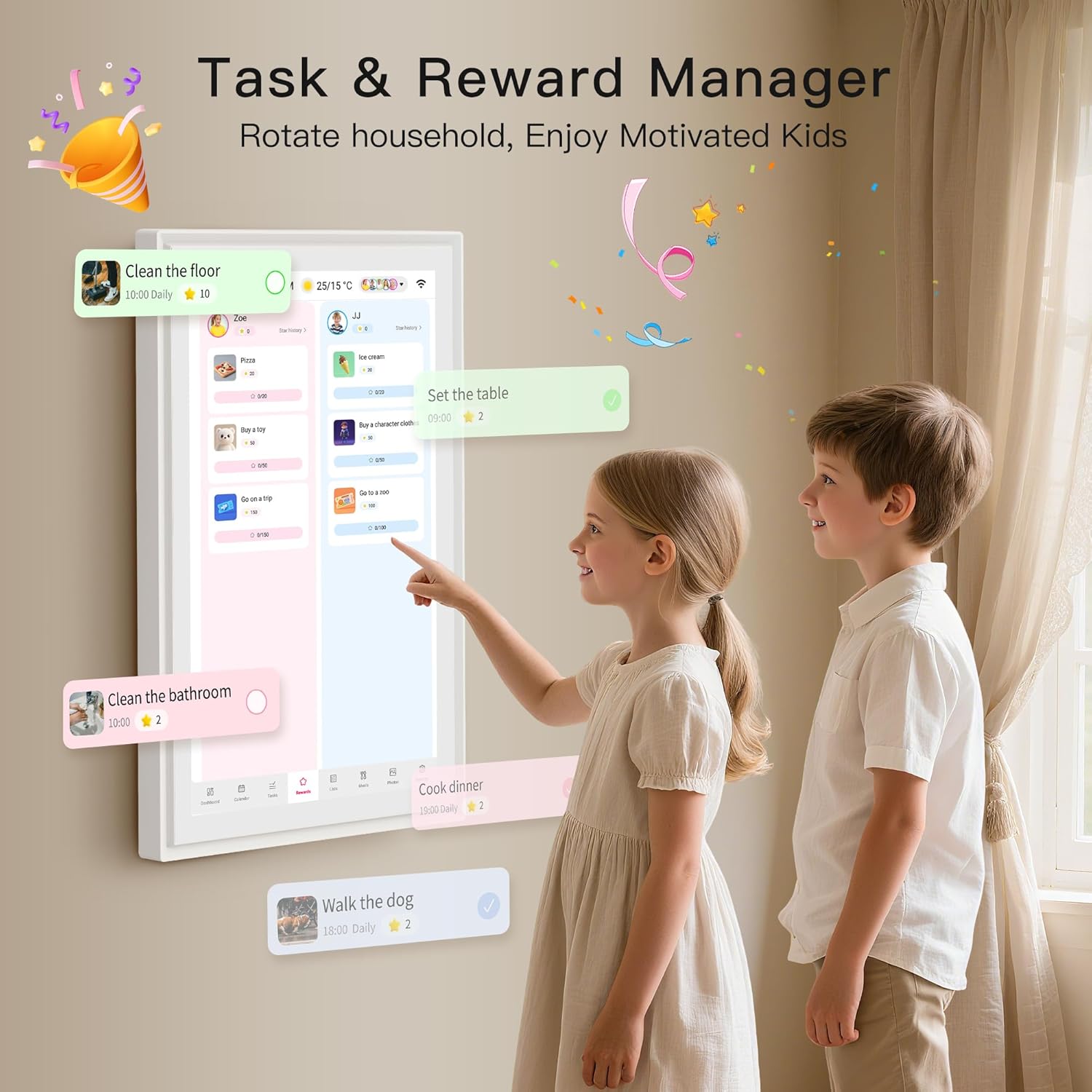
Image 4.4: Two children pointing at the digital calendar, which displays a task and reward management interface.
4.5. Meal Planner
Organize your weekly meal plans directly on the calendar. This feature helps in planning meals and creating grocery lists efficiently.

Image 4.5: A child pointing at the digital calendar displaying a meal planner, while an adult is seen in the background near a refrigerator.
4.6. Smart Reminders
The calendar provides personalized alerts with color-coded LED reminder lights and sound notifications. Each family member can select a unique color (e.g., Mom: Red, Dad: Blue, Kids: Green) for instant recognition of their upcoming events.

Image 4.6: A child looking at the digital calendar, which shows a reminder pop-up and a color selection interface for personalized alerts.
4.7. Photo Frame Functionality
In addition to scheduling, the device can function as a digital photo frame, displaying cherished family memories. Photos can be uploaded and managed via the "Whale Framely" app.

Image 4.7: A family looking at the digital calendar, which displays a photo of a baby, highlighting its photo frame capability.
4.8. Additional Features
- Auto-Brightness: Adjusts screen brightness based on ambient light.
- Sleep Mode: Conserves energy during inactive periods.
- Auto-Rotate: Automatically adjusts display orientation when mounted vertically or horizontally.
- Weather Forecast: Displays current weather information.

Image 4.8: The digital calendar showcasing its features such as 15.6" touchscreen, auto-brightness, sleep mode, auto-rotate, and weather forecast.
5. Mounting Options
The BIGASUO Digital Calendar offers versatile mounting options to suit your preference:
- Desktop Stand: Use the included desktop stand to place the calendar on any flat surface, such as a kitchen counter or desk.
- Wall Mount: Utilize the provided wall bracket to securely mount the calendar on a wall. Ensure proper installation for stability.
The auto-rotate feature ensures the display adjusts correctly whether mounted horizontally or vertically.

Image 5.1: The digital calendar displayed in both wall-mounted vertical and desk-mounted horizontal orientations, demonstrating auto-rotation.
6. Maintenance
- Cleaning: Use a soft, dry cloth to clean the screen and exterior. For stubborn smudges, lightly dampen the cloth with water. Avoid harsh chemicals or abrasive materials.
- Software Updates: The device receives regular over-the-air (OTA) software updates. Ensure your calendar is connected to Wi-Fi and click "Update" when prompted to access new features and improvements.
- Placement: Avoid placing the calendar in direct sunlight or near heat sources to prevent damage to the screen and internal components.
7. Troubleshooting
| Issue | Possible Solution |
|---|---|
| Device does not power on. | Ensure the power adapter is securely connected to both the device and a working power outlet. Verify the power outlet is functional. |
| Cannot connect to Wi-Fi. | Check your Wi-Fi password. Ensure the calendar is within range of your Wi-Fi router. Restart the calendar and your router. |
| Calendar not syncing with app. | Verify the calendar is connected to Wi-Fi. Ensure the "Whale Framely" app is updated to the latest version. Re-bind the device to the app if necessary. For external calendars (Google, iCloud), check sync settings within the "Whale Framely" app and the external calendar service. |
| Incorrect timezone displayed. | Go to the device settings and manually select the correct timezone. Ensure automatic time synchronization is enabled if available. |
| Screen is unresponsive. | Restart the device by unplugging and re-plugging the power adapter. Ensure the screen is clean and free of debris. |
8. Specifications
| Feature | Detail |
|---|---|
| Brand | BIGASUO |
| Model Number | 156C Digital Calendar |
| Screen Size | 15.6 Inches |
| Material | ABS Plastic and Glass Touch Panel |
| Color | White |
| Item Weight | 5 pounds |
| Product Dimensions | 12.5 x 12.5 x 9.59 inches (or 12.5"W x 9.59"H) |
| Mounting Type | Wall and Desk Mount (all stands included) |
| Manufacturer | BIGASUO |
9. Warranty and Support
The BIGASUO 15.6 Inch Digital Calendar comes with a 1-year warranty. For technical assistance, product inquiries, or warranty claims, please contact BIGASUO customer support. Our dedicated technical team is available 24/7 to provide assistance and regularly releases updates to enhance your experience.
Please refer to the contact information provided in your product packaging or visit the official BIGASUO website for the most current support details.
Related documents156C Digital Calendar

Ask a question about this manual
Ask about setup, troubleshooting, compatibility, parts, safety, or missing instructions. Manuals+ will review the question and use this page’s manual context to help answer it.