
1. Introduction and Safety Guidelines
This manual provides essential information for the safe operation and maintenance of your LE-IDEA IDEA12 Drone. Please read it thoroughly before first use and retain it for future reference. Improper use can lead to damage or injury.
1.1 General Safety Precautions
- Flight Environment: Fly in open areas, away from people, animals, buildings, and power lines. Avoid flying in strong winds or adverse weather conditions.
- Age Recommendation: This drone is recommended for teens and adults.
- Battery Safety: Use only the provided battery and charging cable. Do not overcharge or puncture the battery. Discontinue use if the battery shows signs of damage or swelling.
- Propeller Safety: Keep hands, face, and loose clothing away from rotating propellers. Ensure propeller guards are installed before flight.
- Line of Sight: Always maintain visual line of sight with the drone during flight.
- Respect Privacy: Be mindful of privacy laws when using the camera function.
2. Package Contents
Verify that all items listed below are present in your package:
- 1x LE-IDEA IDEA12 Drone
- 1x Remote Control
- 1x Modular Battery (Lithium Ion, 1200 mAh)
- 1x Screwdriver
- 1x Carrying Case
- 1x Charging Cable
- 4x Spare Propellers
- 4x Propeller Guards
- 1x Instruction Manual (this document)

Image: All components included in the LE-IDEA IDEA12 drone package, laid out neatly.
3. Product Overview
The LE-IDEA IDEA12 is a mini foldable drone equipped with a 1080P adjustable camera, optical flow positioning, and various flight modes designed for beginner pilots.
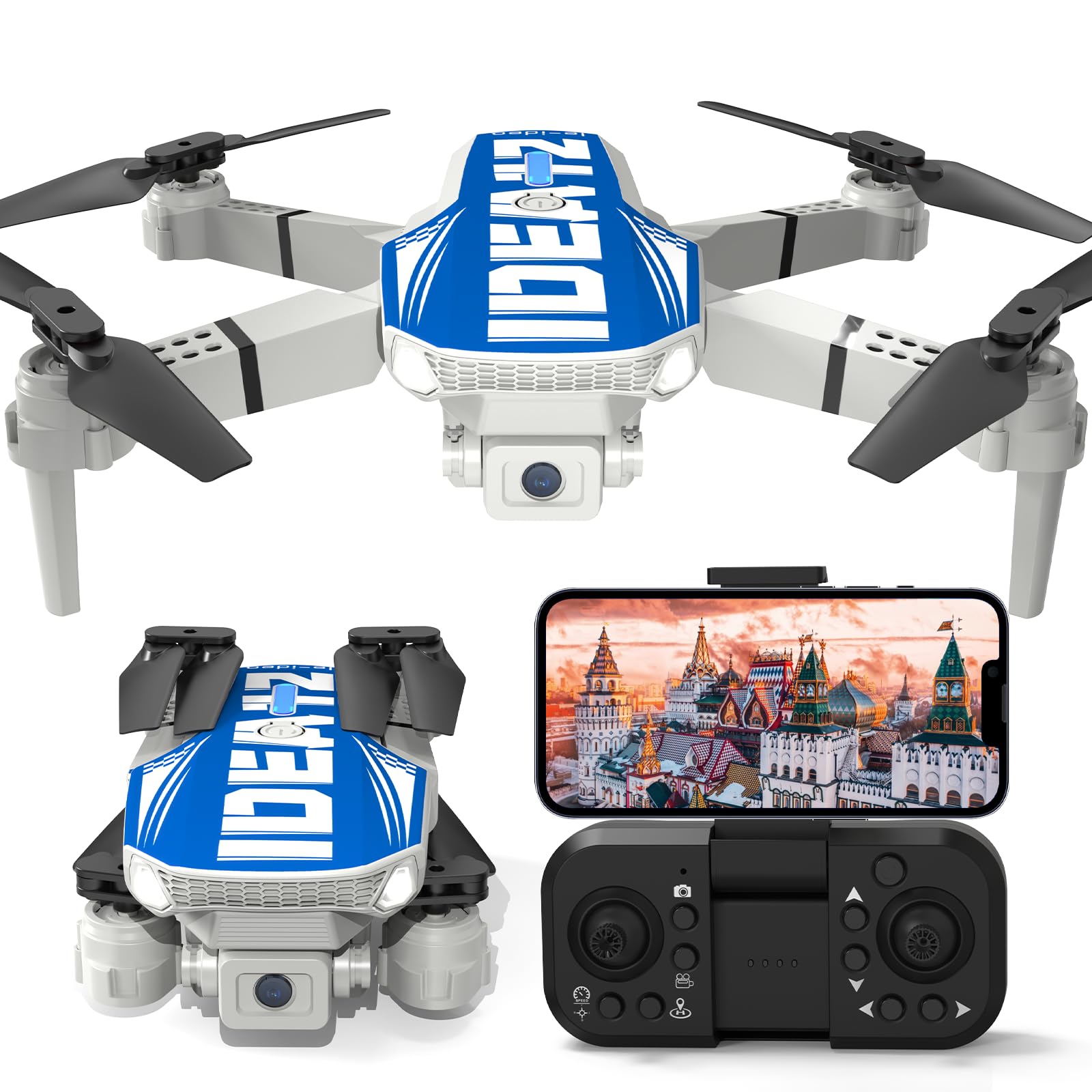
Image: The LE-IDEA IDEA12 Drone, showcasing its compact and foldable design.
3.1 Key Features
- 1080P HD Camera: Captures clear photos and videos with a 90° adjustable lens.
- Optical Flow Positioning: Ensures stable hovering at a fixed altitude, enhancing flight stability and precision. Features a secondary bottom camera for additional perspectives.
- Real-time Transmission: View live footage on your smartphone via the dedicated app.
- Multiple Flight Modes: Includes Headless Mode, One-Key Takeoff/Landing, 3 Speed Adjustments, 360° Flips, Trajectory Flight, Gesture Control, and Gravity Control.
- Durable Design: UV printed body for enhanced durability and resistance to fading.
4. Setup
4.1 Charging the Battery
- Insert the modular battery into the drone.
- Connect the charging cable to the battery port and a USB power source (e.g., computer, USB adapter).
- The indicator light on the battery will show charging status. Charge until fully charged (approximately 60-90 minutes).
4.2 Installing Propeller Guards
For enhanced safety, especially for beginners, attach the propeller guards before flying.
- Identify the four propeller guards.
- Gently snap each guard onto the corresponding arm of the drone, ensuring it is securely fastened around the propeller.

Image: The LE-IDEA IDEA12 Drone with propeller guards attached, illustrating their protective function.
4.3 App Download and Installation
Search for the official LE-IDEA drone app on your smartphone's app store (iOS or Android) and install it. This app is required for advanced features like real-time transmission, trajectory flight, and gesture control.
5. Operating Instructions
5.1 Pairing the Drone and Remote Control
- Place the drone on a flat, level surface.
- Turn on the drone. The indicator lights will flash.
- Turn on the remote control.
- Push the left joystick up and then down. The drone lights will stop flashing and remain solid, indicating successful pairing.
5.2 Basic Flight Controls
- One-Key Takeoff/Landing: Press the dedicated button on the remote for automatic takeoff or landing.
- Throttle (Left Joystick Up/Down): Controls altitude.
- Direction (Right Joystick): Controls forward, backward, left, and right movement.
- Headless Mode: Activates a mode where the drone's orientation is relative to the pilot, simplifying control.

Image: The LE-IDEA IDEA12 Drone demonstrating its one-key takeoff and landing feature, simplifying operation.
5.3 Advanced Flight Features
- 3 Speed Adjustment: Cycle through three speed settings (low, medium, high) to match your skill level and environment.
- 360° Flips: Press the flip button and move the right joystick in any direction to perform an aerial flip.

Image: Three LE-IDEA IDEA12 Drones illustrating the 3-speed adjustment feature, showing varying flight speeds.

Image: The LE-IDEA IDEA12 Drone performing a 360-degree flip, demonstrating its acrobatic capability.
5.4 Camera and App Control
Connect your smartphone to the drone's Wi-Fi network (usually named 'LE-IDEA-XXXX') and open the app.
- Live View: The app displays real-time video feed from the drone's camera.
- Photo/Video Capture: Use the app to take photos or record videos. Files are saved directly to your phone's album.
- Adjustable Camera: The 90° adjustable lens allows you to change the camera angle during flight.
- Optical Flow Camera: Switch to the bottom optical flow camera via the app for a different perspective.
- Trajectory Flight: Draw a flight path on your phone screen, and the drone will follow it.
- Gesture Control: Perform specific hand gestures to trigger photo or video capture.
- Gravity Control: Tilt your smartphone to control the drone's direction.

Image: A visual comparison demonstrating the superior clarity of 1080P video capture compared to 720P from the drone's camera.
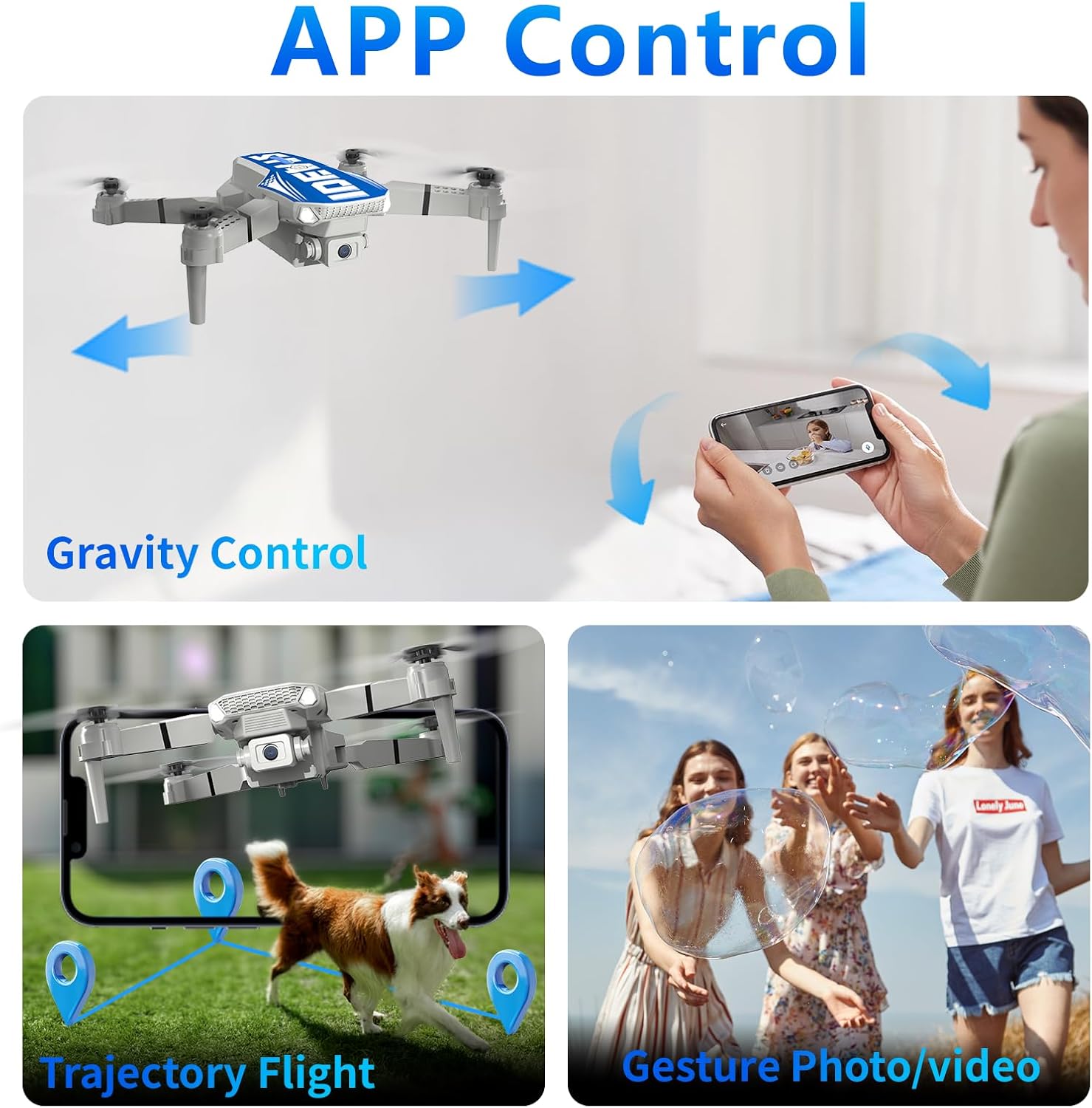
Image: Illustrations of app control features including gravity control, trajectory flight path drawing, and gesture-activated photo/video.
6. Maintenance
- Cleaning: Use a soft, dry cloth to clean the drone body and camera lens. Avoid using harsh chemicals.
- Propeller Inspection: Regularly check propellers for damage (cracks, bends). Replace damaged propellers immediately using the provided screwdriver.
- Battery Care: Store batteries in a cool, dry place. Do not store fully charged or completely depleted for extended periods.
- Storage: When not in use, fold the drone and store it in its carrying case to protect it from dust and damage.
7. Troubleshooting
| Problem | Possible Cause | Solution |
|---|---|---|
| Drone does not respond to remote. | Not paired; low battery (drone or remote); interference. | Re-pair the drone and remote. Charge batteries. Fly in an open area away from interference. |
| Drone drifts during flight. | Not calibrated; strong wind; damaged propeller. | Perform gyroscope calibration (refer to app instructions). Avoid flying in wind. Check and replace propellers. |
| Camera feed is blurry or distorted. | Dirty lens; poor Wi-Fi connection; low light. | Clean the camera lens. Ensure strong Wi-Fi connection. Fly in well-lit conditions. |
| Short flight time. | Battery not fully charged; old battery; aggressive flying. | Ensure battery is fully charged. Consider replacing old batteries. Fly more conservatively. |
| App connection issues. | Incorrect Wi-Fi network; app not updated; phone settings. | Connect to the correct drone Wi-Fi. Update the app. Check phone permissions for the app. |
8. Specifications
| Feature | Detail |
|---|---|
| Brand | LE-IDEA |
| Model Name | IDEA12 |
| Age Range (Description) | Teen |
| Color | Blue |
| Video Capture Resolution | 1080p |
| Still Image Resolution | 2.1 MP |
| Connectivity Technology | Wi-Fi |
| Skill Level | Beginner |
| Max Battery Power | 1200 Milliamper-hour (mAh) |
| Video Capture Format | MP4 |
| Remote Control Technology | Wi-Fi |
| Control Type | App Control |
| Battery Composition | Lithium Ion |
| Batteries Included | Yes |
| Image Format Supported | JPEG |
| Video Output Resolution | 1080p pixels |
| Remote Control Included | Yes |
| Optical Sensor Technology | Optical Flow |
| Material | Plastic |
| Dimensions (L x W x H) | 22L x 18W x 8H cm |
9. Warranty and Support
LE-IDEA provides customer support for any questions or issues you may encounter during the use of your drone, remote control, or app. Please refer to the contact information provided with your purchase or visit the official LE-IDEA website for assistance.
Specific warranty details are typically included with the product packaging or available on the manufacturer's website. Please retain your proof of purchase for warranty claims.
