
Introduction
This manual provides detailed instructions for the installation, operation, and maintenance of your FOIFKIN M2 ATX Mid-Tower PC Case. Please read this manual thoroughly before beginning assembly to ensure proper setup and optimal performance. The FOIFKIN M2 case combines a genuine walnut wood front panel with advanced cooling features, including pre-installed PWM ARGB fans, designed for high-performance computing.

Image: The FOIFKIN M2 PC Case, showcasing its genuine walnut wood front panel and internal layout with illuminated fans.
Package Contents
Before proceeding with installation, verify that all components are present:
- FOIFKIN M2 ATX Mid-Tower PC Case
- Pre-installed 7 PWM ARGB Fans (3x140mm, 4x120mm)
- Accessory Box (screws, cable ties, standoffs, etc.)
- User Manual (this document)
Setup and Installation
Follow these steps for proper component installation. Ensure the PC case is placed on a stable, flat surface during assembly.
1. Accessing the Interior
The tempered glass side panels feature a snap-on design for tool-free removal. Gently pull the panel to detach it from the chassis. This allows easy access for component installation and maintenance.

Image: Demonstrating the tool-less removal of the tempered glass side panel.
2. Motherboard Installation
The FOIFKIN M2 case supports ATX, M-ATX, and ITX motherboards. Install the necessary standoffs for your motherboard size, then carefully place the motherboard into the chassis and secure it with screws.
3. Power Supply Unit (PSU) Installation
The case supports ATX power supplies with a height limit of 200mm. Install the PSU in the designated bottom mount area and secure it with screws from the rear of the case.
4. Storage Drive Installation
The chassis offers flexible storage options:
- 2x 3.5" HDD and 2x 2.5" SSD mounting
- Alternatively, 1x 3.5" HDD and 3x 2.5" SSD mounting
Locate the drive bays behind the motherboard tray and near the PSU shroud. Secure your drives using the provided screws.
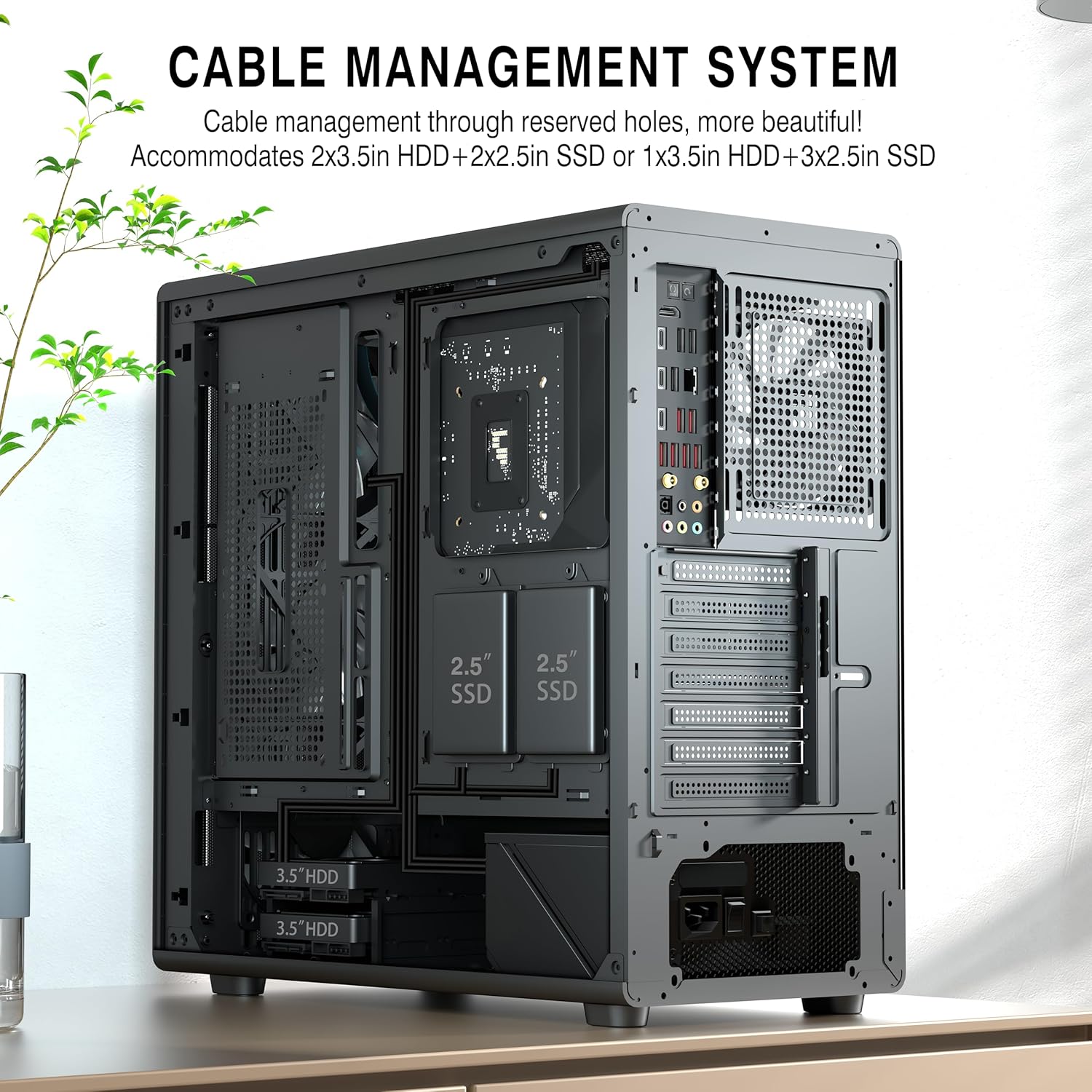
Image: Rear view of the case showing cable management routes and storage drive mounting points.
5. Graphics Processing Unit (GPU) Installation
The case supports GPUs with a length limit of 400mm. Remove the necessary expansion slot covers, insert your GPU into the PCIe slot on the motherboard, and secure it with screws.

Image: Interior view highlighting GPU compatibility and available space.
6. Cooling System Installation (Fans & Radiators)
The M2 case comes pre-installed with 7 ARGB PWM fans (3x140mm and 4x120mm). These fans are strategically placed for optimal airflow. The case also supports top-mounted 360mm, 280mm, or 240mm radiators.
- CPU Cooler Height Limit: 174mm
- Fan Support:
- Front: 3x 140mm or 3x 120mm (3x 140mm pre-installed)
- Top: 3x 120mm or 2x 140mm
- Rear: 1x 120mm or 1x 140mm (1x 120mm pre-installed)
- Bottom: 3x 120mm (3x 120mm pre-installed)
- Radiator Support:
- Top: 360mm / 280mm / 240mm
- Front: 360mm / 280mm / 240mm
- Rear: 120mm / 140mm

Image: Front view of the FOIFKIN M2 PC Case highlighting the pre-installed 7 ARGB PWM fans.

Image: Internal diagram illustrating maximum component dimensions and cooling configurations.
7. Cable Management
Utilize the reserved holes and ample space behind the motherboard tray for efficient cable routing. This improves airflow and maintains a clean interior aesthetic. Use the included cable ties to secure cables.
Operating Instructions
1. Front I/O Ports
The front panel provides convenient access to essential ports:
- 1x Type-C 3.0 port
- 1x USB 3.0 port
- 1x USB 2.0 port
- Microphone/Audio jack
- Power Button
- Reset Button

Image: Detail of the front I/O panel with USB, Type-C, and audio ports.
2. ARGB Fan Control
The pre-installed ARGB fans are PWM (Pulse Width Modulation) enabled, allowing their speed to be adjusted based on system temperature. The ARGB lighting can be controlled via compatible motherboard software (requires a 5V 3-pin ARGB header on your motherboard). Refer to your motherboard's manual for specific software instructions.

Image: Illustration of PWM fan functionality and ARGB header connection for fan control.
Maintenance
1. Cleaning Dust Filters
Regularly clean the dust filters to maintain optimal airflow and cooling performance. The top panel features a removable magnetic dust filter. The front panel can also be removed to access the front fan filters. Use compressed air or a soft brush to remove accumulated dust.

Image: Airflow diagram illustrating intake from front/bottom and exhaust from top/rear.
2. Interior Cleaning
Periodically clean the interior of the case using compressed air to remove dust from components. Ensure the system is powered off and unplugged before cleaning.
Troubleshooting
If you encounter issues with your FOIFKIN M2 PC Case, refer to the following common problems and solutions:
- Fans not spinning or RGB not lighting up:
- Check all fan power cables and ARGB cables are securely connected to the motherboard or fan controller.
- Ensure your motherboard has a 5V 3-pin ARGB header for lighting control.
- Verify fan control software settings on your motherboard.
- Front I/O ports not working:
- Ensure the front panel cables (USB 3.0, USB 2.0, Type-C, Audio, Power, Reset) are correctly connected to the corresponding headers on your motherboard.
- Check your motherboard manual for correct header pinouts.
- Poor airflow or high temperatures:
- Clean all dust filters and internal components.
- Ensure fans are oriented correctly for optimal intake and exhaust.
- Verify that no cables are obstructing airflow paths.
Specifications
| Feature | Detail |
|---|---|
| Model Name | M2 |
| Case Type | ATX Mid-Tower |
| Dimensions (L x W x H) | 470 x 220 x 460 mm (18.5 x 8.66 x 18.1 inches) |
| Material | Metal, Plastic, Solid Walnut Wood, Tempered Glass |
| Motherboard Compatibility | ATX, M-ATX, ITX |
| Pre-installed Fans | 7x PWM ARGB Fans (3x140mm front, 3x120mm bottom, 1x120mm rear) |
| Max CPU Cooler Height | 174mm |
| Max GPU Length | 400mm |
| Max PSU Height | 200mm (ATX) |
| Storage Bays | 2x 3.5" HDD + 2x 2.5" SSD or 1x 3.5" HDD + 3x 2.5" SSD |
| Expansion Slots | 7 |
| Front I/O Ports | 1x Type-C 3.0, 1x USB 3.0, 1x USB 2.0, Microphone/Audio, Power, Reset |
| Cooling Method | Air, Water |

Image: External dimensions of the FOIFKIN M2 PC Case.
Warranty and Support
FOIFKIN guarantees product quality. If you encounter any issues with your M2 PC case, please contact FOIFKIN customer support. For assistance, you can typically find contact information on the seller's page or the official FOIFKIN website. Please retain your proof of purchase for warranty claims.
For further support or inquiries, please visit the FOIFKIN Store on Amazon.