
Introduction
This manual provides detailed instructions for the setup, operation, and maintenance of your usogood D45 2.5K Indoor Security Camera. Please read this manual thoroughly before using the product to ensure proper functionality and safety.
What's in the Box
Verify that all components are present upon unboxing:
- 2 x Indoor Security Camera
- 1 x User Manual (EN/DE/IT/FR/ES)
- 2 x Wall Bracket
- 4 x Base Screw & 4 x Base Bolts
- 2 x Power Cord & 2 x Adapter
Setup
1. Physical Installation
The usogood D45 camera offers flexible installation options, including tabletop, ceiling, or wall mounting.
Video: usogood 4MP Pet Camera Easy to Install. This video demonstrates the simple installation process for the camera on a table, ceiling, or wall.
- Tabletop Placement: Simply place the camera on a flat, stable surface.
- Ceiling/Wall Mounting:
- Attach the wall bracket to your desired location using the provided screws and bolts.
- Securely attach the camera to the mounted bracket. Ensure the camera is firmly in place.
2. App Installation and Camera Connection
To operate your usogood D45 camera, you need to install the Canny Cam app on your smartphone and connect the camera to your Wi-Fi network.
Video: Connecte Usogood D45 with Canny Cam APP. This video guides you through connecting your camera to the Canny Cam application.
- Download the Canny Cam App: Search for "Canny Cam" in your smartphone's app store (iOS or Android) and install it.
- Power On the Camera: Connect the camera to a power source using the provided power cord and adapter. The camera will initiate its startup sequence.
- Add Device in App:
- Open the Canny Cam app and tap the '+' icon to add a new device.
- Select 'PTZ Cameras' from the device type options.
- Confirm the camera is powered on and click 'Next'.
- Enter your 2.4GHz or 5GHz Wi-Fi network name and password. Ensure your phone is connected to the same Wi-Fi network.
- Press the 'RESET' button on the camera for 1 second until you hear a voice message.
- The app will display a QR code. Hold your phone's screen towards the camera lens at a distance of 15-25cm until the camera emits a prompt sound, indicating successful scanning.
- Once connected, name your camera (e.g., "Living Room Camera," "Pet Cam") and complete the setup.
Note: The camera supports both 2.4GHz and 5GHz dual-band Wi-Fi bands for a stable connection.
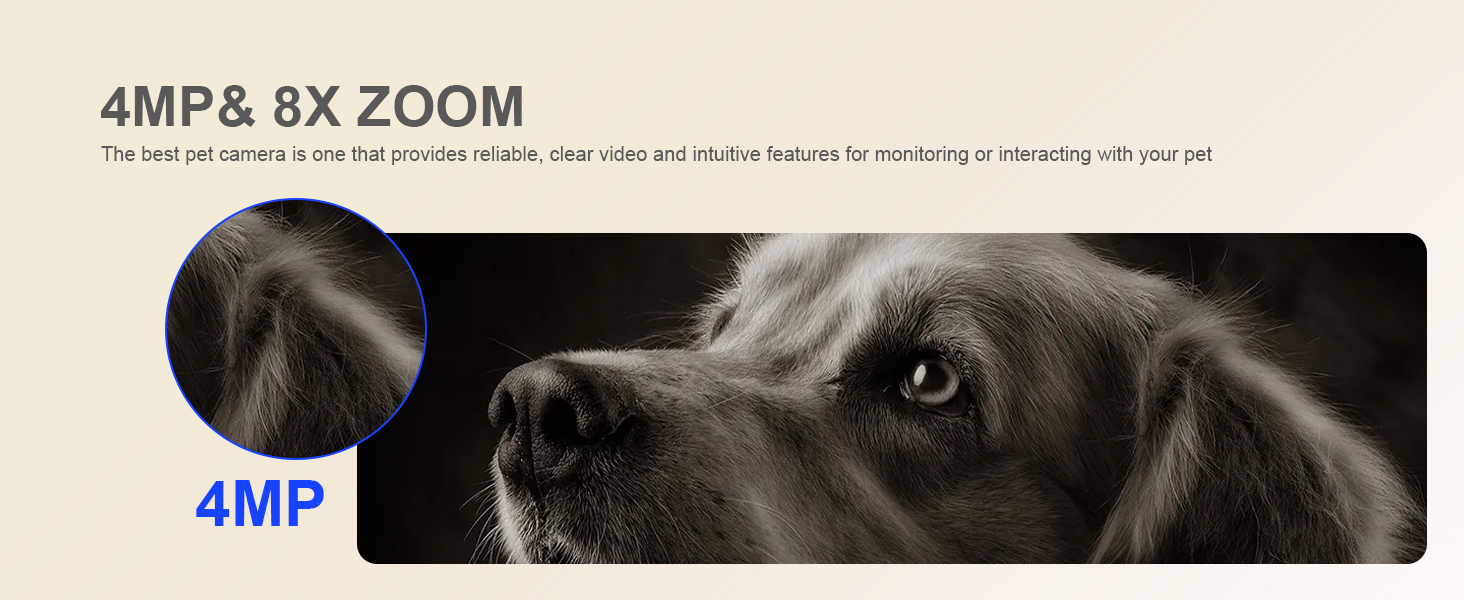
Image: The usogood D45 camera supports both 2.4GHz and 5GHz dual-band Wi-Fi connections for enhanced signal stability and speed.
Operating Instructions
1. Live View and Playback
Access real-time video feeds and review recorded footage directly from the Canny Cam app.
Video: Pet camera indoor Video Playback. This video demonstrates how to view live footage and access recorded video playback within the app.
- Live View: Select your camera from the app's main screen to view the live feed.
- Playback: Navigate to the 'Local' or 'Cloud' tab within the camera interface to access recorded videos. You can select specific timeframes for review.
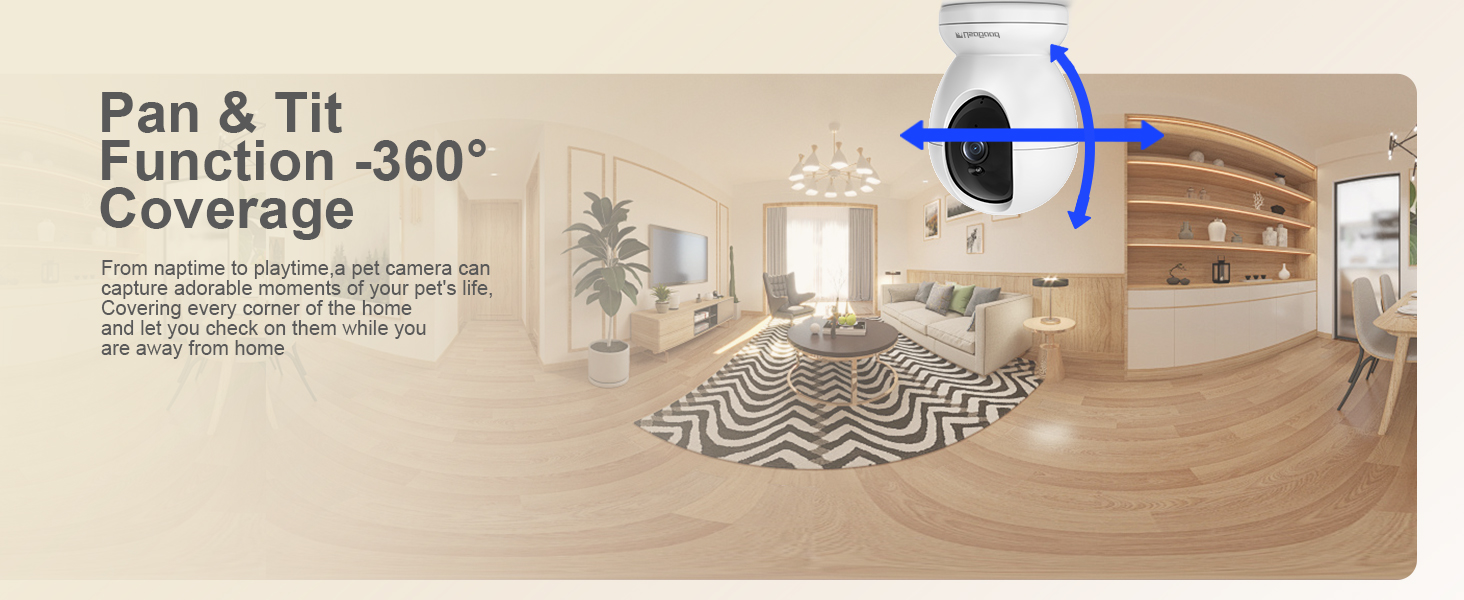
Image: The camera supports 24/7 continuous recording, allowing you to review footage at any time.
2. Pan and Tilt Control (360° Coverage)
The usogood D45 camera offers 355° horizontal pan and 115° vertical tilt, providing comprehensive coverage of your indoor space.
Video: 360 Security Camera Indoor, Baby/Pet Camera with Phone App (Preview). This short video demonstrates the 360-degree pan and tilt functionality of the camera.
- In the live view interface of the Canny Cam app, use the directional controls to remotely adjust the camera's viewing angle.
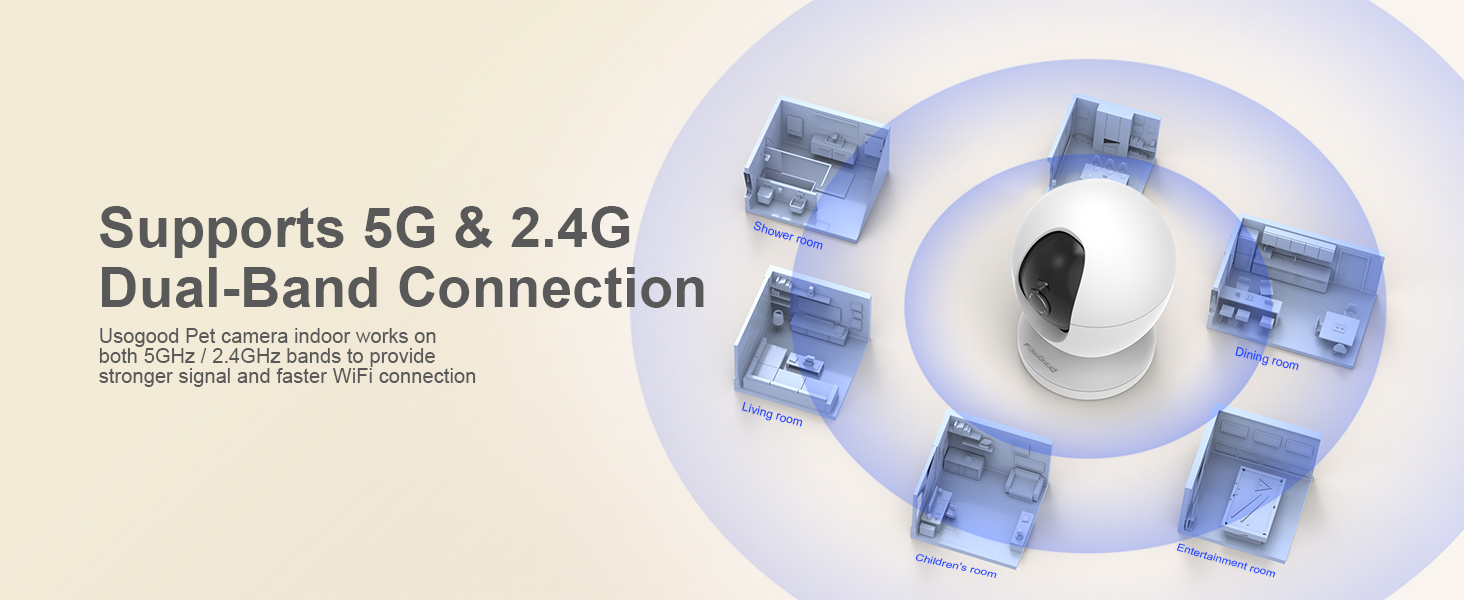
Image: The camera's pan and tilt function provides 360-degree coverage, ensuring no corner of your home is missed.
3. Two-Way Audio
The built-in microphone and speaker allow for two-way communication through the camera.
- In the live view, tap the microphone icon to speak through the camera.
- The camera's speaker will transmit your voice, and you can hear audio from the camera's environment.
4. Night Vision
The camera features Starlight Night Vision with High sensitivity IR-CUT technology, providing clear images up to 12 meters (approximately 39 feet) even in complete darkness.
- Night vision activates automatically in low-light conditions.
- For specific scenarios (e.g., monitoring through a window), you may manually adjust night vision settings in the app if reflections occur.

Image: Crystal-Clear Color Night Vision. Monitor movements clearly even in low light.
5. Motion and Sound Detection with Alerts
The camera utilizes AI recognition to differentiate between humans and other objects, providing accurate motion tracking and instant notifications.
Video: Smart AI Detection Alert (Preview). This short video demonstrates the camera's smart detection and alert features for human, motion, and sound events.
- Enable Detection: In the app's settings, navigate to 'Alarm Management' or 'Notifications' to enable Motion Detection, Human Detection, and Sound Detection.
- Sensitivity Adjustment: Adjust the sensitivity levels (Low, Middle, High, Highest) for motion and sound detection to suit your environment.
- Auto Tracking: Enable 'Active Tracking' to allow the camera to automatically follow detected movement. (Note: Automatic tracking supports only left and right movements, not up and down.)
- Instant Notifications: Receive real-time alerts on your smartphone when motion or sound is detected.
- Detection Alarm: If enabled, the camera can sound an alarm to deter intruders.

Image: Human Detection & Instant Notification. The camera detects human presence and sends immediate alerts to your phone.
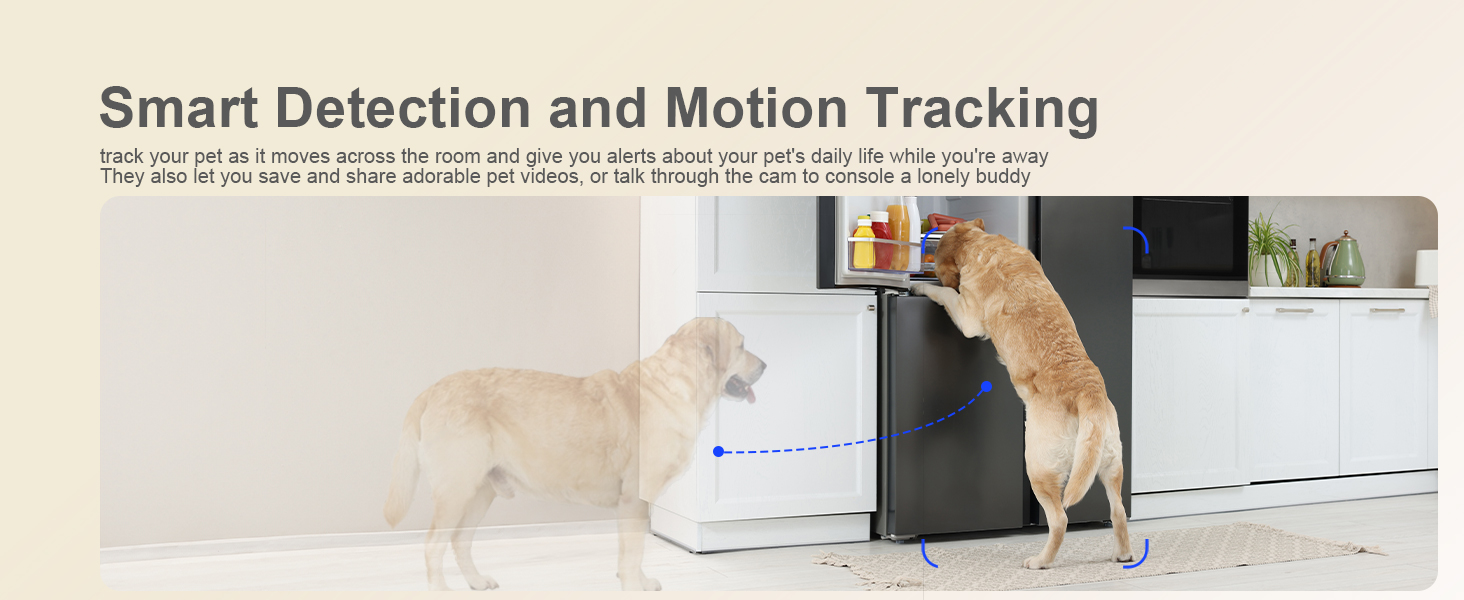
Image: Smart Detection features include Human Detection, Area Detection, and Noise Detection.
6. Storage Options
The usogood D45 camera supports both local and cloud storage for your recordings.
- Local Storage: Insert a Micro SD card (up to 128GB, not included) into the camera's SD card slot for continuous 24/7 recording.
- Cloud Storage: Optional cloud storage is available via subscription within the Canny Cam app. This provides off-site backup of your footage.
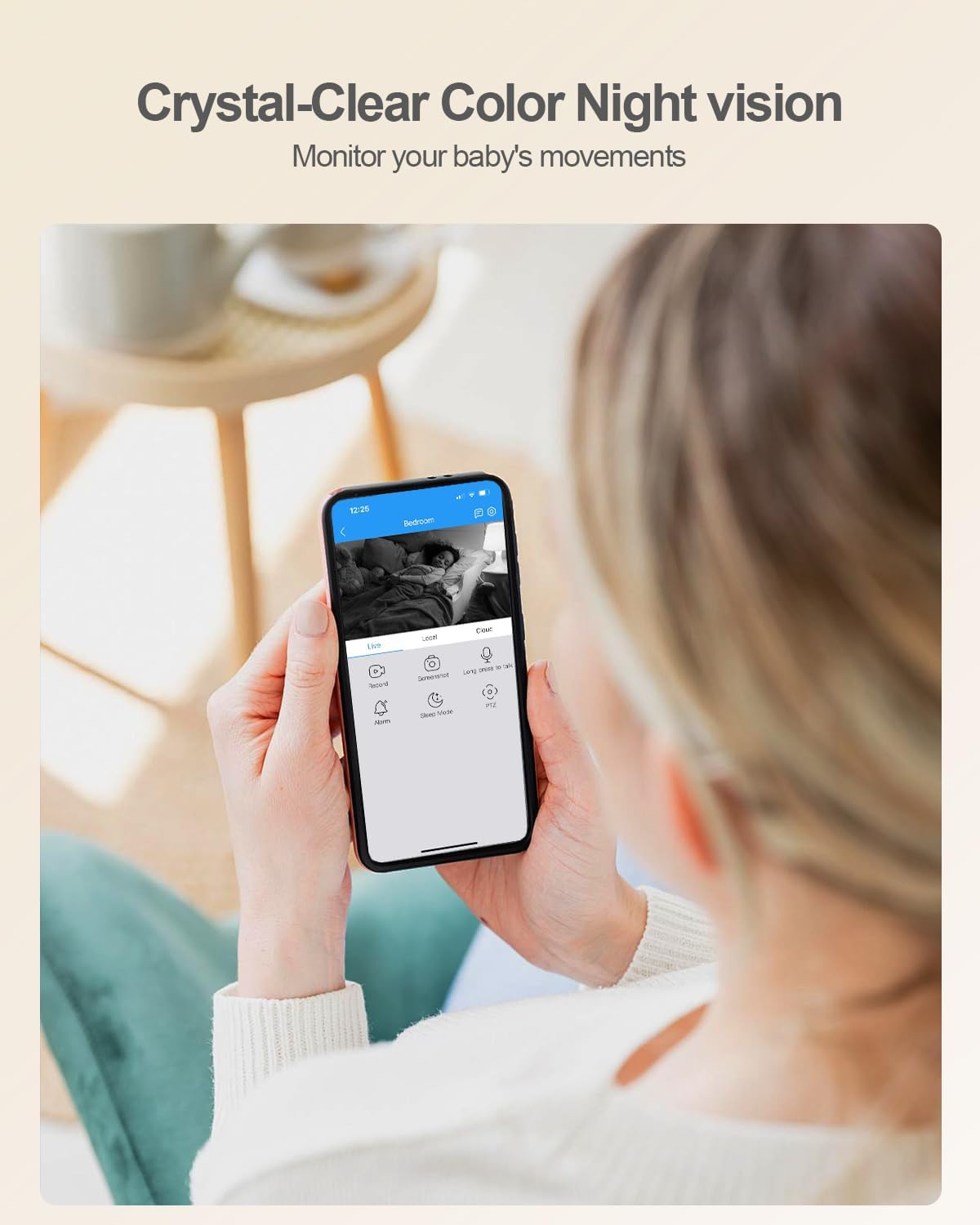
Image: The camera features an SD card slot for local storage, supporting up to 128GB.
Maintenance
- Cleaning: Use a soft, dry cloth to clean the camera lens and body. Avoid using harsh chemicals or abrasive materials.
- Software Updates: Regularly check the Canny Cam app for firmware updates. Keeping your camera's software up-to-date ensures optimal performance and security.
- Power Cycle: If the camera experiences issues, try unplugging it from the power source for 10 seconds and then plugging it back in.
Troubleshooting
| Problem | Possible Solution |
|---|---|
| Camera fails to connect to Wi-Fi. |
|
| Poor video quality or lag. |
|
| Motion detection not working or too many false alarms. |
|
| Night vision is unclear or has reflections. |
|
| Cannot hear audio or two-way talk not functioning. |
|
Specifications
| Feature | Detail |
|---|---|
| Brand | usogood |
| Model Number | D45 |
| Connectivity Technology | Wired (Power), Wi-Fi (Data) |
| Indoor/Outdoor Usage | Indoor |
| Video Capture Resolution | 2.5K (4MP) |
| Viewing Angle | 360 Degrees (Pan/Tilt) |
| Pan Range | 355° |
| Tilt Range | 115° |
| Wireless Technology | 2.4Ghz & 5Ghz WiFi |
| Special Features | 2-Way Audio, 2.5K Resolution, Easy to Install, Night Vision, Auto Motion Tracking, AI Detection |
| Night Vision | Starlight, up to 10 meters (33 feet) |
| Storage Options | Micro SD Card (up to 128GB, not included), Cloud Storage (subscription required) |
| Alert Type | Audio and Motion |
| Compatible Devices | Smartphone (Android, iOS) |
| Power Source | Corded Electric |
| Item Dimensions | 2.29 x 2.3 x 3.7 inches |
Warranty
The usogood D45 Indoor Security Camera comes with a 2-year warranty. Please retain your proof of purchase for warranty claims.
Customer Support
For any questions, technical assistance, or warranty inquiries, please contact usogood customer service. You can typically find contact information on the product packaging, the official usogood website, or through the Canny Cam app's support section.
Email support is often available at support@cannycam.com as indicated in the app connection steps.

