
Introduction
This manual provides detailed instructions for the proper use, maintenance, and troubleshooting of your 1MORE SonoFlow Pro HQ51 Wireless Over-Ear Headphones. Please read this manual thoroughly before using the product to ensure optimal performance and longevity.

Figure 1: 1MORE SonoFlow Pro HQ51 Wireless Over-Ear Headphones. These over-ear headphones feature a matte gray finish, designed for comfort and high-quality audio.
Setup
1. Unboxing and Initial Inspection
Carefully open the product packaging and remove all contents. Verify that all items listed in the "What's in the Box" section are present and undamaged.

Figure 2: Front view of the 1MORE SonoFlow Pro HQ51 product box, indicating Hi-Res Audio capabilities.
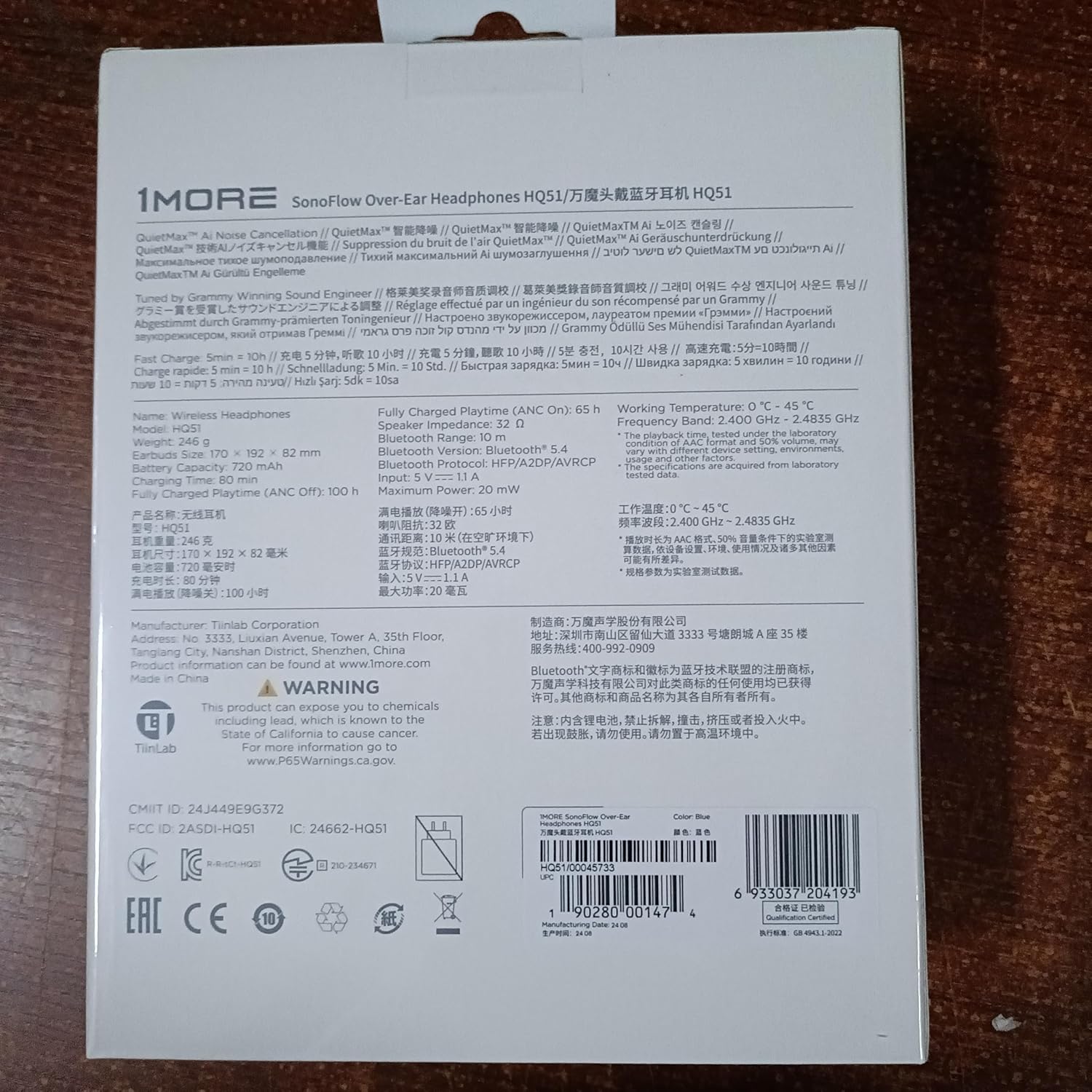
Figure 3: Back view of the product box, displaying technical specifications and regulatory information.
2. Charging the Headphones
Before first use, fully charge your headphones. Connect the provided charging cable to the USB-C port on the headphones and to a compatible USB power source. The LED indicator will show charging status.
3. Powering On and Initial Pairing
To power on the headphones, long press the power button. The headphones will automatically enter pairing mode if it's the first time powering on or if no device is connected. Look for "1MORE HQ51" in your device's Bluetooth settings and select it to pair.
Video 1: "How to Use the 1MORE HQ51" - This video demonstrates the unboxing, powering on, and initial Bluetooth pairing process for the 1MORE HQ51 headphones.
4. Wearing the Headphones
Adjust the headband to fit comfortably on your head. Ensure the earcups are correctly positioned over your ears, with the "L" (left) and "R" (right) indicators aligned. The memory foam ear pads are designed for all-day comfort.

Figure 4: A person wearing the 1MORE SonoFlow Pro HQ51 headphones, highlighting their stretchable, rotatable, and supple design for all-day comfort.
5. 1MORE App Installation
For full functionality and customization, download the 1MORE app from the App Store (iOS) or Google Play Store (Android). The app allows for EQ customization, firmware updates, and access to 12 EQ modes.

Figure 5: Screenshots illustrating the 1MORE App interface, showing adjustable EQ, firmware updates, and 12 customizable EQ modes.
Operating Instructions
1. Button Controls
The headphones feature intuitive button controls for various functions:
- Power Button: Long press to power on/off.
- ANC Button: Single-click to cycle through Noise Cancellation (ANC ON), Transparency Mode, and ANC OFF.
- Volume Buttons (+/-): Press to increase or decrease volume.
- Multi-function Button (on right earcup):
- Single press: Play/Pause music.
- Long press for 2 seconds: Previous Track (for '-'), Next Track (for '+').
2. Noise Cancellation and Transparency Modes
The QuietMax ANC technology provides up to 45dB noise reduction. Use the ANC button to switch between:
- ANC ON: Ideal for noisy environments like planes or trains.
- Transparency Mode: Allows you to hear your surroundings while listening to audio, suitable for social settings.
- ANC OFF: Standard listening mode.

Figure 6: Illustration of QuietMax Intelligent Noise Cancellation, demonstrating its effectiveness in reducing external noise by over 42dB.
3. Hi-Res Audio and LDAC
The SonoFlow Pro HQ51 supports Hi-Res Audio and LDAC technology for superior sound quality. To enable LDAC, open the 1MORE app, go to Shortcuts, and toggle the LDAC option. The headphones will automatically switch to the LDAC codec when available.

Figure 7: Visual representation of Hi-Res Audio and Lossless Decoding, highlighting LDAC technology's ability to deliver 3x richer audio detail.
4. Multi-Point Connectivity
The headphones support multi-point connection, allowing simultaneous connection to two devices. To activate this feature, open the 1MORE app, navigate to SETTINGS > Experimental Features, and enable Dual-device Connection. If you need to pair with a third device, manually disconnect from one of the currently connected devices in your device's Bluetooth settings, then re-pair with the desired new device. After that, you can manually re-pair with the previous device to re-establish the multi-point connection.
5. Wired Mode
For a wired connection, use the included 3.5mm audio cable. Connect one end to your audio source and the other to the headphone's 3.5mm jack. The wired mode also supports the noise cancellation function. The in-line remote on the cable allows for basic control and features a built-in microphone for clear calls.

Figure 8: A person using the 1MORE SonoFlow Pro HQ51 headphones with the included 3.5mm cable, demonstrating wired connection support.
6. AI Clear Calls
Equipped with AI-enhanced dual microphones, these headphones are designed to isolate your voice for clear calls, making them suitable for work-from-home scenarios and meetings.
Maintenance
1. Cleaning
Regularly clean your headphones with a soft, dry cloth. Avoid using harsh chemicals or abrasive materials. For ear pads, gently wipe with a damp cloth and allow to air dry completely before use.
2. Storage
When not in use, store the headphones in their protective case to prevent damage from dust, scratches, and impacts. The headphones are designed to fold compactly for easy storage.
3. Battery Care
To prolong battery life, avoid fully discharging the headphones frequently. Charge them regularly, even if not in constant use. The headphones offer up to 100 hours of playtime (ANC off) and 65 hours (ANC on), with a quick charge feature providing 10 hours of playtime from just 5 minutes of charging.

Figure 9: Visual detailing the non-stop playtime of the headphones, indicating 100 hours with ANC off, 65 hours with ANC on, and 10 hours of playback from a 5-minute charge.
Troubleshooting
Common Issues and Solutions:
- Headphones not powering on: Ensure the headphones are fully charged.
- Unable to pair via Bluetooth:
- Ensure the headphones are in pairing mode (LED indicator blinking).
- Turn off Bluetooth on other nearby devices that might be trying to connect.
- On your device, forget the "1MORE HQ51" from your Bluetooth settings and try pairing again.
- Low volume or poor sound quality:
- Adjust the volume on both the headphones and your connected device.
- Ensure Bluetooth absolute volume is enabled on your Android device settings (consult your phone manufacturer for specific settings).
- Check if LDAC is enabled in the 1MORE app for optimal audio quality.
- If using wired mode, ensure the cable is fully inserted and undamaged.
- Noise Cancellation not working effectively:
- Ensure ANC mode is activated via the ANC button or 1MORE app.
- Check for proper fit of the earcups over your ears.
- Resetting the Headphones: If you experience persistent issues, you can reset the headphones. Press the "+" and "-" volume buttons simultaneously for 5 seconds. This will reset the headphones to their factory settings.
Specifications
| Feature | Detail |
|---|---|
| Model Name | SonoFlow Pro (HQ51) |
| Noise Control | Active Noise Cancellation (up to 45dB) |
| Connectivity Technology | Wireless (Bluetooth 5.4) & Wired (3.5 mm Jack) |
| Audio Driver Type | 40mm DLC (Diamond-Like Carbon) Dynamic Driver |
| Frequency Range | 20 Hz to 40 kHz (Hi-Res Audio) |
| Battery Life | 100 Hours (ANC Off), 65 Hours (ANC On) |
| Quick Charge | 5 minutes charge for 10 hours playtime |
| Control Method | App, On-ear buttons |
| Item Weight | 1.31 pounds (approx. 246g) |
| Included Components | Protective Case, 3.5mm Cable, Charging Cable |
| Compatible Devices | Gaming Consoles, Laptops, Desktops, Smartphones |
| Color | Matte Gray |
| UPC | 190280002365 |
Warranty & Support
1MORE products are manufactured with high-quality standards. For warranty information, technical support, or service inquiries, please visit the official 1MORE website or contact their customer support directly. Keep your purchase receipt as proof of purchase for warranty claims.
For further assistance, you may also refer to the "How to Use the 1MORE HQ51" video provided earlier in this manual, which covers essential setup and operational aspects.


