
1. Product Overview
The Hournor Digital Alarm Clock Model 8822 is a versatile device designed for bedrooms, living rooms, and offices. It features a large LED display with adjustable brightness, multiple color options for both the time digits and an ambient night light, dual USB charging ports, and a memory function to retain settings during power interruptions.

2. Setup
2.1 Power Connection
The clock operates via a corded electric power source. Connect the provided USB cable to the clock and plug it into a 5V/1A or 5V/2A USB adapter (adapter not included). The clock requires continuous power to function.
2.2 Battery Backup
A built-in button battery is included for memory function. This battery ensures that your time and alarm settings are retained in case of a power outage, eliminating the need to reset the clock when power is restored. The clock is not battery-powered for regular operation.
2.3 Initial Time Setting
- Connect the clock to power.
- Locate the 'Time Set' button on the top panel.
- Press and hold the 'Time Set' button for 3 seconds to enter time setting mode. The hour digits will flash.
- Use the '+' and '-' buttons to adjust the hour.
- Press 'Time Set' again to move to minute adjustment. Use '+' and '-' to set minutes.
- Press 'Time Set' a third time to confirm and exit time setting mode.
- To switch between 12-hour and 24-hour format, briefly press the '12/24HR' button.
3. Operating Instructions
3.1 Display and Brightness
The clock features a 7-inch large LED display with 2-inch super large numbers for easy readability. The display brightness can be adjusted manually or set to an automatic night mode.
- Manual Brightness: Use the 'Dimmer' button (often represented by a sun icon) to cycle through different brightness levels.
- Automatic Night Mode: The clock can automatically dim its display during nighttime hours (typically 6:00 PM to 6:00 AM) to avoid disturbing sleep. Refer to the specific button on your device for activating/deactivating this feature.

3.2 Digital Color Switching
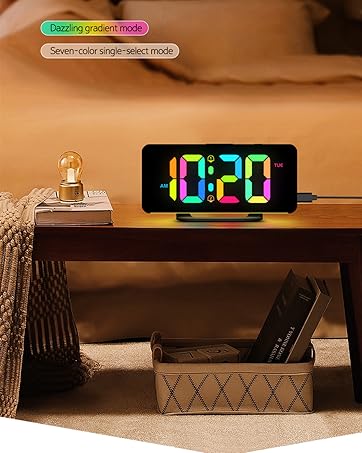
Customize the appearance of the time digits with 11 different color options.
- Locate the 'Color' button (often represented by a circular arrow icon).
- Press the 'Color' button repeatedly to cycle through the available 11 digital color options.
3.3 Ambient Night Light
The clock features 10 different color ambient lights located at its base, providing a soft glow for your room.
- Locate the 'Light' button (often represented by a sun icon).
- Press the 'Light' button repeatedly to cycle through the 10 ambient light colors.
- To turn off the ambient light, continue pressing the 'Light' button until it switches off, or hold it down for 3 seconds.
3.4 Alarm Settings
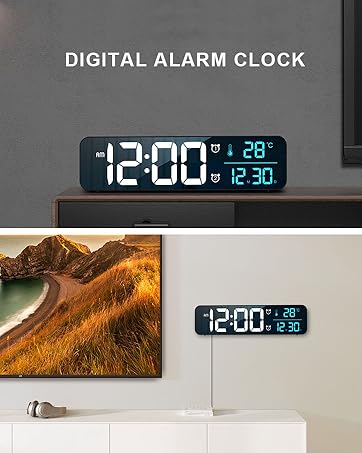
The clock supports setting two separate alarms and offers 5 alarm modes for different schedules.
- Press the 'Alarm Set' button to select Alarm 1 or Alarm 2. The alarm icon and hour digits will flash.
- Use the '+' and '-' buttons to adjust the hour.
- Press 'Alarm Set' again to move to minute adjustment. Use '+' and '-' to set minutes.
- Press 'Alarm Set' a third time to select the alarm mode (1-5, 1-6, 1-7, 6-7, 1-1). Use '+' and '-' to choose your desired mode.
- Press 'Alarm Set' a fourth time to confirm and exit alarm setting mode.
- To enable or disable an alarm, briefly press the 'ON/OFF Alarm Set' button. An alarm icon will appear/disappear on the display.

3.5 Snooze Function
When the alarm sounds, press the 'Snooze' button (often labeled 'SNOOZE Multicolor') to activate a 5-minute snooze period. This can be repeated multiple times.
3.6 USB Charging Ports
The clock is equipped with a USB output port and a Type-C output port, allowing you to charge your smartphone or other smart devices directly from the clock.

3.7 Seconds Flashing
To toggle the flashing of the colon (seconds indicator) on the time display, long press the '+' button for 6 seconds while in the time display interface.
4. Maintenance
- Cleaning: Wipe the clock surface with a soft, dry cloth. Avoid using abrasive cleaners or solvents.
- Placement: Place the clock on a stable, flat surface. Avoid direct sunlight, high temperatures, or humid environments.
- Ventilation: Ensure proper ventilation around the device to prevent overheating.
5. Troubleshooting
| Problem | Possible Cause | Solution |
|---|---|---|
| Clock not powering on/displaying time | Power cable not connected or faulty adapter. | Ensure the USB cable is securely connected and the adapter is a 5V/1A or 5V/2A model. Try a different power outlet or adapter. |
| Alarm not sounding | Alarm is disabled or volume is too low. | Check if the alarm icon is visible on the display. If not, enable the alarm using the 'ON/OFF Alarm Set' button. Adjust the alarm volume using the 'Volume' button. |
| Time/settings reset after power outage | Button battery for memory function may be depleted or missing. | Ensure the button battery is correctly installed and functional. Replace if necessary. |
| Display too bright/dim at night | Brightness settings need adjustment or automatic night mode is active/inactive. | Manually adjust brightness using the 'Dimmer' button. Check the settings for automatic night mode. |
6. Specifications
- Brand: Hournor
- Model: 8822
- Color: White
- Display Type: Digital LED
- Special Features: Ambient Light, Color Switching, Memory Function, Phone Charging
- Product Dimensions: 6.7"W x 3"H
- Power Source: Corded Electric (5V/1A or 5V/2A adapter required, not included)
- Material: Plastic
- Connectivity Technology: USB, USB-C
- Item Weight: 7.8 ounces
7. Official Product Videos
Video Description: This video demonstrates the Odokee Digital Alarm Clock, highlighting its large numbers and various features. It provides a quick overview of the clock's functionality and design.
8. Warranty and Support
Hournor provides a 12-month worry-free warranty for this product. We are committed to high-quality products and user satisfaction.
For any questions or support needs, please contact our customer service team via the buyer-seller message system. We offer 24-hour customer service and will do our best to resolve any issues to ensure your satisfaction.