
1. Introduction
The BOOKOO SC-Mini Digital Coffee Scale is designed for precise coffee brewing, offering three distinct usage modes, accurate measurements, and seamless Bluetooth connectivity with a dedicated app. Its compact size makes it suitable for various espresso machines and brewing setups.
2. Safety Information
- Do not immerse the scale in water. The device has IPX4 water resistance, meaning it is resistant to splashes, but not full submersion.
- Avoid placing the scale on uneven or unstable surfaces to ensure accurate readings.
- Keep out of reach of children.
- Use only the provided USB Type-C cable for charging.
- Do not attempt to disassemble or repair the scale yourself. Contact customer support for assistance.
3. Package Contents
- BOOKOO SC-Mini Digital Coffee Scale
- Silicone Pad
- USB Type-C Charging Cable
- User Manual

Image: The BOOKOO SC-Mini Digital Coffee Scale shown with its silicone pad and USB Type-C charging cable.
4. Product Overview
The BOOKOO SC-Mini features a compact design with an LED touch screen and two control buttons. The display shows time, weight, and flow rate depending on the selected mode. Indicator lights provide visual feedback on the scale's status.
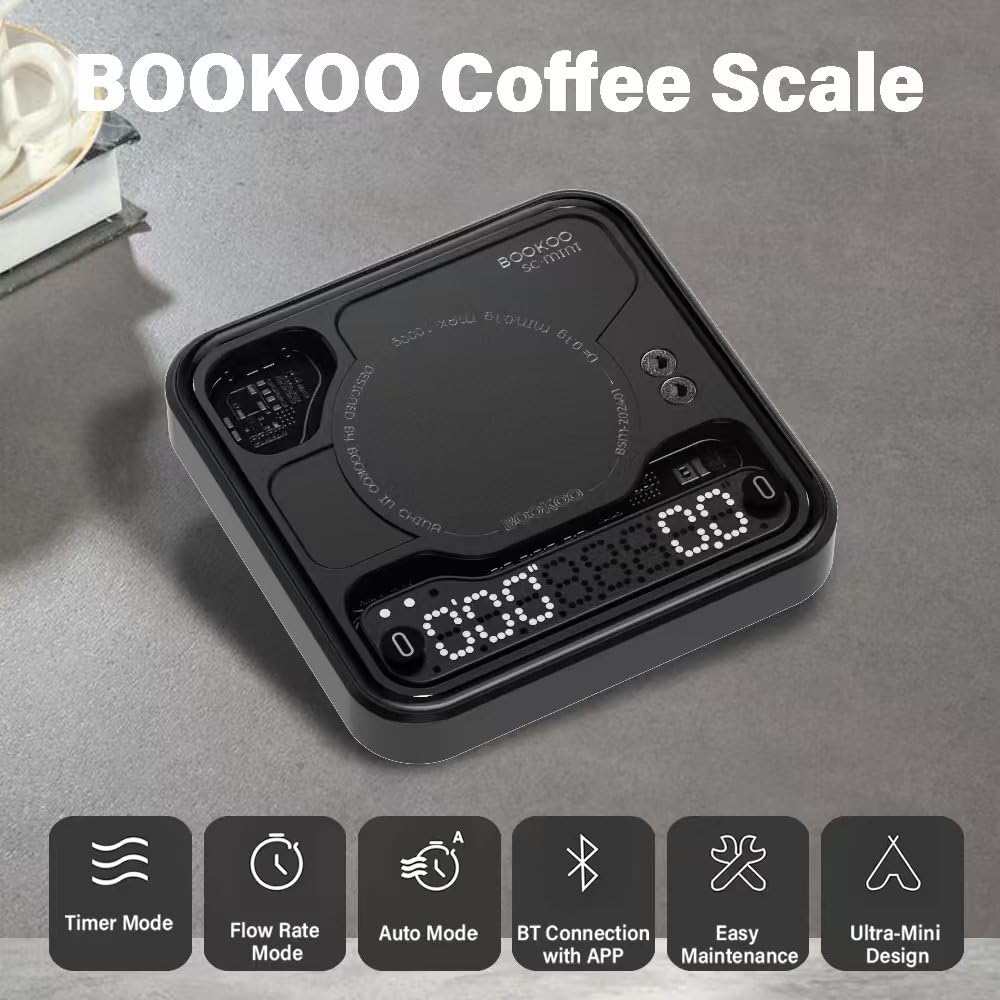
Image: Overview of the scale's key features and modes.
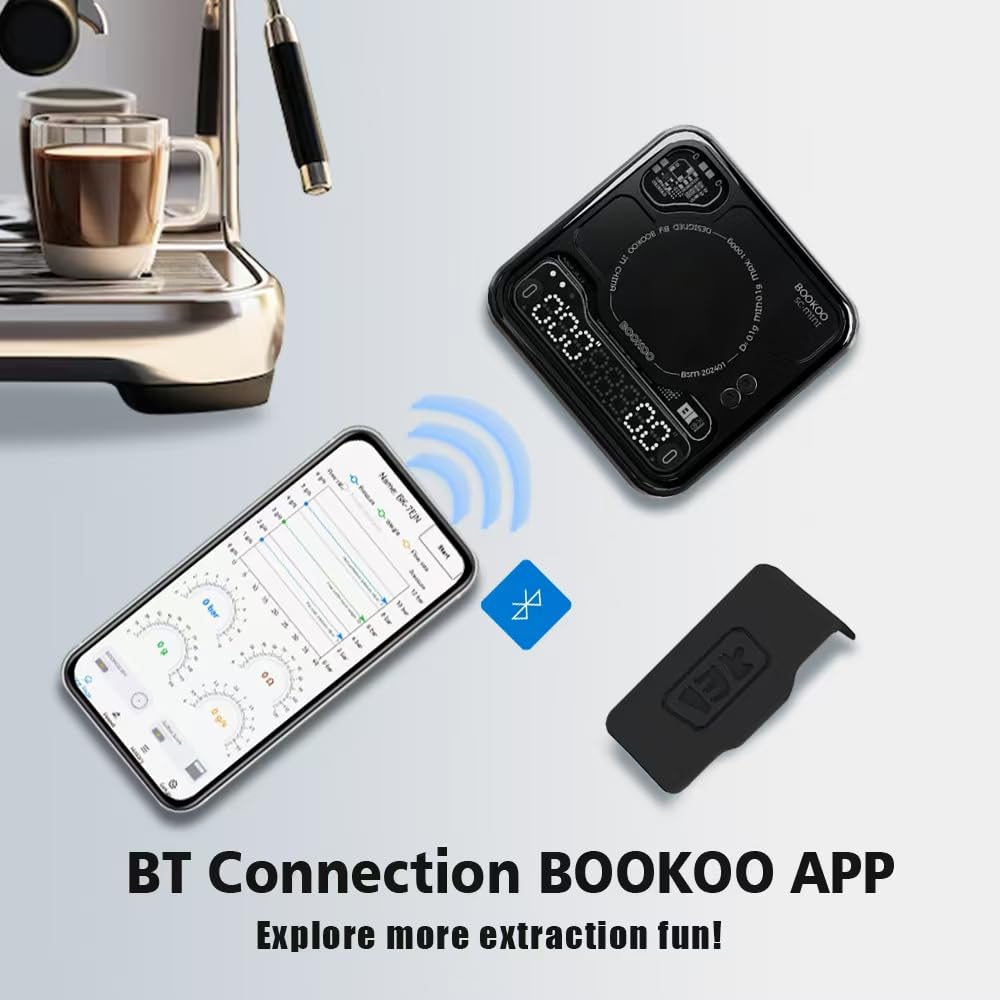
Image: Guide to the indicator lights on the scale, showing white lights for modes (Flow Rate, Timer, Automatic), alternating flashing for taring, red lights for charging/battery level, blue light for Bluetooth connection, and red light for low battery.
5. Setup
5.1 Initial Charging
Before first use, ensure the scale is fully charged using the provided USB Type-C cable. The built-in 500mAh battery provides 1-2 months of regular use on a single charge, or up to 24 hours of continuous operation.
5.2 Power On/Off
To power on the scale, long-press the left button. To power off, long-press the left button again. The scale also features an auto-sleep function, customizable via the app (default 15 minutes).
5.3 Placement
Place the scale on a flat, stable surface. For espresso machines, its ultra-mini size (3.15in x 3.15in x 0.59in) allows it to fit on most drip trays.
Video: This video demonstrates the initial setup process for the BOOKOO coffee scale, including unboxing and basic operation.
6. Operating Modes
The scale offers three distinct modes for various brewing preferences. Long-press the right button to cycle through the modes.
6.1 Flow Rate Mode
In Flow Rate Mode, the scale simultaneously displays the real-time flow rate (g/s) and the weight (g). This mode is ideal for monitoring the speed of coffee extraction.
- Long-press right button: Switch to Flow Rate Mode.
- Left button: No function.
- Right button: Tap to tare/reset.

Image: The scale displaying weight and flow rate during a coffee extraction in Flow Rate Mode.
Video: A short demonstration of the Flow Rate Mode, showing how to activate it and its display.
6.2 Timer Mode
In Timer Mode, the scale displays both the elapsed time and the weight. This mode allows for manual timing of your brew.
- Long-press right button: Switch to Timer Mode.
- Left button: Tap to start/stop/reset the timer.
- Right button: Tap to tare/reset.
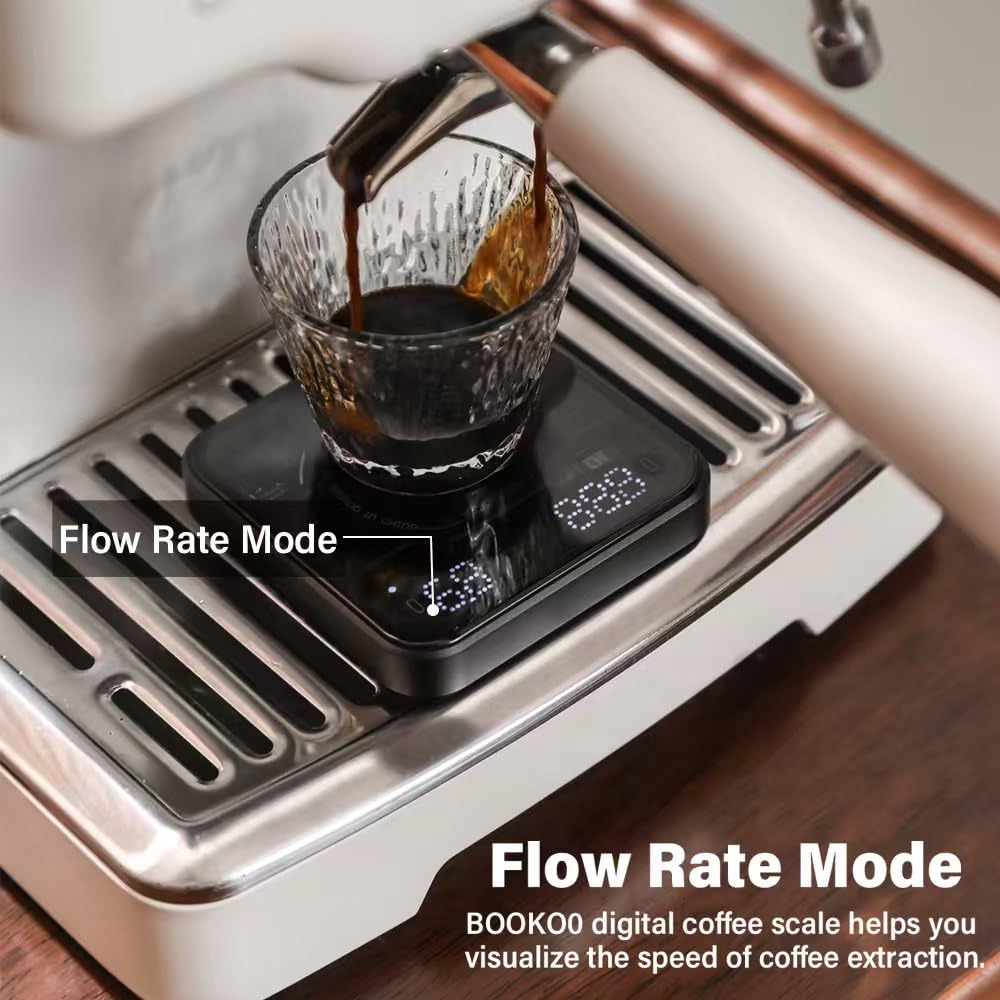
Image: The scale displaying time and weight during a coffee brewing process in Timer Mode.
Video: This video provides tips for using the Timer Mode on the BOOKOO coffee scale.
6.3 Automatic Mode
Automatic Mode simplifies the brewing process by alternately displaying extraction time and average flow rate, along with the extraction weight. It features auto-tare and automatic timing upon liquid detection.
- Place cup: The scale auto-tares.
- Liquid detection: Timing begins automatically.
- Default option: The scale detects when coffee stops dripping (flow rate = 0) and stops the timer automatically.
- After extraction: Displays extraction time & average flow rate (left), and final beverage weight (right).
Advanced Tip: When data is displayed alternately on the left screen, long-press the left button for 2 seconds to export history records and analyze the curve synchronously with the App.

Image: The scale operating in Automatic Mode, showing auto-timing and auto-peeling features during coffee extraction.
Video: This video demonstrates the Automatic Mode and provides tips for its use.
7. Bluetooth Connectivity & App
The BOOKOO SC-Mini scale supports Bluetooth 5.0 for seamless connection with various coffee apps, including BOOKOO, Beanconqueror, Odyssey Espresso, or Decent Espresso Machine. This allows for real-time brewing insights, data analysis, and over-the-air (OTA) updates.
7.1 App Features
- Real-time data for Brew Ratio, Extraction Time, and Flow Rate.
- Customizable system language.
- Adjustable buzzer sound (enabled by default).
- Configurable auto-sleep time (default 15 minutes).
- Firmware updates (OTA).
7.2 How to Connect with the BOOKOO App
- Download the App: Search for "BOOKOO" in your app store or visit app.bookoocoffee.cn to download.
- Enable Bluetooth: Ensure Bluetooth is turned on on your mobile device.
- Grant Permissions: Upon first use, grant the necessary Bluetooth permissions to the app.
- Connection Methods:
- Pop-up Connection: The app is set to open a pop-up for connection by default.
- Auto Connection: In the app, navigate to "Menu > Setup > Basic > Device Settings > Automatic Connection." When enabled, the app will automatically connect to the Bluetooth device upon opening.
- Manual Connection: Click the corresponding icon, pull down to search for devices, and click on the mini scale's name to establish a connection.
- Connection Status: The left-side blue light on the scale will turn on, indicating a successful Bluetooth connection.

Image: The scale wirelessly connected to the BOOKOO app, illustrating real-time data transfer.
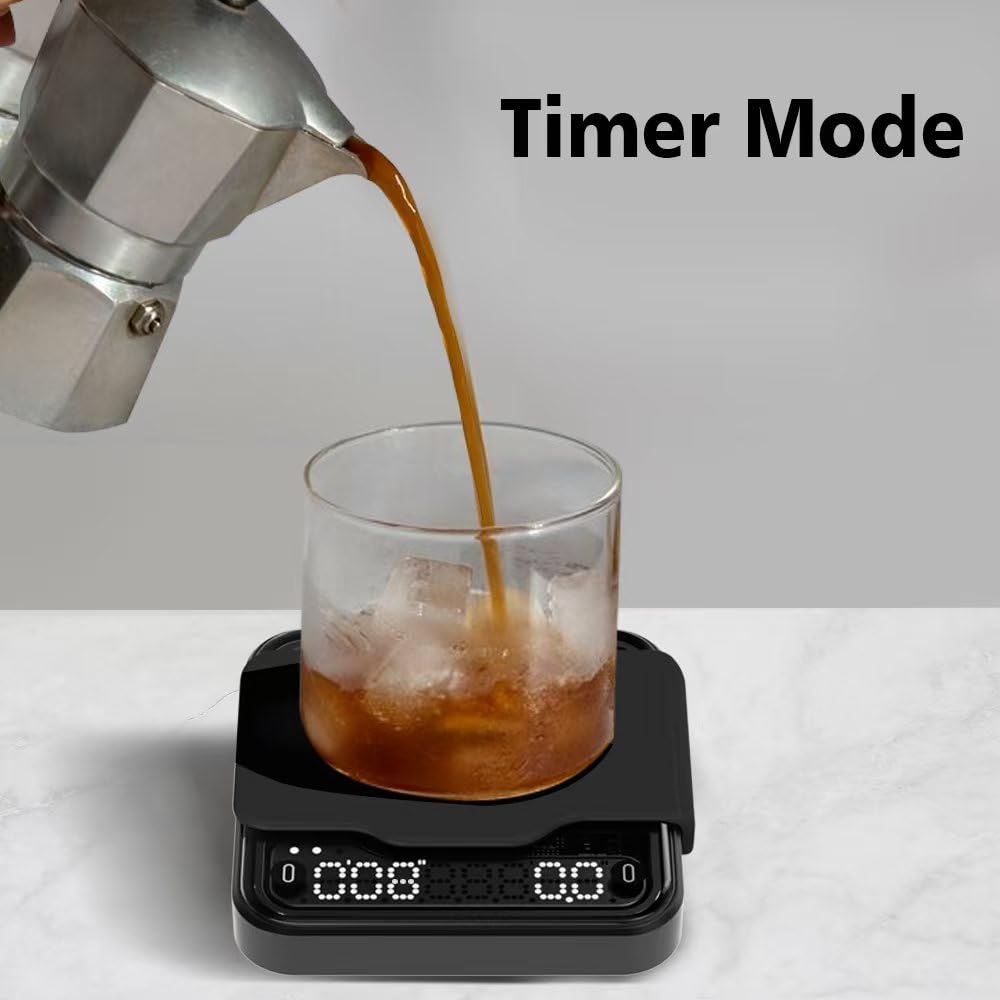
Image: Step-by-step guide for connecting the scale to the BOOKOO mobile application.
8. Maintenance
8.1 Cleaning
The scale features an AF coating and LED touch screen, with IPX4 water resistance. This makes it durable and easy to clean. Wipe the surface with a damp cloth. Do not use abrasive cleaners or immerse the scale in water.
8.2 Battery Care
The scale is equipped with a built-in 500mAh battery. Charge it using the provided USB Type-C cable when the low battery indicator appears. Avoid fully depleting the battery frequently to prolong its lifespan.
9. Troubleshooting
- Inaccurate Readings: Ensure the scale is on a flat, stable surface. Avoid placing it near strong electromagnetic fields.
- Scale Not Responding: Check battery level and recharge if necessary. Try powering off and on again.
- Bluetooth Connection Issues: Ensure Bluetooth is enabled on your device and the scale. Restart both the scale and the app. Check app permissions.
- Automatic Mode Not Functioning as Expected: Familiarize yourself with the specific triggers for auto-tare and auto-timing. Some advanced settings for extraction end options (manual stop, remove cup) may require firmware version 1.2.0 or above, which can be updated via the BOOKOO App or BOOKOO TOOLS App.
10. Specifications
| Feature | Specification |
|---|---|
| Brand | BOOKOO |
| Model Number | BOOKOO-SCALE |
| Package Dimensions | 4.53 x 4.49 x 1.93 inches |
| Item Weight | 9.59 ounces (140g) |
| Weight Limit | 1000 Grams |
| Display Type | LED |
| Special Feature | Lightweight |
| Color | Black |
| Batteries | 1 AA batteries required (included) - Note: Product feature bullets state 500mAh built-in battery, this may be a discrepancy in source data. |
| Manufacturer | Dongguan Songshan Lake BOOKOO Technology Co. |
11. Warranty and Support
For warranty information and customer support, please refer to the documentation included with your purchase or visit the official BOOKOO website. Keep your purchase receipt for warranty claims.


