
INPHIC M1 II
INPHIC M1 II Tri-Mode Wireless Mouse User Manual
Your comprehensive guide to setting up, operating, and maintaining your INPHIC M1 II Wireless Mouse.
1. Introduction
The INPHIC M1 II Wireless Mouse offers versatile connectivity and ergonomic design for enhanced productivity and comfort. This tri-mode mouse supports 2.4G USB, Bluetooth 4.0, and Bluetooth 5.0, allowing seamless switching between multiple devices. Its lightweight and silent click design make it ideal for various environments, from busy offices to quiet study spaces.
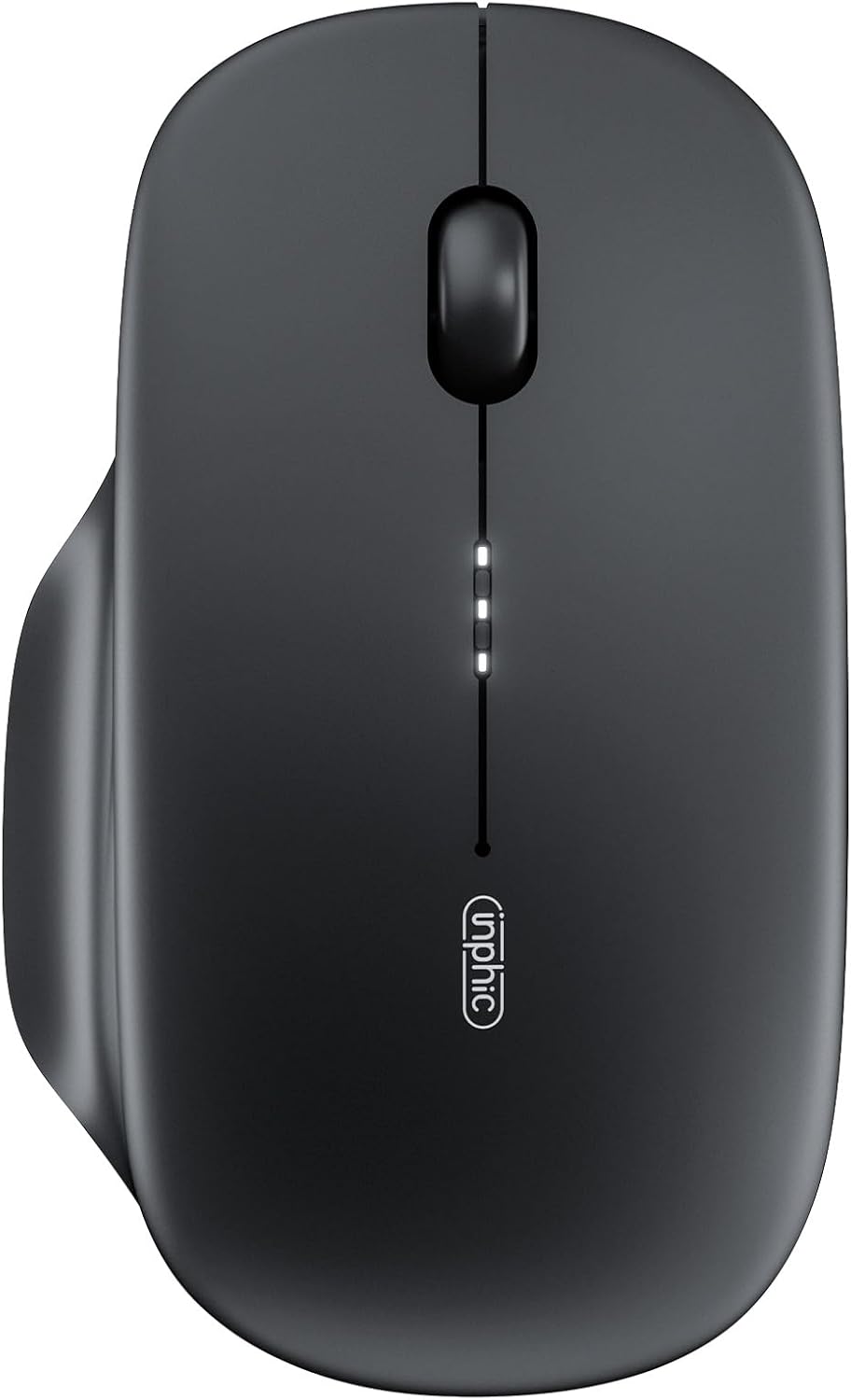
Image: Top view of the INPHIC M1 II Tri-Mode Wireless Mouse, showcasing its sleek black design and central scroll wheel.
2. Setup
Your INPHIC M1 II mouse provides three connection modes for maximum flexibility.
2.1. 2.4G USB Connection
- Turn on the mouse using the ON/OFF switch located on the bottom.
- Press the 'MODE' button on the bottom of the mouse to select 2.4G mode.
- Take out the USB receiver from its storage slot on the bottom of the mouse.
- Insert the USB receiver into an available USB port on your computer or device. The mouse should connect automatically.

Image: Visual guide for connecting the mouse via 2.4GHz USB, showing the switch, mode button, USB receiver, and insertion into a laptop.
2.2. Bluetooth Connection (BT4.0 / BT5.0)
The mouse supports two Bluetooth channels (BT1 for Bluetooth 4.0 and BT2 for Bluetooth 5.0).
- Turn on the mouse using the ON/OFF switch located on the bottom.
- Short press the 'MODE' button on the bottom of the mouse to select either BT1 (Bluetooth 4.0) or BT2 (Bluetooth 5.0). The corresponding indicator light will flash.
- On your device (laptop, tablet, smartphone), enable Bluetooth and search for available devices.
- Select "BT4.0 Mouse" or "BT5.0 Mouse" from the list to connect.
Note: Windows 7 does not support Bluetooth 4.0 and above. Please use the 2.4G wireless connection for Windows 7.
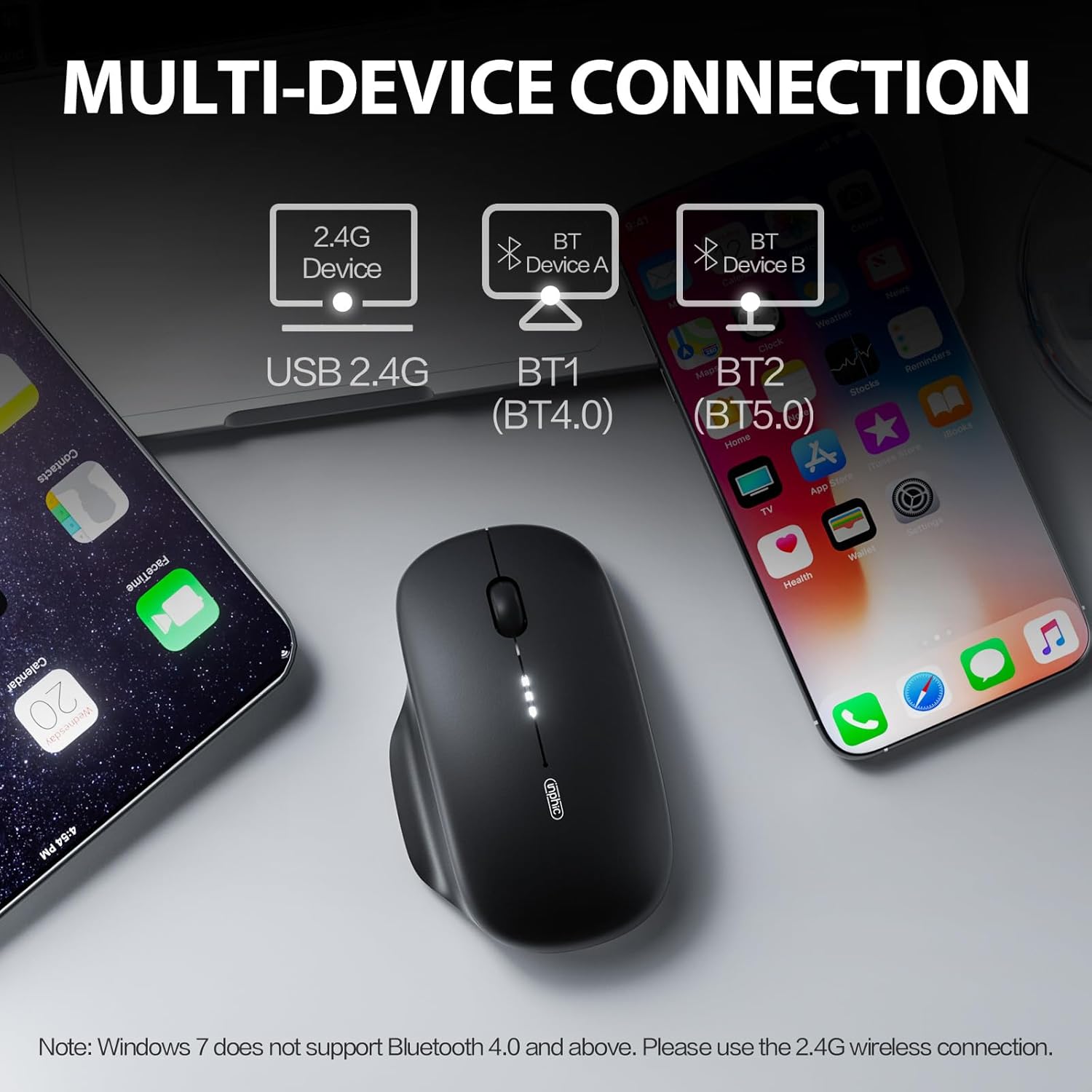
Image: The INPHIC M1 II mouse demonstrating multi-device connectivity with a laptop, tablet, and smartphone, illustrating 2.4G USB, BT4.0, and BT5.0 modes.
2.3. Charging the Mouse
The mouse features convenient Type-C charging.
- Connect the provided Type-C charging cable to the mouse's charging port.
- Connect the other end of the cable to a USB power source (e.g., computer USB port, wall adapter).
- A full charge typically takes 2-3 hours.
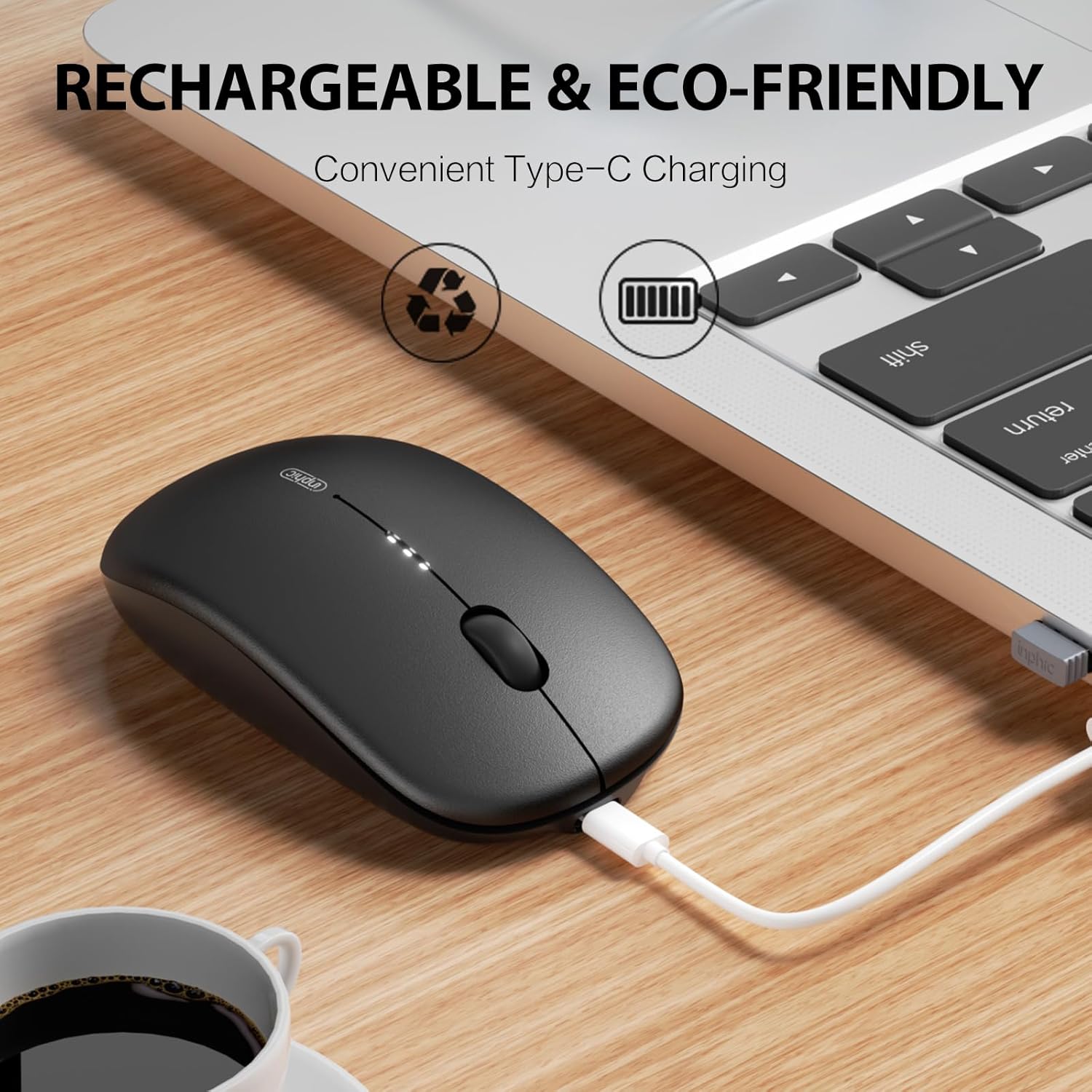
Image: The INPHIC M1 II mouse connected to a laptop via a Type-C charging cable, indicating its rechargeable and eco-friendly design.
3. Operating the Mouse
3.1. DPI Adjustment
Adjust the mouse sensitivity (DPI) to suit your preference and task. The INPHIC M1 II offers 5 adjustable DPI levels.
- The DPI button is located on the bottom of the mouse to maintain a clean top surface.
- Press the DPI button to cycle through the available sensitivity levels: 800 / 1200 / 1600 / 2000 / 2400 DPI.

Image: Underside of the INPHIC M1 II mouse, highlighting the discreetly placed DPI button for sensitivity adjustments.
3.2. Battery Status Indicator
Monitor your mouse's battery level with the built-in indicator.
- The LED indicator lights on the top of the mouse provide real-time battery monitoring.
- Refer to the indicator for remaining power to ensure you are never caught off guard.

Image: Close-up of the INPHIC M1 II mouse's top surface, showing the illuminated battery status indicator LEDs.
3.3. Silent Click Feature
The mouse is equipped with silent click buttons to minimize noise.
- This feature is ideal for quiet environments such as offices, libraries, or during late-night use.
- Enjoy focus without distractions from clicking sounds.

Image: The INPHIC M1 II mouse positioned on a desk, illustrating its quiet operation for a more focused work environment.
4. Maintenance
Proper care ensures the longevity and optimal performance of your INPHIC M1 II mouse.
4.1. General Care
- Keep the mouse in a normal operating environment: 0°C-40°C, 40%-85% RH.
- Do not immerse the product in any liquid or expose it to hot/humid environments.
- If the product is exposed to temperatures outside the specified range, immediately turn off the power switch (unplug the USB cable for wired mouse) until the temperature stabilizes within the specified operating range.
- Do not charge rechargeable products in hot/humid environments. Ensure that the charging cable, keyboard, mouse, and USB ports are dry and free of debris during charging.
- If the products connection cable or charging cable is damaged in any way, stop using it immediately.
- This product contains no user-serviceable parts. If the product does not function properly, please contact customer service.
- Do not attempt to modify or repair the product yourself, as this will void the warranty.
- If rechargeable products are not used for a long period, fully charge them first, turn off the power switch, and store them in a cool, dry place. Charge the product every three months to prevent damage to the battery from long periods without power.

Image: A label detailing safety instructions and warnings for the product, including environmental conditions and handling precautions.
5. Troubleshooting
If you encounter issues with your INPHIC M1 II mouse, refer to the following common troubleshooting steps:
5.1. Connectivity Issues
- Mouse not responding: Ensure the mouse is turned on and fully charged. Check the battery indicator.
- 2.4G connection not working: Verify the USB receiver is securely plugged into a working USB port. Try a different USB port. Ensure the mouse is set to 2.4G mode.
- Bluetooth connection issues: Ensure Bluetooth is enabled on your device. Try re-pairing the mouse by putting it in pairing mode (short press MODE button to select BT1/BT2) and searching for it on your device. Ensure your device supports the selected Bluetooth version (BT4.0 or BT5.0).
- Intermittent connection: Move the mouse closer to the receiver/device. Avoid using the mouse on highly reflective or transparent surfaces.
5.2. Charging Problems
- Mouse not charging: Ensure the Type-C cable is properly connected to both the mouse and the power source. Try a different Type-C cable or USB power adapter.
- Slow charging: Ensure the power source provides sufficient current. Charging from a computer's USB port might be slower than a wall adapter.
6. Specifications
| Feature | Detail |
|---|---|
| Product Dimensions | 44.1 x 26.4 x 0.1 inches |
| Item Weight | 2.82 ounces (80g) |
| Batteries | 1 AA batteries required. (included) - Note: Product description states Type-C charging, this might be a discrepancy or refer to initial setup. The mouse is rechargeable. |
| Connectivity Technology | Bluetooth 4.0/5.0 / USB 2.4G (Tri-Mode) |
| Movement Detection Technology | Optical |
| Special Features | 80g Lightweight portable, Ergonomic Design, Quiet Buttons, Visible Battery Indicator, Adjustable DPI (800/1200/1600/2000/2400) |
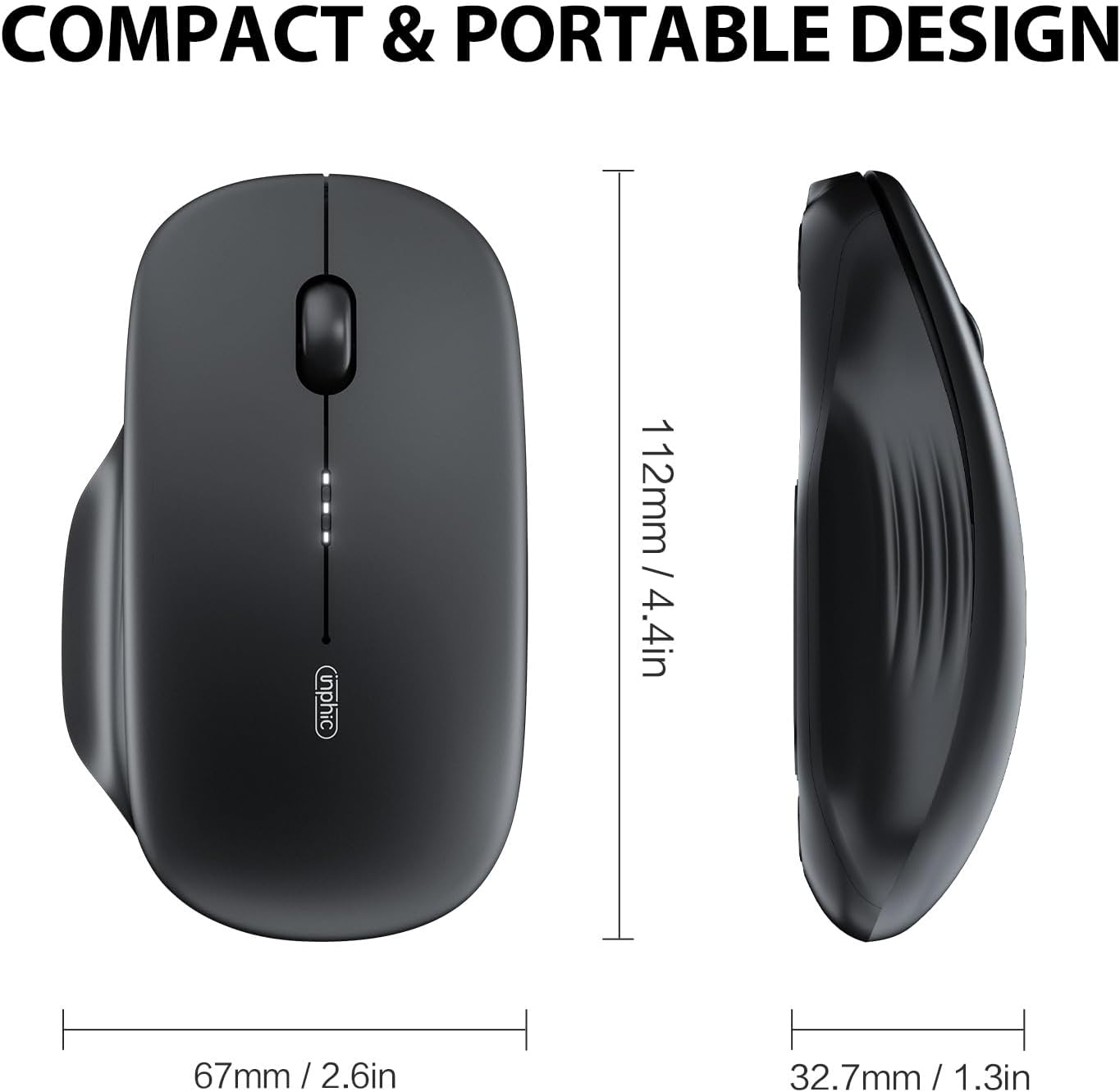
Image: Diagram illustrating the compact and portable design of the INPHIC M1 II mouse, with dimensions of 112mm (4.4in) length, 67mm (2.6in) width, and 32.7mm (1.3in) height.
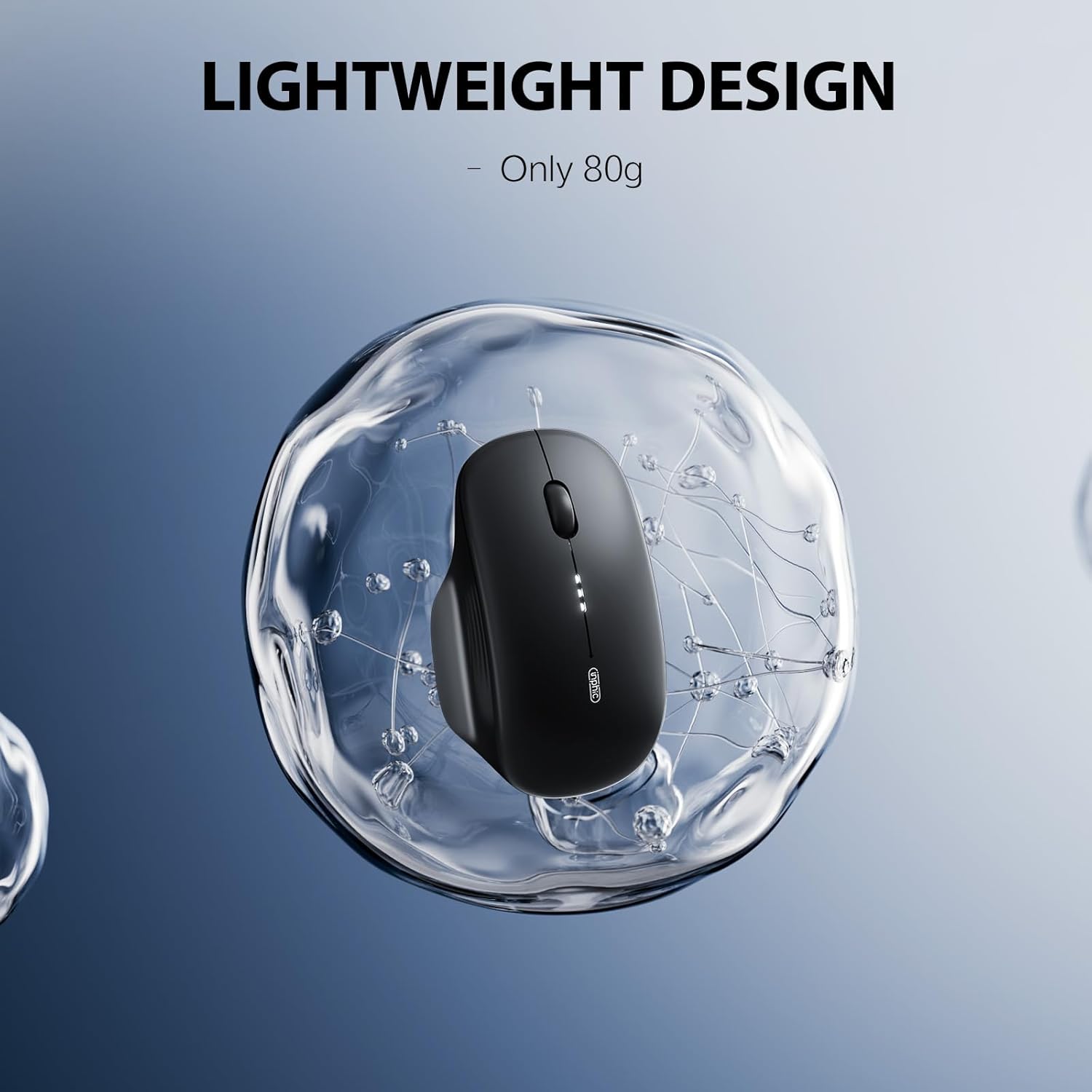
Image: A conceptual image emphasizing the lightweight design of the INPHIC M1 II mouse, stating it weighs only 80g.
7. Warranty and Support
For any product inquiries, technical support, or warranty claims, please contact INPHIC customer service. Refer to the product packaging or the official INPHIC website for the most up-to-date contact information.
Manufacturer: INPHIC Electronics Co., Ltd.
For additional resources, visit the INPHIC Store on Amazon.
Related documentsM1 II


Ask a question about this manual
Ask about setup, troubleshooting, compatibility, parts, safety, or missing instructions. Manuals+ will review the question and use this page’s manual context to help answer it.