
Introduction
This manual provides detailed instructions for the setup, operation, and maintenance of your AULA F3061 Anti-ghosting Gaming Keyboard and Mouse Combo. Please read this manual thoroughly before using the product to ensure optimal performance and longevity.
Package Contents
- AULA F3061 Wired Gaming Keyboard
- AULA Wired Gaming Mouse
- User Manual
Setup Instructions
Follow these steps to connect your AULA F3061 Gaming Keyboard and Mouse Combo to your computer:
- Connect the Keyboard: Locate an available USB port on your computer. Insert the USB connector of the AULA F3061 keyboard into the USB port.
- Connect the Mouse: Locate another available USB port on your computer. Insert the USB connector of the AULA gaming mouse into the USB port.
- Driver Installation: The keyboard and mouse are plug-and-play devices. Your operating system (Windows, macOS) will automatically detect and install the necessary drivers. This process may take a few moments.
- Verification: Once drivers are installed, the keyboard and mouse will be ready for use. Test functionality by typing and moving the mouse.
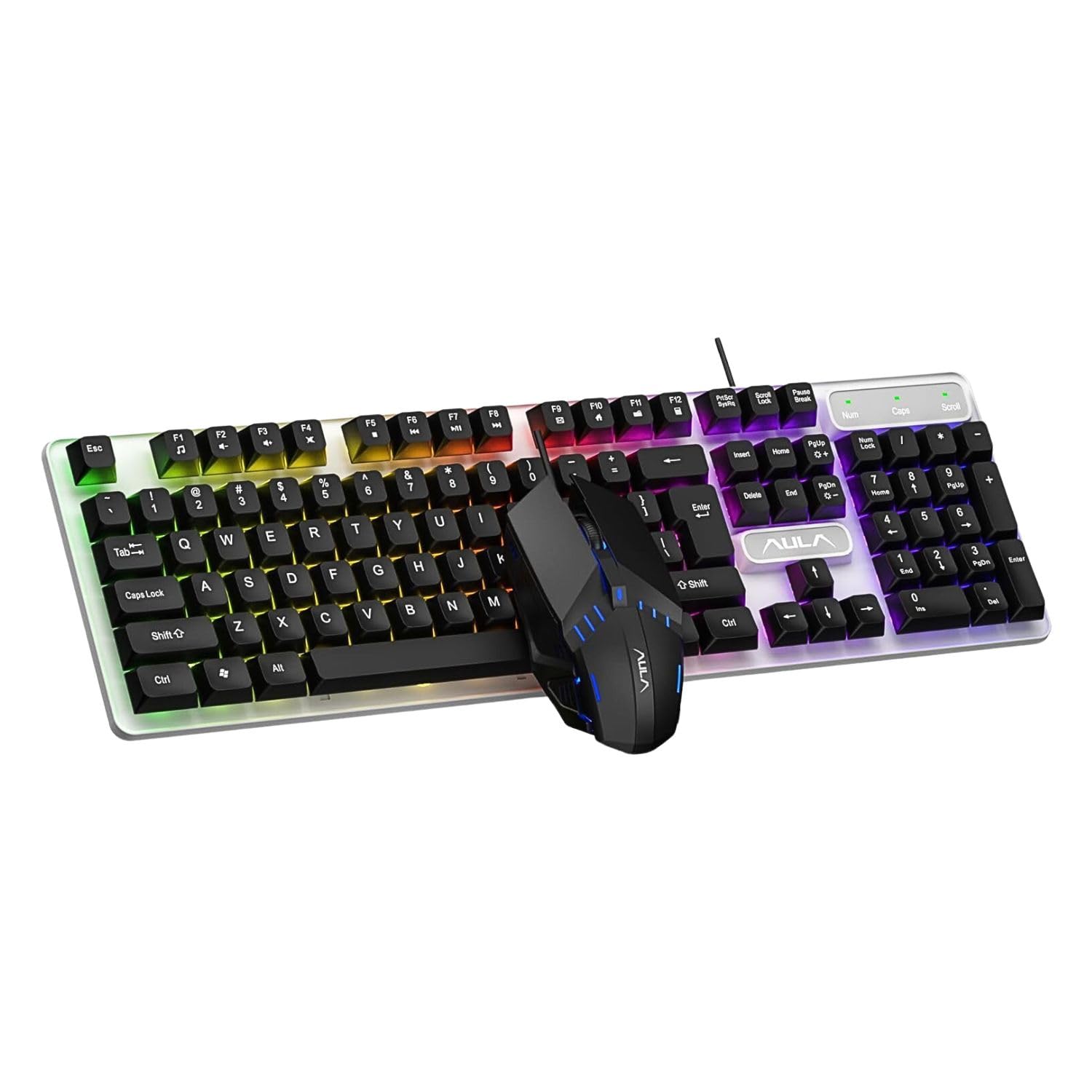
Image: The AULA F3061 wired gaming keyboard and mouse combo, ready for connection to a computer.
Operating Instructions
Keyboard Functions
- Multimedia & Backlight Control: This wired membrane keyboard features dedicated shortcut keys for media control. You can switch between 3 different lighting effects or adjust the backlight brightness and speed using specific key combinations. Refer to the keyboard's keycap legends for exact functions.
- Anti-ghosting: The keyboard supports 26-key rollover anti-ghosting technology, allowing multiple keys to be pressed simultaneously without conflicts, which is beneficial for gaming.
- Win Lock Function: A dedicated Win lock function is included to prevent accidental presses of the Windows key during gaming or typing, minimizing interruptions.

Image: Close-up of the AULA F3061 keyboard showcasing its breathable color backlight with adjustable brightness.

Image: Detail of the AULA F3061 keyboard's bass-suspended keycaps, designed for quick snap-back response.
Mouse Functions
- DPI: The gaming mouse features a 1200 DPI sensor, providing precise tracking for various applications, including gaming and general computer use.
- Ergonomic Design: The mouse is designed with an overall streamlined appearance to fit the curvature of the hand, aiming for comfortable use during extended periods.
- Anti-slip Material: Constructed with 3D anti-slip rubber material, the mouse offers enhanced grip and wear resistance.

Image: The AULA gaming mouse, highlighting its streamlined appearance designed for hand comfort.

Image: A close-up of the AULA gaming mouse, showing its 3D anti-slip rubber material for improved grip and durability.
Maintenance
To ensure the longevity and proper functioning of your AULA F3061 combo, follow these maintenance guidelines:
- Cleaning: Use a soft, dry cloth to wipe down the keyboard and mouse surfaces. For stubborn dirt, slightly dampen the cloth with water or a mild cleaning solution. Avoid harsh chemicals or abrasive materials.
- Dust Removal: Use compressed air to remove dust and debris from between the keyboard keys and mouse crevices.
- Avoid Liquids: Do not spill liquids on the keyboard or mouse. If accidental spillage occurs, immediately disconnect the device and allow it to dry completely before reconnecting.
- Storage: Store the devices in a cool, dry place away from direct sunlight and extreme temperatures when not in use for extended periods.
Troubleshooting
If you encounter issues with your AULA F3061 Gaming Keyboard and Mouse Combo, refer to the following common solutions:
- Device Not Responding:
- Ensure USB cables are securely plugged into the computer's USB ports.
- Try connecting the devices to different USB ports.
- Restart your computer.
- Backlight Not Working/Incorrect:
- Check if the backlight function is enabled using the designated shortcut keys (refer to keycap legends).
- Adjust brightness and speed settings using the appropriate key combinations.
- Mouse Cursor Jumps or is Erratic:
- Clean the mouse sensor area with a soft cloth.
- Ensure you are using the mouse on a suitable surface (e.g., a mouse pad).
- Keys Not Registering:
- Ensure the keyboard is properly connected.
- Clean any debris from around the affected keys using compressed air.
Product Specifications
| Feature | Specification |
|---|---|
| Model Number | F3061 Combo |
| Product Dimensions | 44.5 x 13.3 x 3.6 cm |
| Item Weight | 687 g |
| Connectivity | Wired USB |
| Keyboard Type | Membrane, Anti-ghosting (26-key rollover) |
| Keyboard Backlight | Rainbow LED, Adjustable Brightness/Speed |
| Mouse DPI | 1200 DPI |
| Compatibility | Windows XP / Vista / Win7 / Win8 / Win10 / MacOS, PC, Laptop, Google TV, Smart TV, PS4 / Xbox One |
| Country of Origin | China |
Warranty and Support
This AULA product is covered by a standard manufacturer's warranty against defects in materials and workmanship. The specific terms and duration of the warranty may vary by region. Please retain your proof of purchase for warranty claims.
For technical support, warranty inquiries, or further assistance, please refer to the contact information provided with your product packaging or visit the official AULA website.


