
1. Introduction
Welcome to the user manual for your ViewSonic VX2479A-HD-PRO gaming monitor. This document provides essential information for setting up, operating, and maintaining your monitor to ensure optimal performance and longevity. The VX2479A-HD-PRO is a 24-inch Full HD (1920x1080) monitor featuring a SuperClear IPS panel, a rapid 240Hz refresh rate, and a 1ms (MPRT) response time, designed for an immersive and responsive gaming experience. It supports HDR10, 102% sRGB color coverage, and includes EyePro Tech for enhanced viewing comfort during extended use.

Figure 1: Front view of the ViewSonic VX2479A-HD-PRO monitor.
2. Package Contents
Please verify that all items listed below are included in your package. If any items are missing or damaged, please contact your retailer or ViewSonic customer support.
- ViewSonic VX2479A-HD-PRO Monitor x1
- Power Cable x1
- HDMI Cable x1
- Quick Start Guide x1
3. Setup
Follow these steps to set up your monitor:
- Unpacking: Carefully remove the monitor and all components from the packaging. Place the monitor face down on a soft, clean surface to prevent scratches.
- Stand Assembly: Attach the monitor stand to the monitor panel according to the instructions in the included Quick Start Guide. Ensure it is securely fastened.
- Connecting Cables:
- Connect the power cable to the monitor's power input and then to a power outlet.
- Connect the included HDMI cable from your computer's graphics card or gaming console to one of the HDMI 1.4 ports on the monitor. Alternatively, use a DisplayPort 1.4 cable for optimal performance.
- If desired, connect headphones or external speakers to the 3.5mm audio-out jack.
- Power On: Press the power button on the monitor. Power on your computer or gaming console. The monitor should automatically detect the input signal.
The monitor is also compatible with 100 x 100 mm VESA mounts for alternative mounting solutions (mounting hardware sold separately).

Figure 2: Rear view illustrating the monitor's connectivity ports.
4. Operating the Monitor
The monitor features an On-Screen Display (OSD) menu for adjusting various settings. Use the buttons located on the monitor's bezel to navigate and select options.
4.1. OSD Menu Navigation
- Press any OSD button to activate the menu.
- Use the navigation buttons (usually arrows) to move between menu options.
- Press the 'Select' or 'Enter' button to confirm a selection or enter a sub-menu.
- Press the 'Exit' or 'Back' button to return to the previous menu or exit the OSD.
4.2. ViewMode Settings
The ViewMode feature offers preset color profiles optimized for different viewing scenarios. These modes fine-tune brightness, contrast, and gamma settings.
- Game: Optimized for gaming, enhancing visibility in dark areas and sharpening details.
- Movie: Provides a cinematic viewing experience with enhanced contrast and color saturation.
- Web: Balanced settings for general internet browsing and document viewing.
- Text: Reduces blue light and adjusts brightness for comfortable reading.
- Mono: Displays content in grayscale.
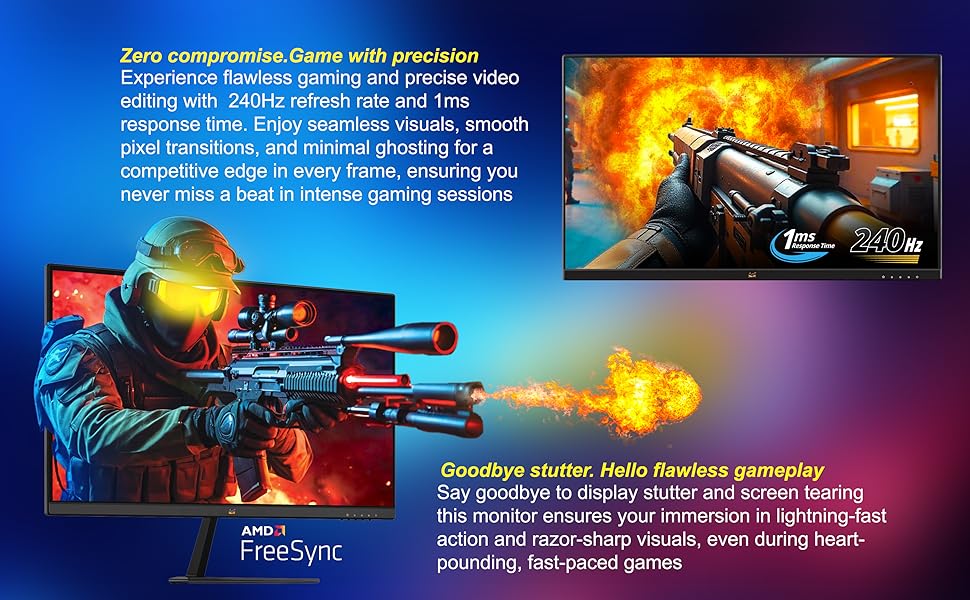
Figure 3: Illustration of preset game modes available through ViewMode.
5. Key Features
5.1. Ultra-Smooth Full HD Visuals
The 24-inch (23.8-inch viewable) SuperClear IPS screen delivers Full HD 1920 x 1080 resolution with vibrant visuals and sharp detail. The ultra-slim frameless design supports immersive viewing, whether in single or multi-monitor setups.
5.2. Exceptional Speed with 240Hz Refresh Rate and 1ms Response Time
Built for competitive gaming, the ultra-fast 240Hz refresh rate ensures incredibly smooth visuals. Paired with a 1ms (MPRT) response time and Variable Refresh Rate (VRR) support, this monitor eliminates screen tearing and ghosting for seamless gameplay and motion clarity.

Figure 4: Visual comparison demonstrating blur reduction at 240Hz versus 60Hz refresh rates.
5.3. AMD FreeSync Support
Experience tear-free and stutter-free gameplay with AMD FreeSync technology, which synchronizes the monitor's refresh rate with your GPU's frame rate.

Figure 5: Gameplay comparison showing the effect of AMD FreeSync on screen synchronization.
5.4. HDR10 and 102% sRGB Color Coverage
Experience deeper contrast, richer colors, and brighter highlights with HDR10 technology. The monitor also boasts 102% sRGB color coverage, ensuring vivid and accurate color reproduction for both gaming and content creation.
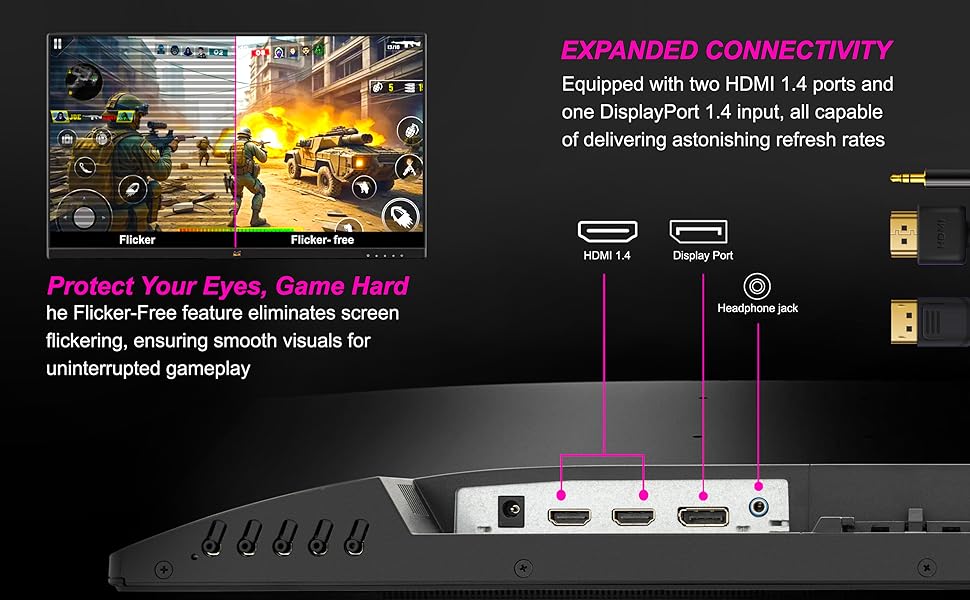
Figure 6: Visual representation of HDR10 enhancing contrast and color in a game scene.
5.5. Enhanced Eye Comfort with EyePro Tech+
The monitor incorporates Flicker-Free technology and a Blue Light Filter to reduce eye strain during extended use, making it ideal for long gaming sessions, studying, or professional work.
5.6. Wide Viewing Angles with SuperClear IPS
The SuperClear IPS panel technology ensures consistent color accuracy and brightness from wide viewing angles, up to 178 degrees horizontally and vertically.

Figure 7: Demonstrating wide viewing angles of the SuperClear IPS panel.
6. Connectivity
The VX2479A-HD-PRO offers versatile connectivity options to integrate with various devices:
- 2 x HDMI 1.4 Ports: For connecting PCs, laptops, and gaming consoles like PS5 and Xbox.
- 1 x DisplayPort 1.4: Provides high-bandwidth connectivity for optimal refresh rates and resolutions.
- 3.5mm Audio-Out Jack: For connecting headphones or external speakers.
The monitor is compatible with both PS5 and Xbox consoles, allowing for seamless switching between gaming platforms.
7. Maintenance
Proper maintenance ensures the longevity and performance of your monitor.
- Cleaning the Screen: Gently wipe the screen with a soft, lint-free cloth. For stubborn marks, lightly dampen the cloth with water or a specialized screen cleaner. Avoid using harsh chemicals or abrasive materials.
- Cleaning the Casing: Use a soft, dry cloth to clean the monitor casing.
- Power Off When Not in Use: Turn off the monitor when not in use for extended periods to save energy and prolong its lifespan.
- Avoid Direct Sunlight: Do not expose the monitor to direct sunlight or excessive heat.
- Ventilation: Ensure proper ventilation around the monitor to prevent overheating. Do not block the ventilation openings.
8. Troubleshooting
If you encounter issues with your monitor, refer to the following common troubleshooting steps:
- No Power:
- Ensure the power cable is securely connected to both the monitor and the power outlet.
- Check if the power outlet is functioning correctly by plugging in another device.
- Verify the monitor's power button is pressed.
- No Signal/Black Screen:
- Confirm that the video cable (HDMI or DisplayPort) is securely connected to both the monitor and your computer/console.
- Ensure your computer/console is powered on and not in sleep mode.
- Try connecting the monitor to a different video source or using a different video cable to rule out cable or source issues.
- Select the correct input source via the OSD menu.
- Image Issues (Blurry, Distorted, Incorrect Colors):
- Adjust the resolution and refresh rate settings on your computer to match the monitor's native resolution (1920x1080) and desired refresh rate (up to 240Hz).
- Reset the monitor to factory default settings via the OSD menu.
- Check your graphics card drivers for updates.
- Ensure the video cable is not damaged.
- Flickering Screen:
- Ensure Flicker-Free technology is enabled in the OSD menu.
- Check for external interference from other electronic devices.
- Verify the video cable connection.
For further assistance, please refer to the ViewSonic support website or contact customer service.
9. Specifications
Below are the technical specifications for the ViewSonic VX2479A-HD-PRO monitor:
| Feature | Specification |
|---|---|
| Brand | ViewSonic |
| Model | VX2479A-HD-PRO |
| Screen Size | 23.8 Inches (60.96 cm) |
| Panel Type | SuperClear IPS |
| Resolution | Full HD (1920 x 1080) |
| Refresh Rate | 240Hz |
| Response Time | 1ms (MPRT) |
| Contrast Ratio (Static) | 1,000:1 |
| Contrast Ratio (Dynamic) | 80M:1 |
| Brightness | 250 cd/m² |
| Color Coverage | 102% sRGB |
| HDR Support | HDR10 |
| Connectivity | 2 x HDMI 1.4, 1 x DisplayPort 1.4, 1 x 3.5mm Audio Out |
| VESA Mount Compatible | 100 x 100 mm |
| Physical Dimensions (W x H x D) | 540 x 414 x 170 mm |
| Net Weight | 2.9 kg |
| Power Consumption (Typical) | 26W |
| Power Consumption (Eco Mode) | 19W |
10. Warranty and Support
Your ViewSonic VX2479A-HD-PRO monitor comes with a 3 Years Standard On-site Manufacturer Warranty. Please retain your proof of purchase for warranty claims.
For technical support, warranty service, or further inquiries, please visit the official ViewSonic website or contact their customer service department. Contact information can typically be found on the ViewSonic website or in the Quick Start Guide included with your product.
Manufacturer: VIEWSONIC, ViewSonic International, 192, Lien Chen Road Zhonghe Dist. New Taipei City 235 Taiwan, R. O. C.
Importer (India): ViewSonic Technologies INDIA Private Limited, No.25/14 B-8 GEMS Court., Khadher Nawaz Khan Road., Nungambakkam Chennai -600006


