
ColorCool A3-pro
Colorcool Portable MP3 Player A3-pro User Manual
Model: A3-pro
1. Introduction
Thank you for purchasing the Colorcool Portable MP3 Player A3-pro. This device is designed for music playback, voice recording, FM radio, and more, featuring Bluetooth 5.3 connectivity and a convenient clip for portability. Please read this manual carefully to ensure proper use and optimal performance.
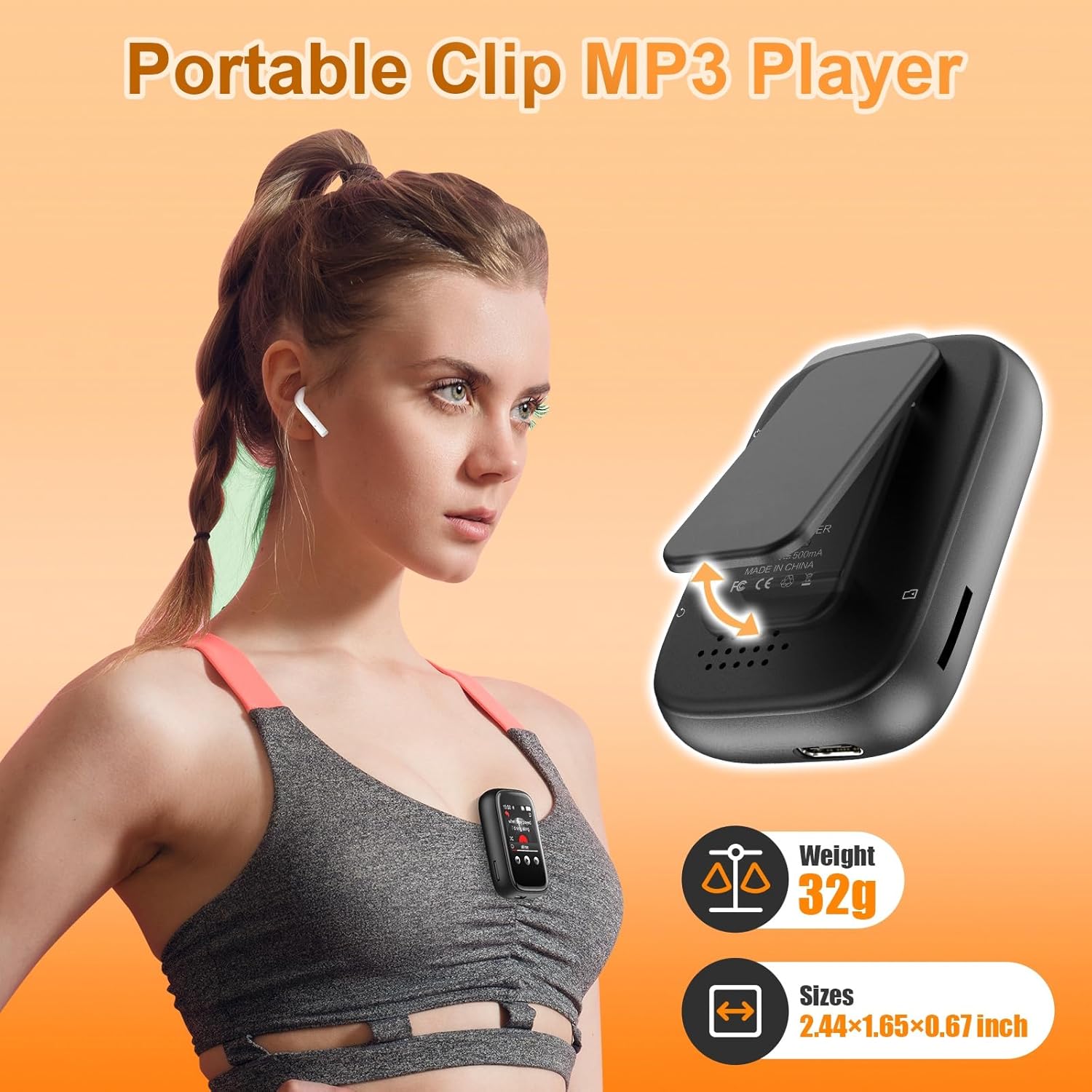
Image 1.1: The Colorcool MP3 Player, demonstrating its compact size and integrated clip for easy attachment to clothing during activities. The device weighs 32 grams and measures approximately 6.2 x 4.2 x 1.7 cm.
2. Package Contents
Please check the package for the following items:
- Colorcool Portable MP3 Player (Model A3-pro)
- Wired Headphones
- USB Type-C Cable
- User Manual
3. Product Overview
Familiarize yourself with the device's physical features and controls.
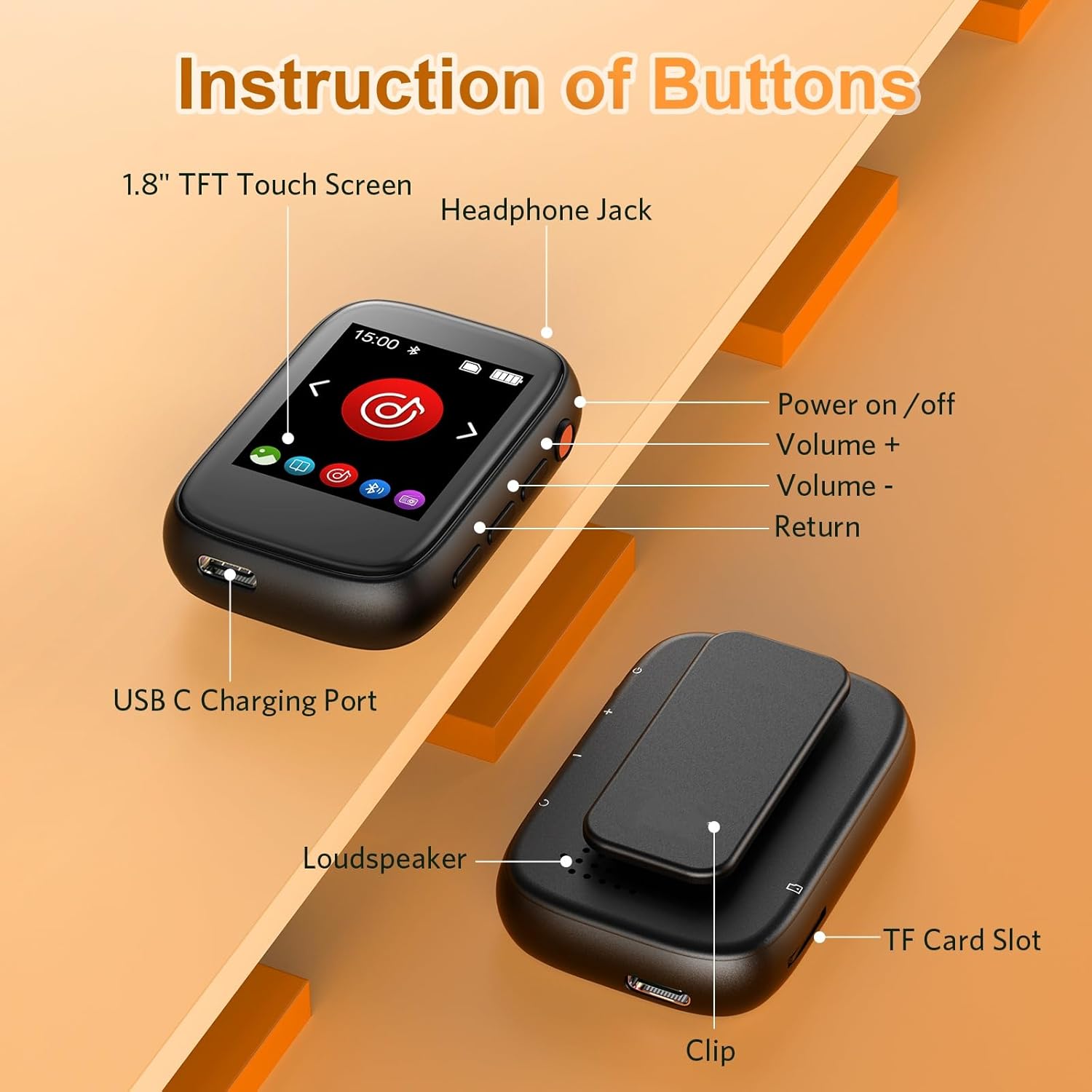
Image 3.1: Detailed diagram illustrating the various buttons, ports, and features of the Colorcool MP3 Player. Key components include the 1.8-inch TFT touch screen, headphone jack, power button, volume controls, return button, USB Type-C charging port, built-in loudspeaker, TF (Micro SD) card slot, and the integrated clip.
- 1.8" TFT Touch Screen: Main display for navigation and content viewing.
- Headphone Jack: 3.5mm port for wired headphones.
- Power On/Off Button: Located on the side for turning the device on or off.
- Volume +/- Buttons: Adjust audio output level.
- Return Button: Navigate back to the previous screen or menu.
- USB C Charging Port: For charging the device and connecting to a computer for data transfer.
- Loudspeaker: Built-in speaker for audio playback without headphones.
- TF Card Slot: For inserting a Micro SD card to expand storage.
- Clip: Integrated clip for attaching the player to clothing or bags.
4. Specifications
| Feature | Detail |
|---|---|
| Model Number | A3-pro |
| Dimensions | Approx. 6.2 cm × 4.2 cm × 1.7 cm (2.44" × 1.65" × 0.67") |
| Weight | 32 g |
| Internal Memory | 32 GB |
| Expandable Memory | Supports Micro SD card up to 512 GB |
| Screen Size | 1.8 inch TFT Color Screen |
| Operation Method | Full Touch Screen |
| Bluetooth Version | 5.3 |
| USB Port | USB Type-C |
| Audio Formats | MP3, WMA, APE, FLAC, WAV, DRM, ACELP |
| Video Formats | AMV, AVI (conversion may be required) |
| Recording Formats | WAV, MP3 |
| E-book Format | TXT |
| Image Formats | BMP, JPG |
| Lyrics Format | LRC |
| Charging Time | 1.5 to 2 hours |
| Supported Systems | Windows XP (SP1/SP2/SP3) 32-bit, Windows 7-10 64-bit |
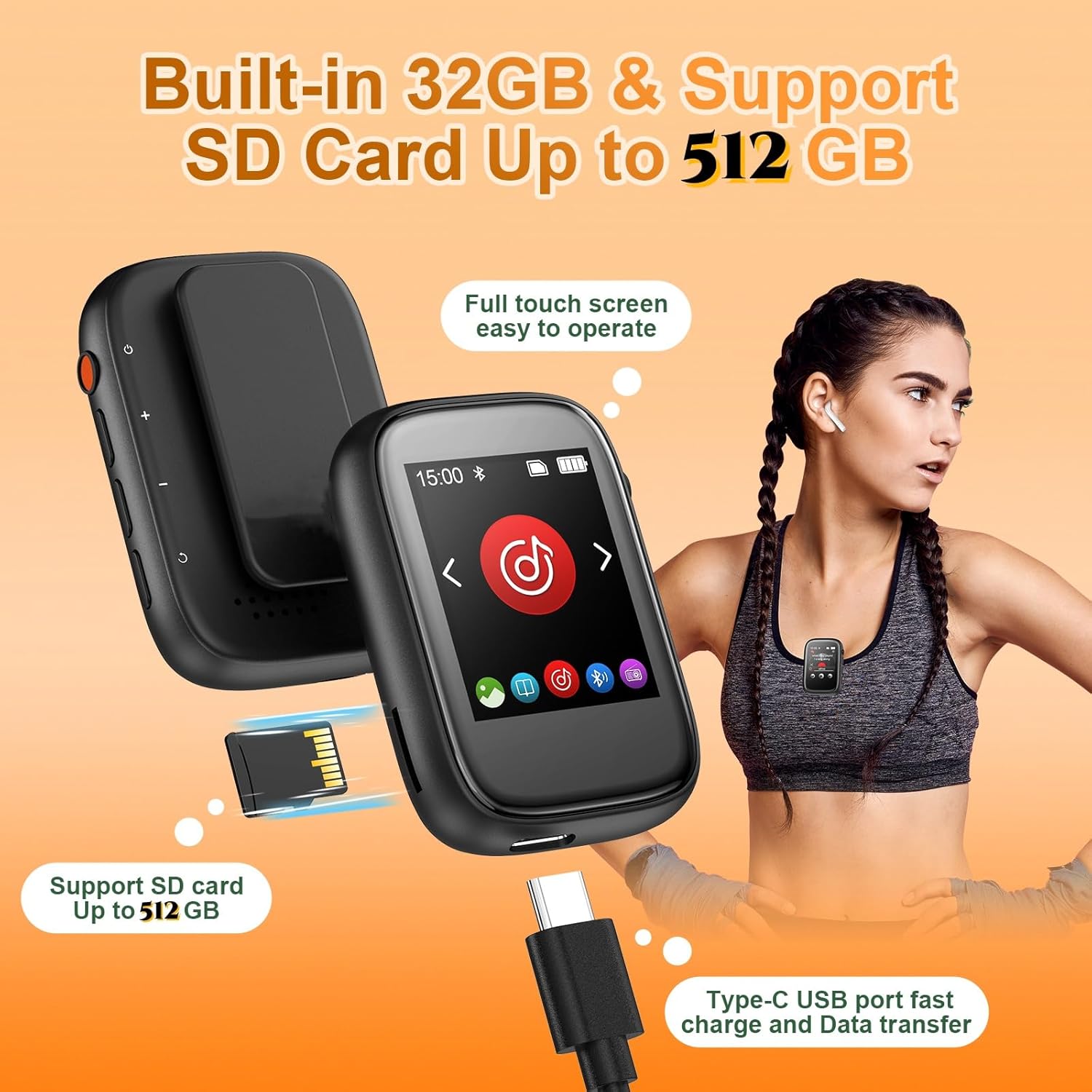
Image 4.1: The MP3 player highlighting its 32GB internal storage and capability to expand up to 512GB using a Micro SD card. It also features a USB Type-C port for efficient charging and data transfer.
5. Setup
5.1. Charging the Device
- Connect the included USB Type-C cable to the MP3 player's charging port.
- Connect the other end of the USB cable to a USB power adapter (not included) or a computer's USB port.
- The device will indicate charging status on the screen. A full charge typically takes 1.5 to 2 hours.
5.2. Power On/Off
- To Power On: Press and hold the Power button on the side of the device until the screen lights up.
- To Power Off: Press and hold the Power button until a power-off option appears on the screen, then confirm.
5.3. Inserting a Micro SD Card
- Locate the TF Card Slot on the side of the MP3 player.
- Gently insert a Micro SD card (up to 512 GB) into the slot until it clicks into place.
- To remove, push the card inward until it springs out.
5.4. Connecting to a Computer
- Use the included USB Type-C cable to connect the MP3 player to your computer.
- The device will appear as a removable disk on your computer.
- You can drag and drop music, video, e-book, and image files directly into the player's internal storage or the Micro SD card.
- Note: The charging port is not compatible with Mac computers directly; an OTG adapter is required for Mac connectivity. The player does not work with iTunes.
6. Operating Instructions
6.1. Basic Navigation
The MP3 player features a full touch screen for navigation. Tap icons to select functions and swipe to browse. Use the physical 'Return' button to go back to the previous screen.
6.2. Music Playback
- From the main menu, tap the 'Music' icon.
- Browse your music by artist, album, genre, or folder.
- Tap a song to begin playback.
- During playback, you can control volume, skip tracks, pause/play, and access playback modes (repeat 1, repeat all, shuffle).
6.3. Bluetooth Connection
The device supports Bluetooth 5.3 for connecting to wireless headphones or speakers.

Image 6.1: The MP3 player demonstrating its Bluetooth connectivity, allowing users to pair with wireless earbuds or speakers for an untethered audio experience during activities like exercise. Note that it cannot pair with smartphones.
- From the main menu, tap the 'Bluetooth' icon.
- Turn on Bluetooth. The player will search for nearby Bluetooth devices.
- Select your Bluetooth headphones or speaker from the list to pair.
- Once paired, audio will be routed through the connected Bluetooth device.
- Note: This MP3 player cannot pair with smartphones.
6.4. FM Radio
- Tap the 'FM Radio' icon from the main menu.
- Ensure wired headphones are connected as they act as the antenna.
- Use the on-screen controls to scan for stations or manually tune.
6.5. Voice Recording
- Tap the 'Recording' icon.
- Select 'Start Recording' to begin.
- Recordings are saved in WAV or MP3 format.
6.6. E-book Reader
- Tap the 'E-book' icon.
- Select a TXT file to open and read.
6.7. Video Playback
- Tap the 'Video' icon.
- Select an AMV or AVI file to play.
- Note: Video files may require conversion to AMV/AVI format for proper playback.
6.8. Other Functions

Image 6.2: An overview of the multi-functional capabilities of the MP3 player, showing icons for Music, Alarm, Picture viewer, FM Radio, Bluetooth, E-Book reader, Folder browser, Voice Recording, and Stopwatch.
- Alarm: Set alarms for reminders.
- Calendar: View the current date.
- Stopwatch: Use for timing activities.
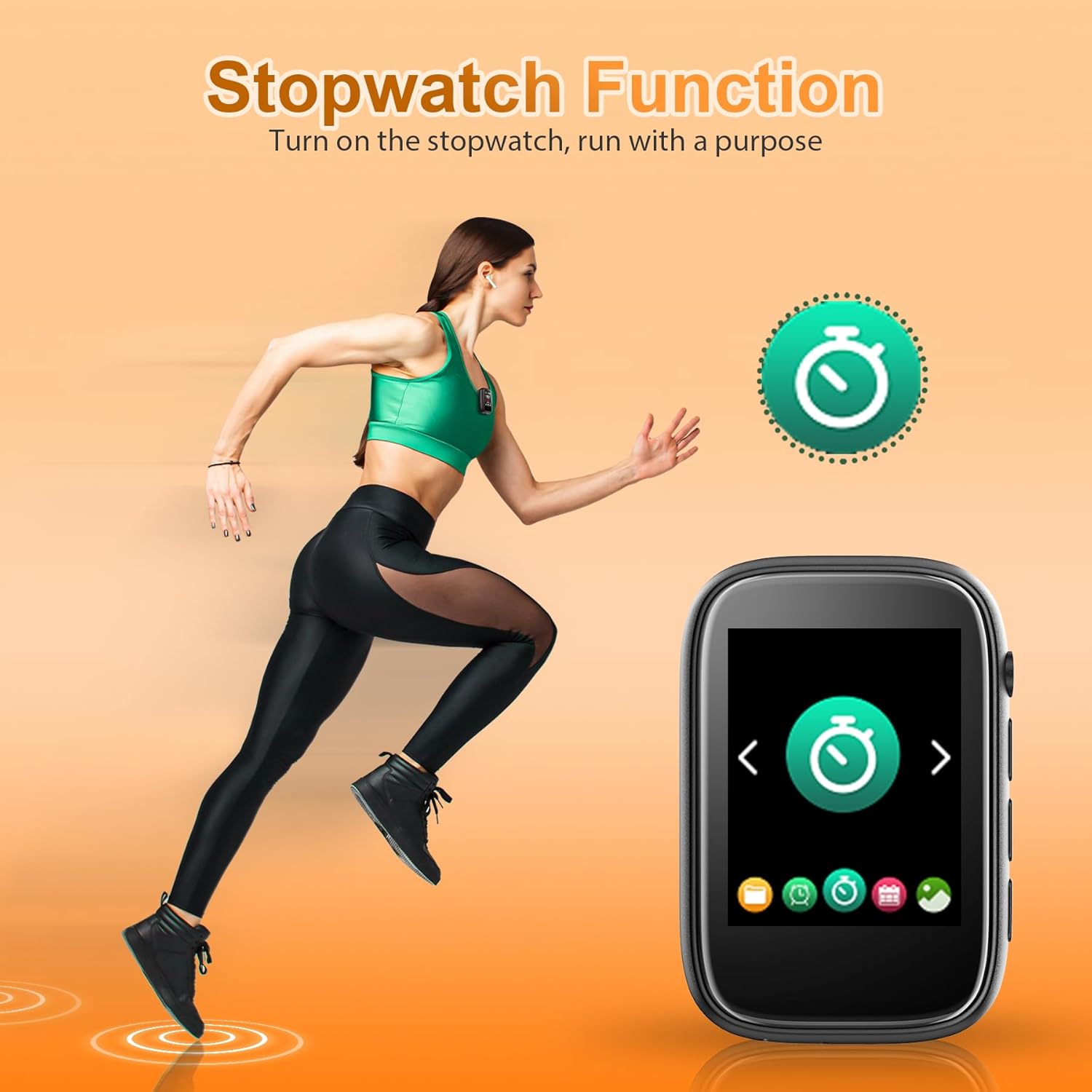
Image 6.3: The MP3 player in use during a run, emphasizing its stopwatch function, which is useful for tracking exercise duration.
7. Maintenance
- Keep the device dry. Avoid exposure to moisture or liquids.
- Clean the screen and body with a soft, dry cloth. Do not use abrasive cleaners.
- Avoid extreme temperatures.
- Do not attempt to disassemble the device, as this will void the warranty.
8. Troubleshooting
8.1. Device Not Turning On
- Ensure the battery is charged. Connect the device to a power source for at least 10 minutes.
- Press and hold the Power button for an extended period (e.g., 10-15 seconds) to perform a hard reset.
8.2. Cannot Connect to Computer (Mac)
- The MP3 player's charging port is not directly compatible with Mac computers. An OTG adapter is required for Mac connectivity.
- Ensure you are using the included USB Type-C cable.
8.3. Bluetooth Pairing Issues
- Ensure the Bluetooth device (headphones/speaker) is in pairing mode.
- Make sure the MP3 player's Bluetooth is enabled and scanning.
- The MP3 player cannot pair with smartphones.
8.4. Video Playback Problems
- Ensure video files are in AMV or AVI format. Other formats may require conversion.
- Contact customer support for recommendations on video conversion tools if needed.
8.5. M3U or Encrypted Files Not Playing
- M3U and other encrypted file formats are not supported by this device.
9. Warranty and Support
For warranty information or technical support, please refer to the contact details provided with your purchase or visit the official Colorcool website. Keep your proof of purchase for warranty claims.
Related documentsA3-pro

Ask a question about this manual
Ask about setup, troubleshooting, compatibility, parts, safety, or missing instructions. Manuals+ will review the question and use this page’s manual context to help answer it.