
1. Introduction
This manual provides comprehensive instructions for the UGREEN 2K Webcam, Model 75330. This device is designed to deliver high-quality video and audio for various applications, including online meetings, video calls, streaming, and content creation. It features 2K resolution, dual noise-canceling microphones, automatic light correction, and a wide 95° field of view.
Please read this manual carefully before using the product to ensure proper operation and to maximize its performance.
2. What's in the Box
- UGREEN 2K Webcam
- Integrated USB Cable
- Privacy Cover
3. Setup Instructions
3.1 Mounting the Webcam
The UGREEN 2K Webcam offers versatile mounting options to suit your setup:
- Monitor Clip: Unfold the clip and place it securely on top of your monitor or laptop screen. Adjust the angle to ensure stability.
- Desktop Placement: Fold the clip to create a stable base, allowing the webcam to stand freely on your desk.
- Tripod Mount: The webcam features a standard 1/4-inch screw thread at the bottom of the clip, enabling attachment to a tripod (not included) for more flexible positioning.

Image: The webcam can be mounted on a monitor, placed on a desktop, or attached to a tripod.
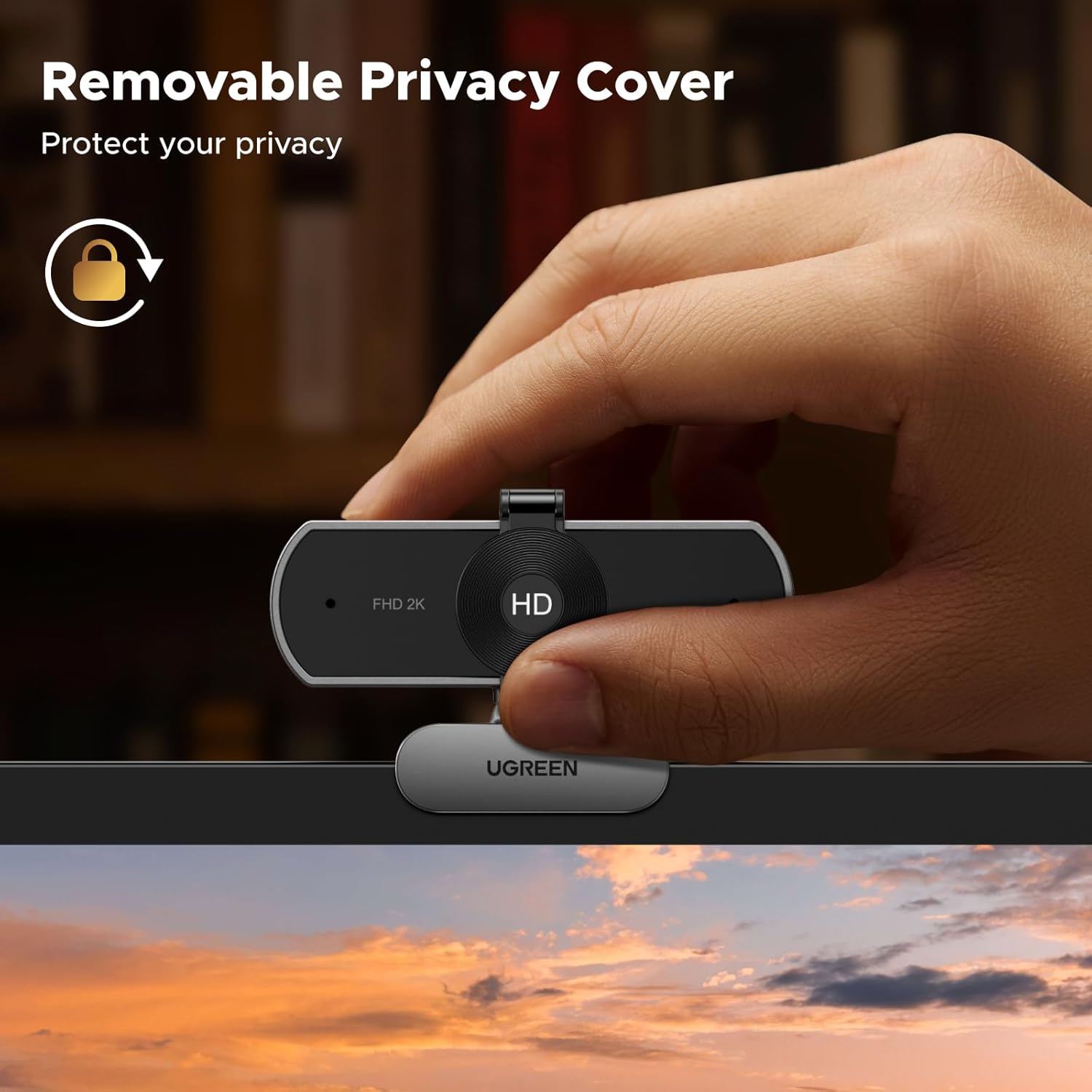
Image: The webcam shown mounted on a tripod, demonstrating its versatility for various setups.
3.2 Connecting to your Computer
The UGREEN 2K Webcam is a plug-and-play device, requiring no driver installation for most operating systems.
- Connect the integrated USB cable from the webcam to an available USB-A port on your computer.
- Wait a few moments for your operating system to recognize the device.
- Open your preferred video conferencing or streaming application (e.g., Zoom, Skype, Microsoft Teams) and select the UGREEN 2K Webcam as your video and audio input device in the application's settings.
Video: An overview of the UGREEN 2K Webcam, demonstrating its features and simple USB connection process.
4. Operating Instructions
4.1 Using the Privacy Cover
The included privacy cover helps protect your privacy when the webcam is not in use.
- To attach: First, snap the bottom clip of the privacy cover onto the camera, then secure the top to the camera.
- To use: Slide the cover open to reveal the lens for video, and slide it closed to block the lens for privacy.

Image: Visual guide demonstrating the correct method to attach and use the removable privacy cover.
4.2 Adjusting the Viewing Angle
The webcam offers flexible adjustments to achieve the optimal viewing angle:
- 360° Rotation: The camera head can rotate a full 360 degrees horizontally.
- 15° Up and Down: The camera can be tilted up or down by 15 degrees.

Image: Illustrations demonstrating the webcam's rotational and tilt adjustments for flexible positioning.
4.3 Software Compatibility
The UGREEN 2K Webcam is widely compatible with various operating systems and applications:
- Operating Systems: Windows 7/8/10/11, Mac OS 10.6 and above, Linux, Android 5.0 and above, iPad OS 17 and above.
- Applications: Zoom, Skype, Microsoft Teams, Google Meet, Twitch, FaceTime, GoToMeeting, YouTube, and other video conferencing/streaming platforms.

Image: Visual representation of the webcam's broad compatibility with different operating systems and popular video communication applications.
5. Key Features
5.1 2K Resolution
Experience clear and detailed video quality with 2K (2560x1440) resolution at 30 frames per second. The 4 MP ultra-high sensitivity CMOS sensor ensures sharp visuals for all your video communications.

Image: A side-by-side comparison illustrating the enhanced clarity and detail provided by 2K resolution.
5.2 Dual Noise-Canceling Microphones
The webcam is equipped with dual integrated microphones that capture clear audio while minimizing background noise. This ensures your voice is heard distinctly during calls and recordings.

Image: A visual depicting the function of the dual noise-canceling microphones during a video conference.
5.3 Automatic Light Correction
The webcam automatically adjusts color temperature and corrects for low-light conditions, ensuring a balanced and well-lit image even in dim environments.

Image: A side-by-side comparison demonstrating the effectiveness of automatic light correction in low-light settings.
5.4 95° Field of View (FOV)
The 95-degree field of view allows for a wider perspective, capturing more content in your video while maintaining a suitable close-up perspective for individual use or small group settings.

Image: An illustration of the 95-degree wide field of view, showing its ability to capture a broader scene.
5.5 Fixed Focus
The fixed focus lens provides consistently sharp and clear images without the need for manual adjustment, ensuring you remain in focus during your video calls.

Image: A visual representation of the fixed focus feature, ensuring consistent image sharpness.
6. Maintenance
To ensure the longevity and optimal performance of your UGREEN 2K Webcam, follow these maintenance guidelines:
- Cleaning the Lens: Gently wipe the lens with a soft, lint-free cloth. For stubborn smudges, use a lens cleaning solution specifically designed for optical surfaces. Avoid abrasive materials or harsh chemicals.
- Cleaning the Body: Use a soft, dry cloth to clean the exterior of the webcam. Do not use liquid cleaners directly on the device.
- Storage: When not in use, especially for extended periods, store the webcam in a clean, dry place. Use the privacy cover to protect the lens from dust and scratches.
- Avoid Extreme Conditions: Do not expose the webcam to extreme temperatures, humidity, or direct sunlight.
7. Troubleshooting
If you encounter issues with your UGREEN 2K Webcam, refer to the following common troubleshooting steps:
- Webcam Not Detected:
- Ensure the USB cable is securely connected to both the webcam and your computer.
- Try connecting the webcam to a different USB port on your computer.
- Restart your computer.
- Check your operating system's device manager (Windows) or system information (Mac) to see if the webcam is listed.
- No Video/Black Screen:
- Ensure the privacy cover is open.
- Verify that the webcam is selected as the video input device in your application's settings.
- Close and reopen the application.
- Test the webcam with another application to rule out software-specific issues.
- No Audio/Poor Audio Quality:
- Ensure the webcam's microphone is selected as the audio input device in your application's settings and your operating system's sound settings.
- Check that the microphone is not muted in your application or system settings.
- Adjust microphone volume levels.
- Minimize background noise in your environment.
- Poor Video Quality:
- Ensure you have adequate lighting in your environment.
- Check your internet connection speed, as low bandwidth can affect video quality in online calls.
- Clean the webcam lens.
If these steps do not resolve the issue, please refer to the support section for further assistance.
8. Specifications
| Feature | Specification |
|---|---|
| Brand | UGREEN |
| Model Number | 75330 |
| Video Resolution | 2K (2560x1440) @ 30FPS |
| Effective Still Resolution | 4 MP |
| Photo Sensor Technology | CMOS |
| Field of View (FOV) | 95 degrees |
| Focus Type | Fixed Focus |
| Microphone | Built-in Dual Microphones |
| Connectivity Technology | USB-A |
| Operating System Compatibility | Windows 7/8/10/11, Mac OS 10.6+, Linux, Android 5.0+, iPad OS 17+ |
| Special Feature | Privacy Cover, Automatic Light Correction |
| Color | Space Grey |
| Minimum Focal Length | 50 centimeters |
| Maximum Focal Length | 5 meters |
| Maximum Aperture | 2.5 f_stop |
9. Warranty and Support
UGREEN products are designed and manufactured to the highest quality standards. For warranty information or technical support, please refer to the official UGREEN website or contact your local retailer. Keep your purchase receipt as proof of purchase.
For further assistance, you may visit the UGREEN support page at ugreen.com/pages/support.


