1. Introduction
Welcome to the GET IN THE GAME™ Ultra 3 Smart Watch user manual. This guide provides essential information for setting up, operating, maintaining, and troubleshooting your new smart watch. The Ultra 3 Smart Watch features a vibrant 2.06-inch Infinite Display, Bluetooth calling capabilities, and comprehensive activity and health monitoring functions, designed to enhance your daily life and fitness journey.
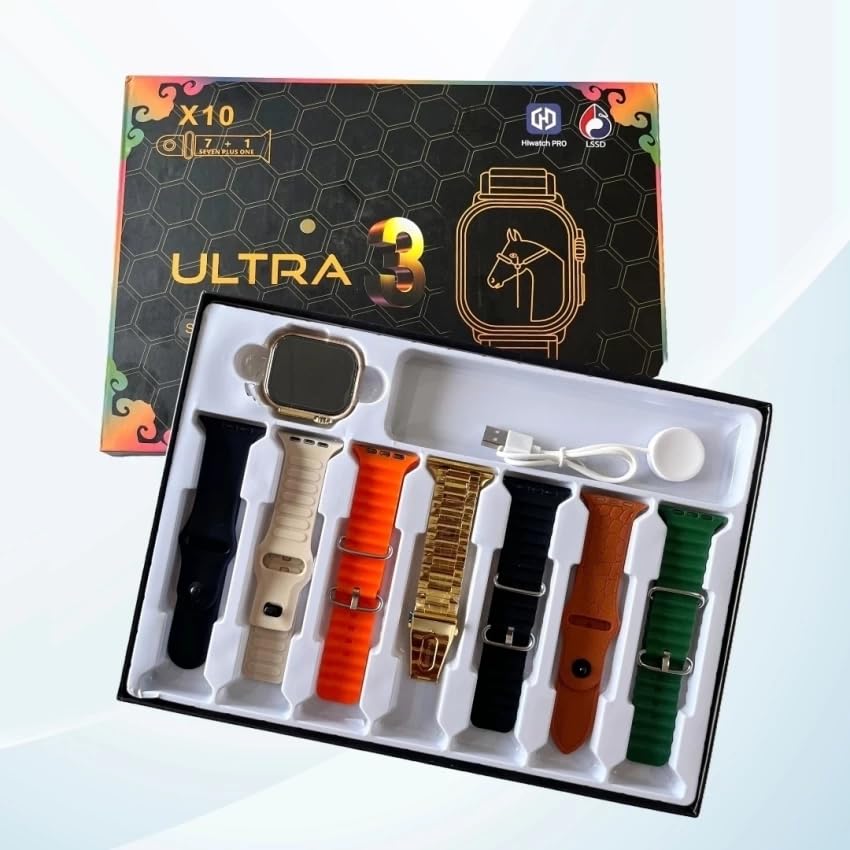
Image: The GET IN THE GAME™ Ultra 3 Smart Watch, showcasing its sleek design and large display.
2. What's in the Box
Upon unboxing your GET IN THE GAME™ Ultra 3 Smart Watch, please verify that all the following components are present:
- GET IN THE GAME™ Ultra 3 Smart Watch Unit
- 7 Customizable Straps (various colors and materials)
- Wireless Charging Cable
- User Manual (this document)
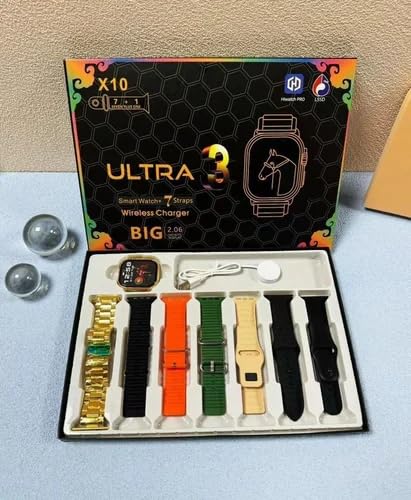
Image: The Ultra 3 Smart Watch packaging, displaying the watch unit, seven interchangeable straps, and the wireless charging cable.
3. Setup Guide
3.1 Charging the Device
Before first use, fully charge your smart watch. Connect the wireless charging cable to a USB power adapter (not included) and place the back of the watch onto the charging pad. The watch display will indicate charging status. A full charge typically takes approximately 2 hours.
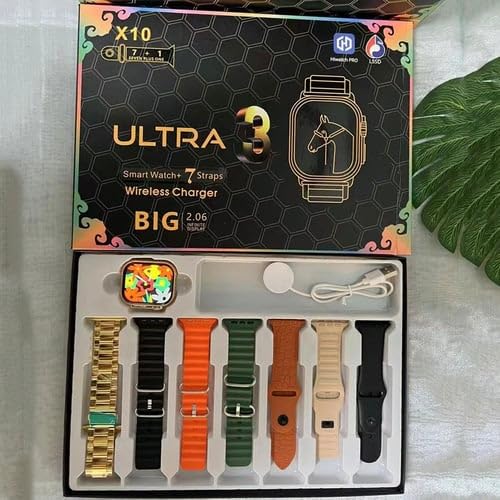
Image: The Ultra 3 Smart Watch positioned on its wireless charging pad, with the charging cable connected.
3.2 Powering On/Off
- To Power On: Press and hold the side button until the GET IN THE GAME™ logo appears on the screen.
- To Power Off: Press and hold the side button, then select "Power Off" from the options displayed on the screen.
3.3 Pairing with Your Smartphone (Bluetooth Calling)
To utilize Bluetooth calling and other smart features, pair your Ultra 3 Smart Watch with your smartphone:
- Ensure your smart watch is powered on and fully charged.
- Enable Bluetooth on your smartphone.
- Download and install the companion application (refer to the QR code on the watch or packaging for app download link) on your smartphone.
- Open the app and follow the on-screen instructions to search for and connect to your "GET IN THE GAME Ultra 3" device.
- Confirm the pairing request on both your watch and smartphone.
3.4 Attaching and Changing Straps
Your Ultra 3 Smart Watch comes with 7 customizable straps. To attach or change a strap:
- Locate the quick-release pins on the back of each strap.
- Slide the pin inwards and align the strap with the lug holes on the watch body.
- Release the pin, ensuring it clicks securely into place. Gently pull the strap to confirm it is properly attached.
- Repeat for the other side of the strap.
4. Operating Instructions
4.1 Navigating the Infinite Display
The 2.06-inch Infinite Display is a full touchscreen. Use the following gestures for navigation:
- Swipe Up: Access quick settings or notifications (depending on current screen).
- Swipe Down: Access quick settings or notifications (depending on current screen).
- Swipe Left/Right: Navigate between different widgets, apps, or watch faces.
- Tap: Select an item or open an application.
- Press and Hold: Customize watch face or access context-sensitive menus.
4.2 Making and Receiving Calls
Once paired via Bluetooth, you can manage calls directly from your wrist:
- To Make a Call: Access the dialer or contacts list on your watch, then tap to initiate a call.
- To Receive a Call: When a call comes in, the watch will display the caller ID. Tap the green icon to answer or the red icon to decline.
4.3 Activity and Sports Tracking
The Ultra 3 Smart Watch supports multiple sports modes to track your workouts. To start a workout:
- Navigate to the "Workout" or "Sports" app on your watch.
- Select your desired activity (e.g., Running, Cycling, Walking).
- Tap "Start" to begin tracking. The watch will record data such as duration, calories burned, and heart rate.
- To end a workout, swipe right or press the side button, then select "End" or "Pause".

Image: Visual representation of key features including Bluetooth Calling, Health Monitoring, Infinite Display, and Wireless Charging.
4.4 Advanced Health Monitoring
Your smart watch is equipped with sensors for health monitoring. Access these features via the dedicated apps on your watch:
- Heart Rate Monitoring: Provides real-time heart rate data.
- Sleep Tracking: Monitors sleep patterns and quality.
- Blood Oxygen (SpO2) Monitoring: Measures blood oxygen saturation levels.
- Step Counter: Tracks daily steps and distance.
Note: Health monitoring data is for reference only and should not be used for medical diagnosis or treatment. Consult a healthcare professional for any health concerns.
4.5 Notifications
Receive notifications from your paired smartphone directly on your watch. Ensure notification permissions are enabled in the companion app on your phone.
- View Notifications: Swipe down from the watch face to view recent notifications.
- Clear Notifications: Swipe left on a notification to dismiss it, or use the "Clear All" option.
5. Maintenance
5.1 Cleaning Your Smart Watch
To maintain the appearance and functionality of your watch:
- Wipe the watch screen and body with a soft, lint-free cloth.
- For stubborn marks, slightly dampen the cloth with water. Avoid using harsh chemicals or abrasive materials.
- Clean the charging contacts periodically to ensure efficient charging.
5.2 Battery Care
To prolong battery life:
- Avoid extreme temperatures.
- Do not fully discharge the battery regularly. Charge it when the battery level is low.
- If storing the watch for an extended period, charge it to about 50% before storage.
5.3 Storage
Store your smart watch in a cool, dry place away from direct sunlight and moisture when not in use.
6. Troubleshooting
If you encounter issues with your GET IN THE GAME™ Ultra 3 Smart Watch, refer to the following common solutions:
6.1 Device Not Powering On
- Ensure the watch is fully charged. Connect it to the wireless charger and wait a few minutes before attempting to power on.
- Press and hold the side button for at least 10-15 seconds to perform a forced restart.
6.2 Bluetooth Connection Issues
- Ensure Bluetooth is enabled on both your watch and smartphone.
- Make sure the watch is within the Bluetooth range of your phone (typically 10 meters/33 feet).
- Restart both your watch and smartphone.
- Forget the device in your phone's Bluetooth settings and re-pair it through the companion app.
6.3 Inaccurate Health Data
- Ensure the watch is worn snugly on your wrist, but not too tight.
- Clean the sensors on the back of the watch.
- Avoid excessive movement during measurements.
6.4 Display Not Responding
- Perform a forced restart (see 6.1).
- Ensure the screen is clean and dry.
7. Specifications
| Feature | Detail |
|---|---|
| Brand | GET IN THE GAME™ |
| Model Name | Ultra 3 Smart Watch |
| Display Size | 2.06 inches |
| Display Type | Infinite Display |
| Connectivity | Bluetooth |
| Operating System | Android Wear 1.0 |
| Memory Storage Capacity | 1000 MB |
| Battery Capacity | 1000 Amp Hours |
| Special Features | Notifications, Bluetooth Calling, Activity & Sports Tracking, Advanced Health Monitoring |
| Item Weight | 250 g |
| Country of Origin | India |
8. Warranty Information
The GET IN THE GAME™ Ultra 3 Smart Watch comes with a standard manufacturer's warranty. Please refer to the warranty card included in your product packaging for specific terms, conditions, and duration. Keep your purchase receipt as proof of purchase for warranty claims.
For details on extended warranty or protection plans, please refer to your point of purchase or the official GET IN THE GAME™ website.
9. Support
For further assistance, technical support, or frequently asked questions, please visit the official GET IN THE GAME™ website or contact customer service through the details provided on the product packaging or warranty card.
Official Brand Store: GET IN THE GAME Store on Amazon


