
Introduction
This manual provides essential instructions for the safe and efficient use of your Philips TAT5000 True Wireless Bluetooth Earbuds. Please read this guide thoroughly before operating the device and retain it for future reference. These earbuds feature Adaptive Noise Canceling Pro, 6-mic call technology, and Bluetooth 5.4 multipoint connectivity, designed for a superior audio experience.
What's in the Box
- Philips TAT5000 True Wireless Earbuds (Left and Right)
- Charging Case
- USB-C Charging Cable
- Eartips (Small, Medium, Large)
- User Manual

Image: Philips TAT5000 True Wireless Earbuds shown inside their open charging case, ready for use.
Setup
1. Charging the Earbuds and Case
Before first use, fully charge the earbuds and charging case. Connect the USB-C charging cable to the charging port on the case and to a power source. The charging indicators on the case will show the charging status. A full charge provides up to 40 hours of total playtime (10 hours from earbuds + 30 hours from case with ANC off). A 15-minute quick charge provides approximately 3 hours of playtime.

Image: The Philips TAT5000 charging case, closed, displaying its USB-C charging port on the front.
2. Pairing with Your Device
- Ensure the earbuds are charged and placed in the charging case.
- Open the charging case. The earbuds will automatically enter pairing mode.
- On your device (smartphone, tablet, laptop), enable Bluetooth and search for new devices.
- Select "Philips TAT5000" from the list of available devices to connect.
- For Android devices, Google Fast Pair allows for instant connection. For Windows devices, Microsoft Swift Pair offers quick pairing.
- The earbuds support Bluetooth 5.4 multipoint connectivity, allowing connection to two devices simultaneously.
3. Selecting the Right Eartips
Choose the soft silicone eartips (S/M/L) that provide the most comfortable and secure fit for optimal sound quality and noise cancellation performance.
Operating Instructions
1. Power On/Off
- Power On: Open the charging case, and the earbuds will power on automatically.
- Power Off: Place the earbuds back into the charging case and close the lid. They will power off automatically.
2. Music Playback (Touch Controls)
- Play/Pause: Tap the touch panel on either earbud once.
- Next Track: Double-tap the touch panel on the right earbud.
- Previous Track: Double-tap the touch panel on the left earbud.
3. Call Management (Touch Controls)
- Answer/End Call: Tap the touch panel on either earbud once.
- Reject Call: Press and hold the touch panel on either earbud for 2 seconds.
4. Noise Control Modes
The earbuds feature Adaptive Noise Canceling Pro. Tap the touch panel (specific earbud/pattern may vary, refer to app for customization) to cycle through modes:
- Adaptive Noise Canceling (ANC): Reduces ambient noise.
- Awareness Mode: Allows you to hear your surroundings.
- Quick Awareness: Amplifies voices for quick conversations without removing earbuds.
5. Philips Headphones App
Download the Philips Headphones App for additional features, including:
- Customizing touch controls.
- Adjusting Equalizer (EQ) settings.
- Managing ANC levels and modes.
- Receiving firmware updates.
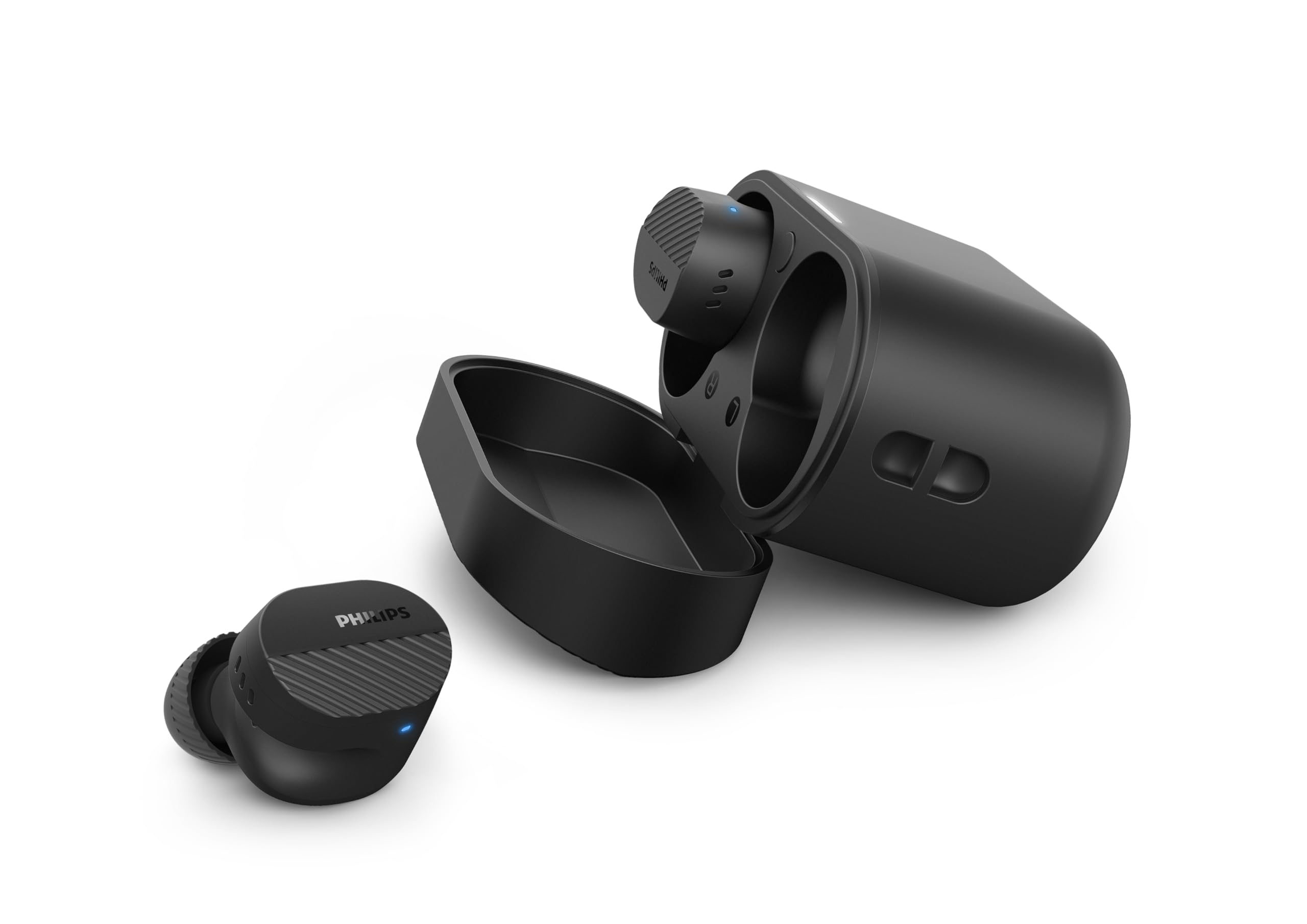
Image: A person holds the Philips TAT5000 earbuds in their charging case in one hand and a smartphone displaying the Philips Headphones app settings in the other, demonstrating app control.
Maintenance
Cleaning
- Gently wipe the earbuds and charging case with a soft, dry, lint-free cloth.
- Remove eartips and clean them with mild soap and water, then dry thoroughly before reattaching.
- Do not use abrasive cleaners, alcohol, or chemical solvents.
Water Resistance
The earbuds are IPX5 water resistant, meaning they are protected against sweat and splashes of water. They are not designed for submersion in water. Ensure the charging port is dry before charging.
Storage
Store the earbuds in their charging case when not in use to protect them and conserve battery life. Avoid extreme temperatures.
Troubleshooting
| Problem | Possible Cause | Solution |
|---|---|---|
| Earbuds do not power on | Low battery | Place earbuds in the charging case and charge fully. |
| Cannot pair with device | Bluetooth off, earbuds not in pairing mode, or device too far | Ensure Bluetooth is enabled on your device. Open the charging case to activate pairing mode. Move device closer to earbuds. Try forgetting the device in Bluetooth settings and re-pairing. |
| No sound or poor sound quality | Incorrect eartip size, low volume, or connection issue | Adjust eartips for a secure fit. Increase volume on your device. Reconnect earbuds to your device. |
| ANC not working effectively | Improper fit, or ANC mode not active | Ensure earbuds are properly seated in your ears with the correct eartip size. Verify ANC is enabled via touch controls or the Philips Headphones App. |
| Charging case not charging | Faulty cable or power source | Try a different USB-C cable and power adapter. Ensure the charging port is clean and dry. |
If issues persist, refer to the Philips Headphones App for further assistance or contact customer support.
Specifications
- Model Name: TAT5000BK/00
- Connectivity: Bluetooth 5.4
- Audio Drivers: 8mm Graphene-Coated Dynamic Driver
- Battery Life: Up to 40 Hours Total (10 hours earbuds + 30 hours case, ANC off)
- Quick Charge: 15 minutes for 3 hours playtime
- Water Resistance: IPX5 (Sweat and splash proof)
- Control Method: Touch
- Noise Control: Adaptive Noise Canceling Pro
- Weight: Approximately 4.16 ounces (earbuds and case)
- Included Components: Earbuds, Charging Case, USB-C Cable, Eartips, User Manual
Warranty and Support
Your Philips TAT5000 True Wireless Bluetooth Earbuds are covered by a limited warranty. Please refer to the warranty card included in your product packaging or visit the official Philips website for detailed warranty terms and conditions specific to your region.
For technical support, product registration, or frequently asked questions, please visit the Philips support website or contact Philips customer service directly. Contact information can typically be found on the Philips website or in your product documentation.


