
1. Introduction
This manual provides detailed instructions for the installation, operation, and maintenance of your PHEZEN 9-inch Touchscreen Car Radio Stereo. Please read this manual thoroughly before installation and use to ensure proper functionality and safety. This unit is designed for Dodge Durango models from 2014 to 2020.

An overview of the PHEZEN 9-inch touchscreen car radio stereo seamlessly integrated into the dashboard of a Dodge Durango, showcasing its large display and user interface.
2. Package Contents
Verify that all items listed below are included in your package:
- 1 x Car Stereo Unit
- 1 x Power Cable
- 1 x GPS Antenna
- 2 x USB Cables
- 1 x RCA Cable
- 1 x Backup Camera
- 1 x User Manual

An image displaying all components included in the PHEZEN car radio package, such as the main stereo unit, power cables, GPS antenna, USB cables, RCA cable, backup camera, and user manual.
3. Setup and Installation
Professional installation is recommended for this car stereo system. Ensure the vehicle's battery is disconnected before beginning installation.
3.1 Compatibility Check
This car stereo is specifically designed for Dodge Durango models manufactured between 2014 and 2020.

This image illustrates the visual transformation of a Dodge Durango dashboard (right-hand drive) before and after the installation of the PHEZEN car radio, highlighting the upgrade from the factory unit to the new touchscreen system.
3.2 Wiring Connections
Refer to the detailed wiring diagram for correct connections. Ensure all cables are securely connected to prevent malfunctions.

A detailed diagram illustrating the various connection points on the back of the PHEZEN car radio, including power, USB, RCA input, GPS module, and reverse signal, crucial for installation.
- Power Cable: Connect the main power harness to the vehicle's wiring.
- GPS Antenna: Mount the GPS antenna in a location with a clear view of the sky, typically on the dashboard or under the windshield.
- USB Cables: Connect the provided USB cables for external devices or data transfer.
- RCA Cable: Use for external audio/video input or output, if applicable.
- Backup Camera: Connect the backup camera to the designated input. Ensure the reverse signal wire is connected to trigger the display automatically when reversing.
4. Operating Instructions
4.1 Basic Operation
- Power On/Off: Press and hold the power button on the unit or use the vehicle's ignition.
- Touchscreen Interface: Navigate through menus and applications by tapping, swiping, and pinching on the 9-inch 2.5D touchscreen.
4.2 Wireless CarPlay & Android Auto
Connect your smartphone wirelessly to access navigation, music, calls, and messages directly on the car stereo screen.
- Ensure Bluetooth and Wi-Fi are enabled on your smartphone.
- On the car stereo, select the CarPlay or Android Auto application.
- Follow the on-screen prompts to pair your device.

A visual representation of the car radio's screen showing the Wireless CarPlay and Android Auto interfaces, demonstrating features like calls, messages, navigation, and music playback.
4.3 GPS Navigation & WiFi Connectivity
The unit supports both offline and online navigation. Connect to Wi-Fi for real-time traffic updates and online map services.
- Offline Maps: Pre-loaded maps allow navigation without an internet connection.
- Online Maps: Connect to a Wi-Fi hotspot (e.g., from your smartphone) to use online navigation apps and access other internet-dependent features.
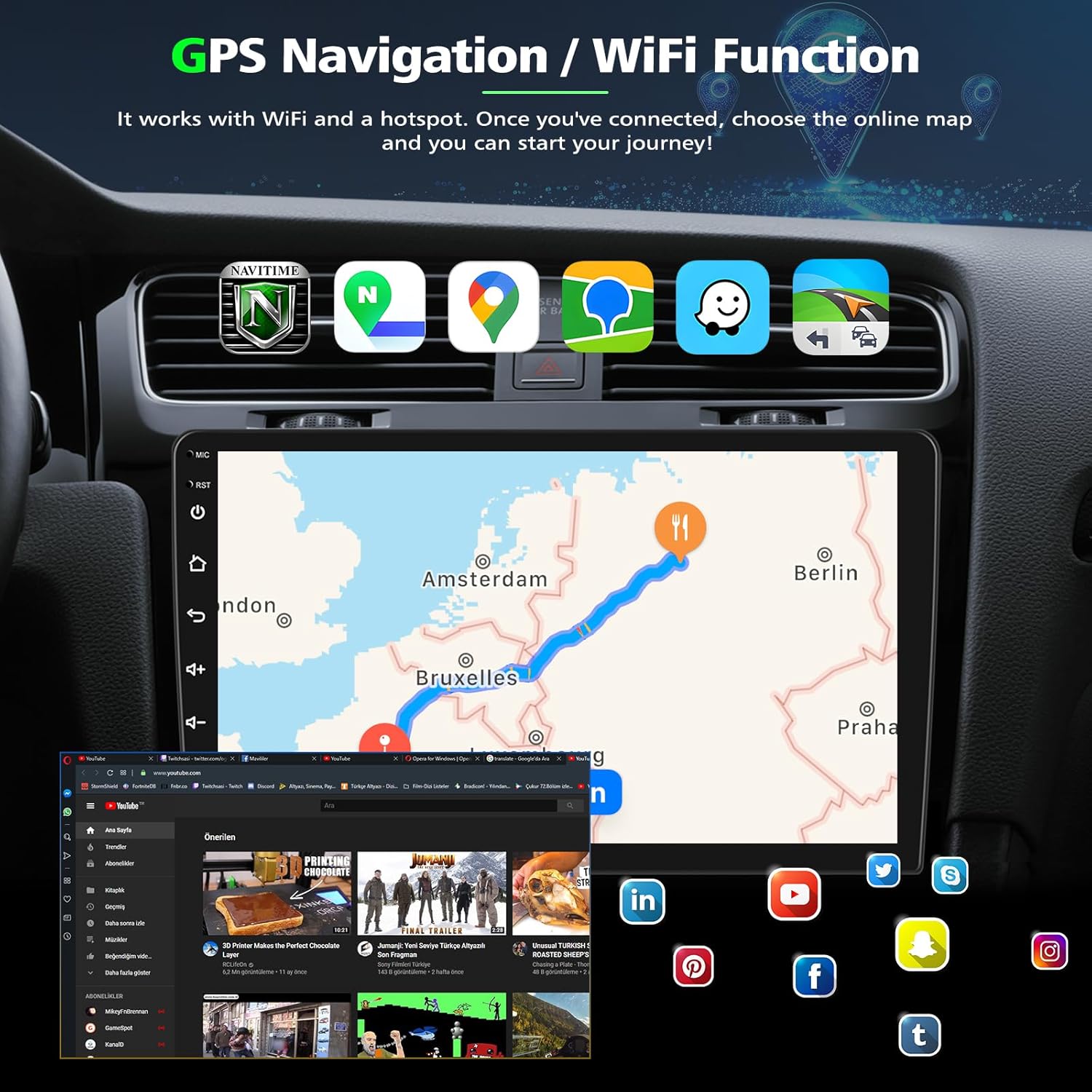
The car radio screen displaying various GPS navigation applications and indicating active WiFi connectivity, illustrating its capabilities for both online and offline mapping.
4.4 Split-Screen Mode
Run two applications simultaneously on the screen for enhanced multitasking.
- To activate, open an app, then long-press the recent apps button or drag another compatible app to the side of the screen.
4.5 Steering Wheel Control (SWC)
Program your vehicle's steering wheel buttons to control the car stereo for safer operation.
- Go to Settings > Steering Wheel Control or Steering Learn.
- Follow the on-screen instructions to assign functions to each button.

This image demonstrates the reverse display feature with parking guidelines and the integration of steering wheel controls for operating the car radio, enhancing safety and convenience.
4.6 Bluetooth
Connect your phone via Bluetooth for hands-free calling and audio streaming.
- Enable Bluetooth on your phone and the car stereo.
- Search for available devices on the car stereo and select your phone.
- Confirm the pairing code.
4.7 FM/RDS Radio
Access local radio stations with clear reception.
- Use the radio application to scan for stations and save your favorites.
- RDS (Radio Data System) provides additional information like station name and song title where available.
4.8 Voice Control
Utilize voice commands for various functions, enhancing convenience and safety.
- Activate voice control through the dedicated button or by saying the wake-up phrase (if configured).

A collage showcasing key features: Bluetooth for hands-free calls, split-screen mode for multitasking, FM/RDS radio interface, and voice control activation.
5. Maintenance
To ensure the longevity and optimal performance of your car stereo, follow these maintenance guidelines:
- Cleaning the Screen: Use a soft, lint-free cloth to gently wipe the touchscreen. Avoid abrasive cleaners or harsh chemicals.
- Software Updates: Periodically check for available software updates to improve performance and add new features. Refer to the manufacturer's website or contact support for update procedures.
- General Care: Avoid exposing the unit to extreme temperatures, direct sunlight for prolonged periods, or excessive moisture.
6. Troubleshooting
If you encounter issues with your car stereo, refer to the following common problems and solutions:
- No Power:
- Check all power cable connections.
- Verify the vehicle's fuse for the stereo is intact.
- No Sound:
- Ensure the volume is not muted or set too low.
- Check speaker wire connections.
- Verify audio source selection.
- GPS Signal Issues:
- Ensure the GPS antenna is properly installed and has a clear view of the sky.
- Move the vehicle to an open area away from tall buildings or dense foliage.
- CarPlay/Android Auto Not Connecting:
- Ensure Bluetooth and Wi-Fi are active on your phone.
- Try forgetting the device on both the stereo and your phone, then re-pairing.
- Update your phone's operating system to the latest version.
- Touchscreen Unresponsive:
- Restart the car stereo unit.
- If the issue persists, perform a factory reset (refer to settings menu, note this will erase all custom settings).
7. Specifications
| Feature | Specification |
|---|---|
| Brand | PHEZEN |
| Model Name | PHEZEN (ASIN: B0F1MQJT5C) |
| Compatible Vehicle | Dodge Durango (2014-2020) |
| Operating System | Android, iOS (via CarPlay/Android Auto) |
| Display Size | 9 Inches |
| Memory Storage Capacity | 64 GB |
| Connectivity Technology | Bluetooth, Wi-Fi |
| Special Features | Bluetooth, Touchscreen, Wireless CarPlay, Android Auto, GPS Navigation, FM/RDS Radio, Steering Wheel Control, Backup Camera Support, Split-Screen Mode |
| Map Type | Worldwide |
| Item Weight | 4.24 pounds |
| Package Dimensions | 15.98 x 12.2 x 7.48 inches |
8. Warranty Information
For specific warranty details, including coverage period and terms, please refer to your purchase documentation or contact the seller directly. Keep your proof of purchase for any warranty claims.
9. Technical Support
If you have any questions regarding the installation or operation of your PHEZEN car stereo, please contact our support team:
- Online Support: Visit the product page on Amazon and click on the store name "UZZO-PHEZEN". Then, select "Ask a question" or "Send message to seller".
- Our support team aims to respond within 24 hours to assist you with any issues.