
Introduction
Thank you for choosing the Redragon M725 Tri-Mode Wireless Gaming Mouse. This manual provides essential information for setting up, operating, and maintaining your new mouse. The M725 offers versatile connectivity options, a lightweight design, and customizable features to enhance your gaming and productivity experience.
Key Features:
- Tri-Mode Connectivity: USB-C Wired, Bluetooth 5.1, and 2.4GHz Wireless.
- Ultra-Lightweight Honeycomb Shell: Weighs approximately 49g for comfortable extended use.
- Adjustable DPI: Up to 8000 DPI with 5 redefinable levels.
- 5 Programmable Buttons: Customize functions and macros.
- High Precision Optical Sensor.
Setup
Package Contents
- Redragon M725 Gaming Mouse
- USB-C to USB-A Cable
- 2.4GHz USB Receiver
- User Manual
Charging the Mouse
Before first use, it is recommended to fully charge the mouse. Connect the provided USB-C cable to the mouse's front port and the other end to a USB power source (e.g., computer USB port, USB wall adapter). The LED indicator will show charging status and turn off when fully charged.
Connecting the Mouse
The M725 supports three connection modes: 2.4GHz Wireless, Bluetooth 5.1, and USB-C Wired. Use the switch on the bottom of the mouse to select your desired mode.

Image: The Redragon M725 mouse highlighting its tri-mode connectivity options: USB-C, Bluetooth 5.1, and 2.4GHz wireless.
2.4GHz Wireless Mode
- Locate the 2.4GHz USB receiver, usually stored in a compartment on the bottom of the mouse.
- Plug the USB receiver into an available USB port on your computer.
- Slide the mode switch on the bottom of the mouse to the "2.4G" position.
- The mouse should connect automatically. If not, press any mouse button to wake it up.
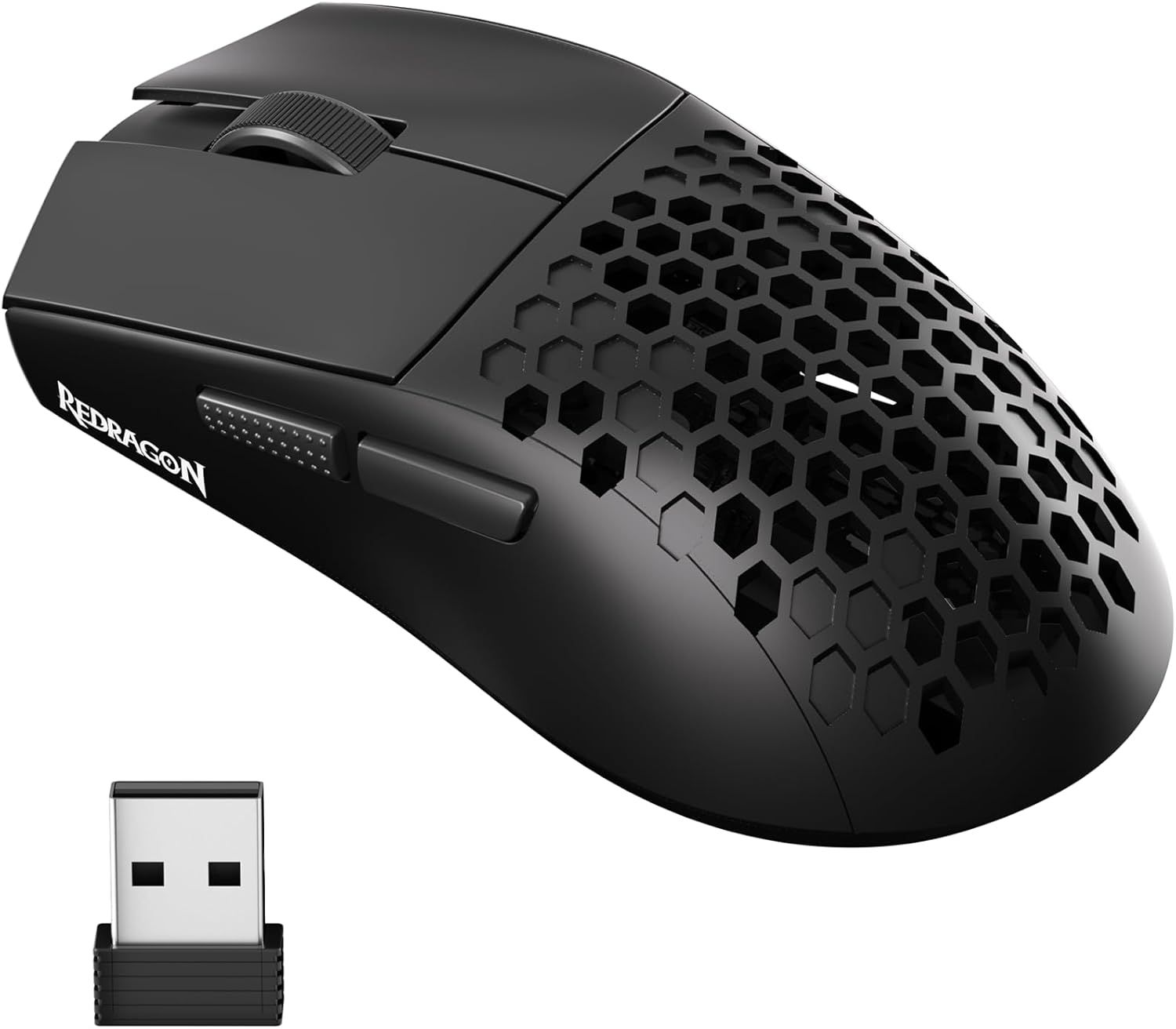
Image: The Redragon M725 mouse shown alongside its 2.4GHz USB receiver, ready for wireless connection.
Bluetooth 5.1 Mode
- Slide the mode switch on the bottom of the mouse to the "BT" position.
- The mouse's indicator light will start blinking, indicating it's in pairing mode.
- On your computer or device, open Bluetooth settings and search for new devices.
- Select "Redragon M725" from the list of available devices to pair.
- Once paired, the indicator light will become solid or turn off.
USB-C Wired Mode
- Connect the USB-C end of the cable to the mouse and the USB-A end to your computer.
- Slide the mode switch on the bottom of the mouse to the "OFF" position. This ensures a stable wired connection and charges the mouse.
- The mouse will function as a standard wired mouse.
Operating Instructions
Power On/Off and Mode Switching
The switch on the bottom of the mouse allows you to select between 2.4G wireless, Bluetooth (BT), and Off modes. Set to "OFF" when not in use to conserve battery or when using wired mode.
DPI Adjustment
The M725 features adjustable DPI settings to suit different tasks and gaming preferences. The default DPI levels are 400, 800, 1600, 2400, and 4000. The maximum DPI is 8000.
- Use the DPI button (usually located behind the scroll wheel) to cycle through the preset DPI levels.
- An indicator light (color may vary) will briefly show the current DPI level.

Image: A visual representation of the Redragon M725's adjustable DPI settings (400 to 8000) and polling rates (125Hz to 1000Hz).
Programmable Buttons
The mouse is equipped with 5 programmable buttons, including the left click, right click, scroll wheel click, and two side buttons. These buttons can be customized using the Redragon software.

Image: The Redragon M725 mouse from a side angle, emphasizing its ultra-light 49g honeycomb shell design.
Customization with Software
For advanced customization, download the dedicated Redragon software from the official Redragon website. The software allows you to:
- Redefine button functions.
- Create and assign complex macros.
- Adjust DPI levels and polling rates with finer control.
- Manage multiple configuration profiles.
Note: The customization software is not supported when the mouse is connected via Bluetooth mode. It functions with Type-C Wired and 2.4GHz Wireless modes.

Image: A computer screen displaying the Redragon customization software, showing options for button settings, macro management, and performance adjustments for the M725 mouse.
Maintenance
Cleaning
- Use a soft, dry cloth to wipe the surface of the mouse.
- For stubborn dirt, slightly dampen the cloth with water or a mild cleaning solution.
- Avoid using harsh chemicals or abrasive materials.
- Ensure no liquid enters the mouse's internal components, especially through the honeycomb shell.
Battery Care
The M725 mouse has a built-in rechargeable battery. To maximize battery life:
- Charge the mouse regularly, especially when the battery low indicator appears.
- Avoid completely draining the battery frequently.
- Store the mouse in a cool, dry place when not in use for extended periods.
- The mouse offers up to 44 hours of non-stop use on a full charge.
Troubleshooting
Mouse Not Responding
- Check Battery: Ensure the mouse is charged. Connect it via USB-C cable.
- Check Mode Switch: Verify the switch on the bottom of the mouse is set to the correct mode (2.4G, BT, or OFF for wired).
- 2.4GHz Connection: Ensure the USB receiver is securely plugged into a working USB port. Try a different USB port.
- Bluetooth Connection: Re-pair the mouse with your device. Ensure Bluetooth is enabled on your device.
- Wired Connection: Ensure the USB-C cable is properly connected and try a different USB port.
DPI Not Changing
- Ensure you are pressing the correct DPI cycle button.
- If using custom DPI settings, verify they are correctly configured in the Redragon software and that the mouse is in a compatible mode (2.4G or Wired).
Lag or Disconnections
- Interference: Move the mouse closer to the receiver (for 2.4GHz) or your device (for Bluetooth). Avoid obstacles between the mouse and receiver/device.
- Other Wireless Devices: Minimize interference from other wireless devices operating on similar frequencies.
- Battery Level: A low battery can affect wireless performance. Charge the mouse.
Specifications
| Model | M725 |
| Connectivity | 2.4GHz Wireless, Bluetooth 5.1, USB-C Wired |
| DPI Levels | 400/800/1600/2400/4000 (Default), up to 8000 DPI |
| Polling Rate | Adjustable (125Hz, 250Hz, 500Hz, 1000Hz) |
| Buttons | 5 Programmable Buttons |
| Weight | Approximately 49g |
| Sensor | High Precision Optical Sensor |
| Battery Life | Up to 44 hours (non-stop use) |
| Hand Orientation | Right |
| Compatible OS | Windows |
| Wireless Range | Up to 10 meters |
| Material | Plastic |
| Dimensions (L x W) | 4.76" x 2.5" |

Image: An overhead view of the Redragon M725 mouse's high-precision optical sensor, indicating maximum speed of 80ips and acceleration of 60g.
Warranty
The Redragon M725 Gaming Mouse comes with a 2-year warranty from the date of purchase. This warranty covers manufacturing defects and ensures the product meets its specified performance. Please retain your proof of purchase for warranty claims.
The warranty does not cover damage caused by:
- Accident, abuse, misuse, or improper installation.
- Unauthorized repairs or modifications.
- Normal wear and tear.
Support
For further assistance, technical support, or to download the latest software and drivers, please visit the official Redragon website:
You may also refer to the FAQ section on the website for common issues and solutions.


