
IINE IINE Wireless Controller with Charging Dock
IINE Wireless Controller with Charging Dock User Manual
Model: IINE Wireless Controller with Charging Dock
1. Introduction
This manual provides detailed instructions for the IINE Wireless Controller with Charging Dock. It covers setup, operation, maintenance, and troubleshooting to ensure optimal performance and user experience. This controller is designed for multi-platform compatibility, including PC, Nintendo Switch, Android, and iOS devices.
2. Package Contents
- IINE Wireless Controller
- Charging Dock
- USB-C Charging Cable
- Cat Tail USB Adapter (for wireless connection)
- User Manual
3. Product Overview
The IINE Wireless Controller features an ergonomic design with a unique kitten aesthetic, optimized for comfortable use, especially for smaller hands. It includes advanced functionalities such as programmable macro buttons, turbo function, 6-axis motion control, and adjustable rumble feedback.

Image 3.1: Front view of the IINE Wireless Controller with its charging dock.

Image 3.2: The charging dock with the removable cat tail USB adapter. The adapter can be used for wireless connectivity.
Controller Components:
- Left/Right Analog Sticks: With paw print caps for precise movement.
- D-Pad: Directional input.
- Action Buttons (A, B, X, Y): Standard gaming inputs.
- Shoulder Buttons (L, R, ZL, ZR): Top-mounted buttons and triggers.
- Back Buttons (ML, MR): Programmable buttons located on the rear grip.
- Home Button: For system menu access.
- Screenshot Button: Captures in-game screenshots.
- Turbo Button: Activates turbo function.
- 3.5mm Headphone Jack: For audio output (functional in wired mode).
- USB-C Port: For charging and wired connection.
4. Setup and Connection
4.1 Charging the Controller
Before first use, fully charge the controller. Connect the USB-C cable to the charging dock and a power source. Place the controller onto the charging dock. The indicator light on the controller will show charging status.

Image 4.1: The controller placed on its charging dock. A unique meowing sound may play upon docking.
A full charge typically takes approximately 3 hours and provides up to 6 hours of gameplay.
4.2 Connecting to Devices
The controller supports both wireless (Bluetooth or USB adapter) and wired connections.
4.2.1 Wireless Connection (Bluetooth)
- Ensure the controller is powered off.
- Press and hold the Home button for 3 seconds until the indicator lights flash rapidly, indicating pairing mode.
- On your device (Switch, PC, Android, iOS), navigate to Bluetooth settings and select the IINE controller from the list of available devices.
- Once connected, the indicator light will become solid.
4.2.2 Wireless Connection (USB Adapter)
- Remove the Cat Tail USB Adapter from the charging dock.
- Plug the adapter into a USB port on your PC or other compatible device.
- Power on the controller. It should automatically connect to the adapter.
4.2.3 Wired Connection
- Connect the USB-C cable to the controller and then to your device (PC, Switch dock).
- The controller will automatically switch to wired mode.
5. Operating Instructions
5.1 Basic Controls
Refer to the Product Overview section for button identification. The controller functions as a standard gamepad for navigation and gameplay.
5.2 Special Features
5.2.1 Macro Function
The ML and MR buttons on the back of the controller are programmable. Use the IINE app (if available for your device) or specific button combinations to record and assign complex sequences of button presses to these macro buttons.

Image 5.1: Illustration of the programmable ML/MR buttons for macro functions.
5.2.2 Turbo Function
The Turbo button allows for rapid-fire input. To activate:
- Press and hold the Turbo button, then press the desired action button (e.g., A, B, X, Y, L, R, ZL, ZR). The button will now continuously register input when held.
- To adjust turbo speed, press Turbo and push the left joystick up or down.
- To deactivate, press and hold Turbo again, then press the same action button.

Image 5.2: Visual guide for activating and adjusting the Turbo function.
5.2.3 Adjustable Rumble
The controller features adjustable vibration feedback. To modify the intensity:
- To increase rumble intensity: Press Turbo + push the left joystick up.
- To decrease rumble intensity: Press Turbo + push the left joystick down.

Image 5.3: Diagram showing how to adjust rumble intensity levels.
5.2.4 6-Axis Motion Control
The integrated 6-axis gyroscope provides precise motion sensing for compatible games. This feature is automatically active when connected to a supported platform like Nintendo Switch.

Image 5.4: Visual representation of the 6-axis gyro motion control in action with a Nintendo Switch.
5.2.5 Headphone Jack
A 3.5mm headphone jack is located at the bottom of the controller. Please note that the headphone jack functions only when the controller is connected via a wired USB-C connection.
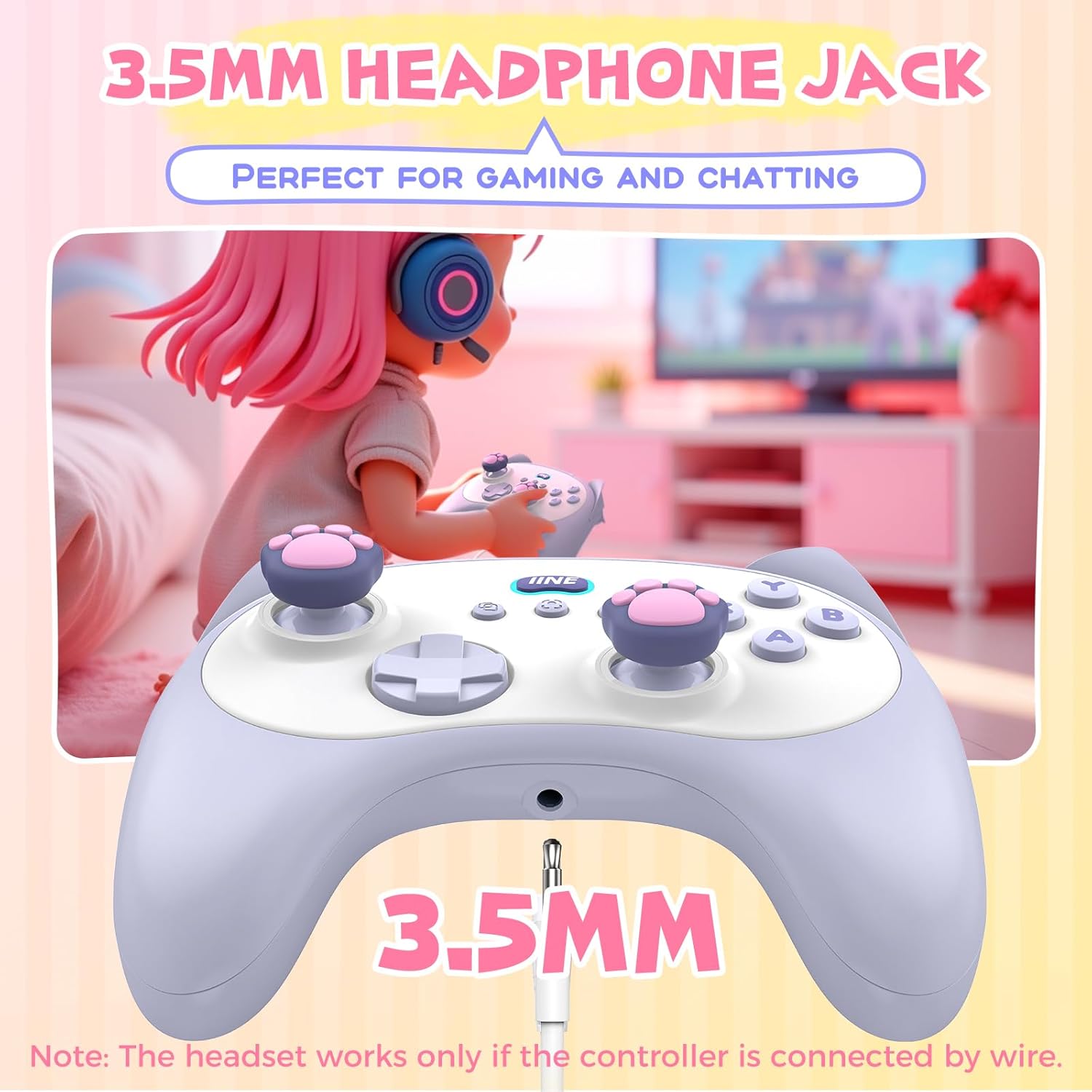
Image 5.5: Close-up of the 3.5mm headphone jack on the controller.
5.3 Battery Status Check
To check the controller's battery status, press the Turbo button + the Equals (=) button. The indicator lights will display the current battery level.

Image 5.6: Visual guide for checking the controller's battery status.
5.4 Meowing Sound Control
The charging dock emits a meowing sound when the controller is placed on it. To turn this sound on or off, press the Home button + Equals (=) button + X button simultaneously.

Image 5.7: Instructions for enabling or disabling the meowing sound feature.
6. Maintenance
6.1 Cleaning
Use a soft, dry cloth to clean the controller and charging dock. For stubborn dirt, slightly dampen the cloth with water. Avoid using harsh chemicals or abrasive materials, as these can damage the surface.
6.2 Storage
Store the controller and dock in a cool, dry place away from direct sunlight and extreme temperatures. When not in use for extended periods, ensure the controller is fully charged before storage to preserve battery life.
7. Troubleshooting
| Problem | Possible Cause | Solution |
|---|---|---|
| Controller does not power on. | Low battery. | Charge the controller using the charging dock or USB-C cable. |
| Unable to connect via Bluetooth. | Controller not in pairing mode; device Bluetooth off; interference. | Ensure controller is in pairing mode (flashing lights). Check device Bluetooth settings. Move closer to the device. |
| Headphone jack not working. | Controller is in wireless mode. | Connect the controller via USB-C cable to enable the headphone jack. |
| Buttons are unresponsive or delayed. | Low battery; wireless interference; firmware issue. | Charge the controller. Reduce distance to device. Check for firmware updates (via IINE app if available). |
| Meowing sound not playing/stopping. | Sound feature toggled off/on. | Press Home + Equals (=) + X to toggle the sound. |
8. Specifications
- Model: IINE Wireless Controller with Charging Dock
- Connectivity: Bluetooth, Wired (USB-C), 2.4GHz Wireless (via USB adapter)
- Compatibility: PC, Nintendo Switch, Android, iOS
- Battery: 500mAh (approx. 6 hours playtime, 3 hours charge time)
- Features: Macro function, Turbo function, 6-Axis Motion Control, Adjustable Rumble, Hall Effect Joysticks, Hall Effect Triggers, 3.5mm Headphone Jack
- Dimensions: Approximately 5.19 x 3.77 x 2.12 inches (Controller)
- Weight: Approximately 15.5 ounces

Image 8.1: Diagram illustrating the dimensions of the IINE Wireless Controller.
9. Warranty and Support
9.1 Warranty Information
IINE products are covered by a limited warranty against manufacturing defects. Please refer to the warranty card included in your package or visit the official IINE website for detailed warranty terms and conditions.
9.2 Customer Support
For technical assistance, troubleshooting, or warranty claims, please contact IINE customer support through their official website or the contact information provided in your product packaging. When contacting support, please have your product model and purchase details ready.
Ask a question about this manual
Ask about setup, troubleshooting, compatibility, parts, safety, or missing instructions. Manuals+ will review the question and use this page’s manual context to help answer it.