
Introduction
Thank you for choosing the MYSTILUCK Wireless Controller. This controller is designed to provide a versatile and enhanced gaming experience across multiple platforms, including PlayStation 5, PC (Windows 10 and above), Mac, iOS, Android, and Steam Deck. This manual provides detailed instructions for setup, operation, maintenance, and troubleshooting to ensure optimal performance.

Image: The MYSTILUCK Wireless Controller, featuring a black finish with colorful LED accents around the joysticks, touchpad, and button outlines.
Setup
Package Contents
- MYSTILUCK Wireless Controller
- USB Charging Cable
- USB Wireless Adapter (for certain connections)
- User Manual
Charging the Controller
The controller comes with a built-in 1500mAh rechargeable battery. Before first use, fully charge the controller. Connect the supplied USB charging cable to the controller's USB-C port and the other end to a compatible USB power source (e.g., console, PC, USB wall adapter). The LED indicator will show charging status and turn off or change color when fully charged.
Connecting to Devices
The MYSTILUCK Wireless Controller supports multiple connection methods depending on the device.

Image: A graphic illustrating the MYSTILUCK Wireless Controller's compatibility with PS5, PC, Mac, Steam Deck, Android, and iOS devices.
- PlayStation 5: Turn on your PS5 console. Connect the controller to the PS5 using the USB charging cable. Press the PS button on the controller. Once paired, you can disconnect the cable for wireless play.
- PC (Windows 10 and above):
- Wireless (Bluetooth): Ensure your PC has Bluetooth enabled. On the controller, press and hold the Share button and PS button simultaneously until the light bar flashes. On your PC, go to Bluetooth settings, search for new devices, and select the controller.
- Wireless (USB Adapter): Plug the USB wireless adapter into an available USB port on your PC. The controller should automatically connect.
- Wired: Connect the controller directly to your PC using the USB charging cable. The PC should recognize it automatically.
- Mac: On the controller, press and hold the Share button and PS button simultaneously until the light bar flashes. On your Mac, go to System Preferences > Bluetooth, search for new devices, and select the controller.
- iOS/Android: On the controller, press and hold the Share button and PS button simultaneously until the light bar flashes. On your mobile device, enable Bluetooth, search for new devices, and select the controller.
- Steam Deck: On the controller, press and hold the Share button and PS button simultaneously until the light bar flashes. On your Steam Deck, go to Bluetooth settings, search for new devices, and select the controller.
Operating the Controller
Button Layout and Basic Functions
The MYSTILUCK Wireless Controller features a standard layout with several enhanced functionalities:
- D-pad: Directional input.
- Action Buttons (Triangle, Circle, Cross, Square): Primary game input.
- Left/Right Analog Joysticks: Precise movement and camera control.
- L1/R1 (Bumpers): Secondary action buttons.
- L2/R2 (Triggers): Analog input for acceleration, braking, or shooting.
- PS Button (Home): Access system menus, power on/off.
- Share Button: Share gameplay content.
- Options Button: Access in-game menus.
- Touchpad: Multi-touch input for navigation and specific game functions.
- 3.5mm Headphone Jack: For audio output and microphone input.
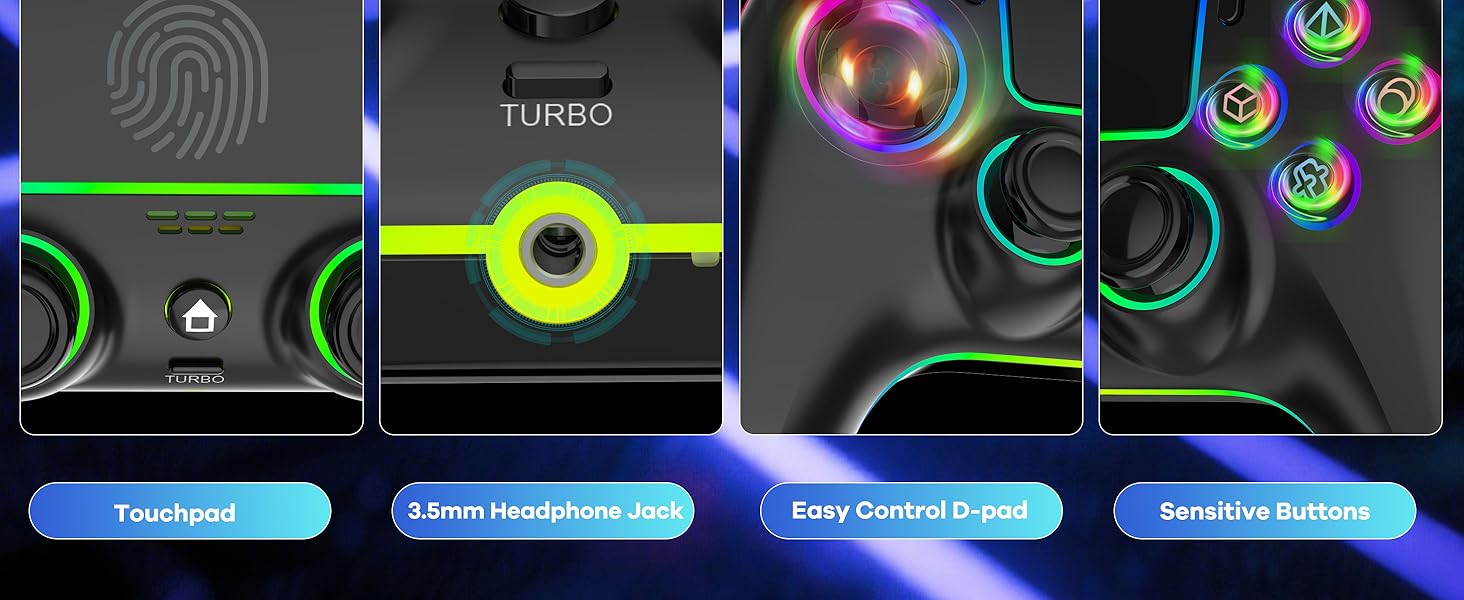
Image: A detailed view highlighting the touchpad, 3.5mm headphone jack, D-pad, and responsive action buttons of the controller.
Advanced Features
- Hall Effect Joysticks: These joysticks utilize magnetic sensors instead of physical contacts, significantly reducing wear and tear, eliminating stick drift, and providing enhanced precision and durability.
- Hall Effect Triggers: Similar to the joysticks, the triggers use Hall Effect technology for precise and consistent input, offering a response time of less than 0.1ms.
- Dual Vibration: Experience immersive haptic feedback with dual vibration motors that respond to in-game actions.
- 6-Axis Gyroscope: Built-in motion sensors provide precise control for games that support tilt and motion input.
- Programmable Keys (M1/M2): The controller features two programmable back buttons (M1 and M2) for custom key mapping. Refer to the quick start guide for specific programming instructions.
- Turbo Function: Activate rapid-fire for specific buttons. To activate, press and hold the desired button, then press the 'Turbo' button. Repeat the process to deactivate.
- LED Lighting Modes: The controller features 7 colors of lighting and 4 LED modes. Consult the quick start guide for instructions on how to cycle through colors and modes.

Image: An X-ray style diagram illustrating the internal mechanism of the Hall Effect Joysticks, emphasizing the magnetic sensing technology.

Image: A cutaway view of the controller's trigger mechanism, highlighting the Hall Effect sensor for improved responsiveness.

Image: A visual representation of the controller's dual vibration feature and its 1500mAh battery capacity.

Image: A graphic highlighting the 6-axis gyroscope and the location of the two programmable back keys (M1, M2) on the controller.

Image: Four MYSTILUCK Wireless Controllers, each illuminated with different LED colors, demonstrating the customizable lighting options.
Maintenance
- Cleaning: Use a soft, dry cloth to clean the controller. For stubborn dirt, slightly dampen the cloth with water or a mild cleaning solution. Avoid harsh chemicals or abrasive materials.
- Storage: Store the controller in a cool, dry place away from direct sunlight and extreme temperatures.
- Battery Care: To prolong battery life, avoid fully discharging the controller frequently. If storing for an extended period, charge the battery to approximately 50% every few months.
Troubleshooting
- Controller Not Connecting/Disconnecting Frequently:
- Ensure the controller is fully charged.
- Re-pair the controller with your device (refer to the 'Connecting to Devices' section).
- Ensure no other wireless devices are causing interference.
- Try connecting the controller via a wired connection to rule out wireless issues.
- Charging Issues:
- Verify the USB charging cable is securely connected to both the controller and the power source.
- Try a different USB port or power adapter.
- Ensure the charging cable is not damaged.
- Buttons Unresponsive or Turbo Function Stuck:
- Perform a controller reset. Locate the small reset button on the back of the controller (often in a small pinhole). Use a thin object (like a paperclip) to press and hold the button for 3-5 seconds.
- Ensure the controller's firmware is up to date (check the manufacturer's website for updates).
- Stick Drift: The MYSTILUCK controller features Hall Effect Joysticks designed to prevent stick drift. If you experience any issues, perform a controller reset. If the problem persists, contact customer support.
Specifications
| Model Number | B0F1MKBDPT |
| Manufacturer | MYSTILUCK |
| Connectivity | Wireless (Bluetooth/USB Adapter), Wired (USB-C) |
| Compatibility | PS5, PC (Windows 10+), Mac, iOS, Android, Steam Deck |
| Battery | 1500mAh (included) |
| Item Weight | 10.9 ounces (approx. 309 grams) |
| Package Dimensions | 6.42 x 4.37 x 2.95 inches (approx. 16.3 x 11.1 x 7.5 cm) |
| Special Features | Hall Effect Joysticks & Triggers, Dual Vibration, 6-Axis Gyroscope, Programmable Back Buttons, Customizable LED Lighting, Touchpad, 3.5mm Headphone Jack |
Warranty and Support
Warranty Information
MYSTILUCK products are manufactured to high-quality standards. For specific warranty details, including coverage period and terms, please refer to the warranty card included with your product or visit the official MYSTILUCK website. Keep your proof of purchase for warranty claims.
Customer Support
If you encounter any issues or have questions not covered in this manual, please contact MYSTILUCK customer support. Contact information can typically be found on the product packaging, the official MYSTILUCK website, or through your retailer's support channels.