1. Introduction
This manual provides detailed instructions for the installation, operation, and maintenance of your Hisense 32A4Q Smart TV. Please read this manual thoroughly before operating your TV and retain it for future reference. The Hisense 32A4Q is a 32-inch HD Smart TV featuring Game Mode, AI Sports Mode, Dolby DTS HD sound, high contrast, and screen sharing capabilities.
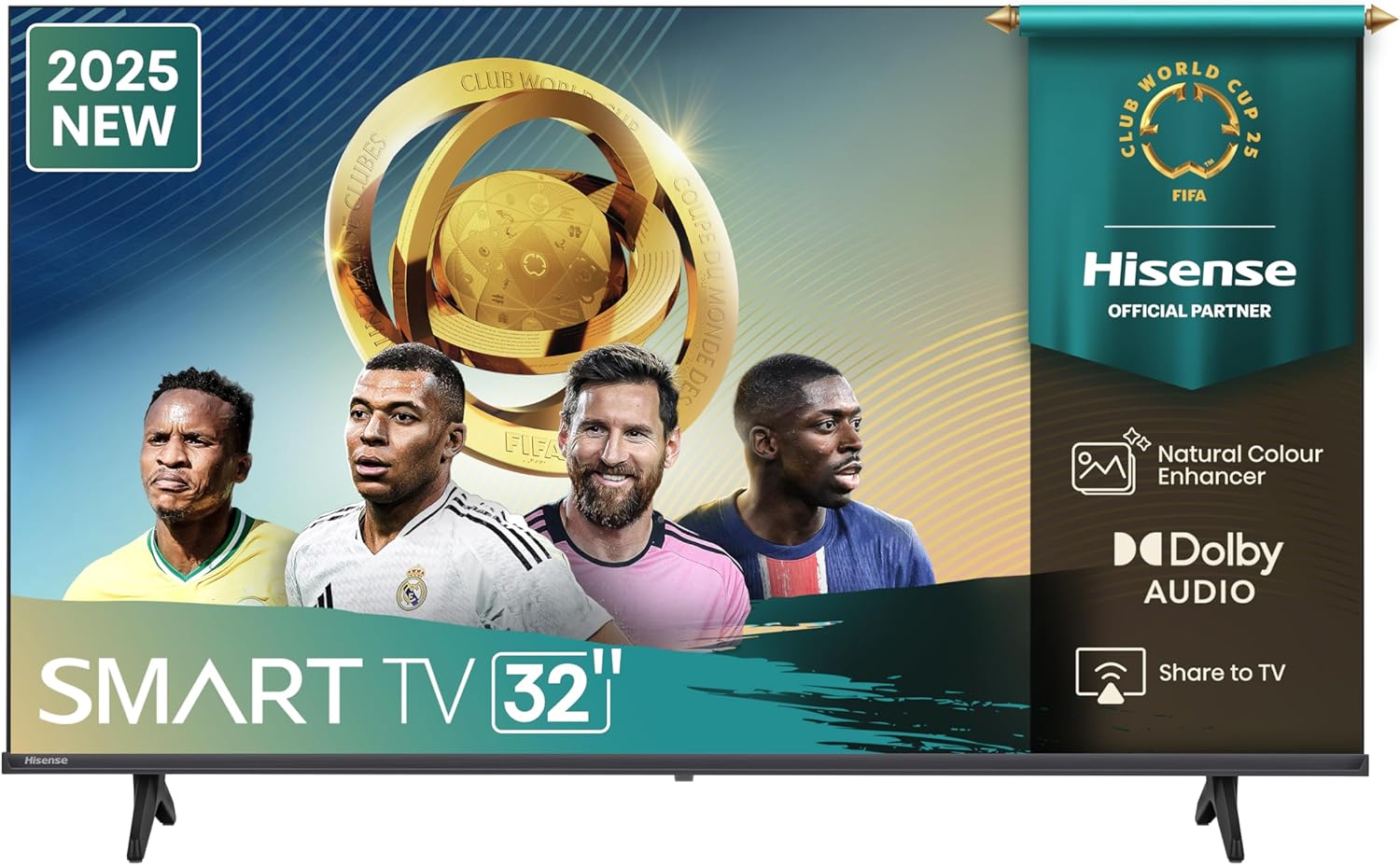
Figure 1.1: Front view of the Hisense 32A4Q Smart TV, showcasing its sleek design and display.
2. Safety Information
Always observe the following safety precautions to prevent fire, electric shock, or injury:
- Do not expose the TV to rain or moisture.
- Do not open the TV casing; refer all servicing to qualified personnel.
- Ensure proper ventilation around the TV.
- Unplug the TV during lightning storms or when unused for long periods.
- Keep the TV away from direct sunlight, heat sources, and strong magnetic fields.
- Use only the power cord supplied with the TV.
3. What's in the Box
Please check that all components are present:
- Hisense 32A4Q Smart TV
- Power Cable
- TV Stand (2 pieces)
- Remote Control
- Screws for Stand Assembly
- User Manual (this document)
4. Setup
4.1 Attaching the Stand
Carefully place the TV face down on a soft, clean surface. Align the stand pieces with the corresponding slots on the bottom of the TV and secure them with the provided screws.

Figure 4.1: Front view of the Hisense 32A4Q TV, illustrating the attached stand.
4.2 Wall Mounting (Optional)
The Hisense 32A4Q supports VESA wall mounts with a pattern of 100x100 mm. Ensure you use appropriate wall mounting hardware and follow the instructions provided with your wall mount kit. Consult a professional for installation if unsure.

Figure 4.2: Diagram showing the dimensions of the Hisense 32A4Q TV and its VESA wall mount size.
4.3 Connecting Devices
Your TV is equipped with multiple ports for connecting external devices. Refer to the back panel for port locations.
- HDMI Ports: Connect Blu-ray players, game consoles, or set-top boxes.
- USB Ports (2 total): Connect USB drives for media playback.
- Antenna/Cable Input: Connect your antenna or cable TV signal.
- Ethernet Port: For wired internet connection.
- Audio Output: For connecting external audio systems.

Figure 4.3: Rear view of the Hisense 32A4Q TV, highlighting the various input and output ports.
4.4 Initial Power On and Setup
After connecting all necessary cables, plug the power cord into an electrical outlet. The TV will power on and guide you through the initial setup process, including language selection, network connection (Wi-Fi or Ethernet), and channel scanning.
5. Operating Your TV
5.1 Smart TV Features (VIDAA)
Your Hisense 32A4Q runs on the VIDAA Smart TV platform, providing access to popular streaming services like Netflix, YouTube, and Disney+. Navigate using the remote control to explore apps and content.

Figure 5.1: Overview of key features including VIDAA Smart TV, Game Mode, DTS X, Dolby Audio, Natural Colour Enhancer, AI Sports Mode, and Noise Reduction.
5.2 Game Mode
Activate Game Mode to reduce input lag, providing a more responsive gaming experience. This mode optimizes display settings for fast-paced action, cutting delay down to 16ms.

Figure 5.2: Visual representation of the Game Mode feature, emphasizing reduced input lag for gaming.
5.3 AI Sports Mode
The AI Sports Mode enhances the viewing experience for sports content by optimizing picture and sound settings to make fast-moving action smoother and clearer.
5.4 Audio Features (Dolby DTS HD)
Experience immersive audio with Dolby DTS HD sound technology. This feature provides crystal-clear dialogue, great detail, and realistic surround sound effects for movies, TV shows, and music.

Figure 5.3: Image illustrating the immersive audio experience provided by DTS X and Dolby Audio technologies.
5.5 Share to TV Function
Easily mirror or cast content from your mobile device directly to your Hisense TV. This feature allows for seamless sharing of photos, videos, and other media from your smartphone or tablet.
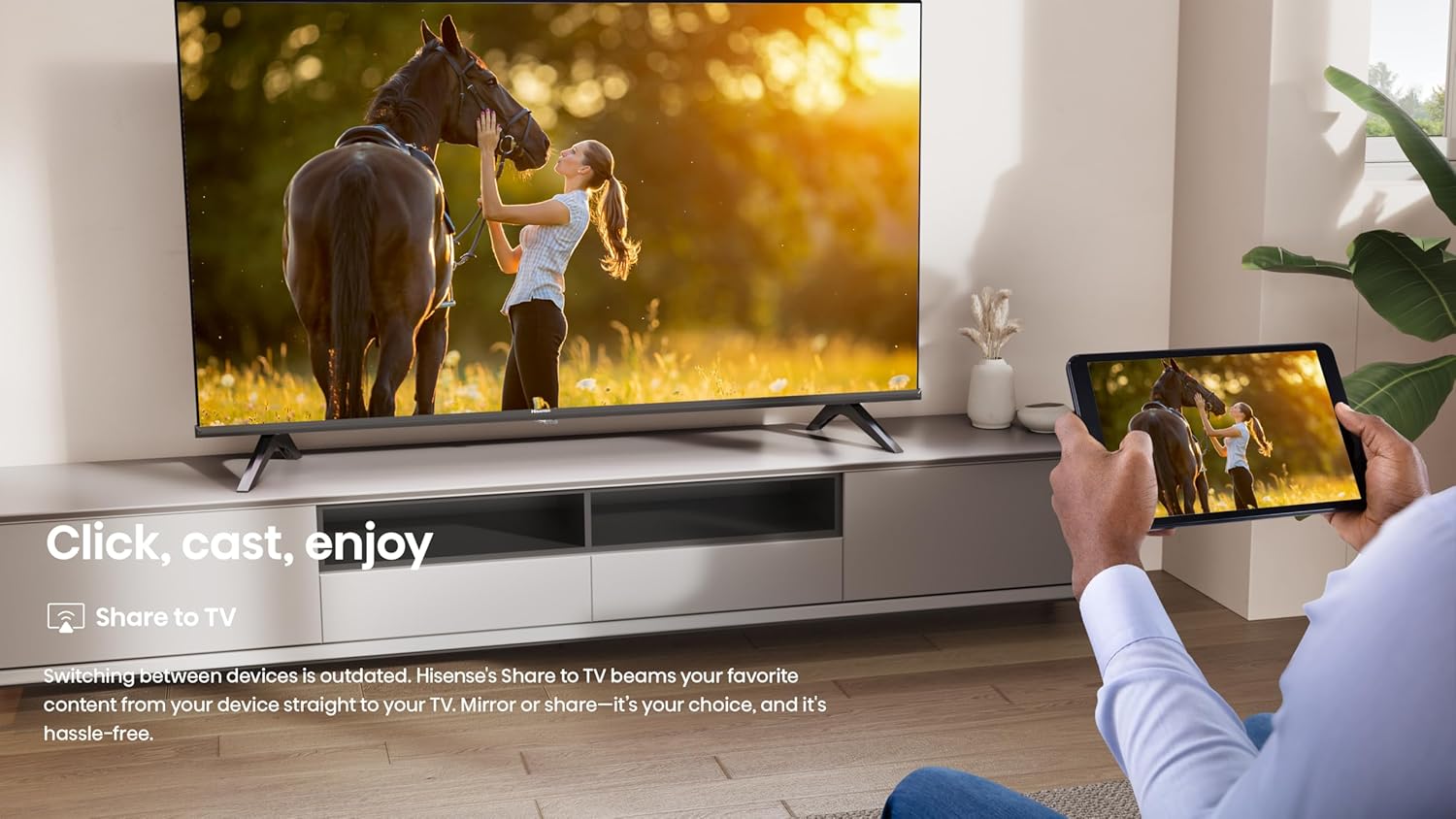
Figure 5.4: Depiction of the 'Share to TV' function, showing a tablet mirroring content to the television.
6. Maintenance
6.1 Cleaning the Screen
Gently wipe the screen with a soft, lint-free cloth. For stubborn marks, dampen the cloth slightly with water or a specialized screen cleaner. Avoid using harsh chemicals or abrasive materials.
6.2 Cleaning the Casing
Use a soft, dry cloth to clean the TV casing. Do not use liquid or spray cleaners directly on the TV.
7. Troubleshooting
If you encounter issues with your TV, try the following solutions:
- No Power: Ensure the power cord is securely plugged into both the TV and the electrical outlet. Try a different outlet.
- No Picture/Sound: Check all cable connections (HDMI, antenna). Ensure the correct input source is selected.
- Remote Control Not Working: Check the batteries and ensure there are no obstructions between the remote and the TV's IR sensor.
- Poor Picture Quality: Check antenna/cable connections. Adjust picture settings in the TV menu.
- No Internet Connection: Verify your Wi-Fi password or Ethernet cable connection. Restart your router.
For more complex issues, refer to the online support resources or contact Hisense customer service.
8. Specifications
| Feature | Specification |
|---|---|
| Brand | Hisense |
| Model Number | 32A4Q |
| Screen Size | 32 Inches |
| Display Technology | LED |
| Resolution | 720p |
| Refresh Rate | 60 Hz |
| Color | Black |
| Connections | HDMI, USB, Wi-Fi |
| Total USB Ports | 2 |
| Aspect Ratio | 16:9 |
| Product Dimensions (D x W x H) | 85P x 72.6l x 43H centimeters |
| Components Included | Power Cable, Stand, Remote Control |
| Country of Origin | China |
9. Warranty and Support
For information regarding product warranty, please refer to the warranty card included with your purchase or visit the official Hisense website. Information on spare parts availability and software updates is not available in this document. For technical support, please contact Hisense customer service or your retailer.
You can find more information and support resources on the official Hisense website: www.hisense.com


