
Introduction
This manual provides detailed instructions for the installation, operation, and maintenance of your PHEZEN 10.1-inch Android 14 Car Stereo Radio. This unit is designed to enhance your driving experience with advanced features such as Wireless CarPlay, Android Auto, GPS Navigation, Bluetooth connectivity, and rear camera support. Please read this manual thoroughly before installation and use to ensure proper functionality and safety.
Compatibility Note
This car stereo radio is specifically compatible with Honda Odyssey models from 2005 to 2010. It is designed for vehicles that originally came with a standard radio unit (with DVD player) and is not compatible with vehicles equipped with a factory central control large screen display.
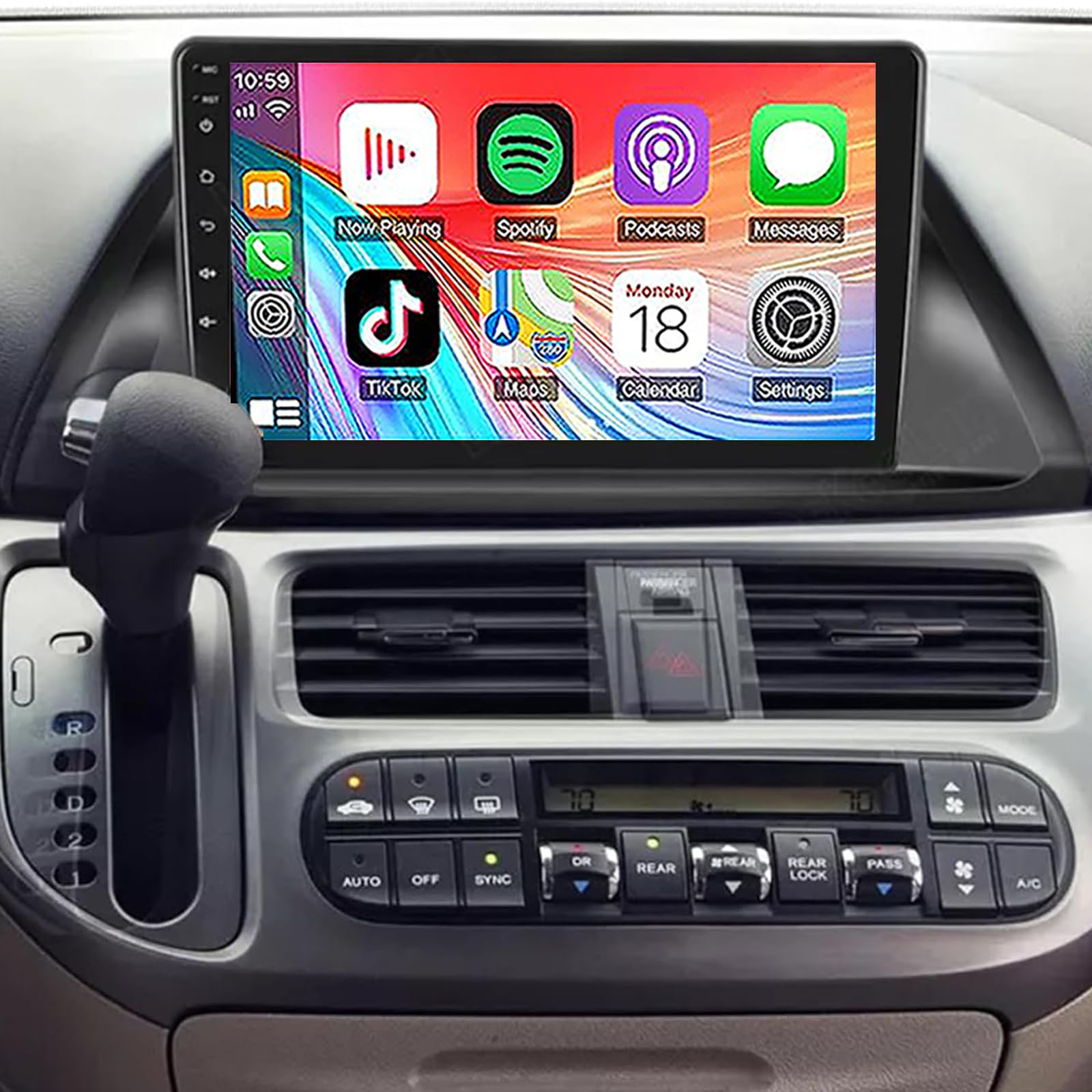
Image: Comparison of compatible (with DVD) and incompatible (with screen) Honda Odyssey dashboards. The product is compatible with the standard radio setup, not the large screen factory option.
Package Contents
Verify that all components are present in the package before beginning installation:
- 1 x Android Stereo Radio (Main Unit)
- Power Cables (2 types)
- GPS Antenna
- RCA Input/Output Cables
- Camera Input Cable
- USB Cables (2)
- Instruction Manual
- Rear Camera
- External Microphone

Image: All components included in the product package, laid out for identification.
Setup and Installation
Professional installation is recommended. Ensure the vehicle's battery is disconnected before starting installation to prevent electrical damage.
- Remove Factory Radio: Carefully remove the existing factory radio unit from your Honda Odyssey dashboard. Refer to your vehicle's service manual for specific instructions on panel removal.
- Connect Wiring Harness: Connect the provided power cables and RCA input/output cables to the corresponding ports on the new Android stereo radio and the vehicle's wiring harness. Ensure all connections are secure.
- GPS Antenna Installation: Mount the GPS antenna in a location with a clear view of the sky, typically on the dashboard or under the windshield, away from metal obstructions. Connect the antenna cable to the main unit.
- Rear Camera Installation: Install the rear camera at the back of your vehicle, ensuring it has a clear view. Route the camera cable to the main unit and connect it to the designated camera input.
- USB and Microphone Connections: Connect the USB cables for external devices and the external microphone for improved call quality.
- Test Connections: Before fully reassembling the dashboard, temporarily reconnect the vehicle's battery and power on the unit to test basic functions (power, audio, touch screen, camera input).
- Secure Unit and Reassemble: Once tested, securely mount the Android stereo radio in the dashboard opening. Reassemble all removed panels and trim pieces.

Image: Rear panel of the head unit displaying the various input and output ports for wiring connections.
Operating Instructions
Wireless CarPlay & Android Auto
Connect your iOS or Android smartphone wirelessly via Bluetooth and Wi-Fi to access CarPlay or Android Auto. This allows you to use phone features like navigation, calls, messages, and music directly on the unit's screen.
- Ensure Bluetooth is enabled on your phone and the head unit.
- Pair your phone with the head unit via Bluetooth.
- Once paired, the system will prompt you to activate CarPlay or Android Auto.
- Follow on-screen instructions to complete the connection.

Image: Display showing the CarPlay and Android Auto interfaces, highlighting features like calls, messages, navigation, and music playback.
GPS Navigation & WiFi Connectivity
The unit features a dual navigation system supporting both offline and online maps. Connect to a Wi-Fi network or mobile hotspot to access online maps and other internet-dependent applications.
- To use online maps, connect the unit to a Wi-Fi network or your phone's hotspot via the settings menu.
- Pre-installed offline maps can be used without an internet connection.
- Download additional map data as needed for specific regions.
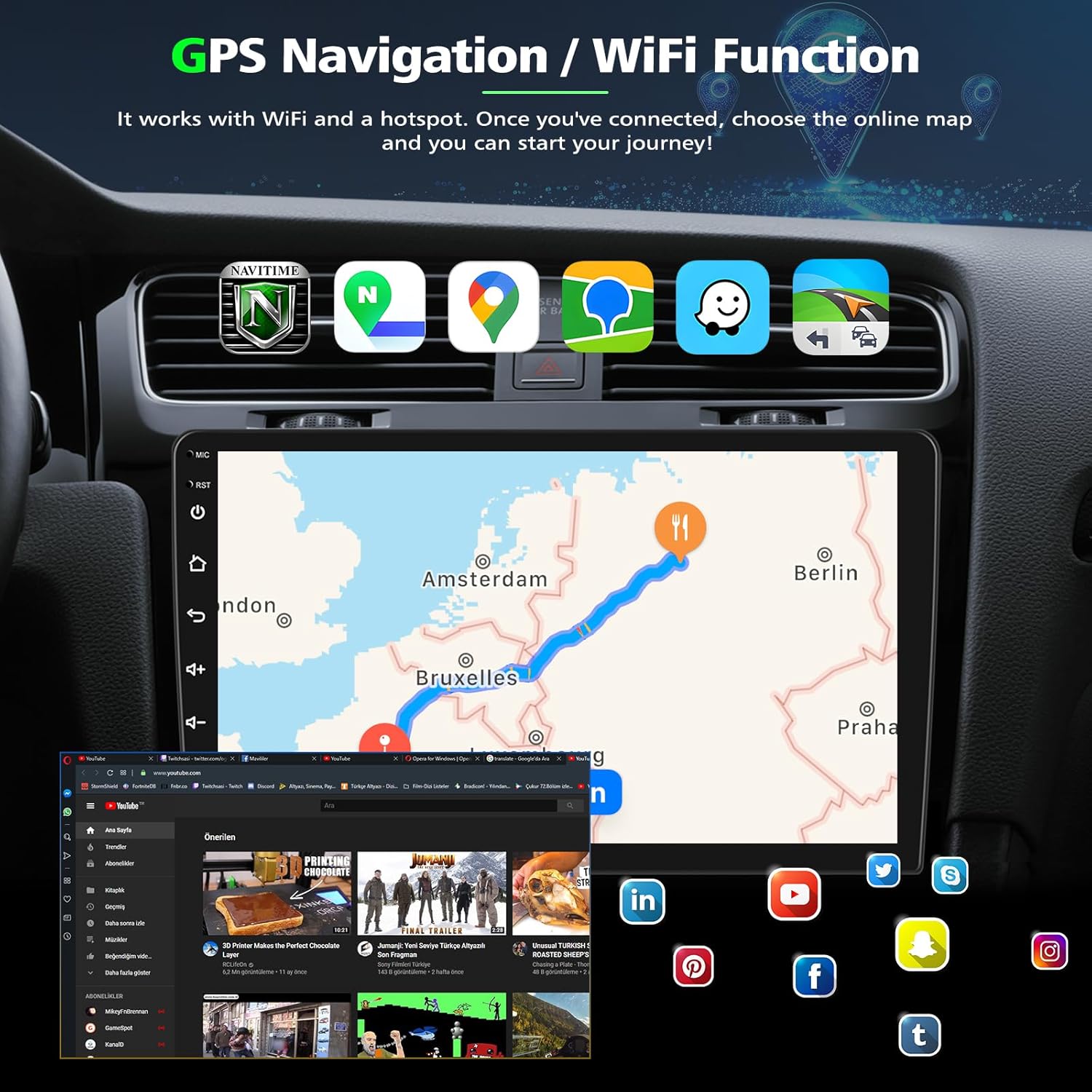
Image: The head unit screen showing GPS navigation with a route and various internet-enabled applications.
Reverse Display (Backup Camera)
When the vehicle is shifted into reverse, the unit automatically displays the view from the connected rear camera. The camera provides a 170° wide-angle view with night vision and IP68 waterproof rating.
- Ensure the rear camera is properly installed and connected.
- The display will automatically switch to the camera view when reverse gear is engaged.
- Reference lines are displayed on the screen to assist with parking.
Steering Wheel Control (SWC)
The unit supports existing steering wheel controls for convenient operation. Functions such as volume adjustment, track skipping, and mode switching can be mapped to your steering wheel buttons.
- Access the "Steering Learn" or "SWC Settings" menu in the unit's settings.
- Follow the on-screen prompts to program each steering wheel button to its desired function.

Image: Visual representation of the reverse camera display and the steering wheel control learning interface.
Bluetooth 5.2 & FM Radio
Utilize Bluetooth 5.2 for hands-free calling and audio streaming. The built-in FM radio allows you to tune into your favorite stations.
- Bluetooth: Pair your phone via Bluetooth settings for hands-free calls and music playback. The unit supports both internal and external microphones.
- FM Radio: Select the FM radio application to scan for and save radio stations.
Split Screen & Voice Control
The split-screen function allows you to run two applications simultaneously, such as navigation and music. Voice control enables hands-free operation of various functions.
- Split Screen: Drag an app icon to one side of the screen to activate split-screen mode, then select another app for the other side.
- Voice Control: Activate voice control (e.g., "Hey Siri" or "OK Google" via CarPlay/Android Auto) to issue commands for navigation, calls, or music.

Image: Demonstrates Bluetooth calling, split-screen functionality, FM radio, and voice control features.
Maintenance
To ensure the longevity and optimal performance of your PHEZEN Android 14 Radio, follow these maintenance guidelines:
- Screen Cleaning: Use a soft, lint-free cloth slightly dampened with water or a screen cleaner specifically designed for electronic displays. Avoid harsh chemicals or abrasive materials.
- Software Updates: Periodically check for and install available software updates to ensure the system runs efficiently and has the latest features and security patches. Updates can typically be found in the system settings under "About Device" or "System Updates."
- Cable Connections: Ensure all cables (power, USB, GPS, camera) remain securely connected. Loose connections can lead to intermittent functionality.
- Environmental Conditions: Avoid exposing the unit to extreme temperatures, direct sunlight for prolonged periods, or excessive moisture.
- Resetting: If the unit becomes unresponsive, a soft reset can often resolve the issue. Refer to the troubleshooting section for instructions on performing a reset.
Troubleshooting
If you encounter issues with your PHEZEN Android 14 Radio, refer to the following common troubleshooting steps:
| Problem | Possible Cause | Solution |
|---|---|---|
| Unit does not power on. | Loose power connection, blown fuse, vehicle battery issue. | Check power cable connections. Inspect vehicle fuses. Ensure vehicle battery is charged. |
| No sound output. | Volume too low, incorrect audio source, speaker wiring issue. | Increase volume. Select correct audio source. Verify speaker wire connections. |
| Touch screen unresponsive. | Software glitch, temporary freeze. | Perform a soft reset (locate the reset button, usually a small pinhole, and press with a non-sharp object). If issue persists, disconnect and reconnect power. |
| GPS signal weak or inaccurate. | GPS antenna obstruction, poor placement, outdated map data. | Ensure GPS antenna has a clear view of the sky. Relocate antenna if necessary. Update map data. |
| CarPlay/Android Auto not connecting. | Bluetooth/Wi-Fi off, phone compatibility, incorrect pairing. | Ensure Bluetooth and Wi-Fi are enabled on both devices. Forget and re-pair the device. Check phone compatibility with CarPlay/Android Auto. |
| Rear camera not displaying. | Loose camera connection, faulty camera, incorrect wiring. | Check camera cable connections. Ensure the camera is receiving power. Verify correct wiring to the reverse trigger. |
Specifications
- Model Number: PHEZEN-1010
- Operating System: Android 14
- RAM: 4GB
- ROM: 64GB
- Screen Size: 10.1 inches
- Display Resolution: 1024*600 IPS Touch Screen
- Connectivity: Bluetooth 5.2, Wi-Fi, USB
- Special Features: Wireless CarPlay, Android Auto, GPS Navigation, Hands-Free Calling, Steering Wheel Control, Reverse Display (with included camera), FM Radio, Split Screen, Voice Control
- Audio Output Mode: Stereo
- Surround Sound Channel Configuration: 2.1
- Output Power: 45 Watts (per channel, total 180 Watts for 4 channels)
- Video Encoding: H.264, H.265/HEVC, MPEG-4
- Supported Audio Formats: WAV, WMA
- Compatible Devices: Smartphone (iOS, Android)
Warranty and Support
Warranty: No specific warranty information is provided with this product. Please refer to your purchase receipt or contact the seller for details regarding any applicable return or exchange policies.
Support: For technical assistance or further inquiries, please contact the seller or manufacturer directly through the platform where the product was purchased.