
ORICO IS6
ORICO 4K USB Portable HDMI Capture Card
Model: IS6 User Manual
1. Introduction
The ORICO IS6 is a versatile 4K USB Portable HDMI Capture Card designed for high-quality video streaming and recording. It features dual 4K@60Hz inputs, Variable Refresh Rate (VRR) support, and multi-format adaptability, making it suitable for various applications including gaming, live broadcasting, and professional video production. This manual provides detailed instructions for setting up, operating, and maintaining your ORICO IS6 capture card.
2. Package Contents
Please verify that all items are present in the package:
- 1 x ORICO IS6 4K Capture Card
- 1 x USB-C to USB-C Cable
- 2 x HDMI Cables
- 1 x User Manual
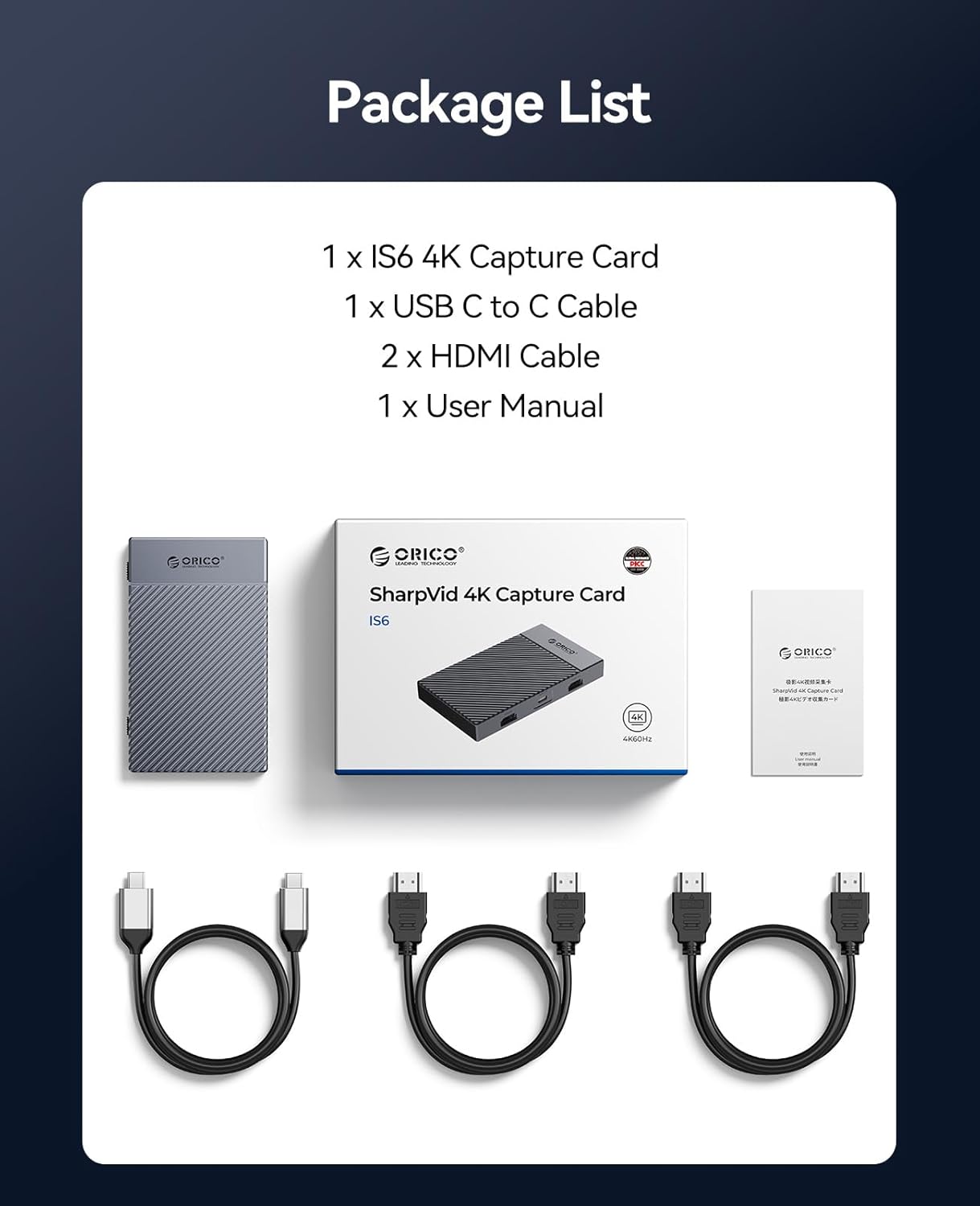
Image: The package contents include the ORICO IS6 capture card, a USB-C to USB-C cable, two HDMI cables, and a user manual.
3. Product Overview
The ORICO IS6 capture card features a robust aluminum body for efficient heat dissipation and durability. It is equipped with multiple ports and switches for flexible connectivity and control.
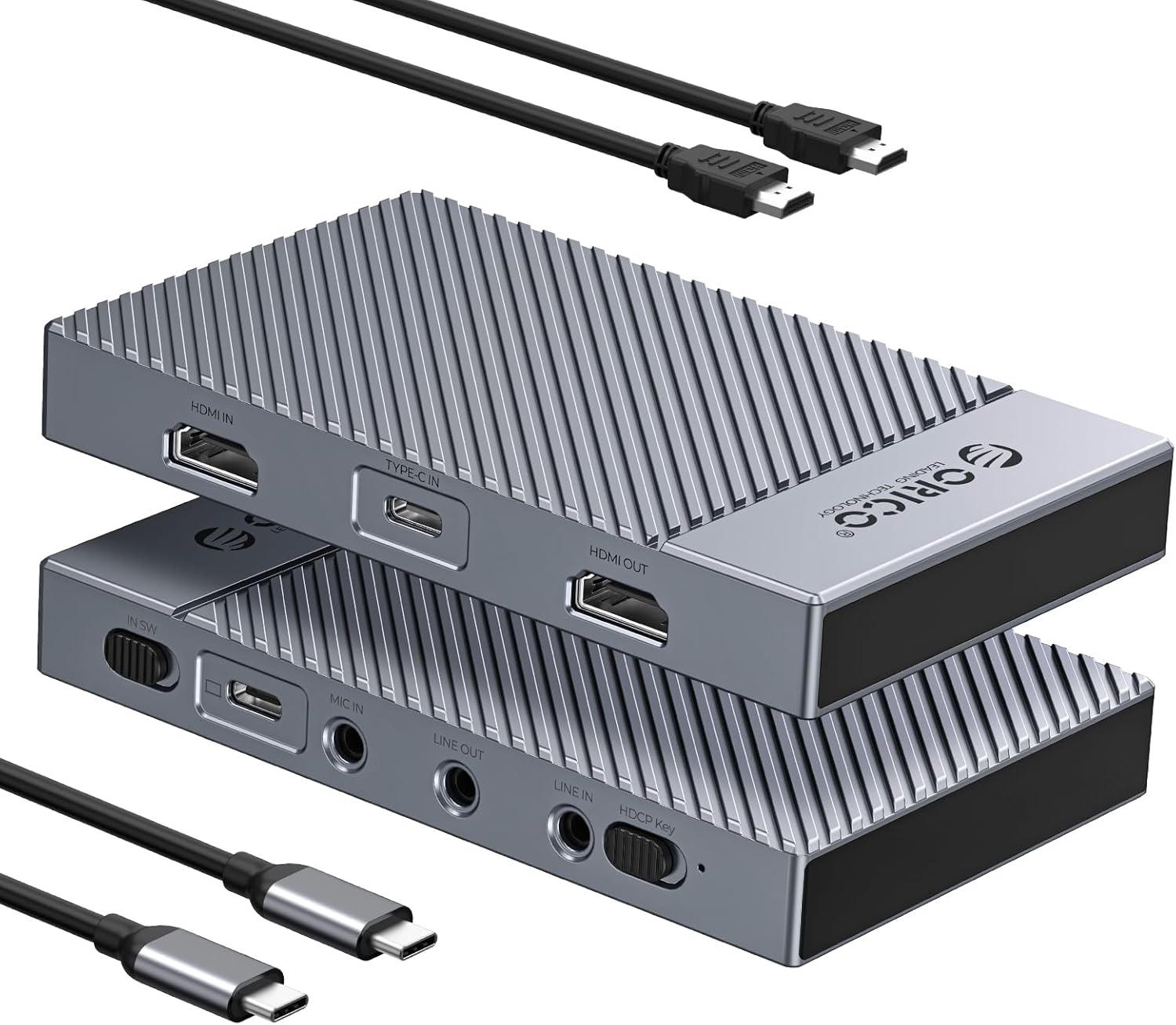
Image: The ORICO IS6 4K Capture Card shown with its included HDMI and USB-C cables, highlighting its compact design and connectivity options.
3.1. Port and Switch Layout

Image: A detailed diagram illustrating the various ports and switches on the ORICO IS6 Capture Card, including HDMI In, Type-C In, HDMI Out, USB-C Capture, 3.5mm Microphone Input, 3.5mm Headphone Output, 3.5mm Mixing Output Console, Video Switching toggle, and HDCP Secret Key Switch.
- HDMI IN: Connects to your video source (e.g., game console, camera, tablet).
- TYPE-C IN: Alternative input for video sources with USB-C video output.
- HDMI OUT: Connects to a monitor or HDTV for loop-out display.
- USB-C Capture: Connects to your computer (laptop/PC) for data transfer and power.
- IN SW (Video Switching): Toggle switch to select between HDMI Input (Left) and Type-C Input (Right).
- MIC IN: 3.5mm input for an external microphone.
- LINE OUT: 3.5mm output for audio monitoring via headphones.
- LINE IN: 3.5mm input for an external audio mixing console.
- HDCP Key: Switch to manage HDCP protection. Left: Open, Right: Close.
4. Setup Guide
Follow these steps to set up your ORICO IS6 capture card for use:
- Connect Power and Data: Connect the ORICO IS6 capture card to your computer (laptop or PC) using the provided USB-C to USB-C cable. This cable provides both power and data transfer for capture. The device is driverless for Windows, macOS, Linux, and Android systems.
- Connect Video Input:
- For HDMI sources (e.g., game console, camera), connect an HDMI cable from your source to the HDMI IN port on the capture card.
- For USB-C video sources (e.g., certain phones, tablets), connect a USB-C cable from your source to the TYPE-C IN port on the capture card.
- Connect Video Output (Optional Loop-Out): If you wish to monitor your video source on a separate display without latency, connect an HDMI cable from the HDMI OUT port on the capture card to your monitor or HDTV.
- Connect Audio Devices (Optional):
- To use an external microphone, connect it to the MIC IN (3.5mm) port.
- To monitor audio, connect headphones to the LINE OUT (3.5mm) port.
- To integrate an external audio mixer, connect it to the LINE IN (3.5mm) port.
- Software Configuration: Open your preferred streaming or recording software (e.g., OBS Studio, Quicktime, Zoom). Select the ORICO IS6 as your video and audio input device.

Image: The ORICO IS6 Capture Card connected to a laptop, with gaming controllers in the background, illustrating a typical setup for capturing gameplay with professional precision.
5. Operating Instructions
5.1. Switching Video Inputs
The ORICO IS6 supports dual 4K 60Hz inputs, allowing you to connect two different video sources simultaneously and switch between them.
- Use the IN SW toggle switch on the side of the capture card to select your active video input.
- Move the switch to the Left position for the HDMI Input.
- Move the switch to the Right position for the Type-C Input.
Note: Only single-screen output is supported at a time. Switching is seamless with zero latency.

Image: A diagram illustrating the dual 4K 60Hz input capability of the ORICO IS6, showing a laptop connected via USB-C and a Nintendo Switch connected via HDMI, with the input switch highlighted.
5.2. Recording and Streaming
Once connected and configured in your software, the ORICO IS6 allows for high-quality recording and streaming.
- The capture card supports 4K/60Hz for both loop-out and capture, ensuring crisp visuals.
- It supports various formats including NV12, YUY2, RGB24, P010, and MJPEG, balancing image quality, color accuracy, and stability for different production needs.

Image: A laptop screen displaying a game being captured in stunning 4K 60Hz quality, with smaller previews showing 1080p and 720p resolutions, emphasizing the high-resolution capture capability.
5.3. Variable Refresh Rate (VRR)
The ORICO IS6 features VRR technology to automatically adapt to your signal source’s frame rate, eliminating stuttering and frame-locking for smoother visuals.

Image: A split screen showing a game scene with VRR Off (pixelated and stuttering) and VRR On (smooth and clear), demonstrating the effectiveness of Variable Refresh Rate in eliminating visual artifacts.
5.4. HDCP Key
The HDCP Key switch allows you to manage High-bandwidth Digital Content Protection. If you encounter issues capturing protected content, you may need to adjust this switch. Note that some content protection mechanisms may prevent capture regardless of this setting.
- Left: Open - HDCP protection is active.
- Right: Close - HDCP protection is bypassed (for compatible sources).
6. Compatibility
6.1. Operating Systems
The ORICO IS6 offers driverless installation and is compatible with:
- Windows
- macOS
- Linux
- Android

Image: The ORICO IS6 Capture Card surrounded by logos of compatible operating systems (Windows, macOS, Linux, Android) and gaming consoles (Nintendo Switch, Xbox, PlayStation), indicating broad system support.
6.2. Software Applications
The device is widely compatible with most streaming and recording applications, including but not limited to:
- OBS Studio
- Quicktime
- Zoom
- Relive
- Camtasia
- Discord

Image: The ORICO IS6 Capture Card surrounded by logos of popular software applications like Quicktime, Zoom, OBS, and Discord, demonstrating its wide software compatibility.
6.3. Compatible Devices
The ORICO IS6 can capture video from a variety of devices:
- Gaming Consoles (PS5, Xbox, Nintendo Switch)
- Laptops and PCs
- Mac and iPad
- Tablets and Smartphones
- Cameras and Camcorders
7. Troubleshooting
If you encounter issues with your ORICO IS6 capture card, please refer to the following common solutions:
- No Video Signal:
- Ensure all HDMI and USB-C cables are securely connected.
- Verify the IN SW toggle switch is set to the correct input (HDMI or Type-C).
- Check if your source device is outputting video correctly.
- Try a different HDMI or USB-C cable.
- Ensure the HDCP Key switch is in the appropriate position for your content.
- No Audio or Poor Audio Quality (e.g., White Noise):
- Check audio settings in your streaming/recording software to ensure the ORICO IS6 is selected as the audio input.
- Ensure external microphones or mixing consoles are properly connected to the MIC IN or LINE IN ports.
- Test with different audio cables or microphones.
- If experiencing white noise, try connecting the capture card to a different USB port on your computer or a different computer to rule out interference.
- Stuttering or Lagging Video:
- Ensure your computer meets the minimum system requirements for 4K@60Hz capture.
- Close unnecessary applications running in the background.
- Verify that the VRR feature is enabled if your source supports it, to eliminate stuttering.
- Try reducing the capture resolution or frame rate in your software settings.
- Glitter Sparkles in Highlights:
- This can sometimes indicate an issue with signal integrity or color space. Try adjusting color settings in your source device or capture software.
- Ensure you are using high-quality HDMI cables.
- Device Not Recognized by Computer:
- Try connecting the USB-C cable to a different USB port on your computer.
- Restart your computer.
- Ensure your operating system is up to date.
8. Specifications
| Feature | Detail |
|---|---|
| Brand | ORICO |
| Model | IS6 |
| Product Dimensions | 4.96 x 2.91 x 0.59 inches |
| Item Weight | 1.1 pounds |
| Hardware Interface | HDMI, USB Type-C |
| Special Feature | Portable, Compact |
| Operating System Compatibility | Windows, iOS, macOS, Linux, Android |
| Compatible Devices | Laptops, PCs, Mac, iPad, PS5, Xbox, Nintendo Switch, Tablets, Smartphones, Cameras, Camcorders |
| Input Resolution | Up to 4K@60Hz |
| Loop-Out Resolution | Up to 4K@60Hz |
| Capture Resolution | Up to 4K@60Hz |
| Supported Formats | NV12, YUY2, RGB24, P010, MJPEG |
| Audio Inputs | 3.5mm Microphone Input, 3.5mm Line Input |
| Audio Outputs | 3.5mm Headphone Output, 3.5mm Mixing Output Console |
9. Warranty and Support
Specific warranty details for the ORICO IS6 4K USB Portable HDMI Capture Card are typically provided with your purchase documentation or on the official ORICO website. Please refer to these resources for comprehensive warranty information.
For technical support, troubleshooting assistance, or further inquiries, please contact ORICO customer service through their official website or the contact information provided in your product packaging. When contacting support, please have your product model (IS6) and purchase details readily available.
Related documentsIS6


Ask a question about this manual
Ask about setup, troubleshooting, compatibility, parts, safety, or missing instructions. Manuals+ will review the question and use this page’s manual context to help answer it.