
1. Introduction
This manual provides essential information for the setup, operation, maintenance, and troubleshooting of your TCL 50-inch QLED 4K Smart TV, model 50P7K. Please read this manual thoroughly before using the television to ensure proper and safe operation.
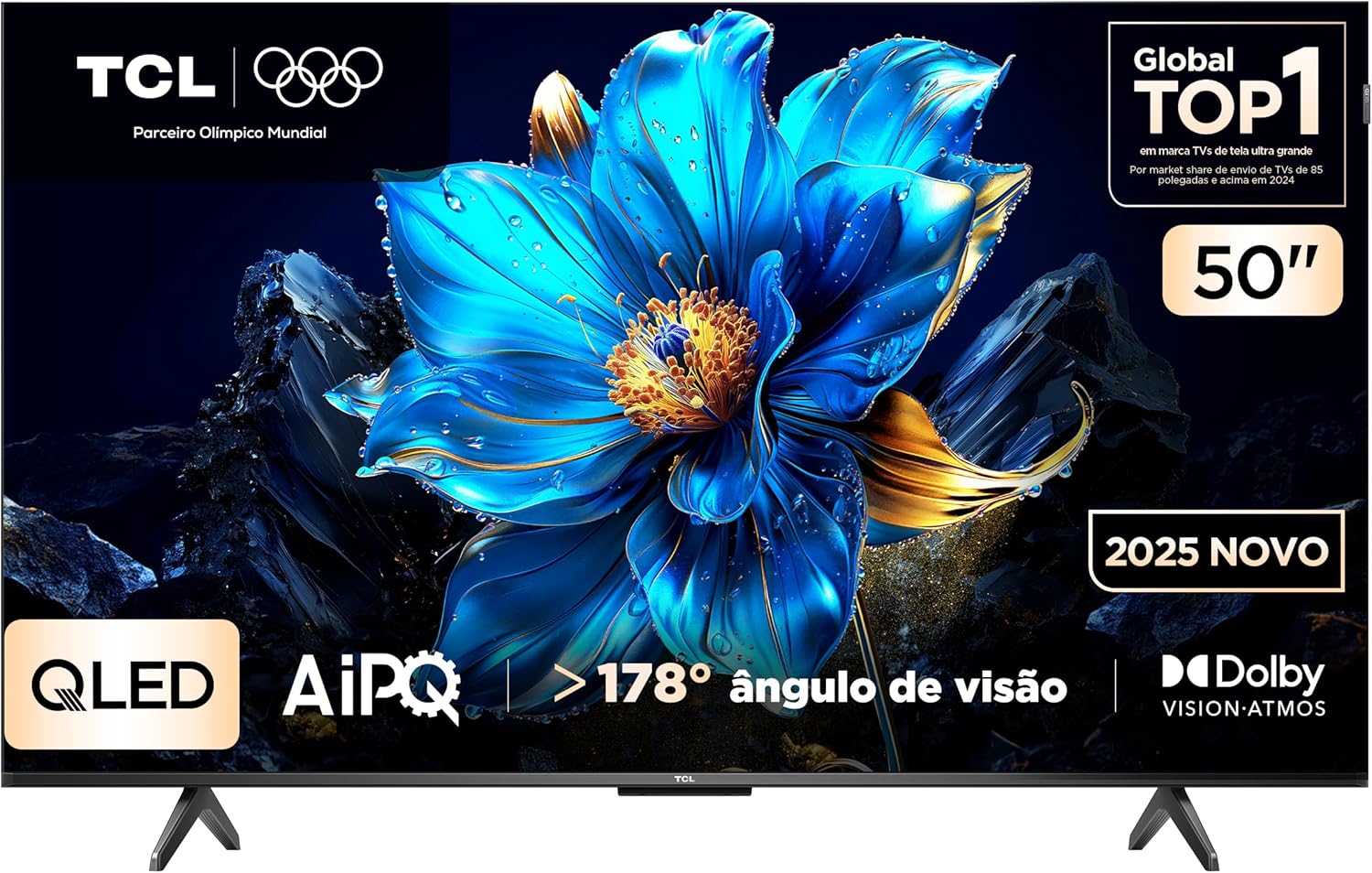
Image 1.1: Front view of the TCL 50-inch QLED 4K Smart TV P7K.
2. Safety Information
Observe the following safety precautions to prevent fire, electric shock, or injury:
- Do not expose the TV to rain or moisture.
- Ensure proper ventilation; do not block ventilation openings.
- Do not place the TV on an unstable cart, stand, tripod, bracket, or table.
- Use only the power cord supplied with the TV.
- Disconnect the power plug from the wall outlet during lightning storms or when unused for long periods.
- Refer all servicing to qualified service personnel.
3. Package Contents
Verify that all items are present in the package:
- 1 x TCL 50-inch Television
- 1 x Remote Control
- 1 x P2/RCA Adapter Cable
- 2 x TV Stands (if applicable)
- Screws for Stand Installation (if applicable)
- User Manual (this document)
4. Setup
4.1 Stand Installation
If you are not wall-mounting the TV, attach the included stands. Ensure the TV is placed on a stable, flat surface. Refer to the diagram below for dimensions and proper stand placement.
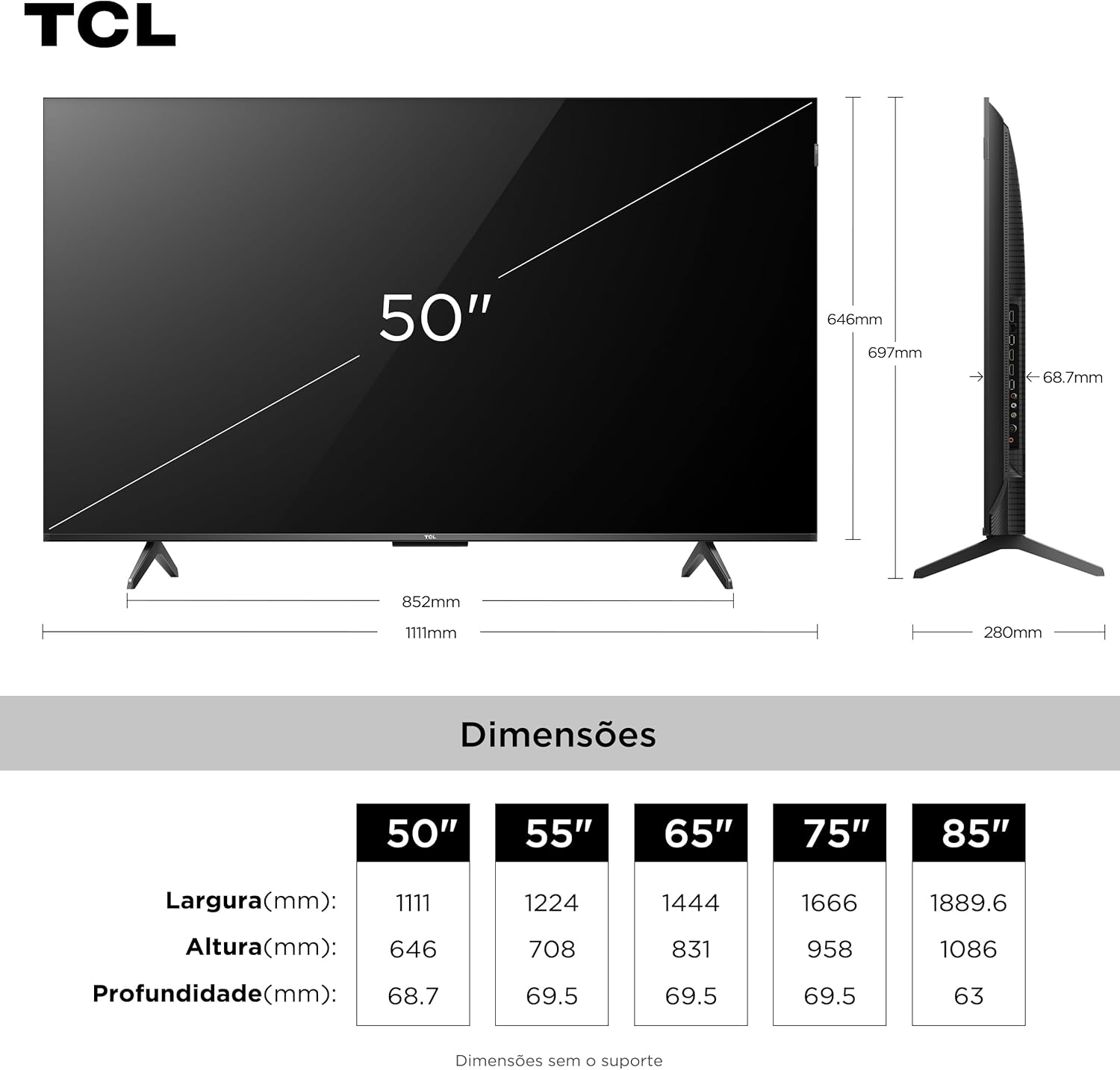
Image 4.1: Dimensions of the TCL 50-inch TV, including stand measurements.
4.2 Wall Mounting
For wall mounting, use a VESA-compatible bracket (not included). Consult a professional for installation to ensure safety and proper mounting.
4.3 Connecting Devices
- Power: Connect the power cord to the TV and then to a wall outlet.
- HDMI: Use HDMI cables to connect external devices such as Blu-ray players, game consoles, or set-top boxes. The TV supports HDMI 2.1.
- USB: Connect USB storage devices for media playback or software updates. The TV has 1 USB port.
- Audio: Use the P2/RCA adapter cable for analog audio connections if needed.
4.4 First-Time Setup
Upon first power-on, the TV will guide you through the initial setup process for Google TV. This includes:
- Language selection.
- Network connection (Wi-Fi or Ethernet).
- Google account sign-in.
- Accepting terms and conditions.
- Tuning channels (if applicable).
5. Operating Instructions
5.1 Remote Control Overview
The remote control allows you to navigate the TV's features. Familiarize yourself with buttons for power, volume, channel, input selection, and Google Assistant.
5.2 Basic Functions
- Power On/Off: Press the power button on the remote or TV.
- Volume Control: Use the volume up/down buttons.
- Input Selection: Press the 'Input' button to switch between HDMI, USB, and other sources.
5.3 Google TV Interface
Your TV runs on Google TV, providing a personalized home screen with content recommendations from your subscriptions. Navigate using the directional pad and 'OK' button on your remote.
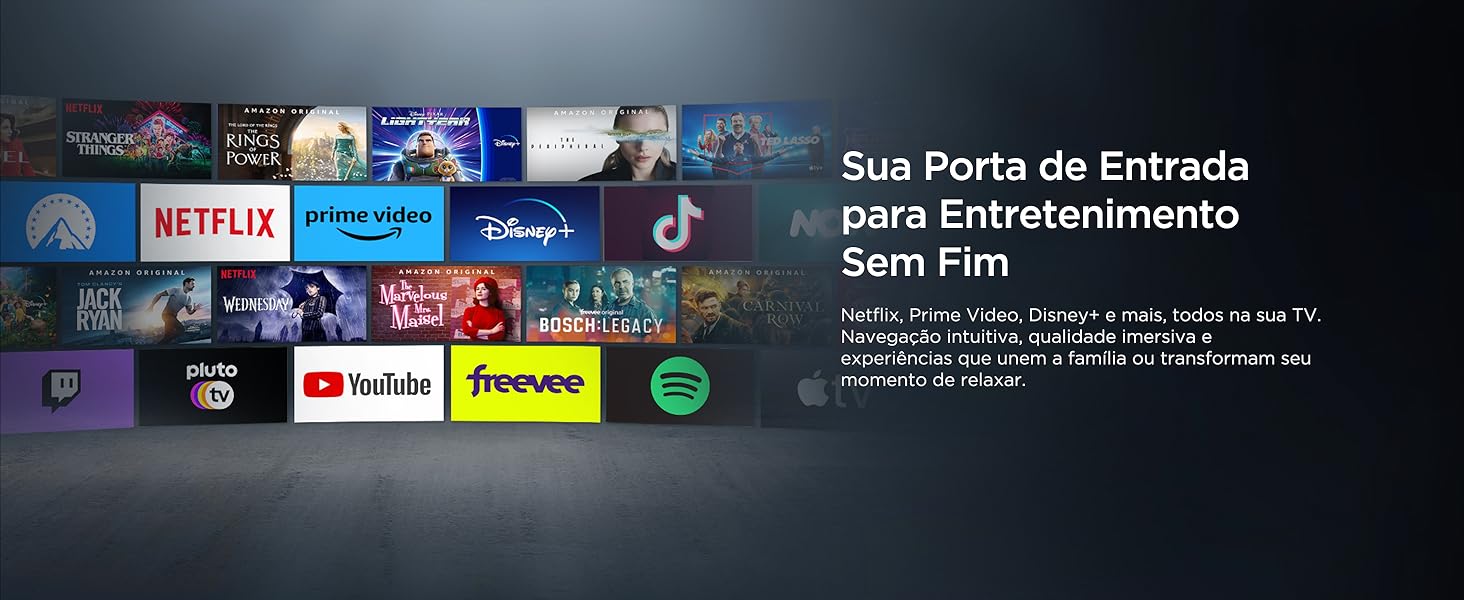
Image 5.1: Example of the Google TV interface, showing content recommendations and applications.
5.4 Google Assistant Voice Control
Press the Google Assistant button on your remote to activate voice control. You can search for content, control smart home devices, get answers, and more.

Image 5.2: A user utilizing Google Assistant for voice commands on the TCL Smart TV.
5.5 Picture and Sound Settings
Access the settings menu to adjust picture and sound modes. The TV supports QLED technology for vibrant colors, 4K resolution, HDR10+, Dolby Vision for enhanced contrast and color, and Dolby Atmos for immersive audio.
5.6 Connectivity
- Wi-Fi: Connect to your home network for internet access and smart features. The TV supports Dual Band Wi-Fi.
- Bluetooth: Pair Bluetooth devices such as headphones, soundbars, or game controllers.
6. Maintenance
6.1 Cleaning
- Screen: Gently wipe the screen with a soft, lint-free cloth. For stubborn marks, use a screen-cleaning solution specifically designed for TVs, applied to the cloth, not directly to the screen.
- Body: Wipe the TV's body with a soft, dry cloth. Avoid abrasive cleaners.
6.2 Software Updates
Ensure your TV's software is up to date for optimal performance and security. You can usually check for updates in the TV's settings menu under 'System' or 'About'.
7. Troubleshooting
If you encounter issues, refer to the following common solutions:
- No Power: Check if the power cord is securely connected and the outlet is working. Try a different outlet.
- No Picture/Sound: Verify the correct input source is selected. Check cable connections to external devices.
- Remote Not Working: Replace the batteries. Ensure there are no obstructions between the remote and the TV.
- Network Connection Issues: Restart your router and modem. Reconnect the TV to the Wi-Fi network in the settings.
- Smart Features Not Responding: Restart the TV by unplugging it for a few minutes and plugging it back in. Check for software updates.
For persistent issues, contact customer support.
8. Specifications
| Feature | Specification |
|---|---|
| Brand | TCL |
| Model | 50P7K |
| Screen Size | 50 inches |
| Display Technology | QLED |
| Resolution | 4K (3840 x 2160) |
| Operating System | Google TV (Android) |
| Refresh Rate | 60 Hz |
| HDR Support | HDR10+, Dolby Vision |
| Audio Technology | Dolby Atmos |
| Connectivity | Wi-Fi (Dual Band), Bluetooth |
| HDMI Ports | HDMI 2.1 compatible |
| USB Ports | 1 |
| Dimensions (W x H x D, without stand) | 111.1 x 64.6 x 7.2 cm |
| Weight (without stand) | 11.8 kg |
| Power Source | Electrical Power |
| Energy Efficiency | 100% (ENCE) |
9. Warranty and Support
9.1 Manufacturer's Warranty
This TCL 50P7K television comes with a 1-year manufacturer's warranty from the date of purchase. This warranty covers manufacturing defects under normal use. Please retain your proof of purchase for warranty claims.
9.2 Customer Support
For technical assistance, warranty service, or further inquiries, please contact TCL customer support. Refer to the official TCL website or your purchase documentation for contact details specific to your region.


