
1. Product Overview
The TRAUSI 1080P Webcam (Model TW-05) is designed to provide high-definition video and clear audio for various applications, including video calls, online meetings, and live streaming. It features a 1080P Full HD resolution, a wide-angle lens, an integrated noise-reducing microphone, automatic light correction, and a privacy cover for enhanced security.
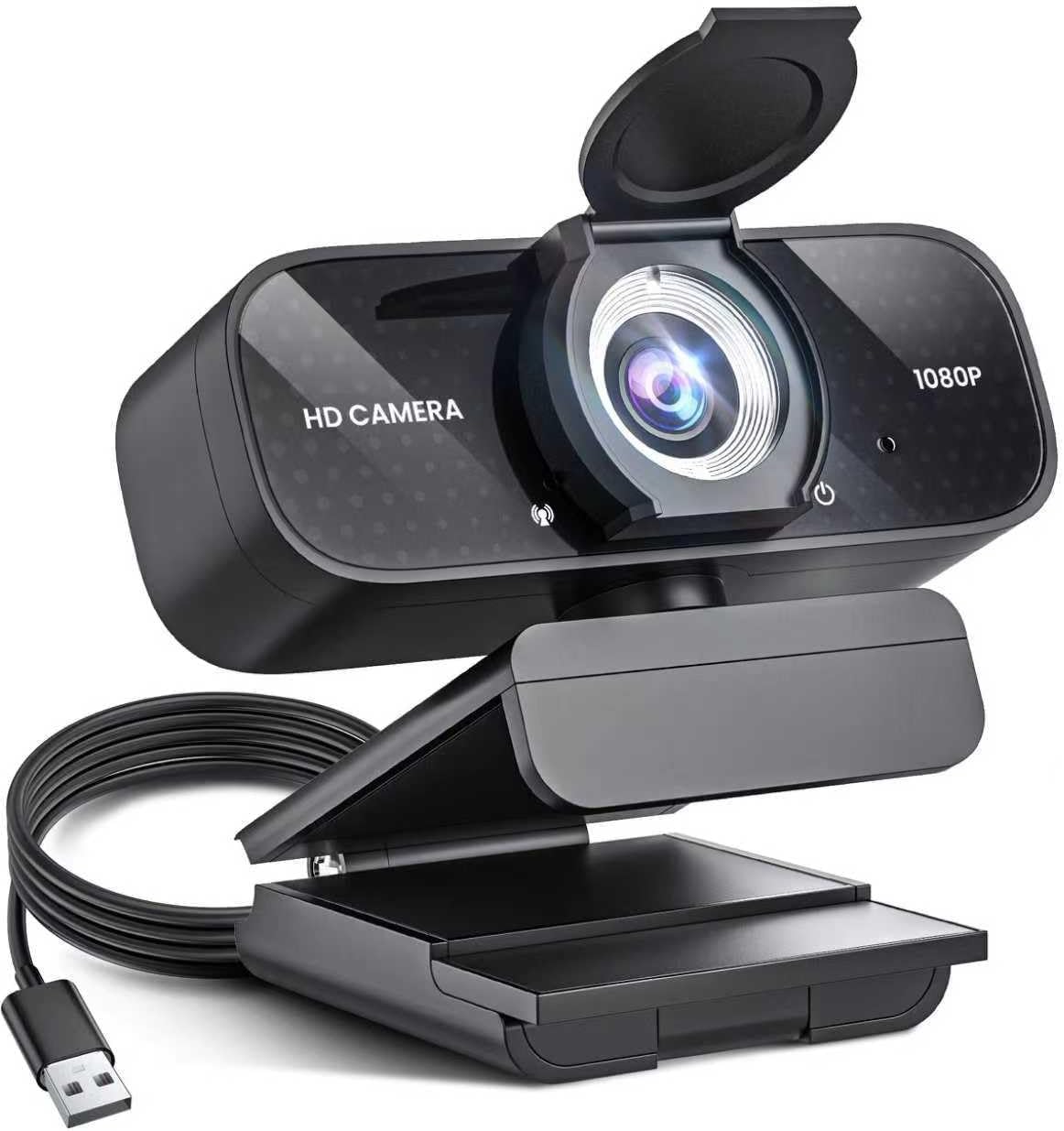
Image 1.1: The TRAUSI 1080P Webcam, showcasing its design with the privacy cover open and the integrated USB cable.
2. Setup Guide
2.1 Package Contents
- TRAUSI 1080P Webcam (Model TW-05)
- User Manual
2.2 Physical Installation
- Unfold the Clip: Gently unfold the flexible clip base of the webcam.
- Mounting: Place the webcam on top of your monitor, laptop screen, or a flat surface. Adjust the clip to securely hold the webcam in position. The clip is designed for stability without requiring strong grip, allowing for easy adjustment.
- Adjust Angle: The webcam features a 360° swivel and 180° tilt capability. Adjust the camera head to achieve your desired viewing angle.

Image 2.1: The webcam's flexible mounting options, demonstrating 360-degree rotation and 180-degree tilt for optimal positioning on a laptop screen.
2.3 Connecting to Your Computer
The TRAUSI 1080P Webcam is designed for seamless plug-and-play functionality, requiring no additional drivers for most operating systems.
- Connect USB: Insert the USB-A connector of the webcam's integrated 5ft USB cable into an available USB port (USB 2.0, 3.0, or 3.1) on your PC, desktop, or laptop.
- System Recognition: Your operating system (Windows, macOS, Linux) will automatically detect and configure the webcam. This process typically takes a few seconds.
- Ready for Use: Once recognized, the webcam is ready for use with your preferred video conferencing or streaming application.

Image 2.2: A hand connecting the webcam's USB cable to a laptop, illustrating the simple plug-and-play setup.
2.4 Universal Compatibility
The webcam is compatible with a wide range of operating systems and applications, including:
- Windows (32-bit/64-bit XP/7/8/10/11)
- macOS
- Linux (with UVC driver or later)
- Common applications like Zoom, Microsoft Teams, FaceTime, Skype, Google Meet, and various streaming platforms.

Image 2.3: An illustration depicting the webcam's universal compatibility across Windows, macOS, and Linux operating systems.
3. Operating Instructions
3.1 Using the Webcam
- Open Privacy Cover: Slide the integrated privacy cover to expose the lens when you are ready to use the webcam.
- Launch Application: Open your desired video conferencing, streaming, or recording application (e.g., Zoom, OBS Studio, Microsoft Teams).
- Select Webcam: In the application's settings, select the TRAUSI 1080P Webcam as your video input device.
- Select Microphone: Also select the TRAUSI 1080P Webcam's integrated microphone as your audio input device.
- Begin Session: You can now start your video call, meeting, or live stream.
- Close Privacy Cover: When not in use, slide the privacy cover back over the lens to ensure privacy and protect the lens.
3.2 Key Features in Operation
- 1080P Full HD Clarity: Experience sharp, vibrant images and smooth video at 30 frames per second, suitable for various visual communication needs.
- Noise-Reducing Built-In Microphone: The integrated microphone is designed to capture clear audio by minimizing background noise, ensuring your voice is transmitted effectively.
- Automatic Light Correction: This technology dynamically adjusts video brightness and color to optimize visual quality in various lighting conditions, from low light to overly bright environments.
- Secure Privacy Cover: The physical privacy cover provides an immediate and reliable way to block the camera lens when not in use, enhancing your privacy and peace of mind.

Image 3.1: A visual comparison demonstrating the superior clarity of 1080P Full HD provided by the webcam compared to 720P.

Image 3.2: The webcam actively correcting lighting in a room, ensuring optimal video quality regardless of ambient light conditions.
4. Care and Maintenance
- Cleaning the Lens: Use a soft, lint-free cloth specifically designed for optics to gently wipe the webcam lens. Avoid abrasive materials or harsh chemicals.
- Cleaning the Body: Wipe the body of the webcam with a soft, dry cloth. Do not use liquid cleaners directly on the device.
- Storage: When not in use, ensure the privacy cover is closed to protect the lens from dust and scratches. Store the webcam in a clean, dry environment.
- Avoid Extreme Conditions: Do not expose the webcam to extreme temperatures, humidity, or direct sunlight for prolonged periods.
5. Troubleshooting
- Webcam Not Detected:
• Ensure the USB cable is securely plugged into a functional USB port. Try a different USB port.
• Restart your computer.
• Check your operating system's device manager or system information to see if the webcam is listed. - No Video Output:
• Verify that the privacy cover is fully open.
• Ensure the webcam is selected as the video input device in your application's settings.
• Close and reopen the application. - No Audio Input:
• Confirm that the TRAUSI webcam's microphone is selected as the audio input device in your application's settings and your operating system's sound settings.
• Check the microphone volume levels in your system settings. - Poor Video Quality / Color Issues:
• Ensure you are in a well-lit environment. While the webcam has automatic light correction, optimal lighting improves performance.
• Check for any software-specific video settings that might be overriding the webcam's automatic adjustments. Some applications may have their own color balance or exposure controls. - Webcam Freezes or Disconnects:
• Try connecting the webcam to a different USB port, preferably a USB 3.0 or 3.1 port if available.
• Ensure your computer's USB drivers are up to date.
• Avoid using long USB extension cables, which can sometimes cause power or data issues.
6. Technical Specifications
| Feature | Specification |
|---|---|
| Brand | TRAUSI |
| Model Number | TW-05 |
| Video Capture Resolution | 1080p Full HD |
| Connectivity Technology | USB (USB 2.0, 3.0, 3.1 compatible) |
| Special Features | 1080P HD, Wide-Angle Lens, Built-in Noise-Canceling Microphone, Automatic Light Correction, Privacy Shield |
| Item Weight | 6.4 ounces |
| Package Dimensions | 6.42 x 4.02 x 2.76 inches |
| Color | Black |
| Photo Sensor Technology | Other |
| Maximum Focal Length | 4 Millimeters |
| Video Capture Format | AVI |
| Supported Audio Format | AAC |
| Screen Size (Diagonal) | 1.5 Centimeters (0.59 inches) |
7. Warranty and Support
7.1 Warranty Information
For detailed warranty information regarding your TRAUSI 1080P Webcam, please refer to the product packaging or visit the official TRAUSI website. Warranty terms and conditions may vary by region and retailer.
7.2 Customer Support
Should you require further assistance, technical support, or have questions not covered in this manual, please contact TRAUSI customer support. You can typically find contact information on the official TRAUSI website or through your purchase platform.
Visit the TRAUSI Store on Amazon for more product information.