
Introduction
This manual provides detailed instructions for the safe and efficient operation of your HAYEAR 8MP Digital Microscope Camera, Model HY-6700. This high-performance camera is equipped with an 8MP sensor, capable of capturing images and videos in 4K Ultra HD and 1080P resolutions. It supports simultaneous USB and HDMI output, making it suitable for various applications including industrial inspection, laboratory research, quality control, and detailed observation with image and video recording capabilities. Please read this manual thoroughly before use and retain it for future reference.
Product Overview
Key Features
- High Resolution: 8MP sensor for 4K Ultra HD and 1080P image and video capture.
- Dual Output: Simultaneous USB and HDMI output for connection to PCs, monitors, or TVs.
- Versatile Applications: Ideal for industrial inspection, laboratory observation, quality control, and educational purposes.
- Image & Video Recording: Features still image capture and video recording functions for detailed documentation.
- System Compatibility: USB connection compatible with Windows, Mac OS, and Linux systems.
Package Contents
Verify that all items listed below are included in your package:
- 1 x HAYEAR Digital Microscope Camera (Model HY-6700)
- 1 x HDMI Cable
- 1 x USB Cable
- 1 x Instruction Manual

Figure 1: Package contents including the camera, HDMI cable, USB cable, and instruction manual.
Setup
Camera Interface and Buttons
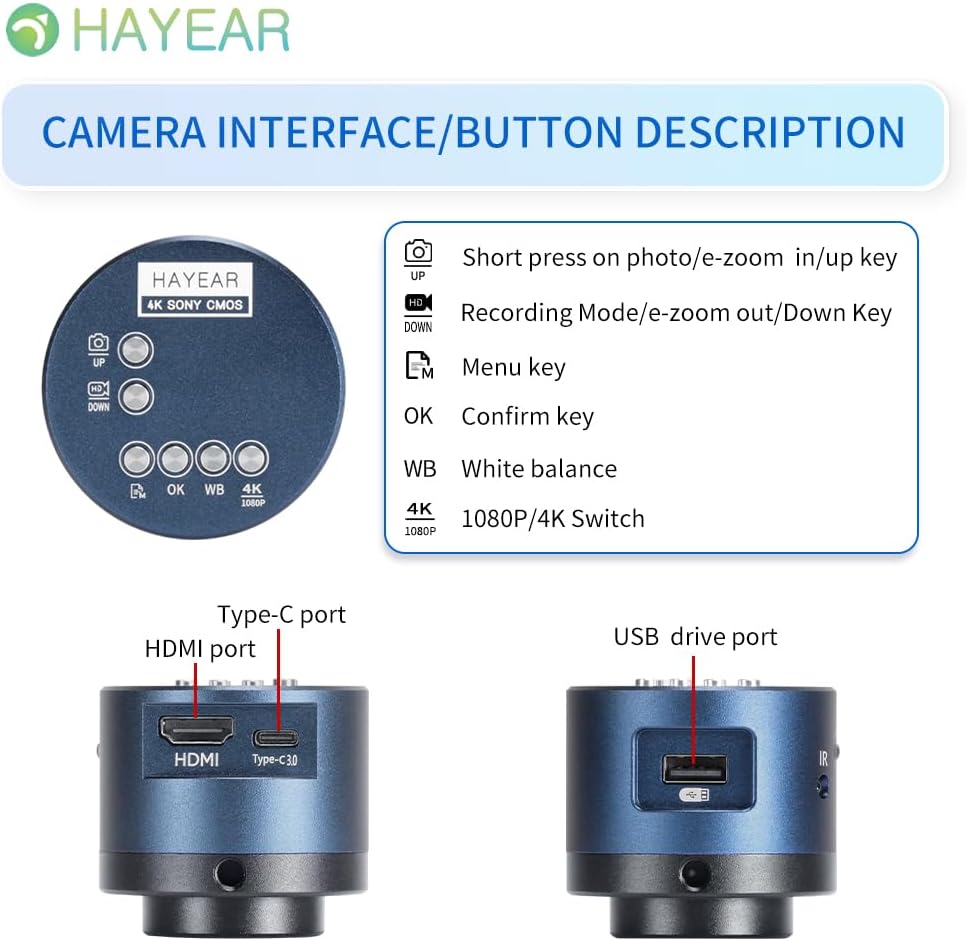
Figure 2: Overview of the camera's control buttons and ports.
- Photo/E-Zoom In/Up Key: Short press to take a photo or zoom in. Use for navigation (Up).
- Recording Mode/E-Zoom Out/Down Key: Short press to switch to recording mode or zoom out. Use for navigation (Down).
- Menu Key: Access the camera's settings menu.
- OK Key: Confirm selections or actions.
- WB (White Balance) Key: Adjust white balance settings.
- 4K/1080P Switch: Toggle between 4K and 1080P resolution output.
- HDMI Port: Connect to an HDMI display (monitor, TV).
- Type-C Port: Power input and data transfer.
- USB Drive Port: Connect to a computer for data transfer or use as a webcam.
Connecting to a Display
The camera supports simultaneous HDMI and USB output. Choose the connection method suitable for your application.
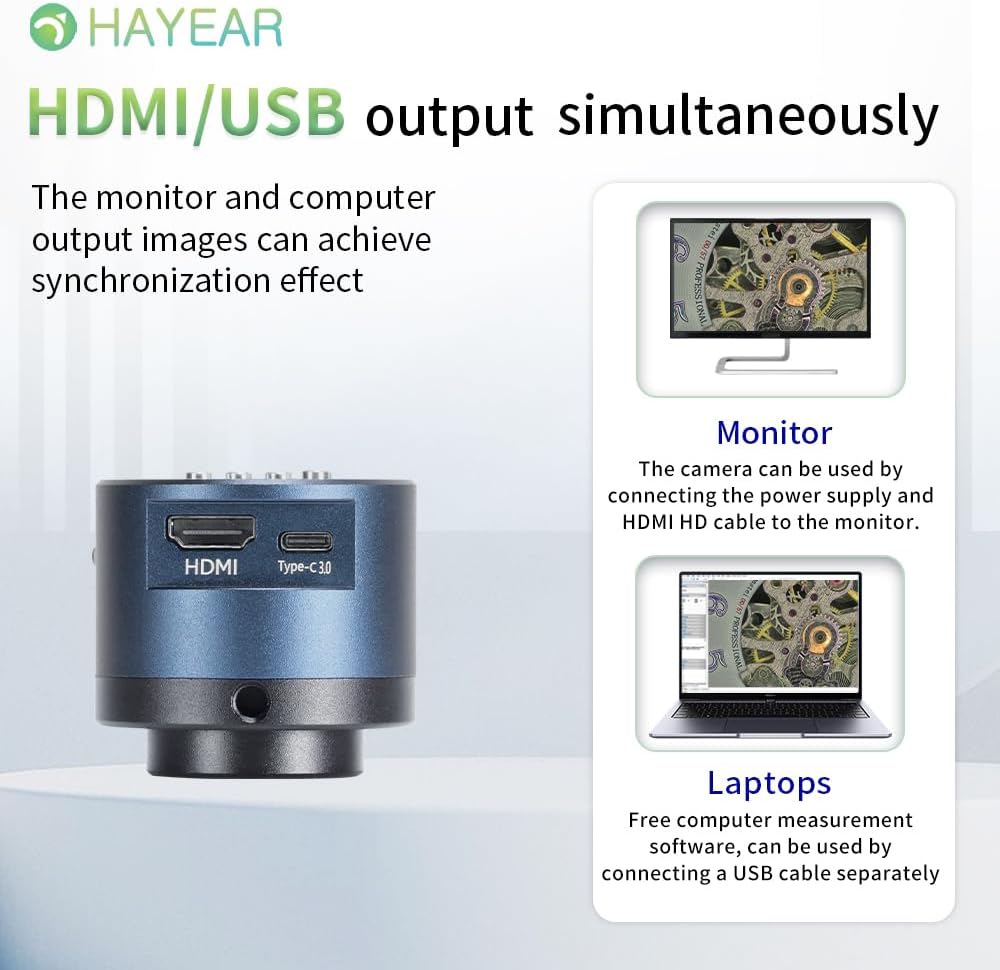
Figure 3: Illustrates simultaneous HDMI and USB output capabilities.
- HDMI Connection: Connect the camera to an HDMI monitor or TV using the provided HDMI cable. Ensure the camera is powered via the Type-C port. This allows for direct display of the microscope's output.
- USB Connection: Connect the camera to a computer (Windows, Mac, or Linux) using the provided USB cable. The camera can function as a webcam or be used with dedicated measurement software.
Powering On/Off
The product powers on automatically when connected to a power source via the Type-C port. To turn off the device, disconnect the power plug from the camera or the power outlet.
Operating Instructions
Basic Operation
- Taking Photos: Short press the "Photo/E-Zoom In/Up" key to capture a still image.
- Recording Videos: Short press the "Recording Mode/E-Zoom Out/Down" key to switch to video recording mode, then press again to start/stop recording.
- Zoom Function: Use the "Photo/E-Zoom In/Up" key to zoom in and the "Recording Mode/E-Zoom Out/Down" key to zoom out.
- Resolution Switch: Press the "4K/1080P" key to toggle between 4K and 1080P output resolutions.
White Balance Adjustment
To achieve accurate color representation, adjust the white balance using the WB key. For one-touch white balance adjustment:
- If the image appears with a blue tint, open the camera's one-touch white balance function.
- Place a white paper under the light source.
- Adjust the light source from its darkest setting gradually to its brightest.
- The camera will automatically adjust the blue tint to a normal white balance state.
Menu Navigation
Press the "Menu" key to access the camera's settings. Use the "Up" and "Down" keys to navigate through options and the "OK" key to select or confirm.
Maintenance
- Cleaning: Use a soft, dry cloth to clean the camera body. For the lens, use a specialized lens cleaning cloth and solution. Avoid abrasive materials or harsh chemicals.
- Storage: Store the camera in a dry, dust-free environment when not in use. Protect it from extreme temperatures and humidity.
- Handling: Handle the camera with care to prevent physical damage. Avoid dropping or subjecting it to strong impacts.
Troubleshooting
If you encounter issues, refer to the following common problems and solutions:
- No Image on Display:
- Ensure the camera is properly powered on and the power cable is securely connected.
- Check the HDMI or USB cable connection to both the camera and the display/computer.
- Verify that the display input source is correctly selected (e.g., HDMI 1, USB).
- Image Appears Blue/Incorrect Colors:
- Perform a one-touch white balance adjustment as described in the "Operating Instructions" section.
- Ensure the lighting conditions are stable and appropriate for observation.
- Cannot Record Images/Videos:
- Ensure a compatible TF memory card (up to 128GB) is inserted correctly into the camera.
- Check if the memory card has sufficient free space.
- Verify that you are in the correct recording mode.
- Camera Not Recognized by PC (USB):
- Ensure the USB cable is securely connected.
- Try connecting to a different USB port on your computer.
- Restart your computer and the camera.
- Ensure your operating system (Windows/Mac/Linux) has the necessary drivers installed (usually plug-and-play).
For further assistance, please contact technical support.
Specifications
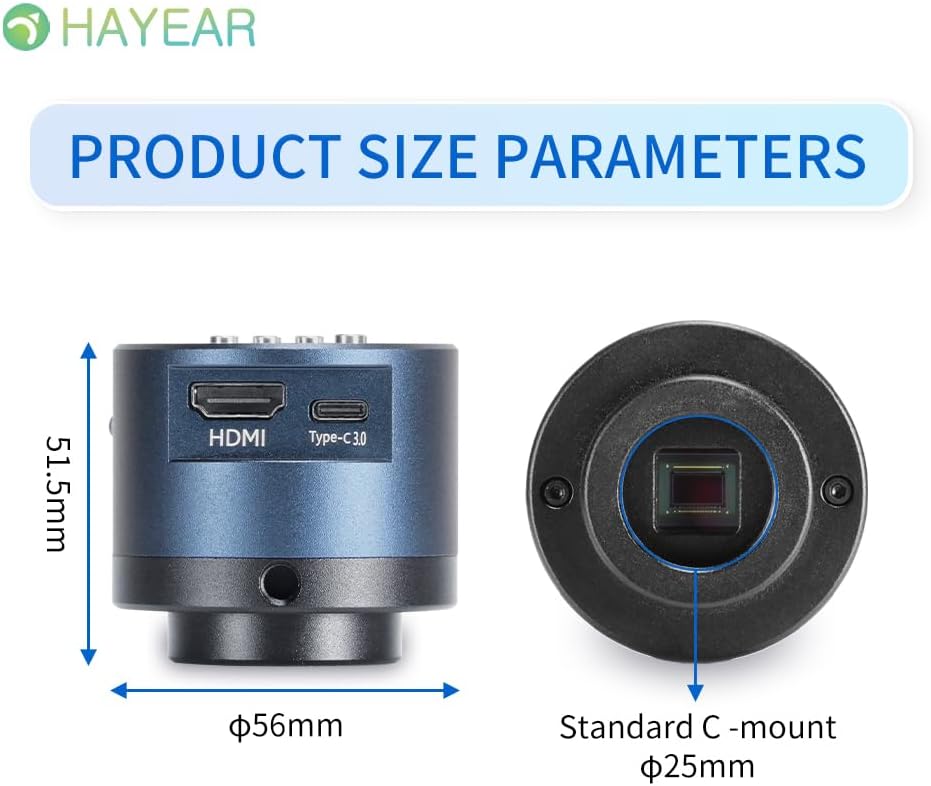
Figure 4: Dimensions of the HAYEAR Digital Microscope Camera.
| Feature | Specification |
|---|---|
| Model | HY-6700 |
| Sensor | 8 Megapixel |
| Video Output | 4K/2K/1080P (HDMI Output) |
| Sensor Size | 1/2.8 inch |
| Pixel Size | 2.0 x 2.0 µm |
| Resolution | 3840x2160@30FPS (4K); 1920x1080P@30FPS |
| Video Recording | Supports 4K video recording |
| USB Output | 1920x1080P@30FPS; 1280x720P@30FPS |
| Wavelength | 400nm ~ 1000nm |
| Output Interface | HDMI / USB (Simultaneous Support) |
| White Balance | One-touch / Auto / Manual |
| Lens Type | Standard C/CS Interface |
| Storage | TF Memory Card, up to 128GB |
| PC Support | Windows / Mac / Linux Systems |
| Image Zoom | 7x Optical Zoom / Digital Zoom |
| Dimensions | 15 x 15 x 8 cm (Product Size) |
| Weight | 500 g |
| Power Input | 5 Volts |
Warranty and Support
Warranty Information
- All products undergo a thorough inspection before shipment to ensure quality.
- Customers are advised to inspect the package upon receipt.
- A one-year free warranty is provided for all machines. This warranty does not cover damage caused by human error or misuse.
Technical Support
Free technical support is always available. If you encounter any issues not covered in this manual or require further assistance, please contact HAYEAR customer service. Refer to the product packaging or official website for contact details.


