
1. Product Overview
This manual provides detailed instructions for the installation, operation, and troubleshooting of your NINETOM 8.8-inch Wireless CarPlay & Android Auto Touchscreen Radio. This device is designed to enhance your driving experience by integrating modern smartphone functionalities into your BMW's existing CIC system.
Key Features:
- Compatibility: Specifically designed for BMW 3 Series E90/E91/E92/E93 (2008–2013) and 5 Series E60/E61 (2008–2010) with the CIC system. Not compatible with other BMW systems.
- Integrated CarPlay & Android Auto: Supports both wired and wireless connections, allowing seamless access to navigation, calls, messages, and music via Siri or touchscreen.
- Original Car Function Retention: Preserves all original vehicle features, including stock radio, amplifier, joystick control, and original reverse camera. No software modifications to car control units.
- High-Resolution Display: Features a 1920×720 HD resolution for a clear and immersive viewing experience. Supports Mirror Link.
- Automatic Day/Night Mode: Light sensitivity adjusts screen brightness based on vehicle headlight status for comfortable viewing.
- Multiple Control Methods: Operates via touchscreen, original steering wheel buttons (voice command, telephone, media), and iDrive controller.
- Linux System: Ensures stable performance without freezing.

Figure 1: NINETOM 8.8-Inch Touchscreen Radio installed in a BMW dashboard, displaying the CarPlay interface.
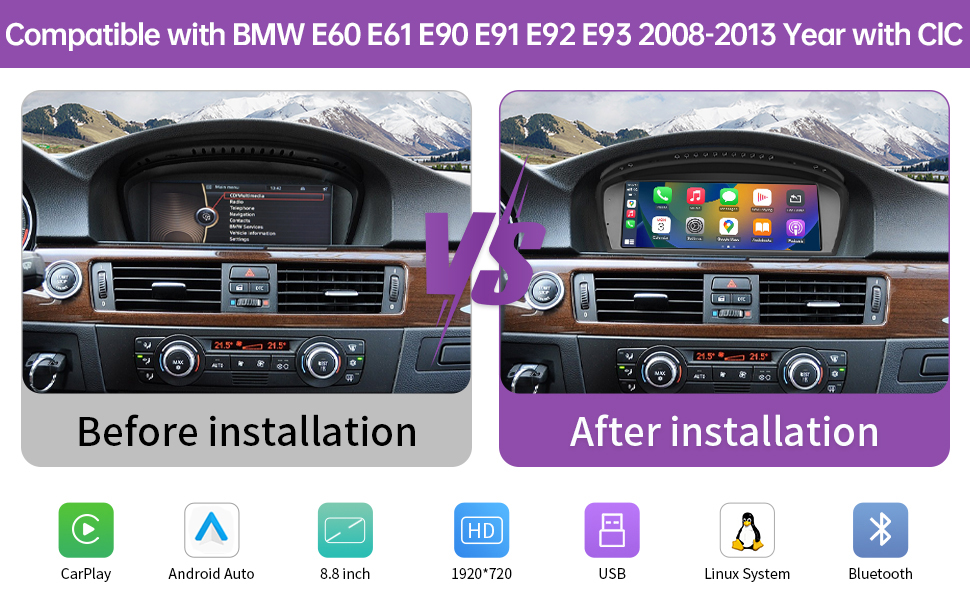
Figure 2: Visual comparison of the BMW dashboard before and after the NINETOM 8.8-inch touchscreen radio installation, highlighting the modernized display.
2. Setup and Installation
2.1 Compatibility Check
Before installation, verify your vehicle's compatibility with the NINETOM 8.8-inch touchscreen radio. This unit is designed for BMW 3 Series E90/E91/E92/E93 (2008–2013) and 5 Series E60/E61 (2008–2010) equipped with the CIC system. It is not compatible with CCC, NBT, or EVO systems.

Figure 3: Compatibility chart illustrating supported BMW 3 and 5 Series models (E90, E91, E92, E93, E60, E61) and their respective years with the CIC system.

Figure 4: Diagram illustrating the NINETOM screen's compatibility with the original car system, wireless CarPlay, and Android Auto functionalities.
2.2 Physical Installation
The installation process is designed to be plug-and-play, requiring no cutting or rewiring of original car cables. The package includes the 8.8-inch touchscreen and all necessary cables.

Figure 5: Product size and accessories list, including the 8.8-inch screen, power cable, USB cable, AUX cable, and mounting bracket.
Optical Fiber Cable Relocation:
If your original vehicle has an optical fiber cable, it must be removed from the original connector and inserted into the harness of the new power cable to ensure proper audio functionality.
Video 1: Demonstrates how to relocate the optical fiber cable to the Linux harness for BMW vehicles, ensuring correct audio signal routing.
2.3 Sound Setup
Proper sound configuration is crucial for optimal audio performance. This section details the steps for setting up sound via AUX cable and Bluetooth.
Video 2: Guide on audio settings for the Linux screen in BMW CIC and NBT systems, covering both AUX and Bluetooth sound transmission methods.
AUX Cable Transmission:
- Connect the EXT-AUX cable to the AUX port in your vehicle.
- If your mobile phone's Bluetooth is connected to the original vehicle's Bluetooth, disconnect it.
- Return to the main menu page of the original system, select "Multimedia", then "External devices", and finally "AUX front".
- Adjust the volume of AUX. Ensure it is not set to 0.
- Switch to the new system and turn on CarPlay/Android Auto. You should now hear music.
Bluetooth Transmission (for vehicles with OEM vehicle Bluetooth supporting phone calls and music):
- Return to the main page of the new system and select "Setup" -> "System". Turn on the "Use Car's BT Channel" switch.
- Select "Home" to return to the main interface. Switch to the original vehicle system.
- Turn on the original vehicle's Bluetooth page (e.g., "Telephone" -> "Bluetooth devices").
- Turn on your mobile phone's Bluetooth and connect to the original vehicle's Bluetooth (e.g., "BMW 26742").
- Return to the new system, select "Multimedia" -> "External devices", and select the Bluetooth name of your mobile phone.
- Switch to the new system and turn on CarPlay/Android Auto. You should now hear music.
Warm Reminder: The vehicle's Bluetooth sound mode only supports CarPlay and Android Auto. If you are using screen mirroring or USB to play music/videos, please use AUX sound mode.
2.4 Resolution Setup
Before using the OEM system, it is important to set the correct screen resolution. An incorrect resolution can cause the OEM system to display incorrectly. You must select a resolution compatible with your original vehicle screen or manually test resolutions to find the correct one.
Video 3: Instructions for setting the original resolution for BMW screens, crucial for proper display of the OEM system.
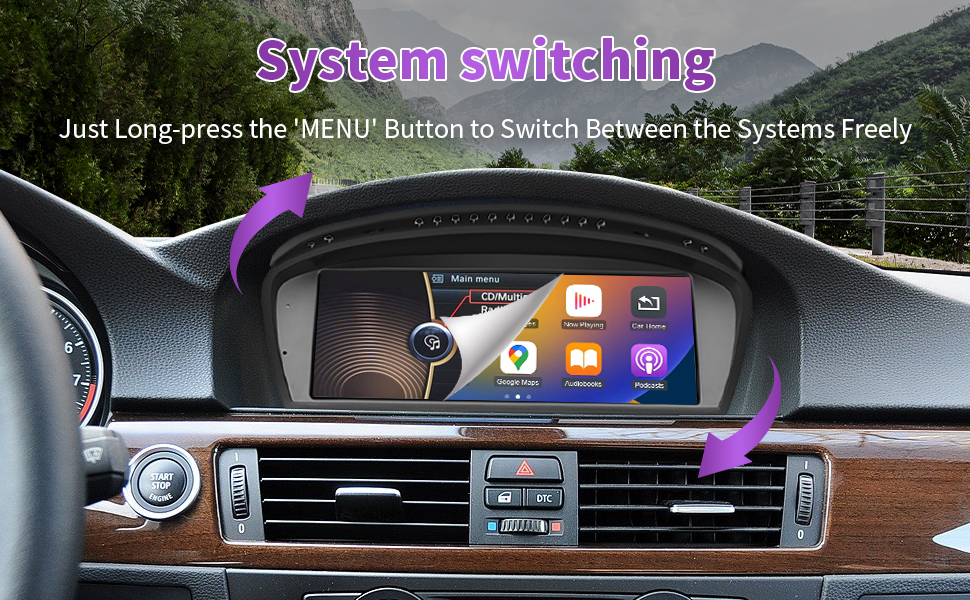
Figure 6: Resolution comparison highlighting the enhanced clarity of the 1920x720 HD display compared to a standard 1280x480 screen.
- From the new system interface, navigate to "Setup" -> "Car Settings" -> "Original Car's Screen Resolution".
- Manually adjust the resolution settings until the original car interface displays correctly. Refer to Video 3 for guidance.
3. Operating Instructions
3.1 System Switching
You can easily switch between the new Linux system (CarPlay/Android Auto) and your original BMW CIC system.
Video 4: Demonstrates the system switching functionality between the new Linux screen and the original BMW CIC/NBT system.

Figure 7: Illustration of system switching: long-press the 'MENU' button on the iDrive controller to toggle between the new Linux system and the original car interface.
- From New System to Original: Click "Original car interface" on the new system's home screen, or long-press the "MENU" button on your iDrive controller for 3 seconds.
- From Original System to New: Touch anywhere on the screen when in the original system, or long-press the "MENU" button on your iDrive controller for 3 seconds.
3.2 Wireless CarPlay & Android Auto Connection
Connect your smartphone wirelessly to access CarPlay or Android Auto features.
Video 5: Step-by-step guide on how to set up Wireless CarPlay on your BMW, enabling seamless smartphone integration.
Video 6: Instructions for connecting to Wireless AirPlay, allowing screen mirroring from your iPhone to the NINETOM display.

Figure 8: Display of CarPlay, Android Auto, and Mirror Link functionalities, demonstrating how smartphone apps are shown on the NINETOM screen.
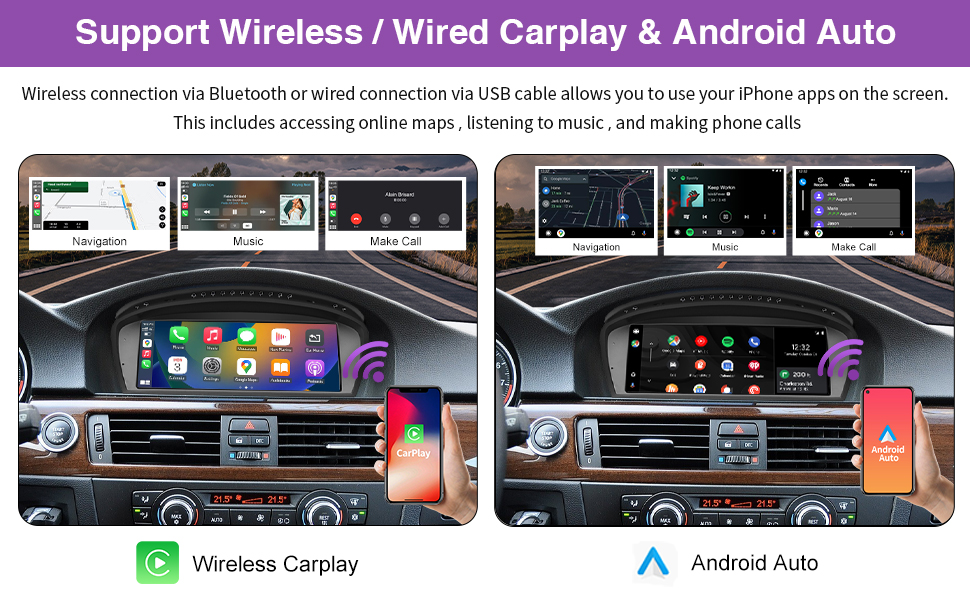
Figure 9: Illustration of wireless/wired CarPlay and Android Auto support, allowing iPhone and Android apps to be displayed on the screen for navigation, music, and calls.
- Ensure the "CarPlay" option is turned on in "Setup" -> "Smart Phone" -> "Smart Phone Setting" on the NINETOM system.
- On your mobile phone, turn on Wi-Fi and Bluetooth.
- Search for the screen's Bluetooth name (e.g., "CAR-BT-XXXX") and pair with it.
- Allow contact and favorites sync if prompted.
- On your phone, a prompt will appear to "Use CarPlay" (or Android Auto). Confirm to activate the function.
3.3 Day and Night Mode
The screen features automatic light sensitivity, adjusting its brightness for optimal visibility during day or night driving based on your vehicle's headlight status.

Figure 10: Day and Night Mode feature, demonstrating automatic brightness adjustment based on ambient light conditions for improved visibility.
3.4 Original Car Functions and Controls
The NINETOM system integrates seamlessly with your BMW's existing controls and features.

Figure 11: Demonstrates support for original car settings, including stereo sound, original reverse system (with aftermarket camera support), CD player, steering wheel controls, and iDrive knob control.
- Steering Wheel Controls: Use your original steering wheel buttons for media control, telephone functions, and voice commands.
- iDrive Controller: The original iDrive knob can be used to navigate the new system interface.
- Reverse Camera: Compatible with both OEM and aftermarket rearview cameras, supporting DVR systems.
4. Maintenance
Maintenance information for this product is not explicitly detailed in the provided product information. Generally, keep the screen clean using a soft, lint-free cloth. Avoid abrasive cleaners. Ensure all connections remain secure. For software updates, refer to the "Firmware Update" option in the system settings if available.
5. Troubleshooting
5.1 AUX Input Issues
If you experience issues with AUX audio input, consider the following:
- Has the optical fiber cable been transferred to the new power harness?
- Has the "Use Car's BT Channel" option been turned off?
- Has the phone's Bluetooth connection to the vehicle been disconnected?
- Has the AUX cable been connected, and its input volume turned up (not 0)?
- If there is noise, try connecting or disconnecting the GND cable.
5.2 Vehicle Bluetooth Audio Issues
If you encounter problems with vehicle Bluetooth audio, check these points:
- Has the optical fiber cable been transferred to the new power harness?
- Has the "Use Car's BT Channel" option been turned on?
- Has the phone's Bluetooth been connected to the vehicle's Bluetooth instead of the screen's Bluetooth?
- Has the Bluetooth been selected as the audio output in the original vehicle system?
- Has the phone's sound output mode been set to the vehicle's Bluetooth rather than its speaker?
5.3 Display Issues (Incorrect Resolution)
If the original system display appears distorted or incorrect after installation:
- Navigate to "Setup" -> "Car Settings" -> "Original Car's Screen Resolution" in the new system.
- Manually adjust the resolution settings until the original car interface displays correctly. Refer to Video 3 for guidance.
6. Specifications
| Feature | Detail |
|---|---|
| Brand | NINETOM |
| Model Number | NINETOM 8.8 |
| Screen Size | 8.8 inches |
| Resolution | 1920x720 HD |
| Operating System | Linux |
| Connectivity Technology | USB, HDMI, RCA, Optical Audio |
| Special Features | Equalizer, Touchscreen, Wireless CarPlay, Android Auto, Mirror Link, Day/Night Mode |
| Compatible Devices | Smartphone |
| Audio Output Mode | Stereo, Surround |
| Surround Sound Channel Configuration | 5.1 |
| Video Encoding | H.264, H.265/HEVC |
| Item Weight | 3.45 pounds (1.57 Kilograms) |
| Package Dimensions | 12.68 x 7.05 x 5.43 inches |
7. Warranty Information
Specific warranty details are not provided in the product information. Please refer to the retailer or manufacturer's official website for current warranty terms and conditions.
8. Customer Support
If you encounter any issues during installation or operation, or require further assistance, please contact NINETOM customer support. Contact information can typically be found on the product packaging, the retailer's website, or the NINETOM brand store on Amazon.
For direct support, you may visit the NINETOM Store on Amazon and use the "Ask a question" feature.
